Monitored URLs
The Monitored URLs page follows a project’s public sites: TechWatchAlert spots the technologies they serve (web server, language, CMS, JavaScript libraries…), records the HTTP code and the HTTPS certificate expiry, and can add the detected technologies to the stack automatically, so that their CVEs become alerts.
The screen is under Monitoring › URLs. It shows the URLs of the active project; with no active project it says “Select a project to manage monitored URLs”. The header gives the number of URLs and the pace: “technologies scanned automatically every 3 h”.
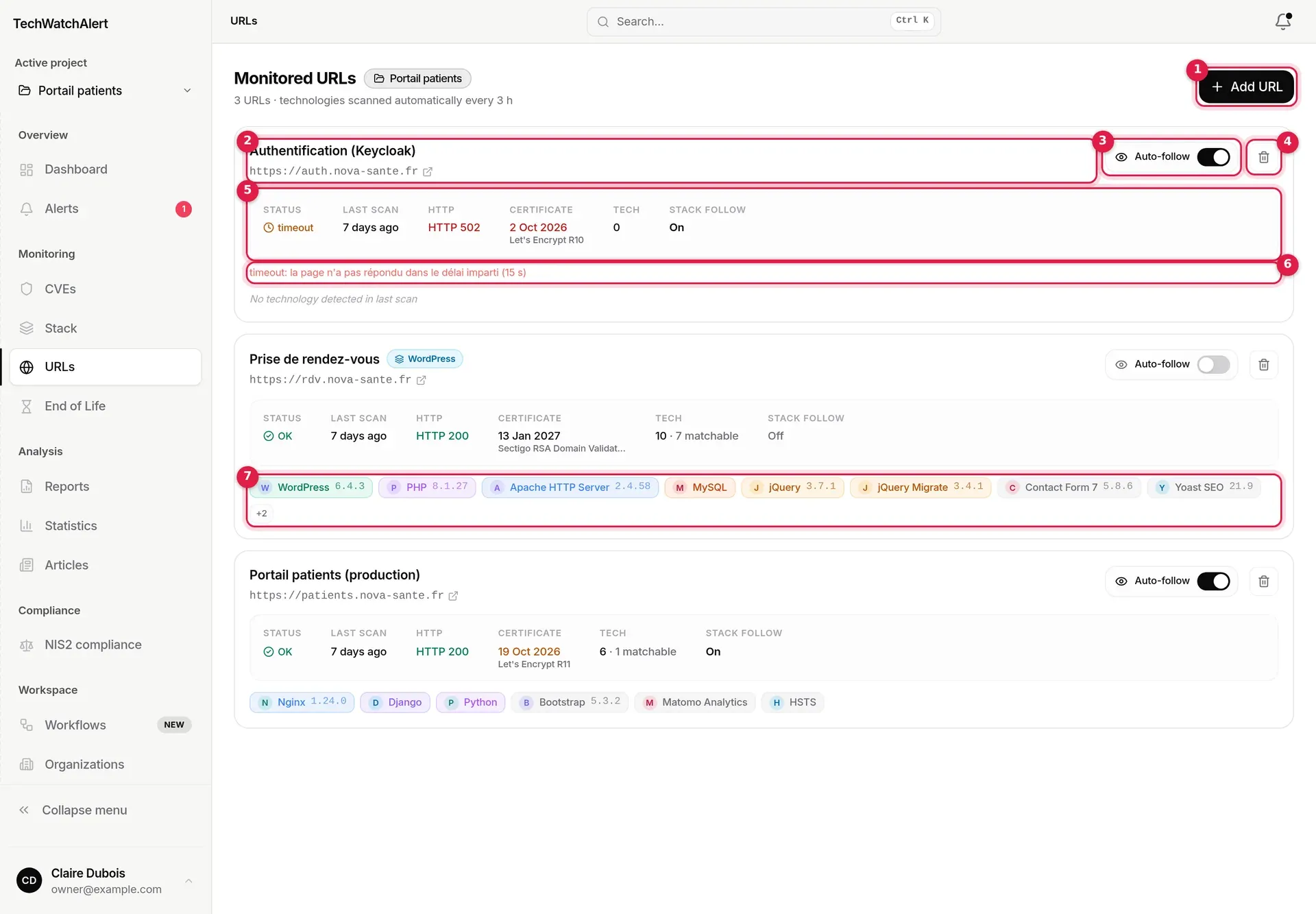
- Add URL: opens the add window.
- The URL’s label (or its domain when there is no label), and the address, which opens the site in a new tab.
- Auto-follow: adds the detected technologies to the stack automatically.
- Delete the URL.
- Information strip of the latest scan: status, date, HTTP code, certificate, technologies, stack follow.
- Error message of the latest scan, when it failed.
- Detected technologies, with their version when known.
URLs are listed from most recently added to oldest. There is no detail page: each card shows the latest scan. Detection history is kept, but the interface does not display it.
Adding a URL
Section titled “Adding a URL”-
Click Add URL.
-
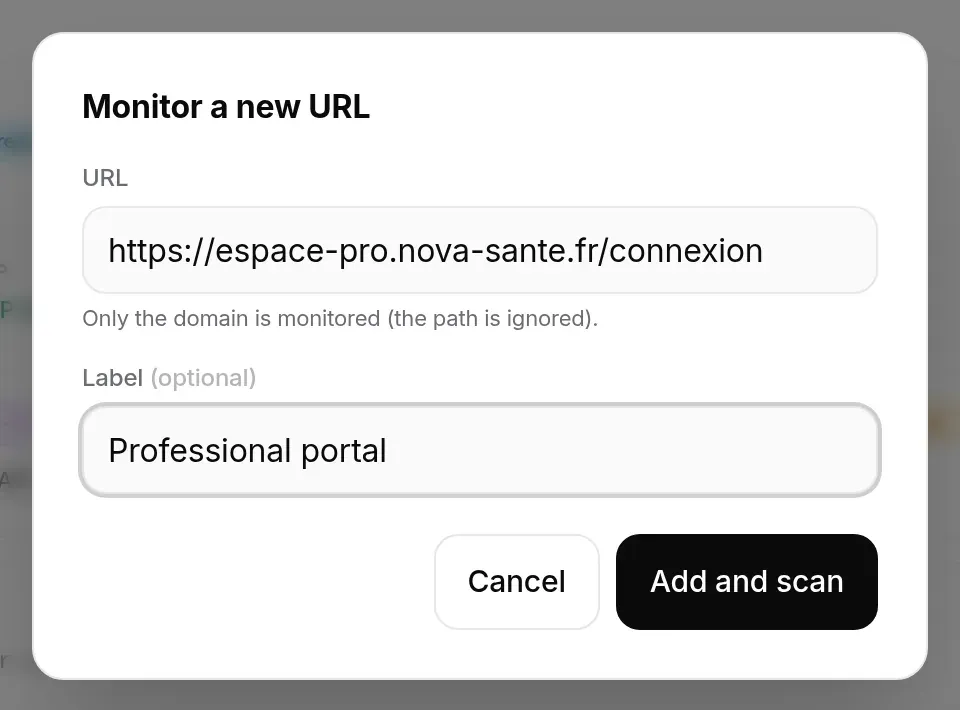
Enter the site’s URL and, if you like, a Label (100 characters max), such as “Production site”.
-
Click Add and scan. The card appears straight away with the scanning… status; the first scan runs in the background and the card fills in when it returns.
When adding, TechWatchAlert applies these rules:
- Only the domain is monitored: the path is ignored.
https://espace-pro.nova-sante.fr/connexionbecomesespace-pro.nova-sante.fr. - The domain must answer: HTTPS (port 443) is tried first, then HTTP (port 80). Otherwise the addition is refused (the server’s message, shown in French, says the domain cannot be reached). The URL is stored with the scheme that answered, HTTPS first.
- No duplicates: a site is tracked once per project, ignoring
http/https, thewww.prefix and a trailing slash. - Public addresses only: internal addresses are refused.
- 10 scans per minute at most per person, additions included (“Too many scans — please retry in a minute.”).
- Auto-follow on by default: technologies detected by the first scan will be added to your stack.
When refused, the message appears in the window, which stays open.
Reading a card
Section titled “Reading a card”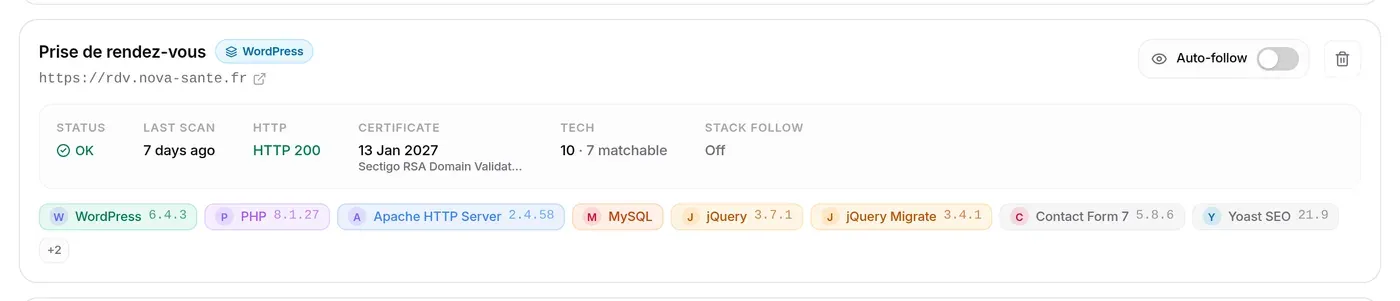
A WordPress badge appears next to the label when WordPress is among the detected technologies.

| Item | What it tells you |
|---|---|
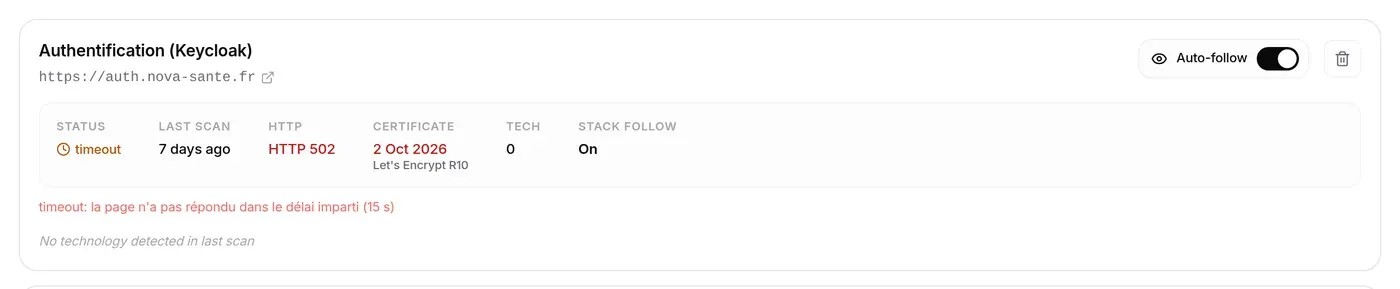
| Status | OK; scanning… during the first scan; timeout if the site did not answer in time; error for any other failure. |
| Last scan | How long ago (hover: the exact timestamp), or “never scanned”. |
| HTTP | The code returned by the site: green from 200 to 399, amber from 400 to 499, red from 500. |
| Certificate | Expiry date of the HTTPS certificate and the authority that issued it. Amber under 30 days, red under 15 days or once expired. “no HTTPS” if the site has none. |
| Tech | Number of technologies detected, and how many are matchable, that is, can be matched to CVEs (they have a CPE identifier). |
| Stack follow | On or Off. |
Under the strip, detected technologies are coloured by category (web servers, languages, frameworks, JavaScript libraries, CMS, databases…); hovering shows the category. The first eight are visible; +N shows the rest, Show less folds them back.

When the latest scan failed, its reason is shown in red under the strip, and the list says “No technology detected in last scan”.
The automatic scan
Section titled “The automatic scan”Each URL is scanned again every 3 hours, automatically; there is no button to rescan by hand. A scan:
- records the technologies the page serves (reading headers and HTML);
- updates the HTTP code and the certificate (expiry date, issuer);
- if Auto-follow is on and the scan succeeded, adds new matchable technologies to the stack.
Auto-following the stack
Section titled “Auto-following the stack”The Auto-follow switch ties the URL to the stack. Hovering tells you how many technologies it will follow.
- On: the matchable technologies of the latest scan are added at once to the project’s stack, shared by the team, as products, with their vendor, version and CPE; after that, each scan adds new ones as they appear. Technologies already present (same product, same version) are not duplicated. A message tells you what happened: technologies added, all already present, or additions at the next scan.
- Off: nothing more is added, but nothing is removed from the stack (“Following disabled - technologies already added to the stack are kept.”).
Technologies without a CPE (audience measurement, fonts…) are never added: no CVE can concern them.
What raises an alert
Section titled “What raises an alert”- CVEs of the detected technologies, once they are in the stack (through auto-follow or by hand): they go through the normal alerts flow, under the project policy. A URL with auto-follow off produces no CVE alert.
- HTTPS certificate expiry: when the certificate drops under 60, 30, 14, 7 or 1 day, or expires, the project’s workflows triggered by HTTPS certificate expiring run for every project member, once per threshold and per certificate. No such workflow is created with the project: add one in Workflows to be warned.
A change of HTTP code or a failed scan raises no alert: you read them on the card.
Deleting a URL
Section titled “Deleting a URL”The bin button opens a confirmation.
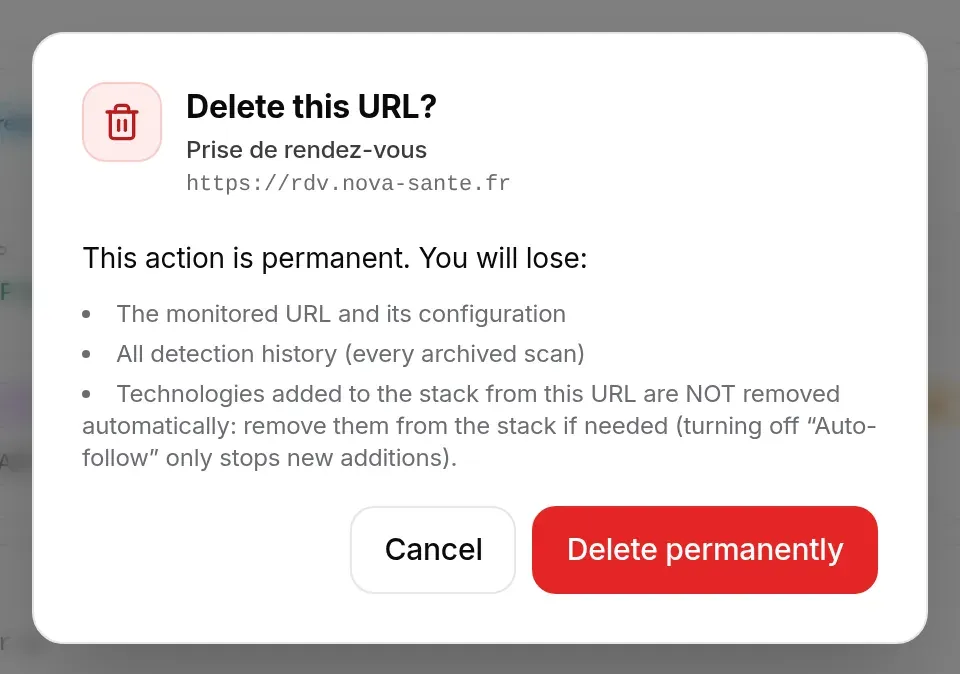
Delete permanently erases the URL, its configuration and all its scan history. Technologies already added to the stack stay: remove them from the Stack page if needed (the window mentions “Unwatch”: it means turning Auto-follow off, which does not remove anything either).
Who can do what
Section titled “Who can do what”| Action | User | Analyst | Admin | Owner |
|---|---|---|---|---|
| View URLs and their technologies | ✓ | ✓ | ✓ | ✓ |
| Add, delete, turn auto-follow on or off | ✓ | ✓ | ✓ |
Without management rights, the Add URL button, the switch and the bin are hidden.
What depends on your plan
Section titled “What depends on your plan”The number of monitored URLs is capped per project. With the instance’s default settings: 3 URLs on Free, 25 on Team, 100 on Pro, unlimited on Business. Beyond that the addition is refused; the message appears in the window and the plan picker opens. A plan with 0 URLs locks the URLs menu entry. See Plan and billing.
Technologies added by auto-follow count towards the organisation’s stack item cap.
Can I monitor a specific page, such as /login?
No: only the domain is monitored. For two applications on different subdomains, add two URLs.
My internal site is not accepted. Internal addresses (private network, local machine) are refused: monitoring covers public sites only. For an internal estate, use the inventory connectors or a file import.
How is this different from “Detect from a URL” on the Stack page? Detection from the stack is a one-off and saves nothing but the technologies you choose. A monitored URL is scanned again every 3 hours, tracks its certificate and can feed the stack by itself.