Finding your way around
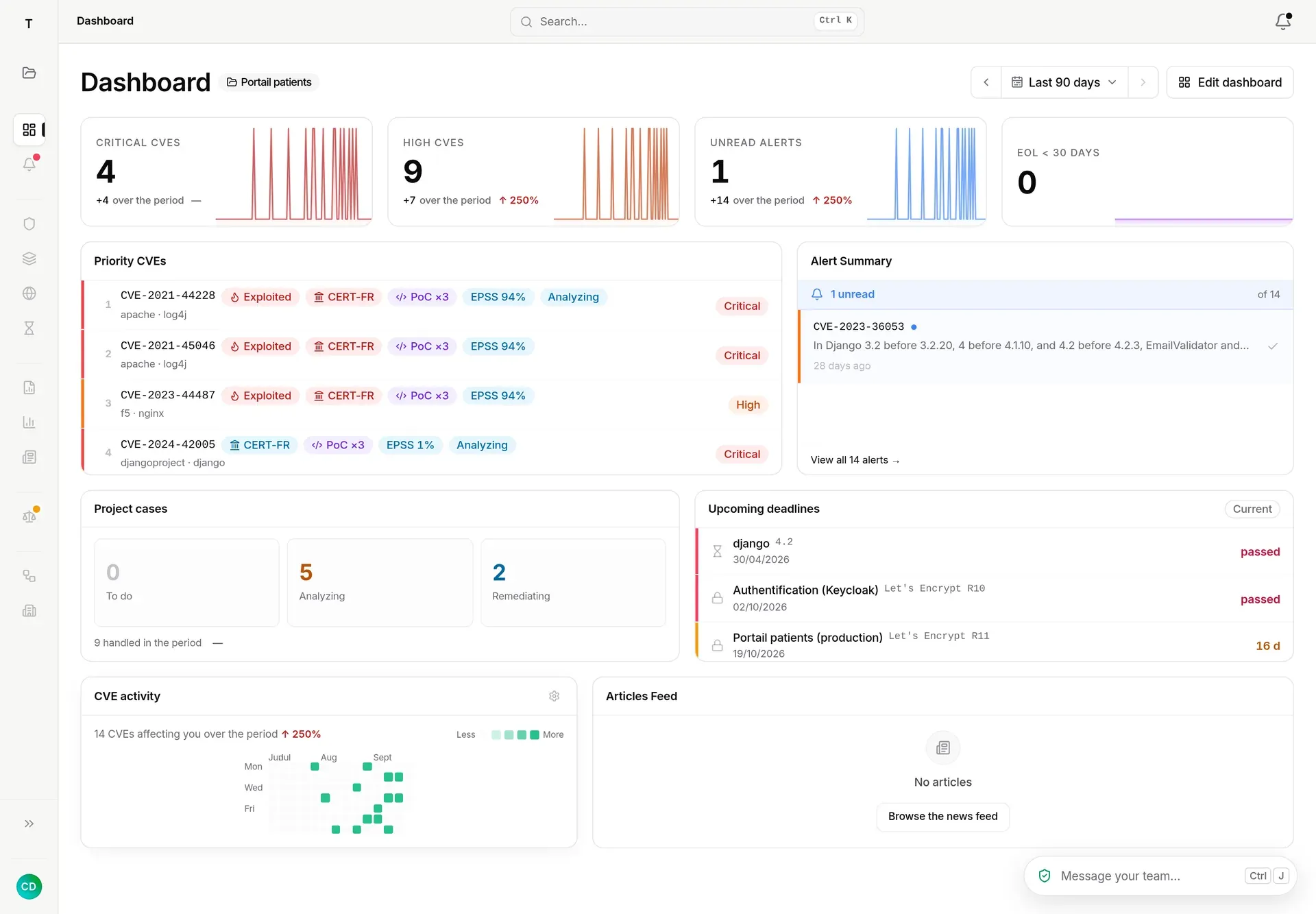
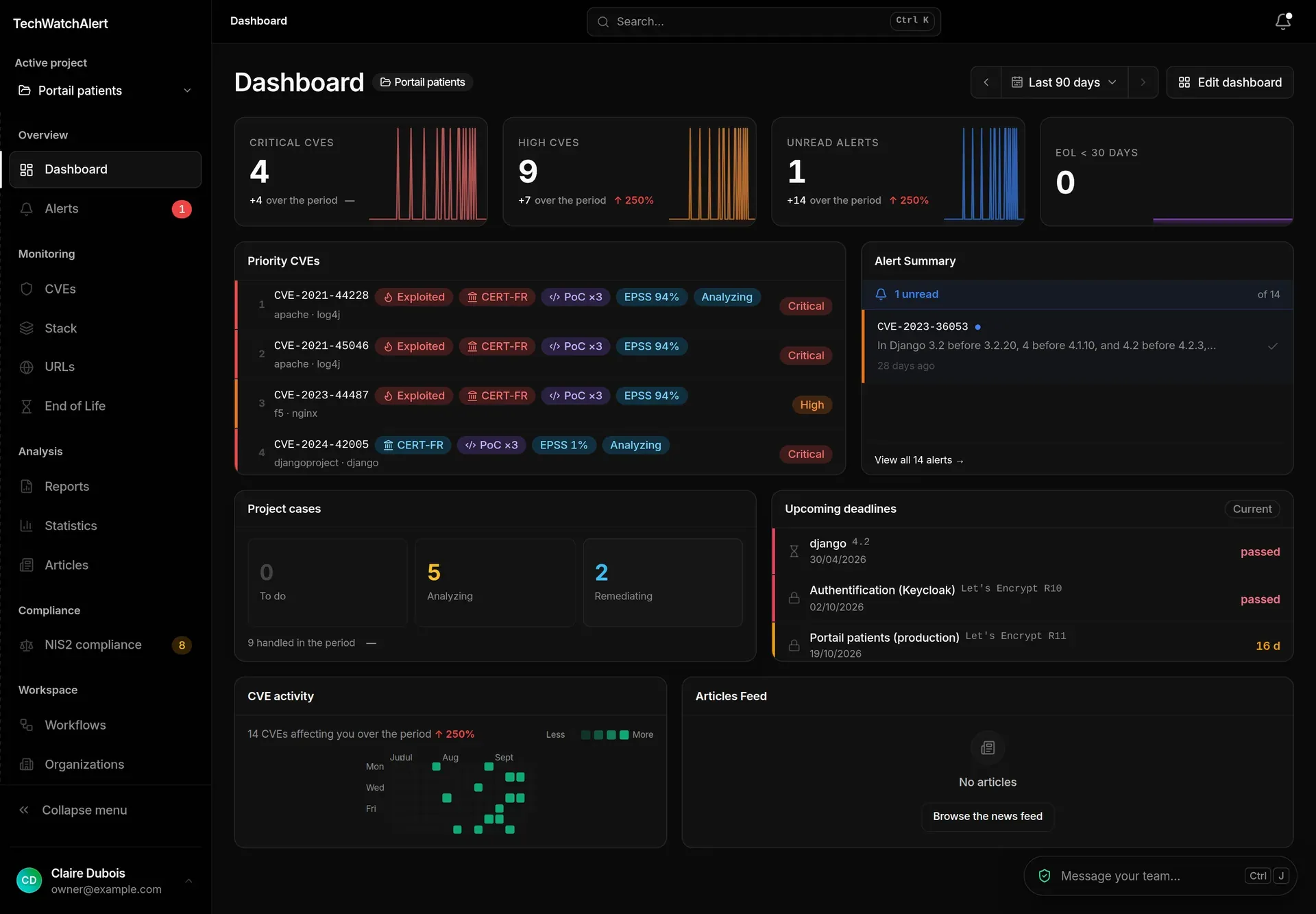
Once you are signed in, every TechWatchAlert screen is made of the same parts: a sidebar on the left, a top bar and the page itself. This page describes each of them, for all users.
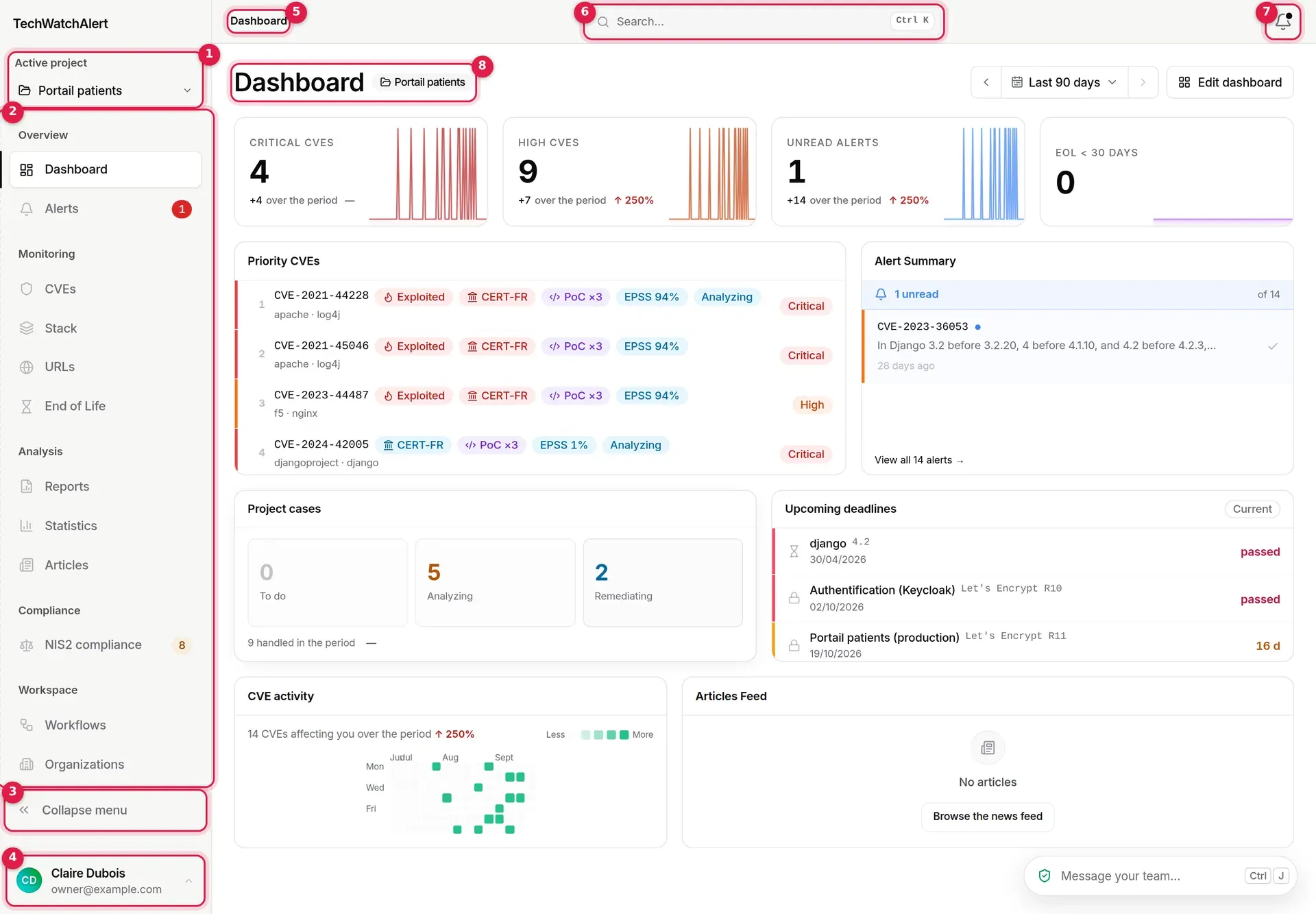
- Active project: the project whose data you are looking at.
- Navigation: the application’s pages, grouped into sections.
- Collapse menu: keeps only the icons.
- User menu: settings, subscription, sign out.
- Breadcrumb: where you are.
- Search (Ctrl K): pages, settings, CVEs and documentation.
- Notifications: the panel of recent events.
- Page title and, next to it, the project it applies to.
The sidebar
Section titled “The sidebar”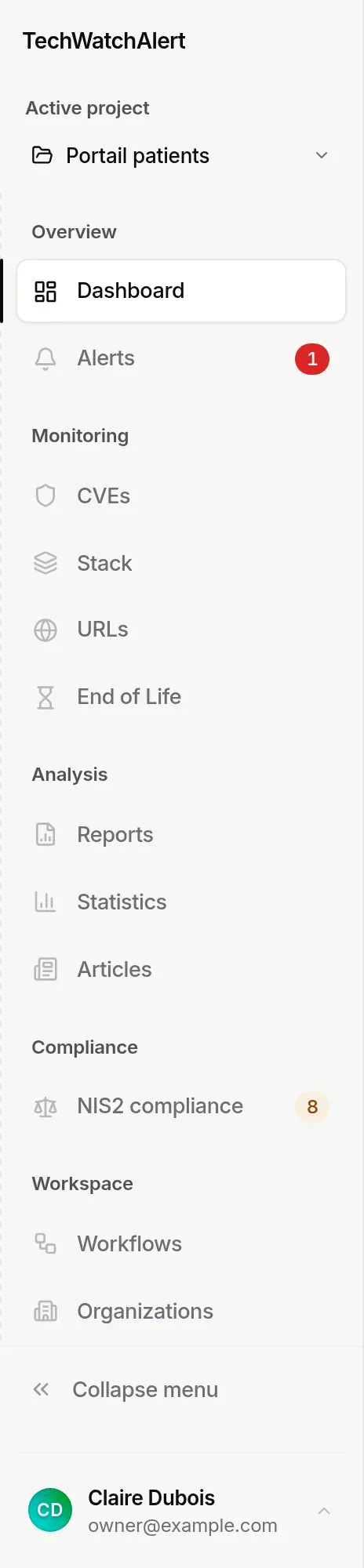
At the top, the platform’s name (or logo) takes you back to the dashboard. If your organisation is a partner’s client (see Partner space), the partner’s logo is shown instead, with the words “via TechWatchAlert” depending on its plan.
Next come the project selector and the sections:
| Section | Entries |
|---|---|
| Overview | Dashboard, Alerts, Planning, Incidents |
| Monitoring | CVEs (the CVE database), Stack, URLs, End of Life, Suppliers |
| Analysis | Reports, Statistics, Articles |
| Frameworks | Frameworks (NIS2, ISO 27001…: the coverage) |
| Workspace | Workflows, Organizations |
| Administration | Admin Panel, for platform administrators only |
Incidents, Suppliers and Frameworks only appear if the organisation follows at least one framework (NIS2, ISO 27001, CIS Controls, ANSSI: see Frameworks), or if you can turn one on (owners and administrators); Incidents also requires the right to see incidents. The registers of the former “NIS2 compliance” space live where the work is done: Planning, Incidents, Suppliers, the Exceptions view of Alerts and the inventory review on the Stack page.
The entry for the open page is highlighted. An entry only appears if your role lets you see the page (for instance, Reports requires the right to export reports); an empty section disappears. When the list is taller than the screen, it scrolls.
The alerts badge
Section titled “The alerts badge”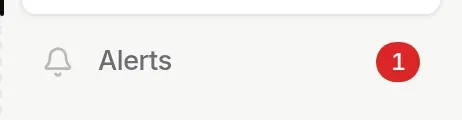
The red badge on Alerts counts your unread CVE alerts for the active project (“99+” above 99). It refreshes every five minutes and whenever you change project.
The amber, outlined badge on Frameworks, so it is not confused with the alerts one, counts what awaits action in the registers of the active project’s organisation: escalated deadlines, overdue inventory reviews, incident reports, risks to approve… (see the Planning and the registers). It only shows when the registers are open to you: a plan that includes them, at least one enabled project, and you are a member of the organisation. With the menu collapsed, it becomes an amber dot on the icon.
Locked entries
Section titled “Locked entries”When a module is not included in the organisation’s subscription, its entry stays visible but greyed out, with a padlock. On hover, the padlock shows the plan that includes it (for instance Team) and a tooltip reads “Included from the Team plan”.
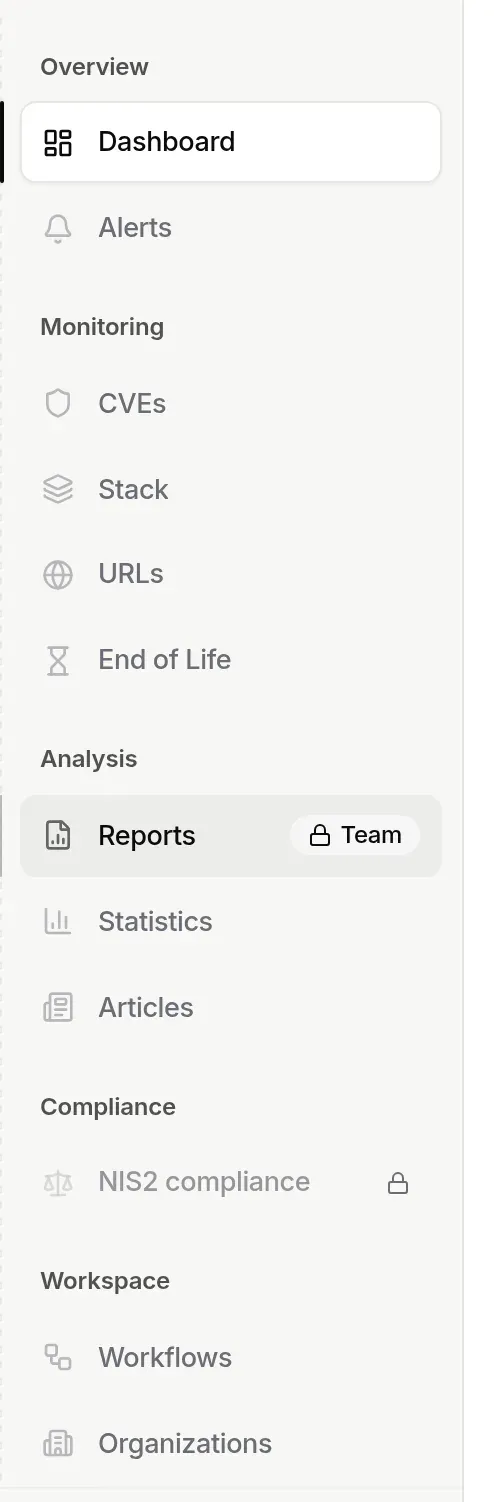
Clicking the entry does not open the page but the Choose a subscription window, headed “Reports is unlocked with the Team plan”, with Unlocks Reports on every plan that includes it; the recommended plan is flagged.
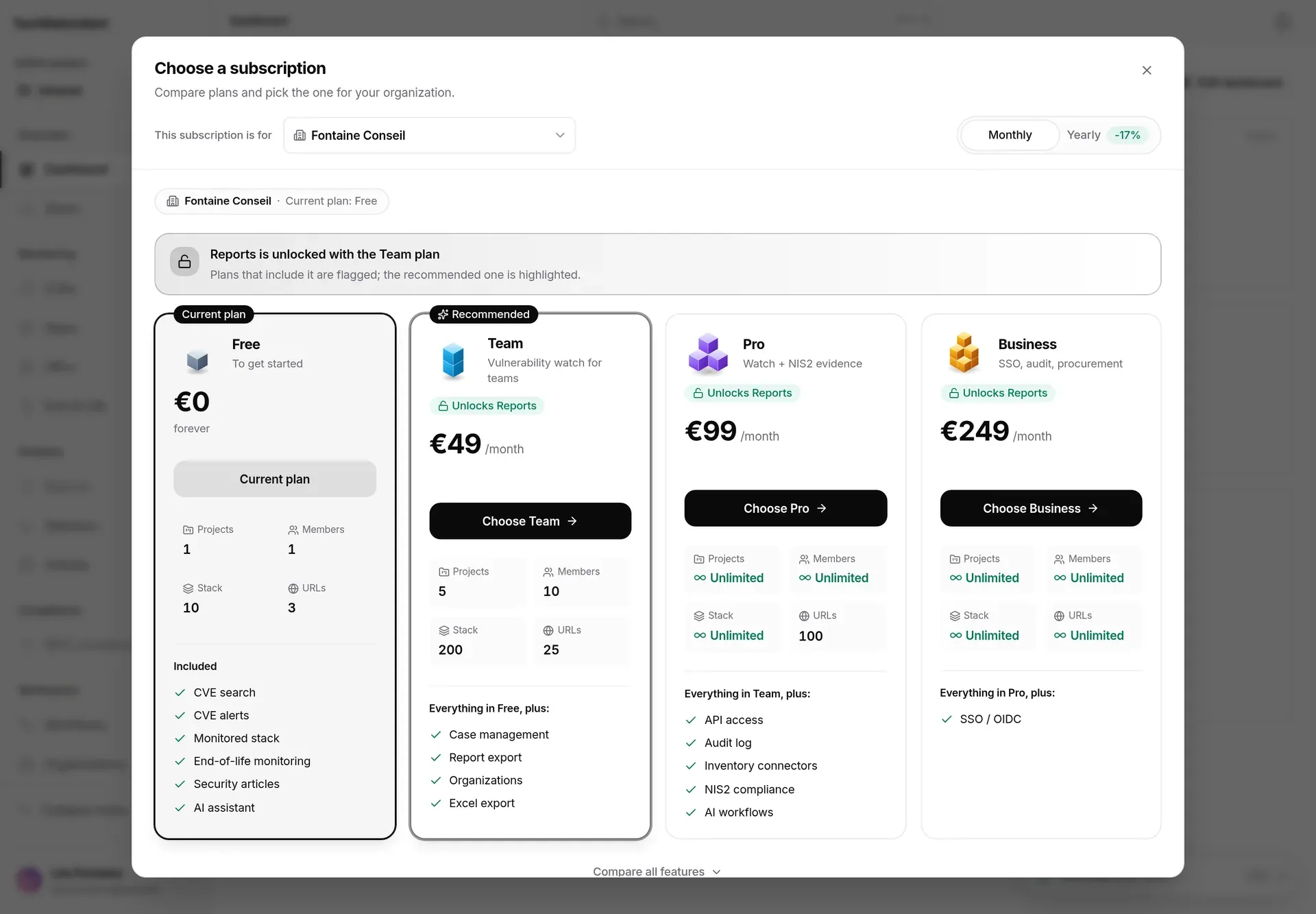
The modules concerned are Alerts, CVEs, Stack, URLs, End of Life, Reports, Articles and NIS2 compliance, depending on the plan. If you open the address of a module that is not included, a “Not included in your subscription” page presents it, with Upgrade to …, See plans and Back to dashboard. Only the organisation owner can change the subscription; other members can browse the plans. See Plan and billing.
Collapsing the menu
Section titled “Collapsing the menu”Collapse menu, at the bottom of the sidebar, keeps only the icons. Each entry’s name shows on hover, the alerts badge becomes a dot, and Expand menu (double chevron) opens it again. Your choice is remembered in your browser.
Spaces: settings, administration, partner
Section titled “Spaces: settings, administration, partner”The sidebar switches to another navigation when you open an organisation’s settings, the administration panel (platform administrators) or the partner space. So that you always know where you are:
- a space header shows at the top of the sidebar: its icon, its name (“Settings · Nova Santé”, “Administration”, “Partner space”) and a Back to the app button, which takes you back to the last page of the app you had open;
- each space has its own colour: indigo for organisation settings, red for administration, teal for the partner space. A line in that colour runs along the top of the top bar while you are there;
- when you enter, the previous navigation slides out to the left and the new one comes in from the right; when you go back to the app, the reverse. If your system asks for reduced motion, a short fade replaces the slide;
- the first time you enter a space, a bubble points it out (“You’re in the settings of Nova Santé — the navigation has changed”) with a link back. It goes away on its own or when clicked, and does not come back in this browser.
On mobile, the space header sits at the top of the drawer, and the last tab of the bottom bar takes the space’s icon, short name and colour.
The active project
Section titled “The active project”Almost every page (dashboard, alerts, stack, URLs, end of life, workflows, reports) shows the data of a single project: the one in the Active project selector at the top of the sidebar. The project name is also shown next to each page title.
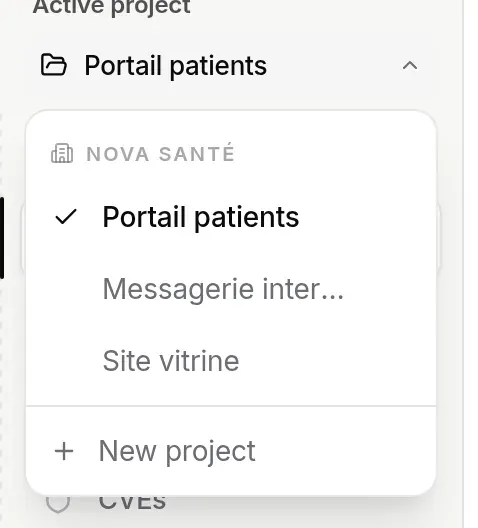
- Projects are grouped by organisation (and under Personal for any old personal projects: a new project is always created in an organisation); the active project is ticked.
- Clicking a project makes it active; the current page reloads with its data.
- The cog icon, shown when you hover over a project, opens its Project settings (with the keyboard: → on the project).
- From eight projects, a Search… field filters the list as you type; the arrow keys move through the projects, Enter selects.
- New project opens the creation window (see Projects).
The chosen project is remembered in your browser. Organisations you have hidden from the Organizations page (Hide from navigation) do not appear in this menu.
The top bar
Section titled “The top bar”The breadcrumb
Section titled “The breadcrumb”On the left, the path of the open page. Every step except the last is a link.

Search (Ctrl K)
Section titled “Search (Ctrl K)”The Search… field in the centre, or the Ctrl K shortcut (⌘ K on a Mac) from any page, opens search. The same shortcut closes it.
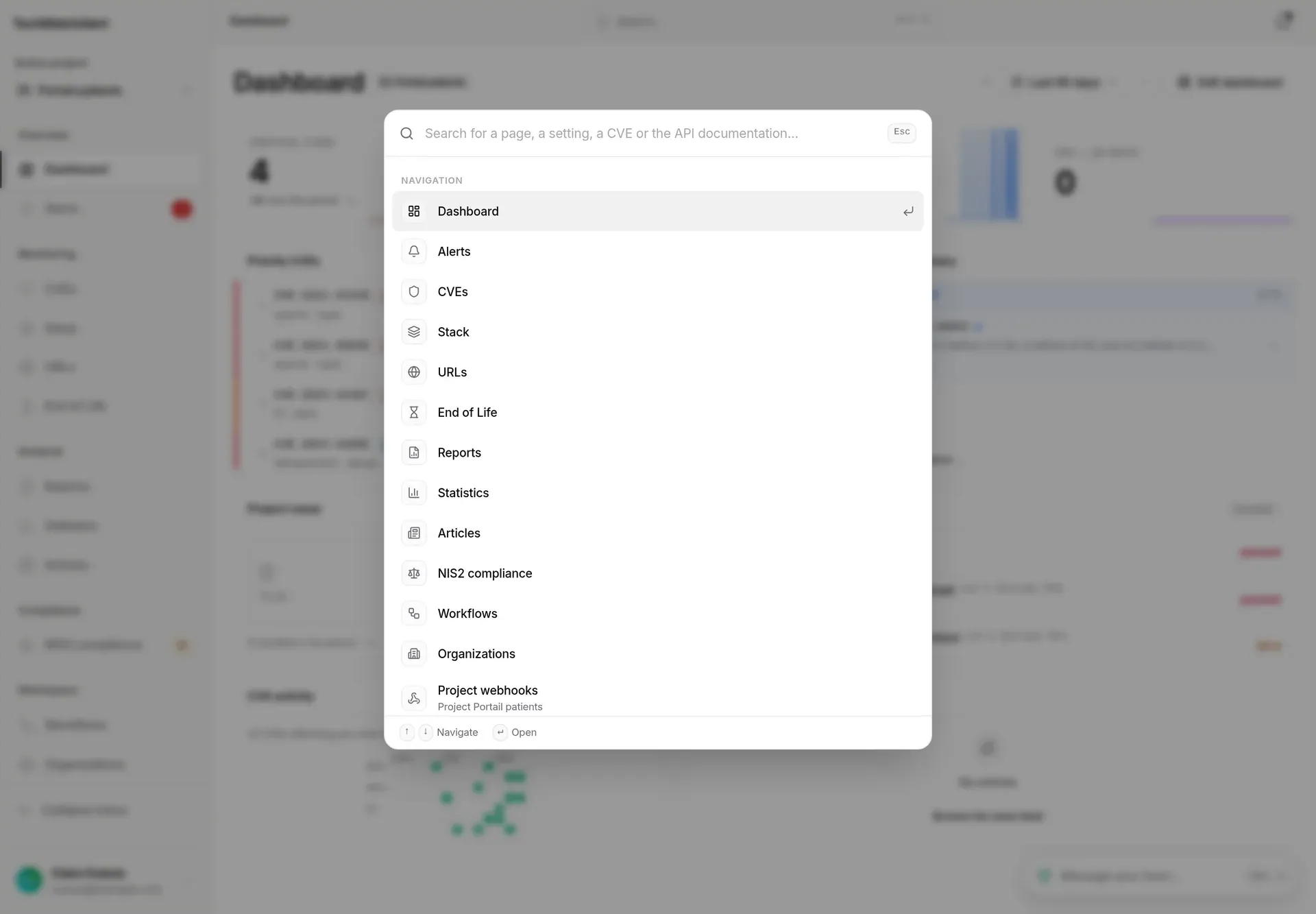
It brings together three kinds of result:
- Navigation: the application pages your role lets you open; the active project’s settings (Project webhooks, Project members, Project settings, Project NIS2 compliance); the organisation’s (Organization members, Groups & roles, Single sign-on (SSO), Billing & subscription, Organization API keys, Audit log, Organization projects); and your personal settings (My profile, Security, Preferences).
- CVE: from 2 characters, the first 5 matching CVEs (identifier or text), with their severity. Clicking opens the CVE record.
- Documentation: matching pages of the API documentation (their titles are in French for now); they open in a new tab.
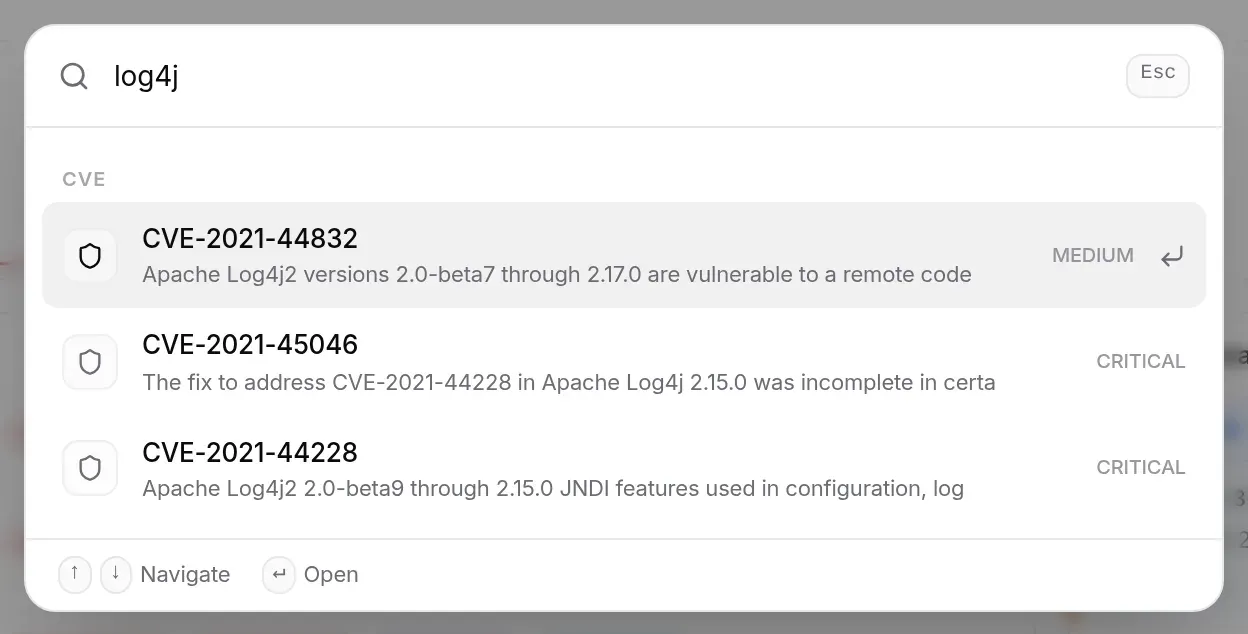
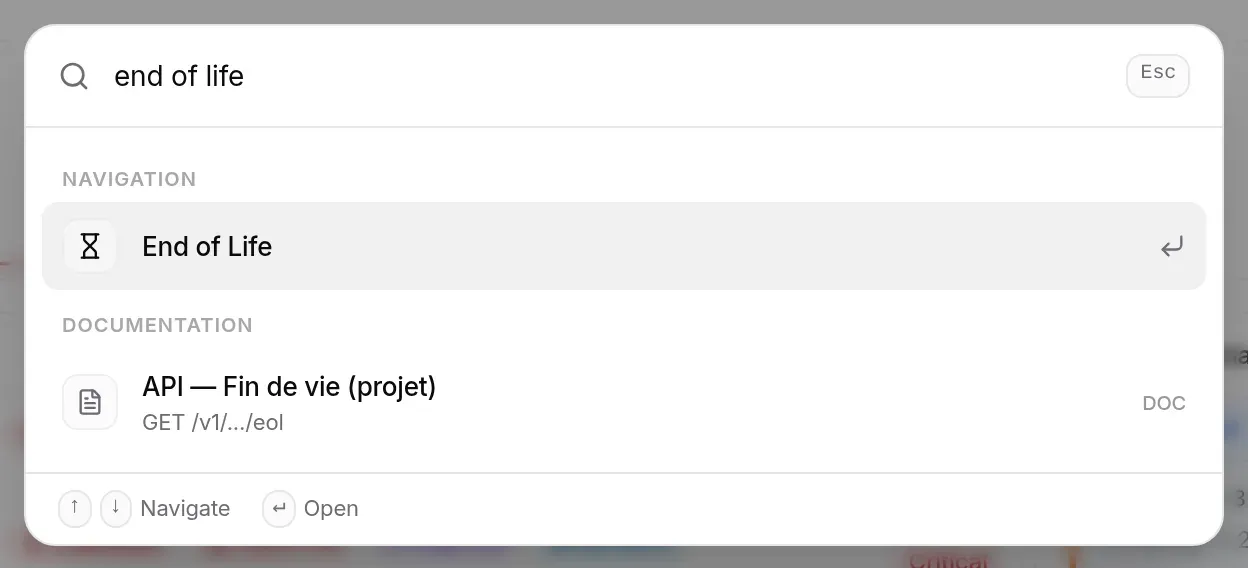
Useful rules:
- search ignores accents and case; with several words, all of them must match;
- some keywords are recognised on top of the labels, but they are French keywords: “2fa” or “mfa” finds Security, “nis2” finds NIS2 compliance, “sso” finds Single sign-on (SSO), “inventaire” finds Stack;
- on the keyboard: ↑ ↓ to move, Enter to open, Esc to close.
Notifications
Section titled “Notifications”The bell, on the right, shows a dot when a notification is unread. Clicking it opens the panel.
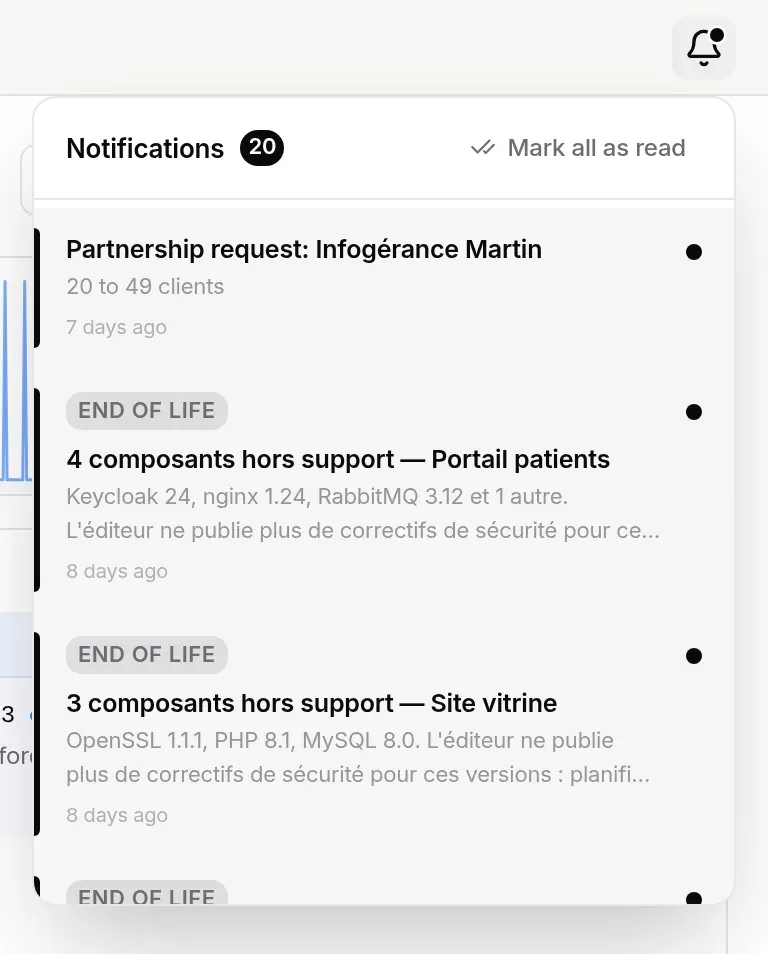
- At the top: the number of unread notifications and Mark all as read.
- The list shows the 30 most recent, unread ones on a tinted background with a dot. It refreshes every 30 seconds.
- Clicking a notification marks it as read and opens what it relates to: the CVE’s alert in its project, the CVE record, or the page the notification points to.
You will find, among others: new CVE alerts, approaching end-of-life and end-of-support dates, new releases of a tracked product, expiring HTTPS certificates, invitations received or accepted, role changes, a member added or removed, and NIS2 compliance events. What arrives here, and through which other channels, depends on your workflows and preferences: see Notifications and channels.
The user menu
Section titled “The user menu”At the bottom of the sidebar, your name and, below it, your email address. Clicking opens the menu:
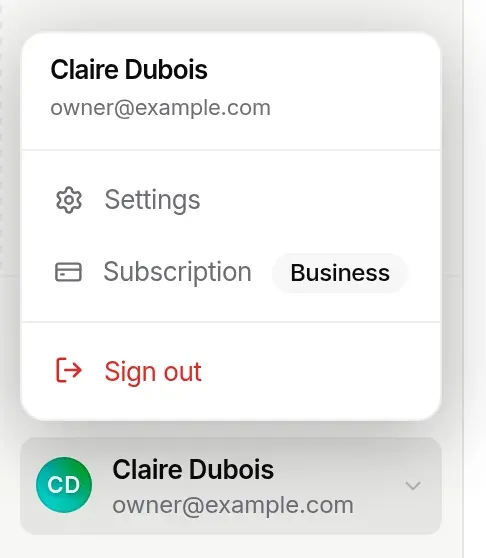
- Settings: opens the personal settings window, with the Profile, Security, Notifications and Preferences tabs. See Account settings.
- Subscription: opens the plans window; the label shows the current organisation’s plan (here Business). See Plan and billing.
- Sign out: closes the session (see Signing out).
The menu closes with Esc or a click elsewhere.
The AI assistant (Vigie)
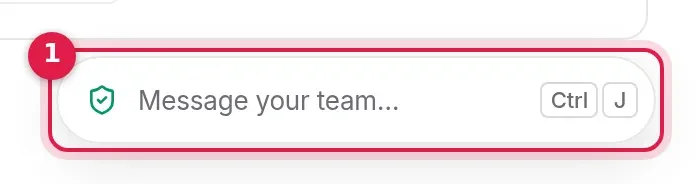
Section titled “The AI assistant (Vigie)”Vigie, the AI assistant, lives in the Team chat panel: it is a button in the team chat rail, on the right edge of every screen, below the team channels, and an entry in the panel’s channel switcher. It only appears when the assistant is turned on for the platform.
-
Click Vigie, below the team channels, in the team chat rail on the right edge of the screen. The panel opens straight on Vigie, just to the left of the rail; a second click closes it.
-
With the panel already open on a channel, you can also click the channel name at the top left of the panel, then choose Vigie, labelled Private, below the team channels.
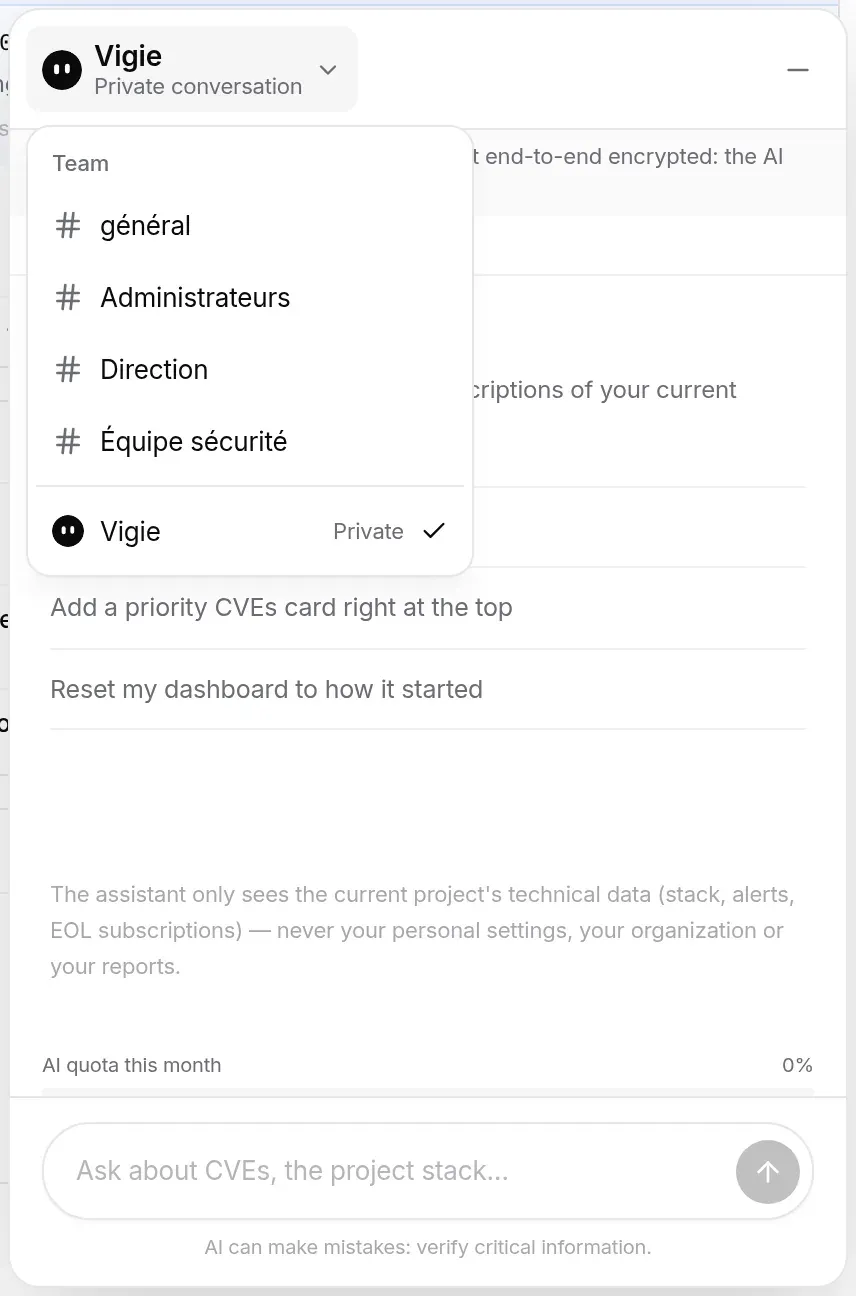
Other ways to reach Vigie:
- the “Tell Vigie what you want to see” line of the “Getting started” card and, on mobile, the Vigie row of the navigation menu open the panel straight on Vigie;
- Ctrl J (⌘ J on a Mac) reopens the panel where you left it, so on Vigie if that is where you were;
- with no team channel (an account without an organisation), the rail only shows Vigie and Support.
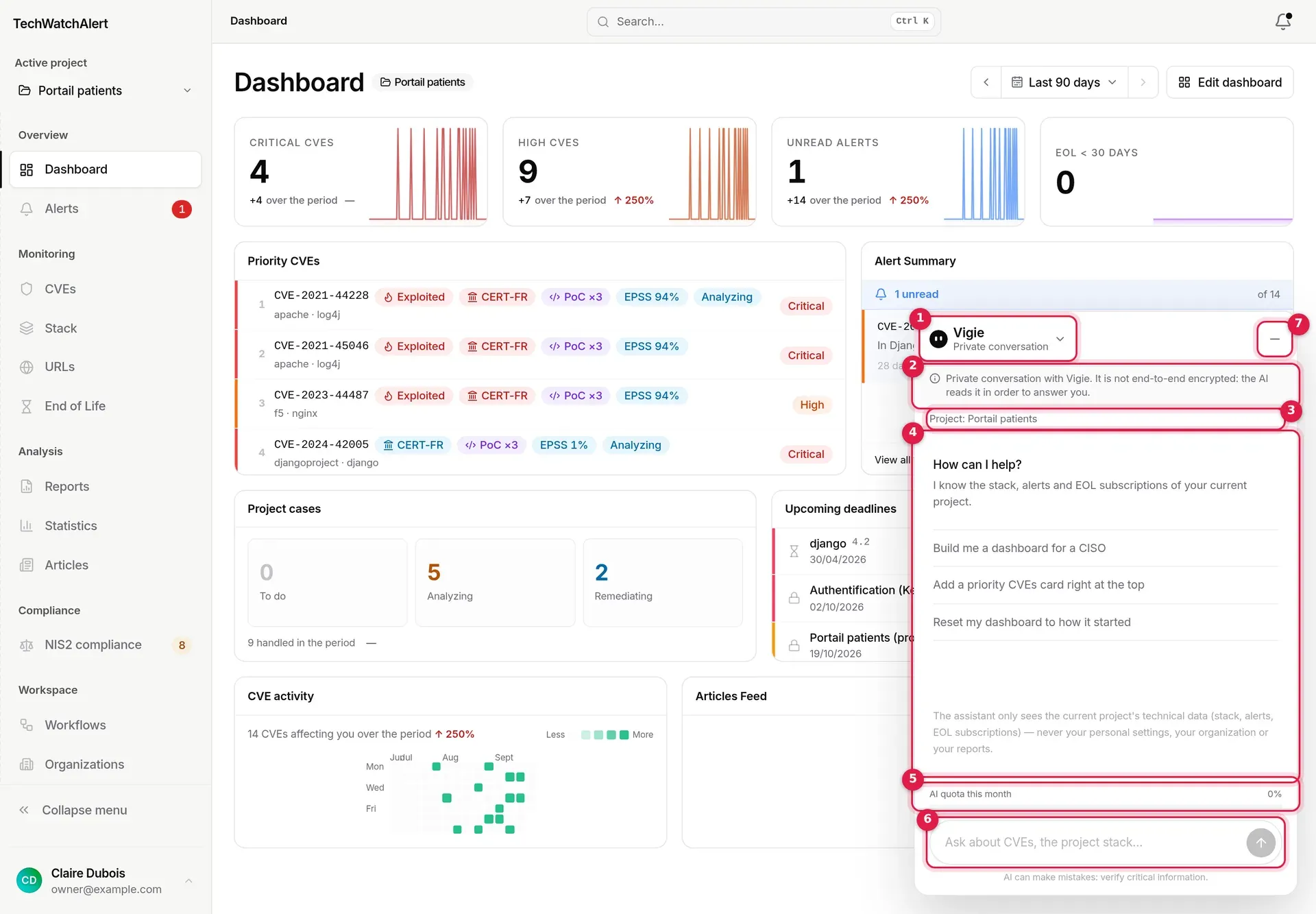
- Vigie, “Private conversation”: the channel switcher, to go back to the team channels.
- The reminder “Private conversation with Vigie. It is not end-to-end encrypted: the AI reads it in order to answer you.” Team messages, by contrast, are (see End-to-end encryption).
- Project: …, the project whose data the assistant can see. It only sees the active project’s technical data (stack, alerts, end-of-life subscriptions), never your personal settings, your organisation or your reports. Once you have sent a first message, the New conversation button (circular arrow) appears at the right of this line: it clears the exchange.
- A few suggested questions, tailored to the open page; clicking one sends it.
- AI quota this month: the share of the organisation’s monthly quota used so far. Once it is used up, the assistant stops answering until the next month or a higher plan.
- Ask about CVEs, the project stack…: Enter sends, Shift + Enter starts a new line. While it answers, the square Stop generating button (or Esc) interrupts it.
- Minimise folds the panel away, as do Esc and Ctrl J.
When your request is an action (adding an entry to the stack, tracking an end-of-life date, monitoring a URL, changing the dashboard…), the assistant proposes it and you confirm before it is carried out. On the Workflows page, it can also create or change a workflow, which you approve before it is saved.
Vigie cites its sources
Section titled “Vigie cites its sources”Every piece of data Vigie takes from the application carries a clickable number, right after the sentence: 1, 2… It opens the source: the CVE page, that page’s “CERT advisories” block for a CERT-FR or other CERT advisory, the project’s alert page for a case, the guide page for an explanation, or the application page consulted (stack, end of life, articles…).
Below each answer, a line says the content is generated:
- “Written by Vigie from:” followed by the sources cited, each clickable;
- “Written by Vigie from the sources it consulted:” when Vigie read the application without citing a number;
- “Written by Vigie, with no source from the application: to be checked.” when the answer relies on no data read (general knowledge, advice).
Sources only lead to the application or to techwatchalert.com, never to another site; a number that matches no source read is removed from the answer. Actions proposed for approval do not change.
The conversation is kept as long as the tab stays open, even with the panel folded away: an answer in progress keeps being written. “AI can make mistakes: verify critical information.” is shown at the bottom of the panel.
Right-click
Section titled “Right-click”A right-click offers, anywhere in the application, the actions that make sense for what you are pointing at — and nothing else. The menu opens where you clicked and moves back into view if it reaches the edge of the screen; Esc or a click elsewhere closes it.
| You point at… | The menu offers |
|---|---|
| A CVE (CVE list, deadlines) | Open, Open in new tab, Create or open case, Copy ID, Copy link, Add to watchlist, Ask Vigie, Open in › NVD, CVE.org and the CERT-FR advisories that cite it |
| An alert (its case) | Open the case, Open in new tab, Open CVE page, Copy ID and link, Change status › To do, Analysing, Remediating, Resolved (or Other status…, which opens the case: mitigated, risk accepted and not applicable require a justification), Assign to me, Ask Vigie, Open in |
| A stack component | View its CVEs, Copy name, Ask Vigie, Remove from the stack |
| An end-of-life item | Open, View CVEs, Copy name, Follow or unfollow the cycle, Open in endoflife.date, Ask Vigie |
| A supplier, an incident, a framework requirement, a deadline | Open (and new tab when it has an address), Copy name or link, Ask Vigie |
| A project (Organization › Projects) | Open, Switch to this project, Copy name or ID, Ask Vigie |
| A dashboard card | Card settings, Edit dashboard, Remove the card (the dashboard switches to edit mode: Save or Cancel as usual), Ask Vigie |
| A table row | Open, Copy row (columns separated by tabs, ready to paste into a spreadsheet) |
| A link | Open, Open in new tab, Copy link, Copy link text |
| Selected text | Copy, Search for “…” in TechWatchAlert, Ask Vigie; if the text mentions a CVE, Open CVE-… |
| Empty space on the page | The page’s own actions (for example Add to stack, Import, Declare an incident, Change view, Clear filters), then Refresh, Go to › the application’s pages, Search… (Ctrl K), Copy page link and Ask Vigie about this page |
Ask Vigie opens the Discussions panel on Vigie with a question already written in the input: read it, complete it, then send. You stay on your page.
The menu follows your permissions and your subscription, like the sidebar: an action your role does not allow does not appear; an action from a module outside your plan stays visible with a padlock and the name of the plan that includes it, and clicking it opens the subscription window (see Locked entries).
Your browser’s menu is still there:
- in input fields (copy, paste, spell check);
- with Shift + right-click, anywhere;
- on images that are not part of an object (for “Save image”); a product logo inside its row gives the row’s menu.
With the keyboard, the Menu key (or Shift + F10) opens the menu of the focused element; the arrow keys move through the actions, → opens a submenu, Enter selects. On a phone or tablet, a long press (half a second, without moving your finger) opens the same actions in a sheet that slides up from the bottom; scrolling the page opens nothing.
Light or dark theme
Section titled “Light or dark theme”By default, the application follows your system setting. To choose:
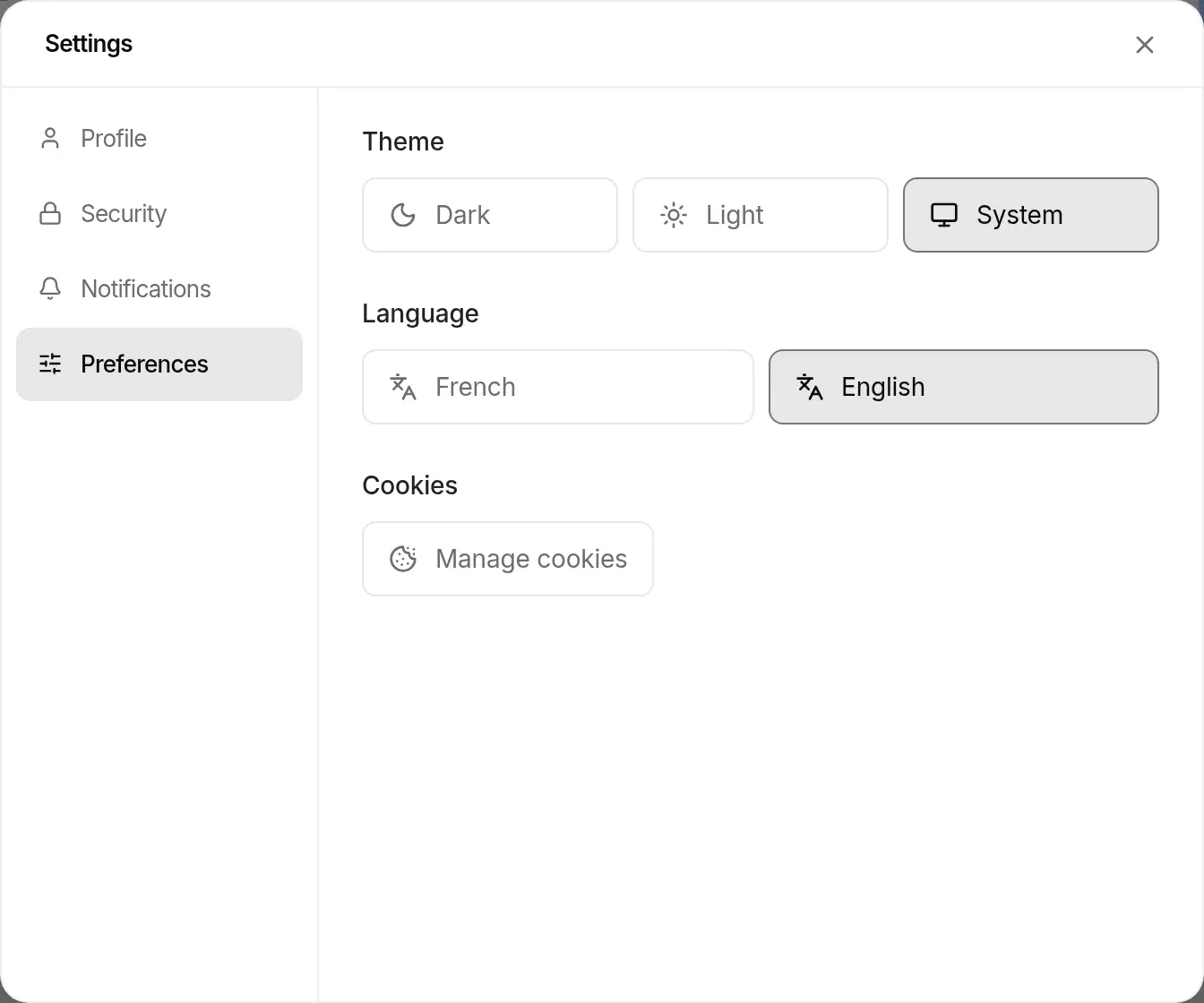
- Settings › Preferences › Theme: Dark, Light or System (back to your system’s setting);
- on mobile, the Theme row in the navigation menu goes from Light to Dark, then to System, then back to Light;
- on the sign-in and sign-up screens, the button at the top right switches between light and dark.
Language
Section titled “Language”Settings › Preferences › Language: French or English. The change is immediate and you stay on the same page; the language is part of the address (/fr/… or /en/…), so a shared link opens in the language of whoever copied it.
The Manage cookies button in the same section reopens the choice of audience-measurement cookies.
On mobile
Section titled “On mobile”On a phone, the layout changes:
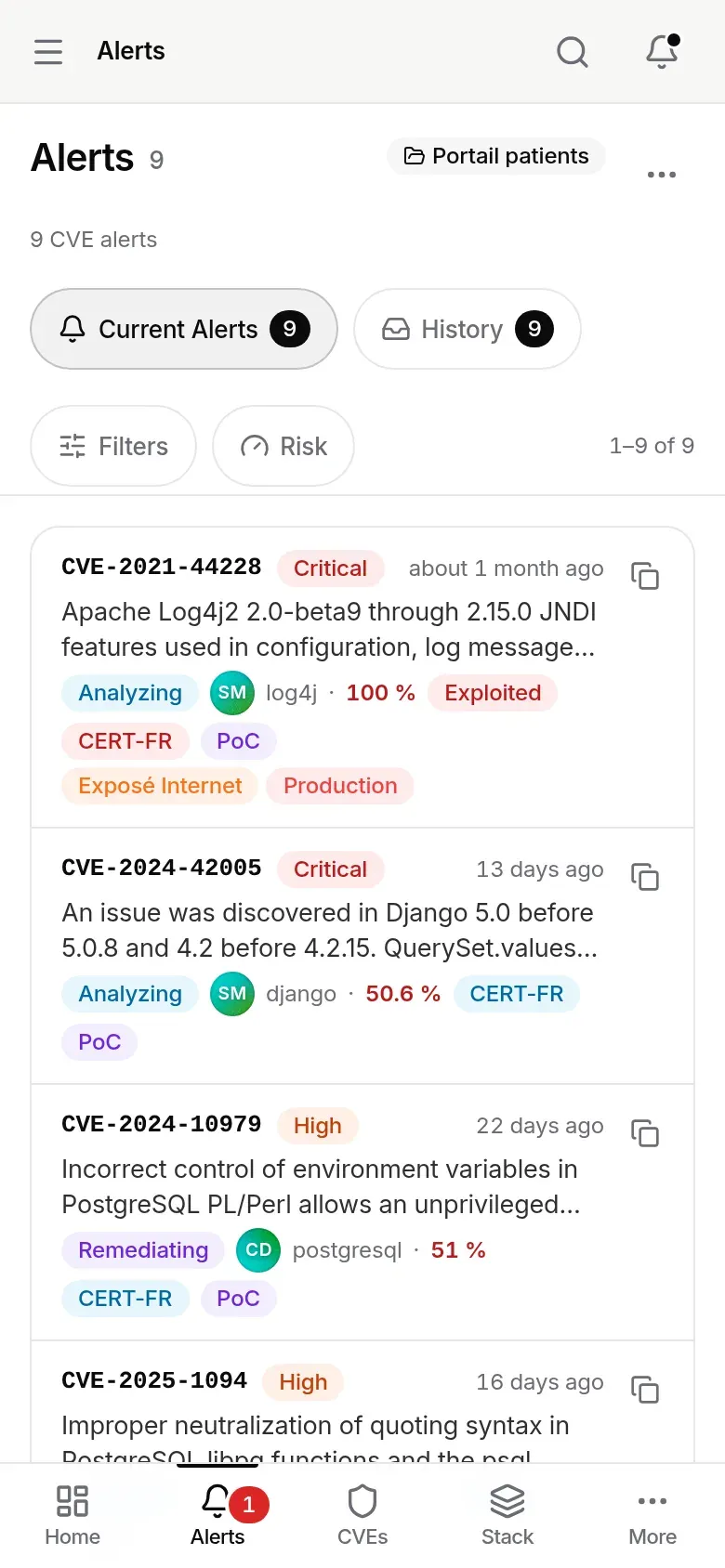
- At the top: the menu button (three lines), the page title (with a back arrow on detail pages), the search magnifier and the notifications bell, which open full screen or as a sheet from the bottom.
- At the bottom: a tab bar with Home, Alerts, CVEs, Stack and More; More opens the navigation menu.
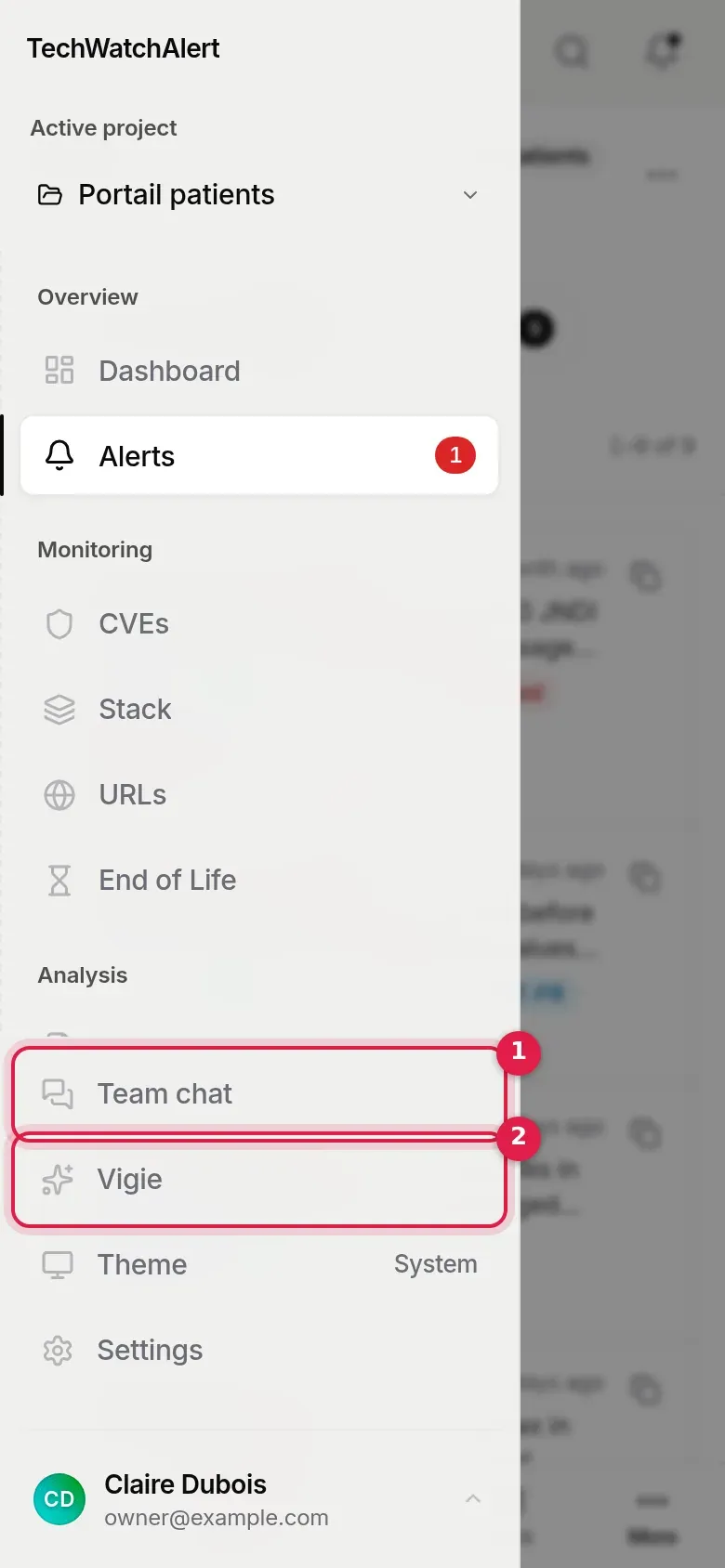
The navigation menu slides in from the left. It includes the project selector and every sidebar entry, then the mobile-only rows: Team chat, which opens the Team chat panel full screen (the team chat rail is not shown on phones), Vigie, which opens the same panel straight on the assistant (only when it is turned on for the platform), Theme (with the current theme: Light, Dark or System) and Settings, and finally the user menu. It closes when you choose a page or tap the dark area on the right.
Who sees what
Section titled “Who sees what”- Entries in the sidebar, the mobile tab bar and search follow your role’s permissions: a page you cannot open is not listed. See Team, roles and groups.
- Padlocks depend on the subscription of the active project’s organisation.
- For a partner organisation’s team, the project selector becomes the Context selector of the Partner space. Admin Panel only appears to platform administrators.
Frequently asked questions
Section titled “Frequently asked questions”A page is empty although my colleague sees data. Check the active project: everyone has their own, remembered in their browser.
The Ctrl K shortcut does nothing. It is sometimes captured by the browser or an extension. Click the Search… field in the top bar.
Does the menu stay collapsed on another computer? No: this choice, like the active project, is specific to each browser.