Reports
The Analysis › Reports screen brings together two kinds of report:
- watch reports: a PDF that takes stock of a period (exposure, threats, handling), for one project or all your projects;
- remediation evidence: what an auditor, an ANSSI inspection or an insurer asks for (remediation times, due dates met, exceptions, control cadence), mapped to NIS2 and ReCyF;
- the quarterly client review, for a managed service provider: a PDF under its brand for each client’s management;
- the evidence pack: the advisory duty log and the insurer questionnaire, sealed with a fingerprint, as PDF, Excel or CSV;
- NIS2 compliance reports for the organisation’s management, when NIS2 is in use.
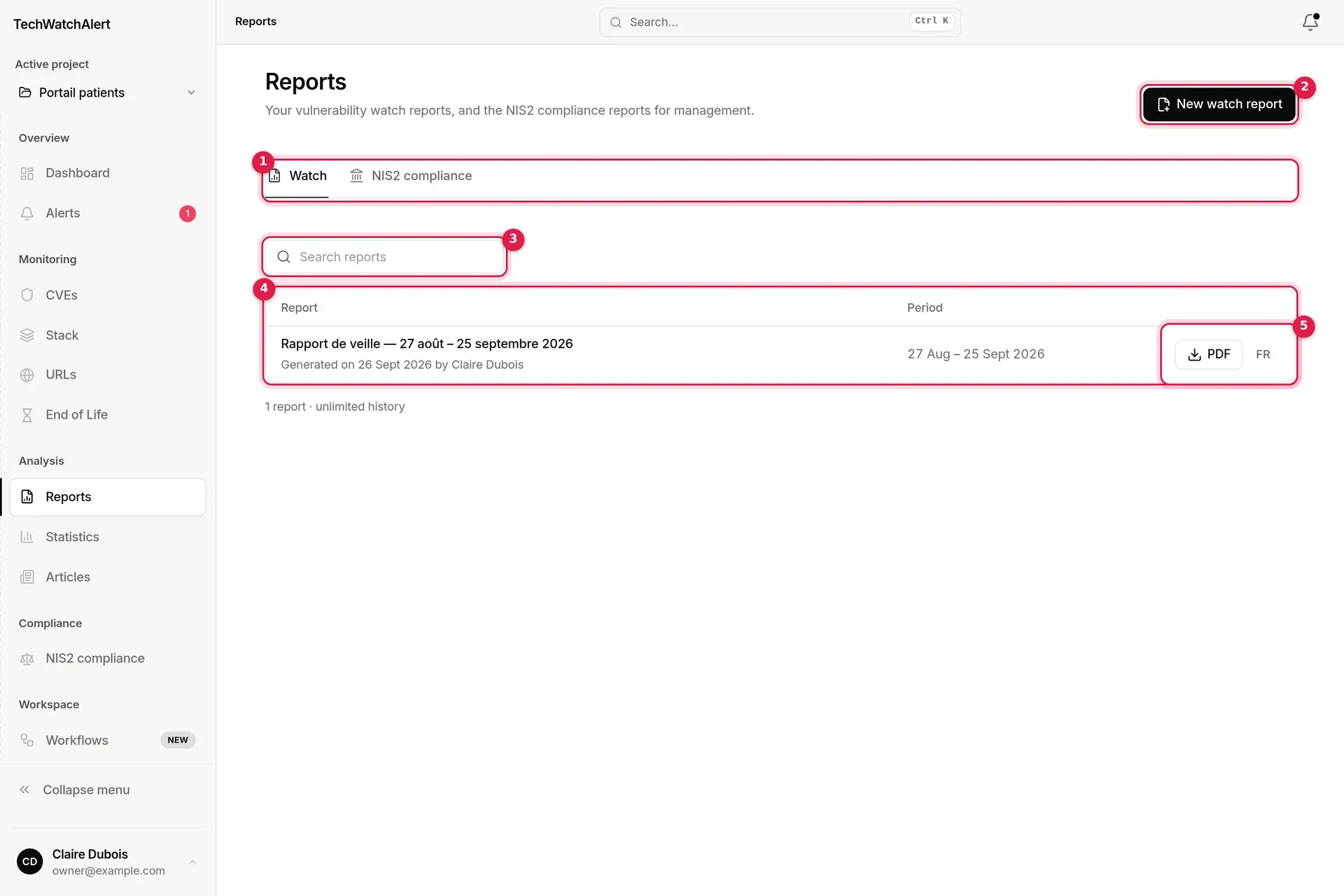
- The Watch and NIS2 compliance tabs. The second only appears when NIS2 is activated on at least one project of the organisation, the plan allows it and you are a member.
- New watch report (or New NIS2 report in the other tab).
- Search reports, by title.
- The list: title, generation date and author (“Generated on … by …”), period.
- PDF download: PDF in the interface language, and the other language (FR or EN) next to it.
The list only shows the reports of the active project, chosen in the Active project selector at the top of the menu (Context for a partner’s team): switch it there to see another project’s reports. Below the list: the number of reports and the history depth your plan allows.
Generating a report
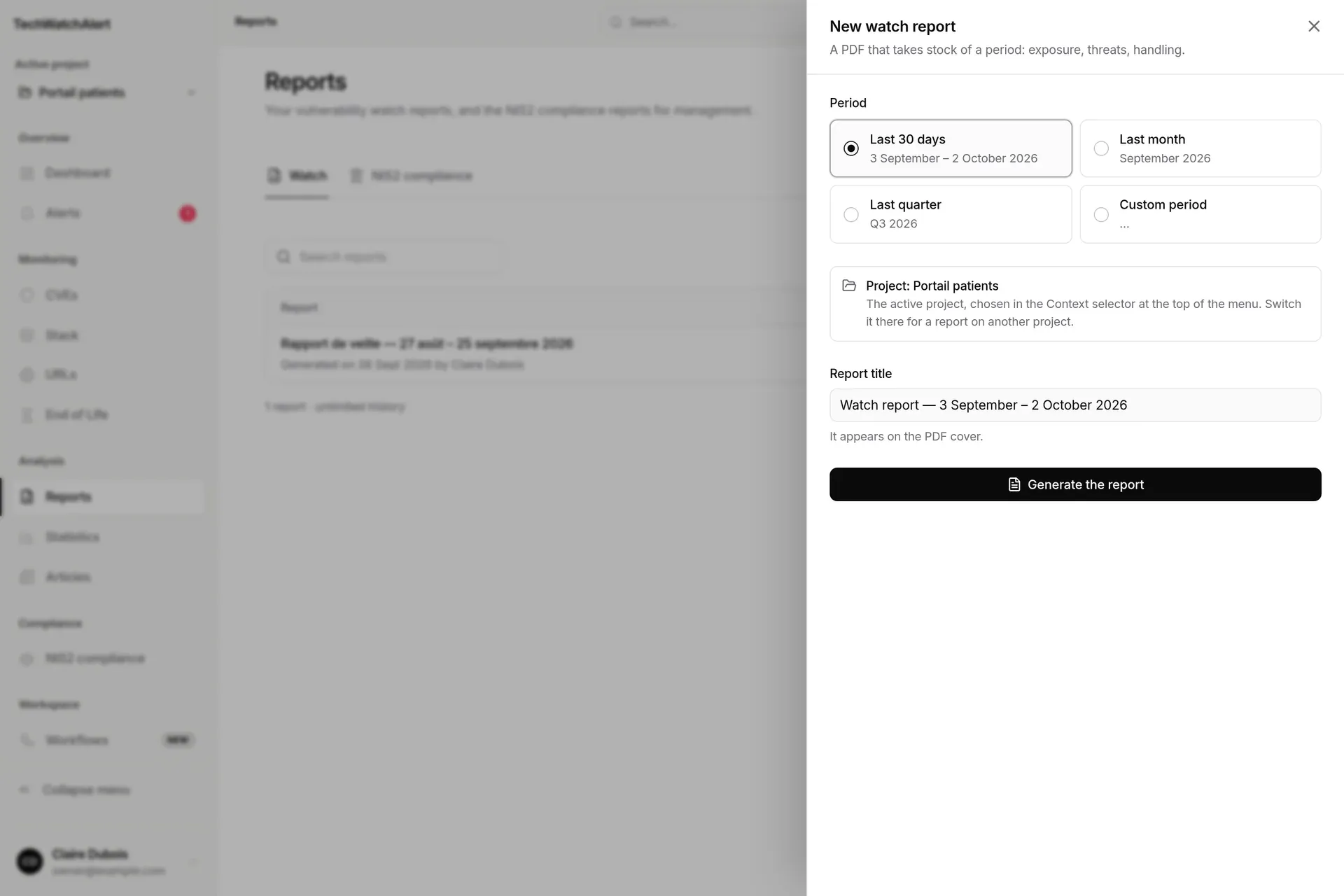
Section titled “Generating a report”- Click New report. A panel opens on the right.
- Choose the Template: Watch report, Remediation evidence, in partner mode Quarterly client review, then the evidence pack: Advisory duty log or Insurer questionnaire (see below).
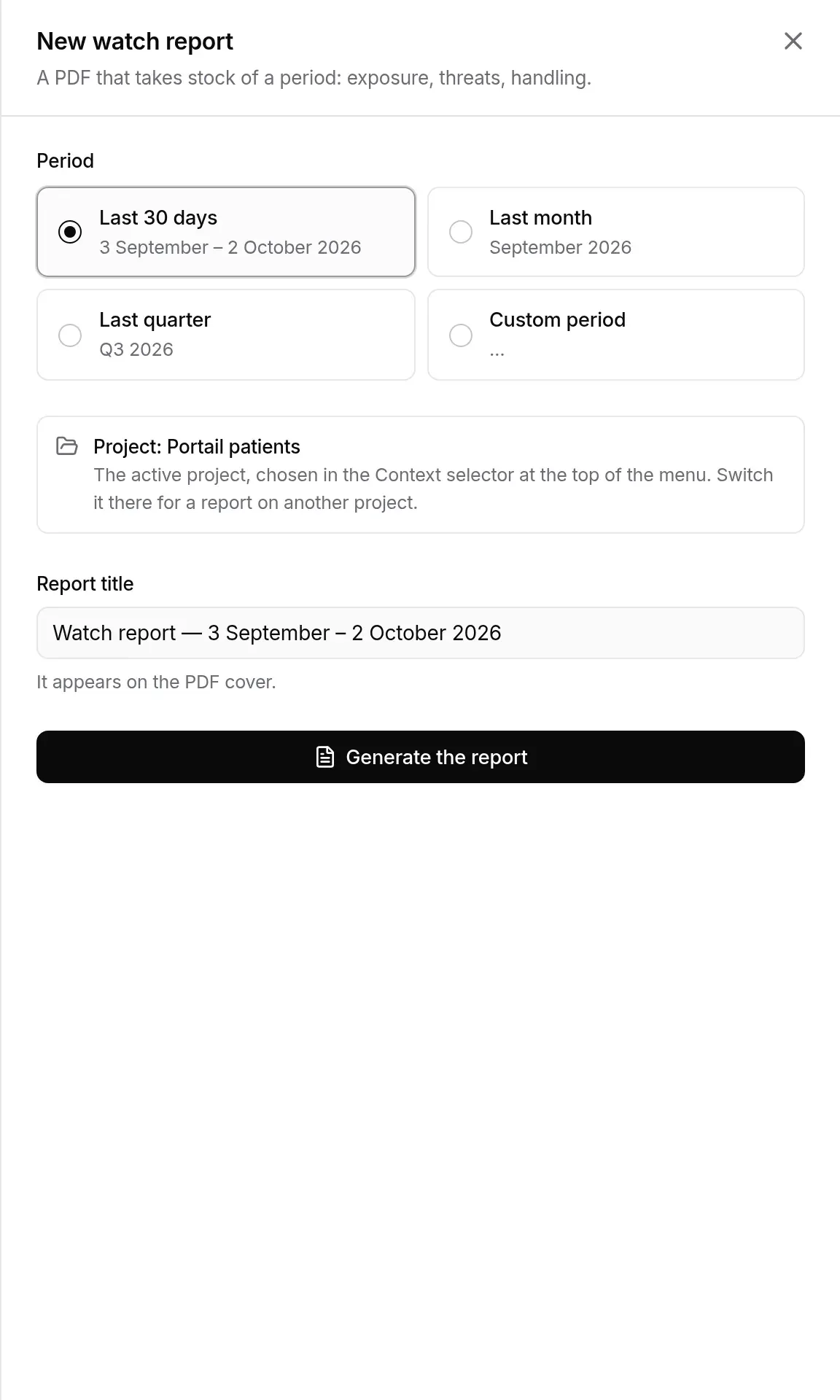
- Choose the Period: Last 30 days, Last month, Last quarter or Custom period. The exact dates appear under each option.
- Check the Scope: the watch report covers the active project (Active project selector, at the top of the menu); remediation evidence covers that project or the whole organisation; the quarterly review always covers the organisation. For another project, switch it there before generating.
- Check the Report title: it is suggested from the period (“Watch report — 27 August – 25 September 2026”) and can be edited; it appears on the PDF cover.
- Click Generate the report. The report is added to the list and its preview opens.
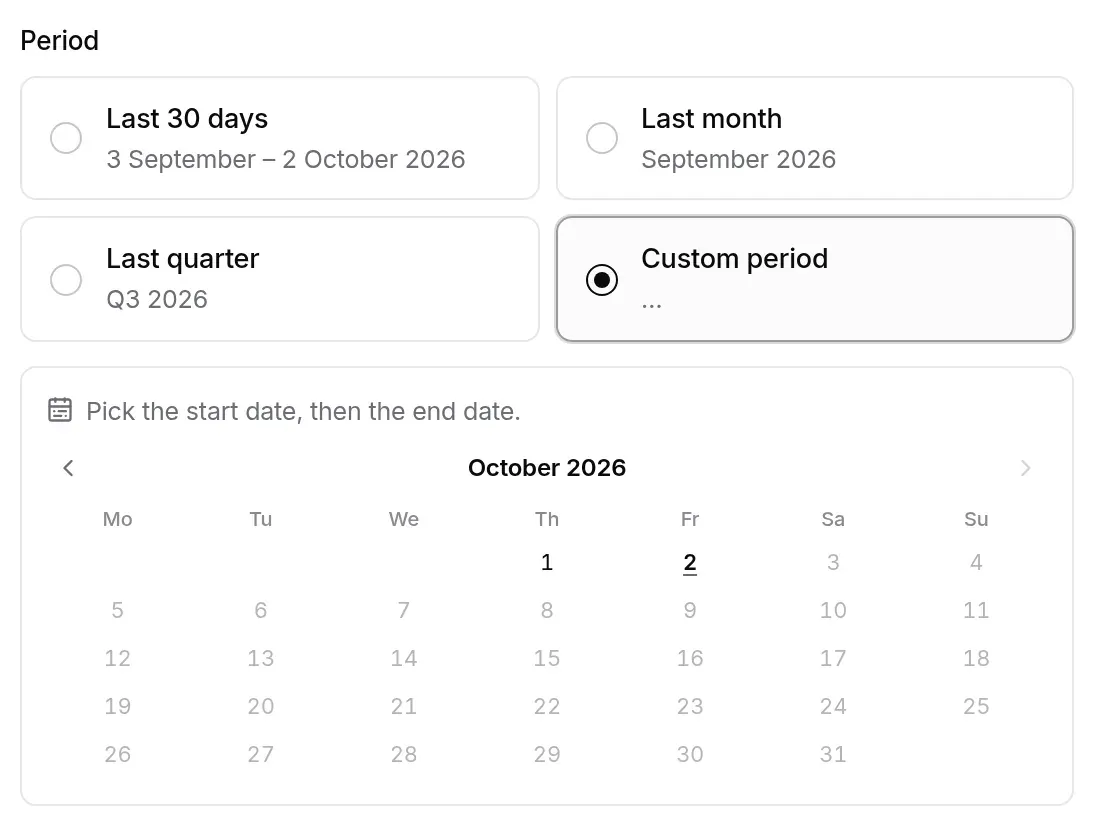
For a Custom period, a calendar opens: click the start date, then the end date.
The rules that apply:
- the period is 13 months at most (400 days) and cannot go beyond today;
- it cannot reach further back than your plan’s history: 12 months with Team, 36 months with Pro, unlimited with Business. These are calendar months: with 12 months, on 26 September 2026, the period can start on 26 September 2025; a day that does not exist in the starting month is brought back to that month’s end (31 May minus 3 months gives 28 or 29 February). Beyond that, the form says so and generation is refused; the form and the server apply exactly the same limit;
- figures are calculated at generation time and then kept: a report never changes afterwards, even if the data does. For an up-to-date picture, generate a new one.
The list itself only shows reports generated within your plan’s history depth, most recent first, 200 at most.
The preview
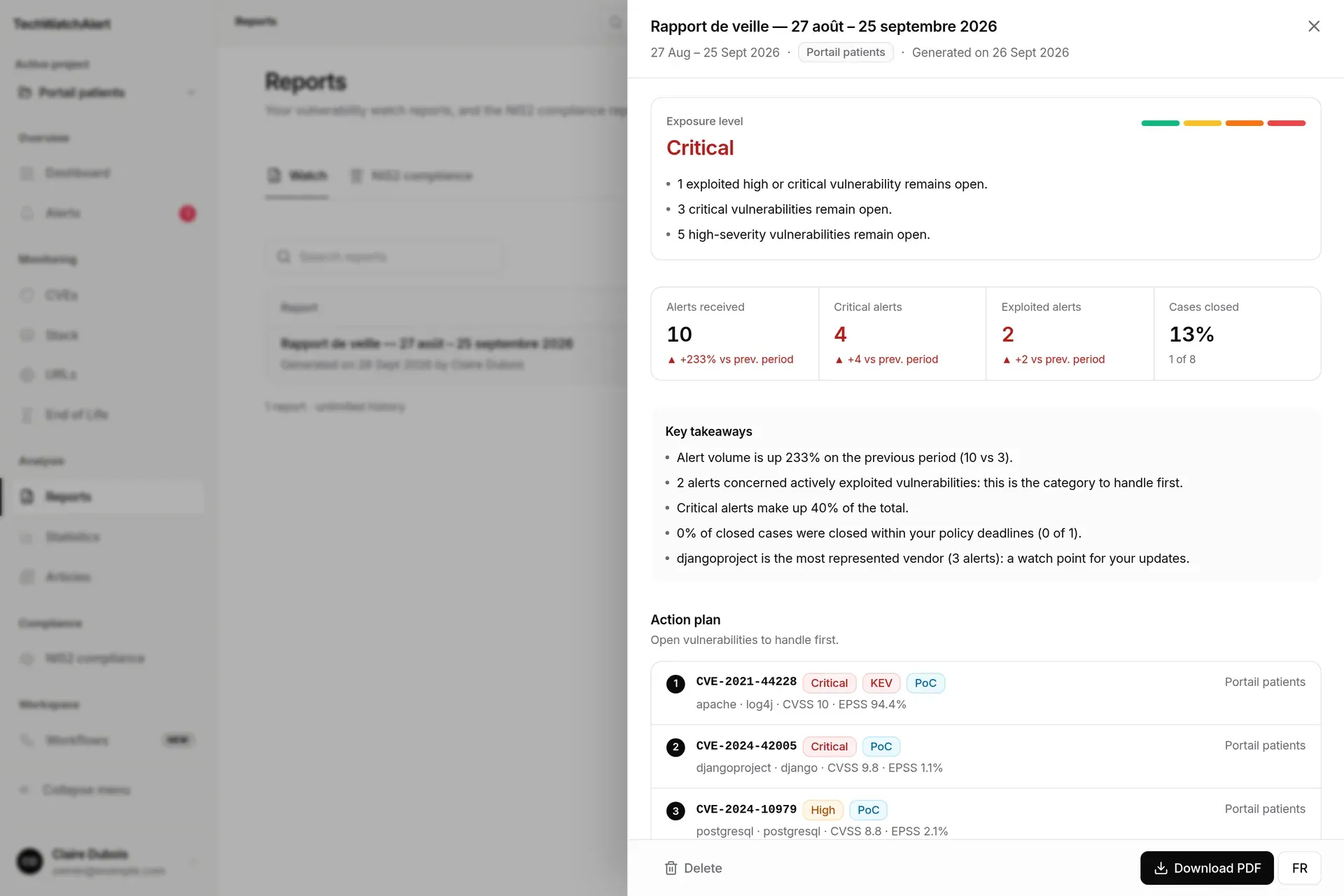
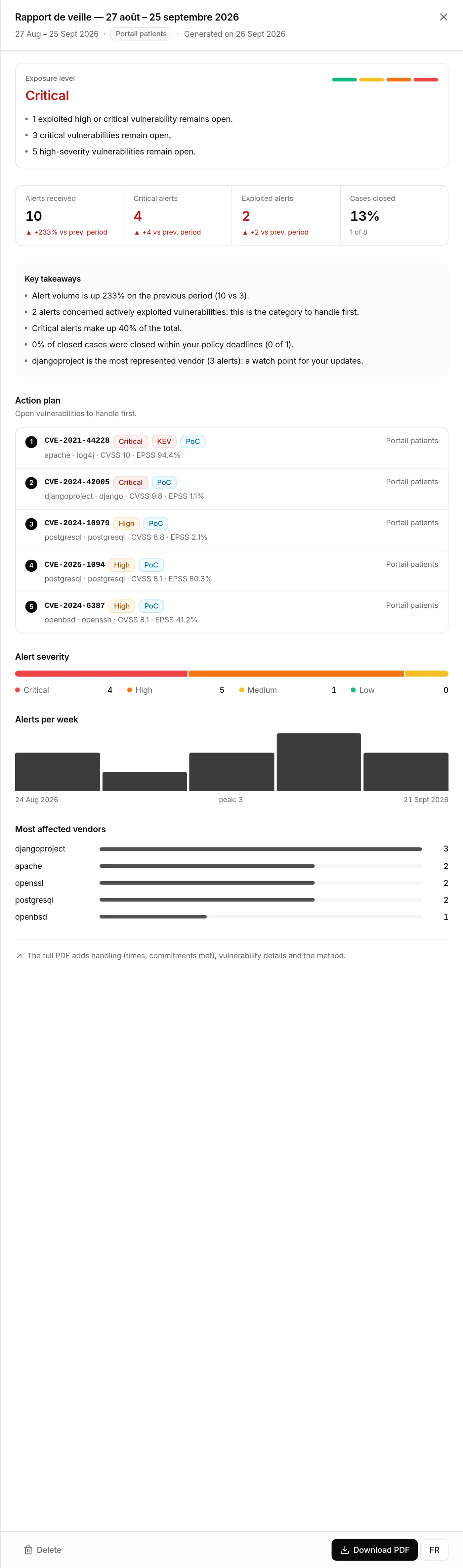
Section titled “The preview”Click a row to open the preview: it is, on screen, the content of the PDF’s first substantive page.
-
Exposure level: Low, Moderate, High or Critical, with its reasons. It is worked out from the vulnerabilities still open at generation time:
- Critical: an exploited critical vulnerability is still open, or at least 5 critical ones;
- High: an exploited vulnerability or a critical one is still open;
- Moderate: a high-severity vulnerability, or at least 5 medium ones, are still open;
- Low: otherwise.
For a report older than this tracking, the level is estimated from the alert flow, and the preview says so.
-
Four indicators: Alerts received, Critical alerts, Exploited alerts (compared with the previous period of the same length), and Cases closed (resolved, accepted or not applicable, out of all cases).
-
Key takeaways: three to five sentences written from the figures (change in volume, exploited alerts, share of critical ones, compliance with the deadlines of your remediation policy, old cases, most represented vendor).
-
Action plan: up to 5 vulnerabilities still open to handle first, exploited ones first, then in the order of the prioritisation policy.
-
Alert severity, Alerts per week (with the peak), Most affected vendors (top 5).
At the bottom of the panel: Delete (a second click on Confirm deletion is required) and Download PDF, with the other language next to it.
The PDF
Section titled “The PDF”The PDF downloads in English or French, whatever the interface language. It goes further than the preview:
| Part | Content |
|---|---|
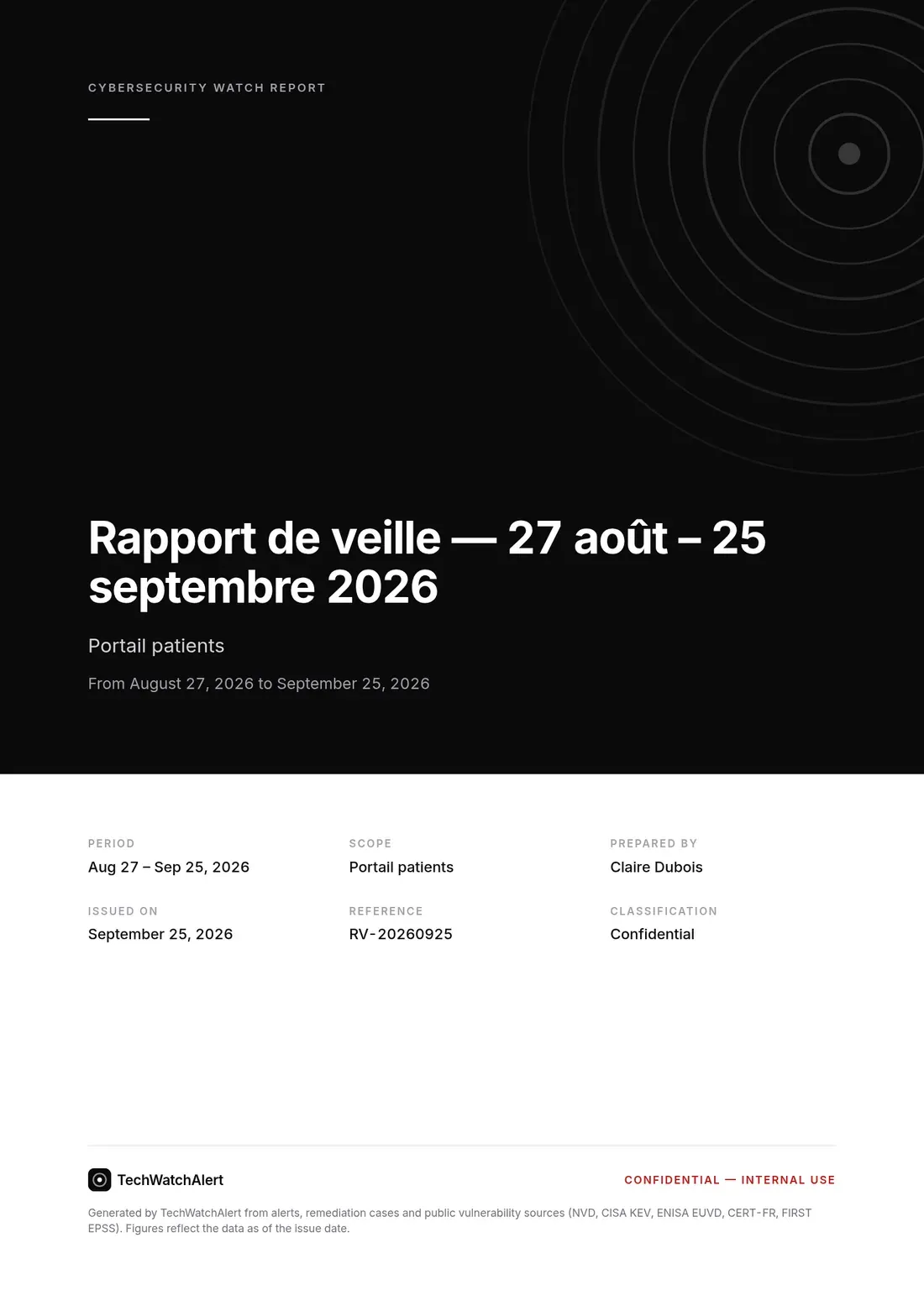
| Cover | title, scope, period, author, date, reference, “Confidential” mention |
| Contents | with an “About this report” note |
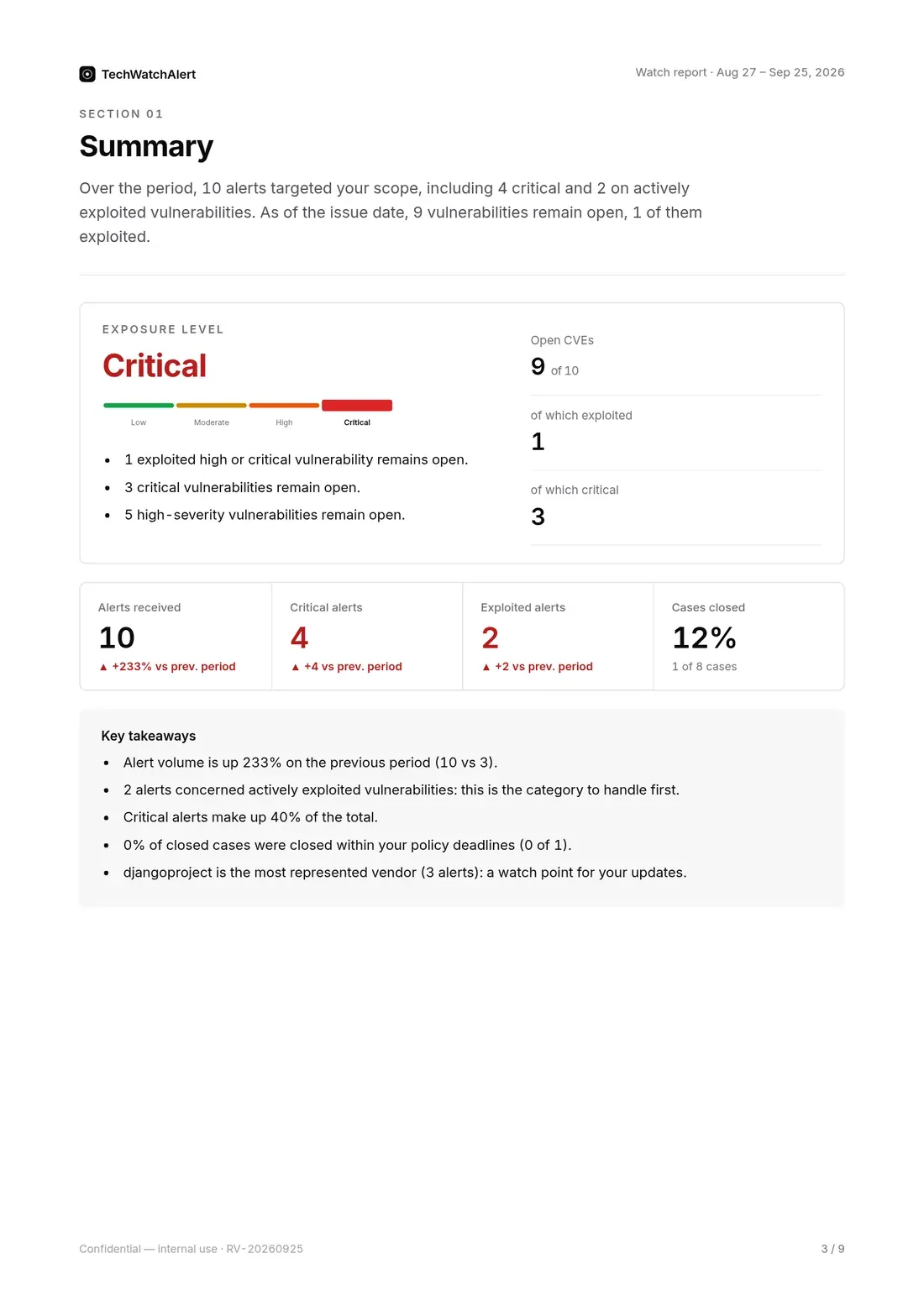
| 1. Summary | exposure level, indicators, key takeaways, then the Action plan |
| 2. Exposure and threats | alert severity, weekly trend, exploitation signals, most affected vendors and products |
| 3. Vulnerability handling | times by severity and compliance with the remediation policy, age of open cases, how cases were closed, status of the period’s cases, activity per member |
| A. Vulnerability details | the detailed list |
| B. Method and definitions | how each figure is calculated, and the sources |
White label
Section titled “White label”The TechWatchAlert logo appears on the cover and in the page header. For a partner organisation, or one of its clients, that has a logo (its own or, for a client, its partner’s), that logo replaces the platform’s on all its PDFs: watch reports, NIS2 reports, registers. Depending on the partner’s number of clients, it may be followed by “via TechWatchAlert”. The partner’s logo is uploaded in the Partner space: see Team, billing and branding.
Remediation evidence
Section titled “Remediation evidence”For an auditor, an ANSSI inspection or an insurer: what the organisation can show about how it remediates, over a period. Choose the Remediation evidence template, the period (Last quarter is suggested) and the scope: the active project or the whole organisation (the organisation’s projects whose reports you can export).
The preview shows the PDF’s first page: Median time, critical, Closures within target, Exploited fixed on time, Open exceptions, Weeks with a scan, and the key points.
| PDF part | Content |
|---|---|
| 1. Summary | the tiles, key points and the remediation policy applied (deadline per severity, cap for an exploited flaw, escalation) |
| 2. Remediation times | per severity, from detection to closure: closed cases, median, p90, target and share within target; how cases were closed (fixed, not applicable, risk accepted) and reopenings; due dates of all flaws |
| 3. Exploited flaws | those fixed during the period, on time or not, and those still open past their due date |
| 4. Open exceptions | accepted risks (approved or pending) with their review date and compensating measures |
| 5. Import cadence | scans imported per project (tool, median and maximum gap between imports, latest scan), weeks covered, inventory connectors, fixes contradicted by the latest scan |
| 6. Oldest open flaws | the twelve oldest, with their age, due date and state |
| 7. Mapping to requirements | each item mapped to the NIS2 references (Directive (EU) 2022/2555, Implementing Regulation (EU) 2024/2690, § 6.6 and § 6.10) and to ANSSI’s ReCyF v2.5 themes, with the page where to check it |
| A. Method and definitions | detection, closure, time, target, due date, open flaw, exploited flaw |
Dated exceptions come from the accepted-risk register of the NIS2 compliance space (Pro plan). Without it, the section says so and counts the cases marked “Risk accepted” with no justification.
Quarterly client review
Section titled “Quarterly client review”For a managed service provider (partner organisation) and its clients: a PDF under the partner’s brand for a client’s management. The Quarterly client review template only appears in partner mode (your organisation is a partner, or a partner’s client) and always covers the active project’s organisation.
- Executive summary: exposure level (same rules as the watch report), four figures compared with the previous period (New flaws, Flaws handled, Open flaws, Median time to fix) and the essentials in a few sentences;
- Quarter in review: flaws detected and handled month by month, by severity, remediation times;
- Recommended actions: fix the exploited flaws, update the components that close the most flaws, catch up on overdue fixes, plan the replacement of unsupported software;
- Upcoming end of life: software at, or within six months of, end of support.
The cover, rules and numbers take the partner’s brand colour, set with its logo (see Team, billing and branding); severity colours do not change. The partner’s team can also produce one client’s review, or all of them in one archive, from the Partner space (see Alerts and reports).
Evidence pack
Section titled “Evidence pack”Two templates to show, with supporting records, how alerts were followed up. They are aimed first at managed service providers (a provider owes its client a duty to advise) and at any organisation filling in its cyber insurer’s questionnaire. Like remediation evidence, they cover the active project or the whole organisation.
Advisory duty log
Section titled “Advisory duty log”For each CVE alerted during the period (one line per project and CVE), the log shows, time-stamped:
| Entry | What is included |
|---|---|
| Alert | the alert date; “backfilled history” when the CVE was already published when the component was added (alert created without notification) |
| Notification | each notification actually delivered: channel (in-app, email, webhook), recipient, date, outcome (delivered or failed) |
| Advice | the case comments with their author, the case note, and the published interim measures and fixed versions (as known when the document is generated) |
| Decision | status changes with their author and date (“Automatic” for a workflow or an exception’s expiry), the current mitigation or accepted risk with its expiry, the risk register’s requests and decisions |
| Closure | the date the case reached its final status |
Anything that was not recorded is never inferred:
- Not recorded: the alert predates durable notification records and nothing remains of it. This does not mean nothing was sent;
- No notification sent: the alert came after record keeping started and nobody was notified (recipients’ preferences, workflow).
The date record keeping started is shown in the summary. Since then, every alert notification delivered is kept, without the message content, beyond the purge of technical logs (30 days for sent emails). Beyond 1,500 alerts in the period, the most severe are included and the document states how many it leaves out.
Insurer questionnaire
Section titled “Insurer questionnaire”Factual answers to the standard questions, each with the screen where it can be checked:
- patch management policy: your remediation policy’s target times by severity, and the cap for an exploited flaw;
- deadline compliance over the period (last 12 months offered), by severity and for exploited flaws (KEV catalogue, EUVD, CERT-FR): same rules as the Deadlines screen;
- mean and median time to fix, from detection to closure, in days;
- exploited flaws still open, critical ones included, and their age;
- current exceptions (accepted risks in the register, mitigated cases) with their expiry;
- end-of-support components and their exit plan;
- date of the last imported scan, project by project;
- threat intelligence sources synchronised by the platform and their last successful synchronisation.
Fingerprint and exports
Section titled “Fingerprint and exports”When it is generated, the report’s content is sealed: its SHA-256 fingerprint is computed and shown in the preview, on the cover and at the foot of every PDF page (in full in the appendix), on the workbook’s Integrity sheet and on the last line of the CSV. It is written to the organisation’s audit log, as is, with every export, the fingerprint of the file delivered.
- At the foot of the preview panel, Excel and CSV sit next to PDF;
- Check fingerprint recomputes the content’s fingerprint, confirms it is intact and counts the logged exports. For a file that was sent on, compare its SHA-256 fingerprint with those in the audit log.
A managed service provider can also produce both documents for each of its clients from the Partner space (see Alerts and reports).
Scheduling
Section titled “Scheduling”Watch reports are generated on demand: there is no scheduled delivery. NIS2 reports, on the other hand, can be produced automatically (see below).
NIS2 compliance reports
Section titled “NIS2 compliance reports”The NIS2 compliance tab lists the reports for the organisation’s management, the same as in the Compliance space.
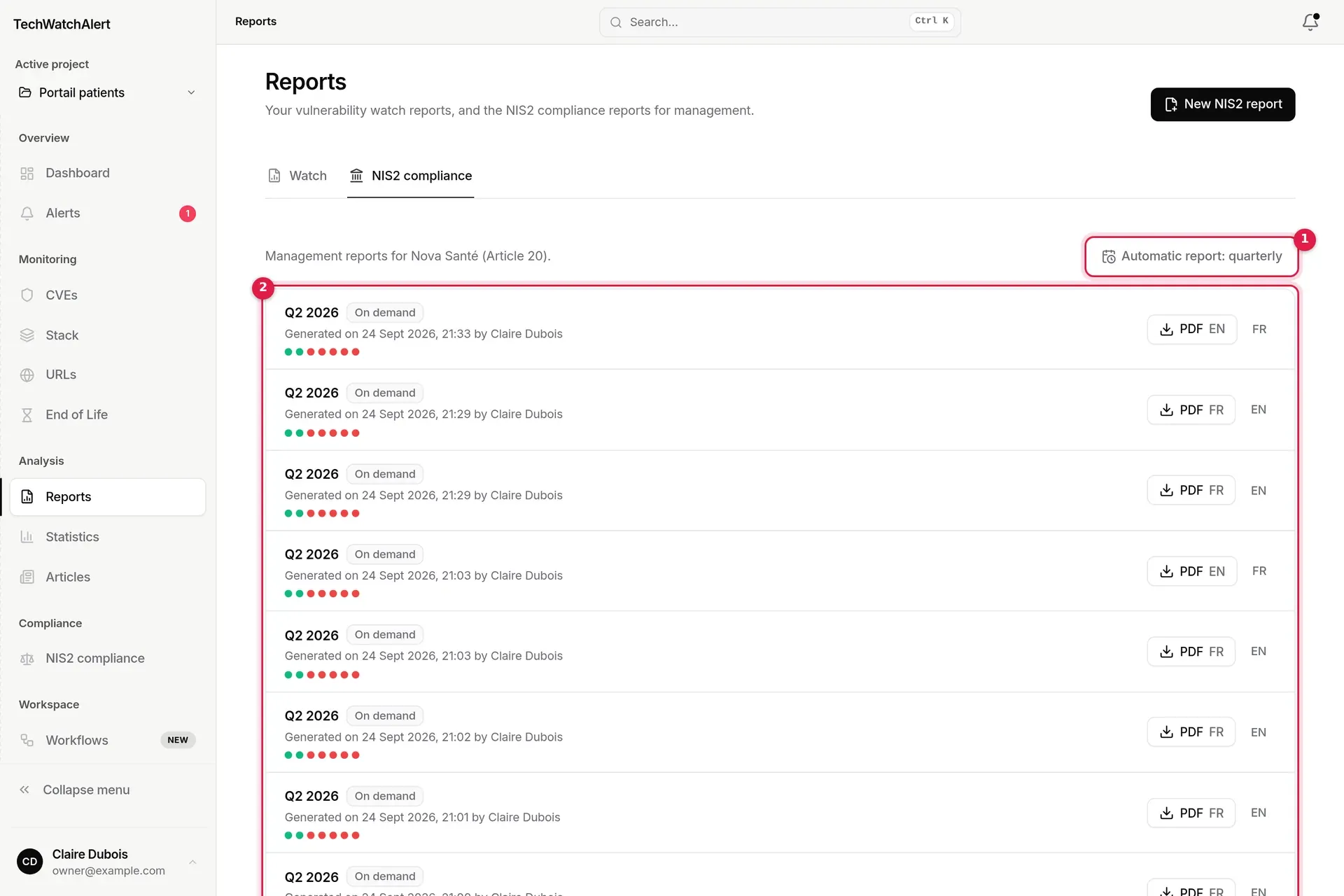
- The frequency of the automatic report (“Automatic report: quarterly”). The link opens the setting in the Compliance space.
- The history: period covered, origin (On demand, Monthly, Quarterly), date and author, one dot per obligation (its status at the report date), and the PDF download in the report’s language or the other one.
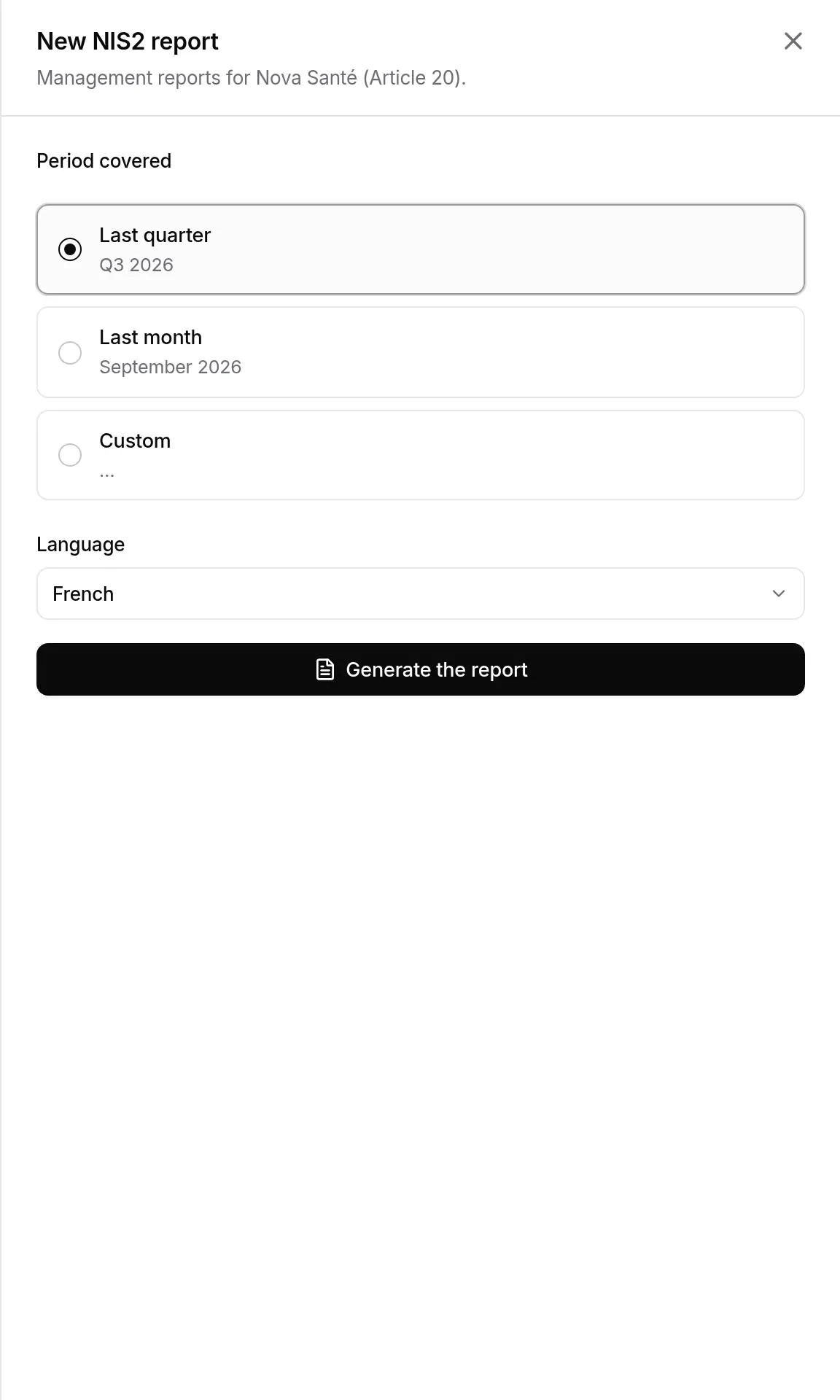
New NIS2 report opens the generation panel: Period covered (Last quarter, Last month or Custom, 366 days at most) and Language. A report freezes the state of the registers at its date.
- The automatic report is generated on the 1st of the month or quarter at 6 am (Paris time) and sent to management and the security lead. Its frequency is set in the Compliance space, by the organisation’s administrators.
- These reports are read by the organisation’s owners and administrators and by NIS2 owners; other members see “Reserved for management and NIS2 owners”.
- With several organisations, a selector switches between them.
Content and settings are detailed in NIS2 compliance › Settings and board report.
Who can do what
Section titled “Who can do what”| Action | Viewer | Analyst | Administrator | Owner |
|---|---|---|---|---|
| View the projects’ watch reports and their preview | ✓ | ✓ | ✓ | ✓ |
| Generate and download a watch report | ✓ | ✓ | ✓ | |
| Delete a project’s watch report (whoever wrote it) | ✓ | ✓ | ✓ |
These are the default rights; they can be set member by member (see Team, roles and groups). For NIS2 reports, see above.
Plan: watch reports are included in the Team (12-month history), Pro (36 months) and Business (unlimited) plans. With Free, the Watch tab presents the offer and, for the organisation’s owner, a See plans button.
Frequently asked questions
Section titled “Frequently asked questions”I can see a report a colleague generated: who is the author in the PDF? The colleague who generated it, not the person downloading it: their name is in the list and on the cover. Alerts are counted as read or not according to the author’s reading, since reading is personal.
Can I edit a report once generated? No: it freezes the figures at its date. Delete it and generate another.
Is the French PDF a translation of the English one? It is the same report, written in the other language at download time.
Available depending on your plan
Section titled “Available depending on your plan”The evidence pack (advice log, insurer questionnaire) has its own plan feature, in addition to reports (Team and above). Outside the plan, its two templates carry a padlock and the name of the plan that opens them; choosing one opens the subscription window. A pack already generated cannot be exported while the plan does not include it. See also: Subscription › pages, views and items.