Client alerts and reports
Two pages of the Partner space work across all clients at once: Alerts, to sort out what affects your clients, and Reports, to report on it.
- Who it is for: owners and administrators of the partner organisation.
- Where: Partner space › Alerts and Partner space › Reports.
Alerts
Section titled “Alerts”The page gathers into a single queue the alerts of all your clients, in the projects whose alerts you can see.
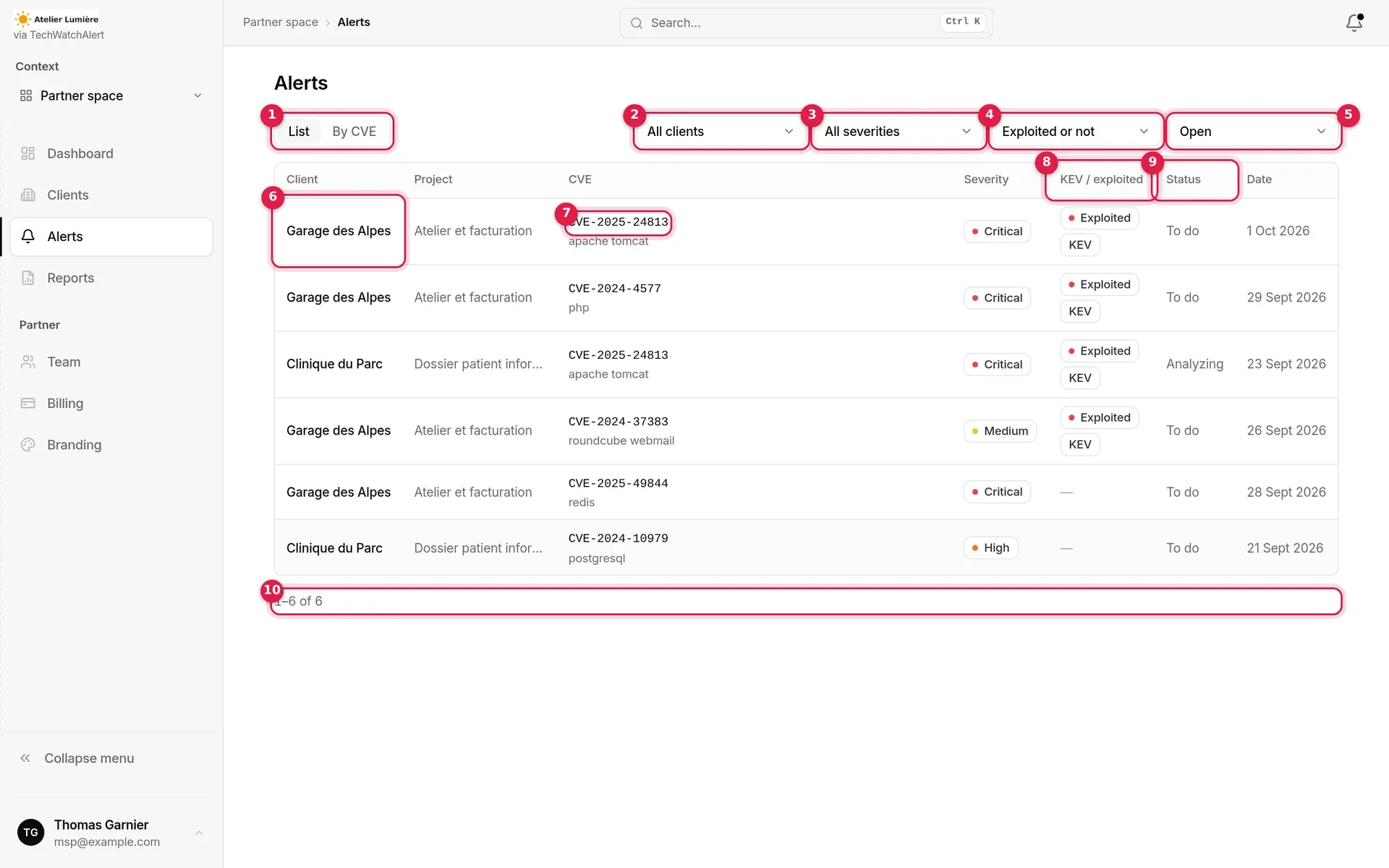
- View: List (one row per alert) or By CVE (one row per CVE).
- Client: all clients or a single one.
- Severity: all, or Critical, High, Medium, Low.
- Exploitation: exploited or not, exploited only, not exploited only.
- Status: Open (default) or All.
- The alert’s client and project.
- CVE and affected product: a click opens the alert’s page at the client’s.
- KEV / exploited: an “Exploited” pill when exploitation is confirmed, “KEV” when the CVE is in the KEV catalogue.
- Status of the CVE’s case in the project (“To do” while no case has been opened) and trigger Date.
- Pagination: 50 alerts per page.
List order: exploited alerts (confirmed exploitation or KEV) first, then by severity, then the most recent.
An alert is open as long as the CVE’s case in the project, shared by the team, is not closed; the All filter adds alerts whose case is closed (resolved, risk accepted, not applicable).
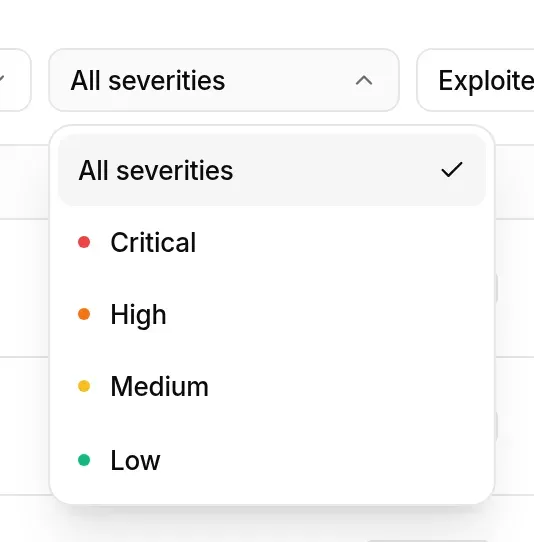
Filters, view and page are kept in the page address: a copied link or going back finds the same queue. Changing a filter returns to the first page. When nothing matches, Clear filters resets them.
Opening an alert at the client’s
Section titled “Opening an alert at the client’s”A click on a row (or on the CVE) makes the client’s project the current project and opens the alert’s page, as in the usual product: you handle the case there (status, notes, assignee) at that client’s. The banner reminds you whose space you are in; Partner space takes you back.
The “By CVE” view
Section titled “The “By CVE” view”One CVE, and every client it affects: the view that answers “who is affected by this flaw?”.
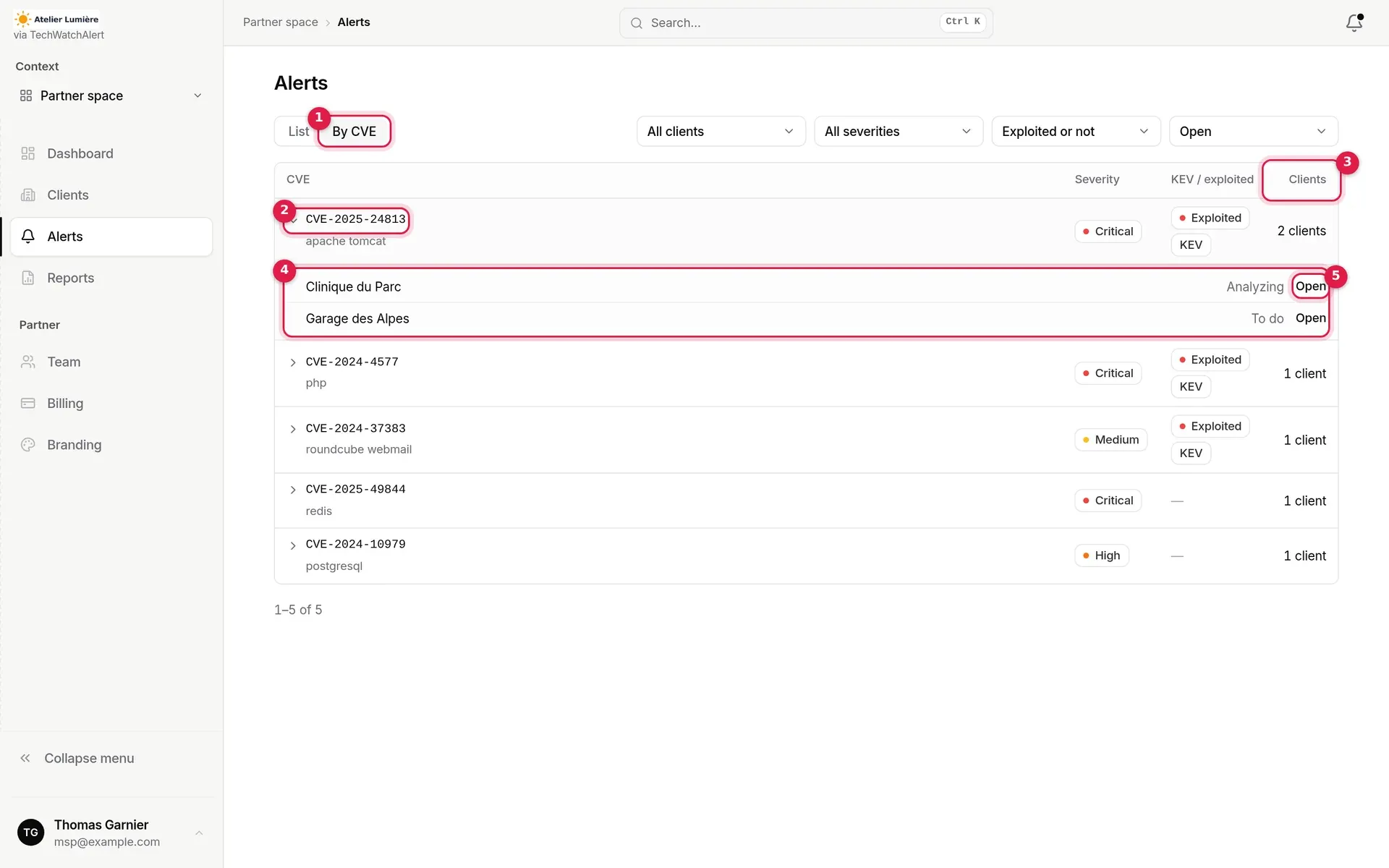
- By CVE: the active view.
- CVE, with the affected product: a click expands the list of affected clients.
- Clients: the number of affected clients.
- Affected clients, each with the status of its case.
- Open: the alert’s page at that client’s.
Order: exploited first, then by severity, then the most clients affected, then the most recent alert. The same filters apply; pagination is by CVE.
Reports
Section titled “Reports”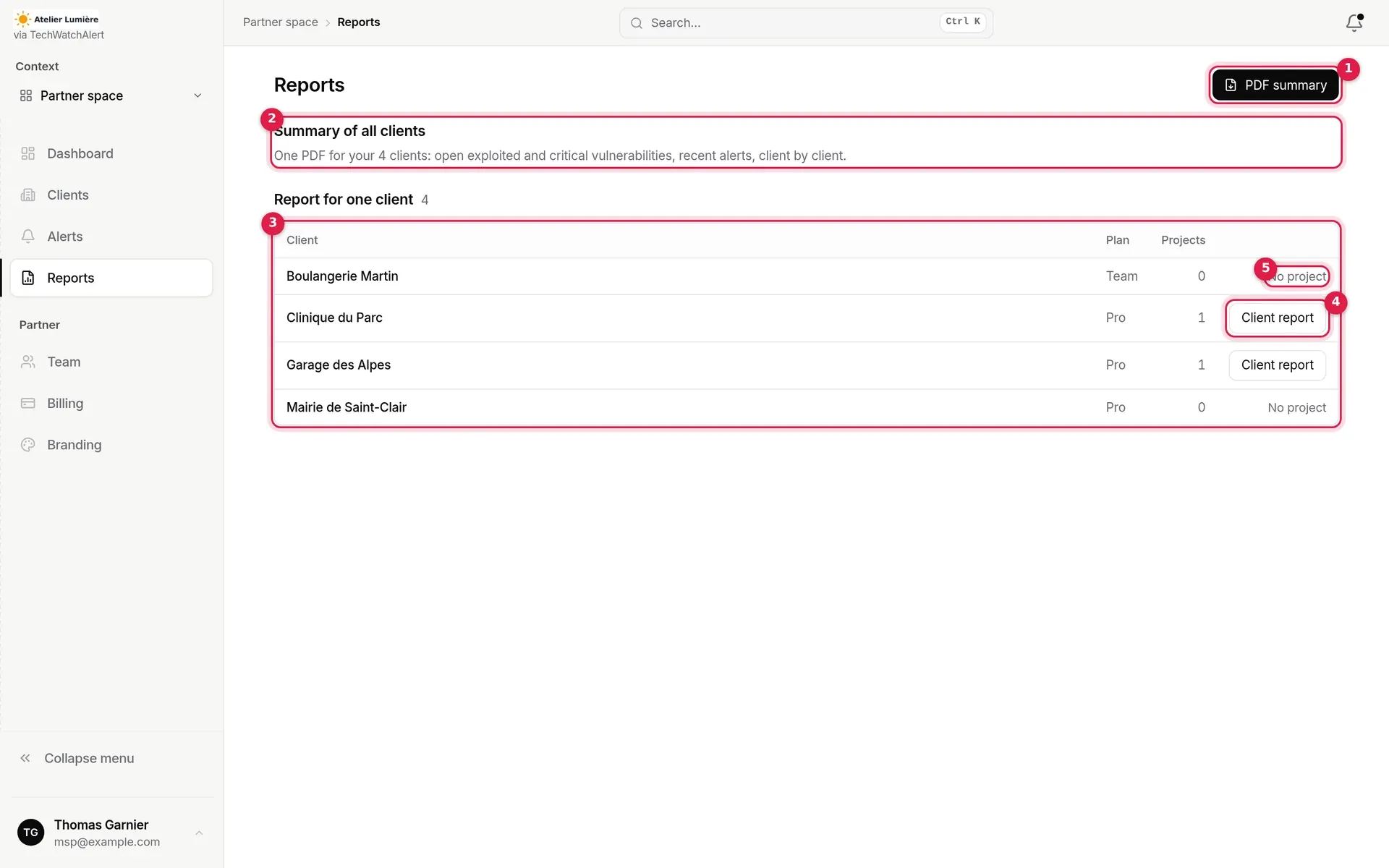
- PDF summary: downloads the summary of all your clients (greyed out while you have no client).
- Summary of all clients: what the PDF contains.
- Report for one client: your clients in alphabetical order, with their plan and number of projects.
- Client report: makes the client’s default project the current project and opens the usual Reports page, at the client’s, to generate or download its monitoring reports.
- “No project”: the client has no project you can open.
The clients’ PDF summary
Section titled “The clients’ PDF summary”One page on your whole portfolio, for internal reviews or meetings with your clients. It is written in the interface language.
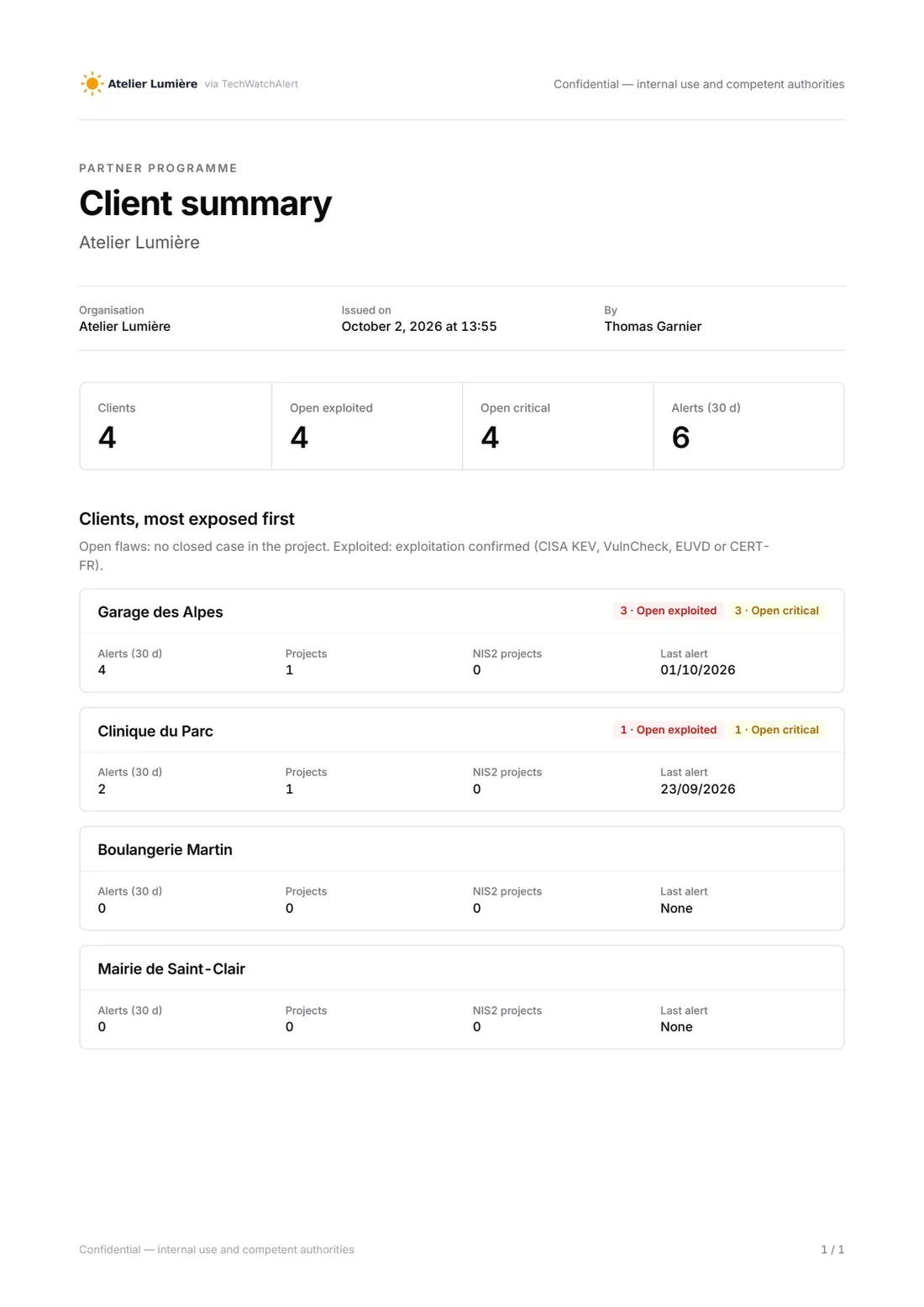
The document contains:
- the header in your partner organisation’s branding (its logo, followed by “via TechWatchAlert” until full white label is reached), the organisation’s name, the date and your name;
- four figures: Clients, Open exploited, Open critical, Alerts (30 d);
- one card per client, most exposed first (same order as the client list), with pills for open exploited and critical vulnerabilities, and the Alerts (30 d), Projects, NIS2 projects and Last alert fields;
- a note recalling the definitions: a flaw is open when no case is closed in the project; exploited, when exploitation is confirmed.
Only your clients are listed, not your own organisation.
Quarterly review
Section titled “Quarterly review”The page’s Quarterly review section produces, for a client’s management, a PDF under your brand: executive summary (exposure level, new flaws, flaws handled, open flaws, median time to fix, compared with the previous period), month-by-month trend, recommended actions and upcoming end of life. Its content is detailed in Reports › Quarterly client review.
- Choose the quarter: the last four completed calendar quarters are offered, most recent first.
- Review, on a client’s row: downloads its review as a PDF, in the interface language.
- All reviews (ZIP): one archive with every client’s review.
A review covers the client’s projects you can open. A client whose plan does not include reports, or whose history does not cover the quarter, is skipped in the archive. These reviews are not added to the client’s report list; to keep one there, generate it from the client’s Reports page (Quarterly client review template).
Evidence pack
Section titled “Evidence pack”The Evidence pack section produces, client by client, the two documents that show your duty to advise: the advisory duty log (for each CVE alerted: alert, notifications delivered, advice, client decisions, closure) and the answers to the insurer questionnaire. Their content is detailed in Reports › Evidence pack.
- Choose the period: the last 12 months (offered by default) or one of the last four quarters.
- Choose the format: PDF, Excel or CSV.
- Log or Insurer, on a client’s row: downloads the document.
Only your partner organisation’s administrators have access, and only for your clients; the document covers the client’s projects you can open, within the client’s plan and history. Each document is sealed (SHA-256 fingerprint) and saved in the client’s reports, under your name: its fingerprint remains verifiable, and its production is written to the client’s audit log as well as your organisation’s.