A version
The bell on a version row: “warn me before the end of support and before the end of life of PostgreSQL 15”. Follow every version you run.
A version the vendor no longer fixes will never get a CVE to warn you: its end of life is its due date. TechWatchAlert keeps a catalogue of end-of-support and end-of-life calendars for common products (source: endoflife.date) and helps you follow those in the project’s stack.
Two screens handle it:
Open it from Monitoring › End of Life. The active project’s name is shown next to the End of Life (EOL) title.
At the top, the filter bar, the same as on the CVE and Alerts pages (see Searching and filtering):
Below, the product table: a click on a product row expands or collapses it, the STACK badge marks a product in the project’s stack, and the bell in the Follow column subscribes the project.
The table is grouped by product; pagination counts products (Rows per page: 25 or 50, bottom right).
On a product row:
| Column | Content |
|---|---|
| Product | Name, catalogue identifier (postgresql, django…), STACK badge. |
| Version / Cycle | Number of versions of the product. |
| Latest version | Latest release of the newest branch, with that branch’s name underneath. |
| Release date, End of support | Those of the newest branch. |
| End of life (EOL) | The soonest end of life among the product’s versions: red if past, amber if within 180 days. |
| Status | Summary: Active Support if at least one version is supported, otherwise Ending Soon if one is close to its end, otherwise End of life if all have passed, otherwise No date. Hover: the breakdown by status. |
| Follow | The Track new versions bell. |
On an expanded version row: the cycle’s latest release, the cycle (an LTS badge for long-term support), its dates, the end of life with “in N d” (within the coming year) or “N d ago”, the version’s status and the Track (end-of-life / support) bell. Versions are listed from newest to oldest.

A version’s status:
| Status | Rule |
|---|---|
| End of life | The end of life has passed, or the vendor declared it without a date. |
| Ending Soon | The end of life falls within 180 days. |
| Active Support | The end of life is further away. |
| No date | The catalogue has no end-of-life date. |
The Search a product field filters on the catalogue name or identifier (“postgres” finds PostgreSQL). The list follows your typing after a short pause; Enter applies the search at once, Esc clears the field, and the / key puts the cursor in it from anywhere on the page. A product the search names exactly (“postgresql”, “PHP”) expands by itself.
Filters apply at once and add up; any filter change goes back to the first page.
postgresql, nginx, php…). Without an active project, the scope is hidden and the page shows the whole catalogue.Hover LTS or Security only for details. This page has no “Advanced filters” panel: all its filters are in the bar.
Quick views, right of the scope, sets a common combination in one click:
The first three need an active project. A view replaces the search and the filters set; the sort and the rows per page stay. When the filters match a view exactly, the button shows its name.
Below the bar, a line gives the number of products and versions found (“8 products · 16 versions”), then one chip per filter set: “Scope: My stack”, “End of life”, “LTS”, “End of life within 90 days”… A chip’s cross removes its filter. Clear all removes the search and every filter, scope included, keeping the sort and the rows per page.
The sort, right of the quick views: Product (alphabetical, default) or Deadline, which orders products by the soonest end of life among their matching versions, oldest first; products without a date come last.
The search, filters, sort, page and rows per page are written into the page address, without a history entry for each click: a copied link reopens exactly the same list. Only departures from the defaults appear.
| Parameter | Meaning |
|---|---|
q |
search (product is read the same way) |
scope |
scope: stack or followed (absent: whole catalogue) |
status=eol,ending_soon |
statuses (eol, ending_soon, active, unknown) |
lts=1, securite=1 |
LTS, security only |
echeance |
deadline: 30j (30 days), 90j, 1a (12 months) or 2a (2 years) |
sort=eol |
sort by deadline (absent: Product) |
page, page_size |
page, rows per page (25 or 50) |
Links in the app use it: the dashboard’s EOL < 30 days counter opens the page on Followed, 30-day deadline; a row of the deadlines widget, of an end-of-life email or of a Vigie product card opens that product, expanded. A link from an email also activates the notice’s project.
The search takes the full width; below it, a toolbar stays visible while scrolling: Filters (with the number of filters set), Sort and the range shown (“1–25 of 44”). Active-filter chips scroll in one row, followed by Clear all. Filters opens a sheet with the quick views, the scope, the statuses, LTS, Security only and the deadline; filters apply at once, and the bottom button announces the number of products found.
Two subscriptions, two purposes:
A version
The bell on a version row: “warn me before the end of support and before the end of life of PostgreSQL 15”. Follow every version you run.
The product
The bell on a product row: “warn me when a new Django version ships”. Useful to prepare upgrades.
Clicking the bell subscribes the project; the bell turns solid and framed. A second click unsubscribes. A version already past its end of life can still be followed: its end of support may still be ahead. With no active project, bells are disabled (“Select a project to enable EOL subscriptions”).
Subscriptions belong to the project: all its members see them. They can also be created when adding a product to the stack, through the Track end of life? window (see Stack).
A check runs every hour:
Notifications go through the project’s workflows, created with it: Default end-of-life workflow (end of life approaching), Active support ending and New releases, which send an in-app notification to each project member. A disabled workflow warns nobody; see Workflows.
For projects where NIS2 is turned on, NIS2 compliance › Due dates, End of life view, treats unsupported versions as remediation deadlines: a state, a delay, an escalation, an owner. The number on the End of life tab counts unsupported components (overdue and escalated).
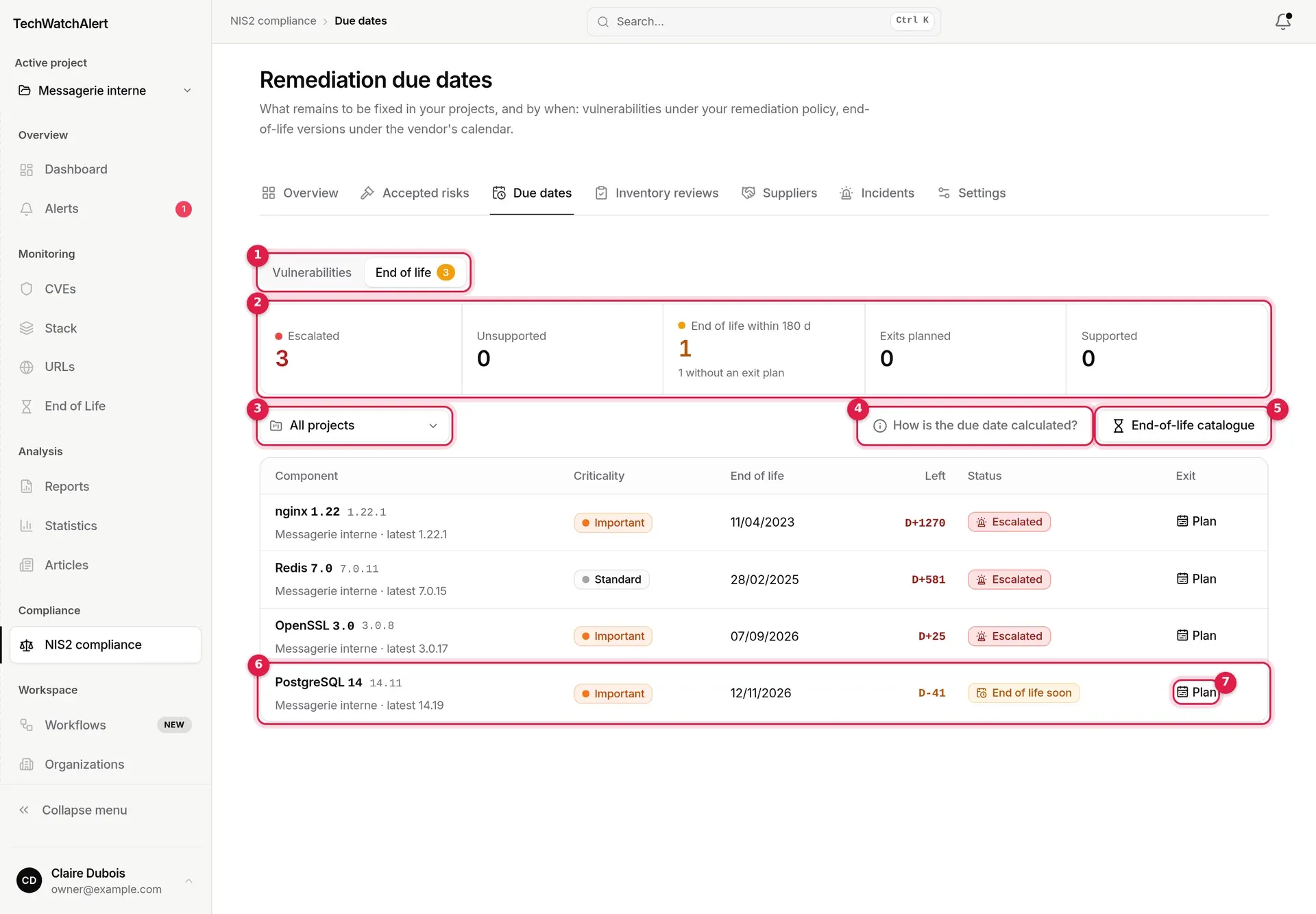
A component is a product-cycle pair in a project, worked out on every display:
A stack item with no version, or whose version matches no cycle, cannot be assessed: it is counted, and a banner says so (“… have no usable version”) with a Complete the stack link. A version with no known end-of-life date does not appear.
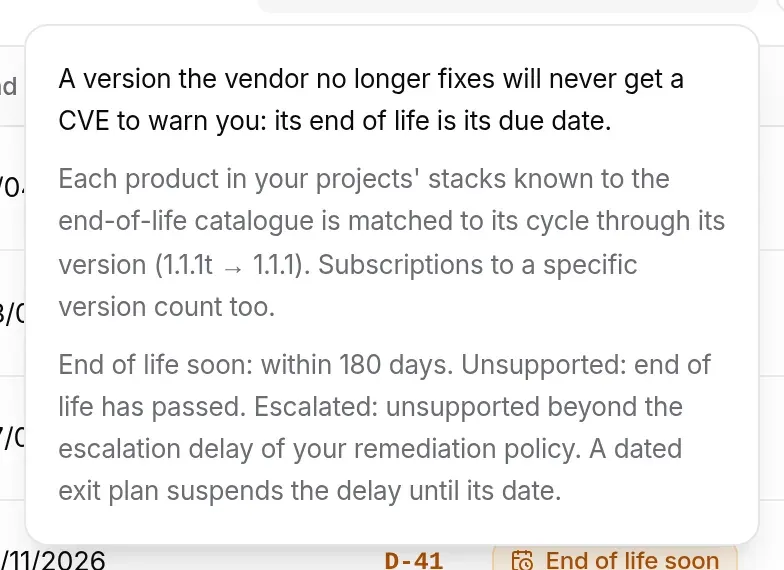
| State | Rule |
|---|---|
| Supported | End of life more than 180 days away. |
| End of life soon | End of life within 180 days: time to plan. |
| Exit planned | End of life passed, but a dated exit plan in the future covers the component. |
| Unsupported | End of life passed (or the exit plan itself is overdue). |
| Escalated | Unsupported for longer than the escalation delay of the project’s remediation policy. |
The Left column gives the gap in days: D-47 means 47 days before the end of life, D+19 19 days overdue. The list is sorted by state (escalated first), then by gap, then by criticality. Criticality is the highest among the stack items concerned, otherwise the project’s.
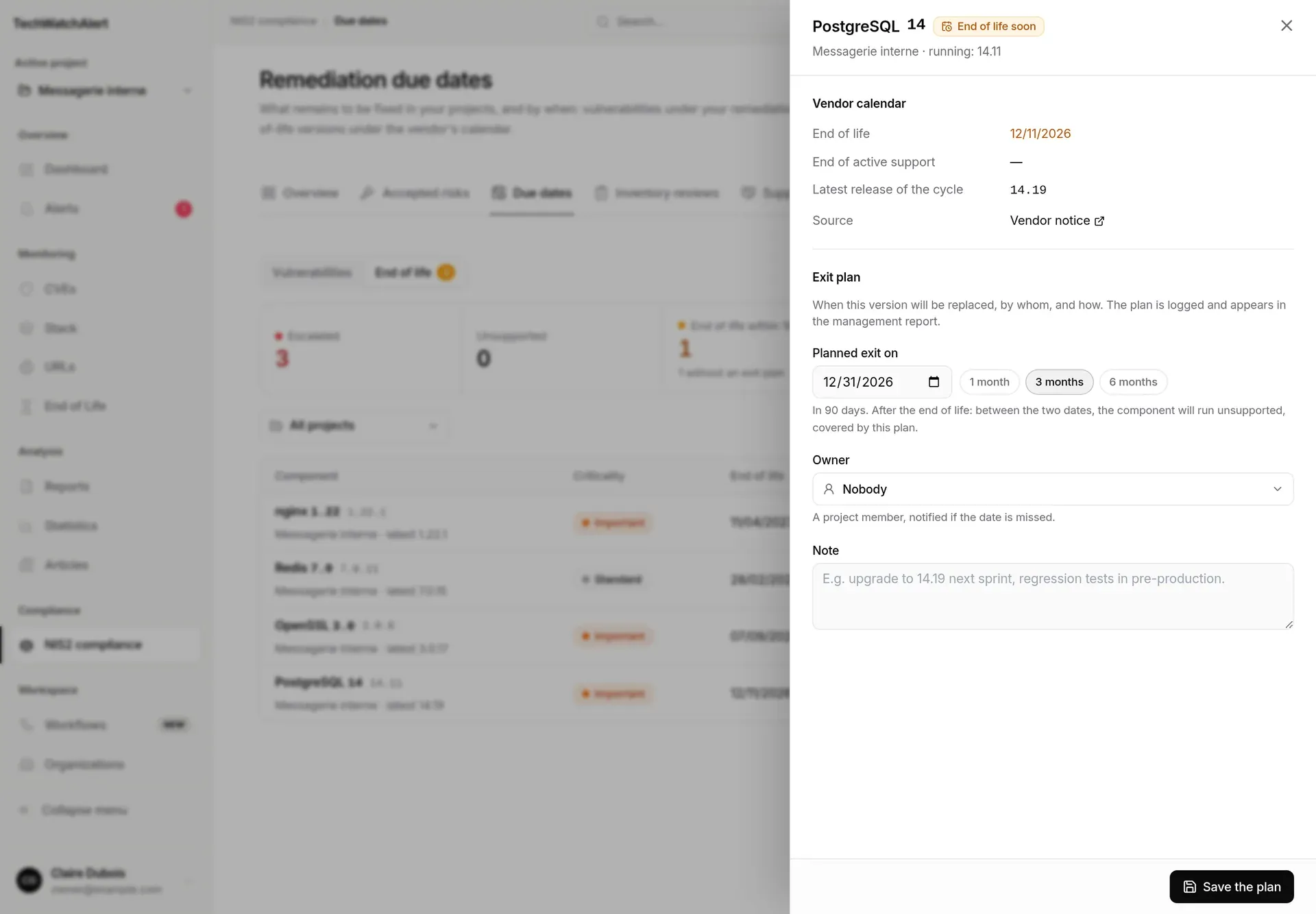
A click on a row (or on Plan) opens the component’s panel:
Clear the plan removes the date, the owner and the note. The panel shows who last changed the plan, and when.
A plan dated after the end of life pushes the deadline back to its date: the component moves to Exit planned and no longer counts as overdue. Once that date passes, it is Unsupported again and escalation resumes. A plan dated before the end of life does not bring the deadline forward. Every plan is logged and appears in the management report.
The NIS2 compliance overview has an End of life block (“Versions the vendor no longer fixes are replaced under a dated plan.”): overdue when there are unsupported or escalated components, to do when there are close ends of life without a plan, otherwise compliant. Its actions lead to the matching filters of this view, and to the stack for versions to fill in. Unsupported or close components appear in the annex of the management report.
| Action | User | Analyst | Admin | Owner |
|---|---|---|---|---|
| View the End of Life page | ✓ | ✓ | ✓ | ✓ |
| Subscribe (bell) | ✓ | ✓ | ✓ | |
| Unsubscribe | ✓ | ✓ | ✓ | |
| Set the project’s warning lead times (Team notifications card) | ✓ | ✓ | ✓ |
These are the default rights; they can be set member by member or per group (“Subscribe to EOL”, “Unsubscribe from EOL” and “Edit EOL subscription” rights), and the server applies the result.
In the Due dates End of life view, reading follows access to the NIS2 area, and planning an exit needs the Record an inventory review right (granted by default to the project’s Analysts, Admins and Owner).
Each row knows whether you can plan: without the right, the panel shows the plan read-only, or “No exit plan. It is planned by a project member allowed to record inventory reviews.”. Organisation owners and administrators, and holders of a NIS2 role, see every NIS2 project in the organisation.
My product is in the stack, but “My stack” does not show it.
Matching is on the catalogue’s exact identifier. An item named differently (say node.js instead of nodejs) is not recognised. Subscribe to the version from Whole catalogue instead: the subscription also counts in the Due dates view.
Why doesn’t my version show in Due dates? You need a version in the stack (or a subscription to the version), a cycle matching the catalogue, a known end-of-life date, and NIS2 turned on for the project.