Team, roles and groups
In TechWatchAlert you do not hand out roles one by one: project access and rights come from groups. An organisation member joins one or more groups; each group opens projects with specific rights. This page explains the two levels of roles, groups, and a member’s life cycle: invitation, profile, removal.
- Who it is for: the organisation’s Admins and Owner, who manage the team; other members will find what their role allows.
- Where: Organizations › (your organisation), the Members (members and invitations) and Groups and permissions pages of the People group, and the Invite button; per-project rights are in each project’s settings, Members page.
Two levels of roles
Section titled “Two levels of roles”| Level | Roles | Where the role comes from |
|---|---|---|
| Organisation | Owner (OWNER), Admin (ADMIN), Member (MEMBER) | The creator is the Owner. Being in the Administrateurs system group makes a member an Admin; otherwise they are a Member. |
| Project | Owner (OWNER), Admin (ADMIN), Analyst (ANALYST), User (VIEWER) | The project’s creator is its Owner. Everyone else gets their role from the groups that cover the project. |
In the interface, the VIEWER role is displayed as User.
Organisation roles
Section titled “Organisation roles”| Action | Member | Admin | Owner |
|---|---|---|---|
| See the organisation, the member list and profiles, groups, prioritisation, NIS2 owners | ✓ | ✓ | ✓ |
| Read another member’s internal note and access deadline | — | ✓ | ✓ |
| Rename the organisation | — | ✓ | ✓ |
| Invite, follow and revoke invitations | — | ✓ | ✓ |
| Edit a member’s profile, deadline and groups; remove them | — | ✓ (except an Admin or the Owner) | ✓ |
| Create, edit and delete groups; add members to them | — | ✓ | ✓ |
| Create projects in the organisation | — | ✓ | ✓ |
| Tags, prioritisation policy, API keys, SSO, audit log | — | ✓ | ✓ |
| Billing and plan changes | — | — | ✓ |
| Appoint NIS2 owners | — | — | ✓ |
| Delete the organisation | — | — | ✓ |
The Owner cannot be removed from the organisation, never has an access deadline, and their rights do not depend on any group. An Admin does not manage a peer: the profile, groups, deadline and removal of another Admin or of the Owner are reserved for the Owner. Finally, the server refuses to let an organisation lose its last Owner.
Project roles
Section titled “Project roles”Each role opens a default set of rights. The table shows the effective rights computed by the server; the interface’s rights matrix reads them from the server, so it shows the same.
| Module | User | Analyst | Admin | Owner |
|---|---|---|---|---|
| Dashboard | View | View | View, create, edit, delete | Everything |
| Stack | View | View, add, edit, delete, import | Everything | Everything |
| CVEs | View, detail | View, detail | View, detail, export | Everything |
| Alerts | View | View, mark as read, manage / archive, export | Everything | Everything |
| Monitored URLs | View | View, add, edit, remove, auto-watch | Everything | Everything |
| End of life | View | View, subscribe, edit, unsubscribe, import | Everything | Everything |
| Articles, AI assistant, Statistics | View / use | View / use | View / use | Everything |
| Cases & reports | View | View, change status, add / edit note, comment, reopen, generate / export, delete a report | Everything | Everything |
| Workflows | View | View | View, create, edit, delete, run, AI generate, copy | Everything |
| NIS2 compliance (project registers) | View | View, request a risk acceptance, record an inventory review | Everything | Everything |
| Project members | — | — | View, invite, remove, manage rights | Everything |
| Webhooks | — | — | View, create, edit, delete | Everything |
| Project settings | — | — | Yes | Yes |
| Delete the project | — | — | — | Yes (see below) |
A few extra rules enforced by the server:
- Editing the project’s name, its prioritisation policy, tickets and inventory: Admin and above.
- A case’s tags and assignment: at least one of the “Change status”, “Add / edit note”, “Reopen case” rights (Analyst and above by default); a User reads the alert record without changing anything (see Handling an alert › The read-only record).
- Deleting the project: the project’s Owner, any member holding the “Delete project” right (the Administrateurs system group grants it), and the Admins and Owner of the project’s organisation.
- The Owner’s rights cannot be changed; an Admin can neither change another Admin’s rights nor remove them from the project; nobody but the Owner can grant a right they do not hold.
These defaults can be refined member by member (the Rights choice in a member’s ⋯ menu on the project’s Members page, see Projects › A member’s fine-grained rights) or group by group (see below). A custom right applies everywhere: the interface hides or disables what it does not allow, and the server enforces it on every action, exports included (a member whose alerts “Export (Excel)” right is removed can no longer download that export).
What a plain member sees
Section titled “What a plain member sees”A member outside the administration group sees fewer pages in the settings sidebar (Overview, General, Projects, Groups and permissions, Prioritisation, Remediation deadlines, Frameworks, Owners), read-only, and no Invite button. An address they cannot read shows “Restricted page”.
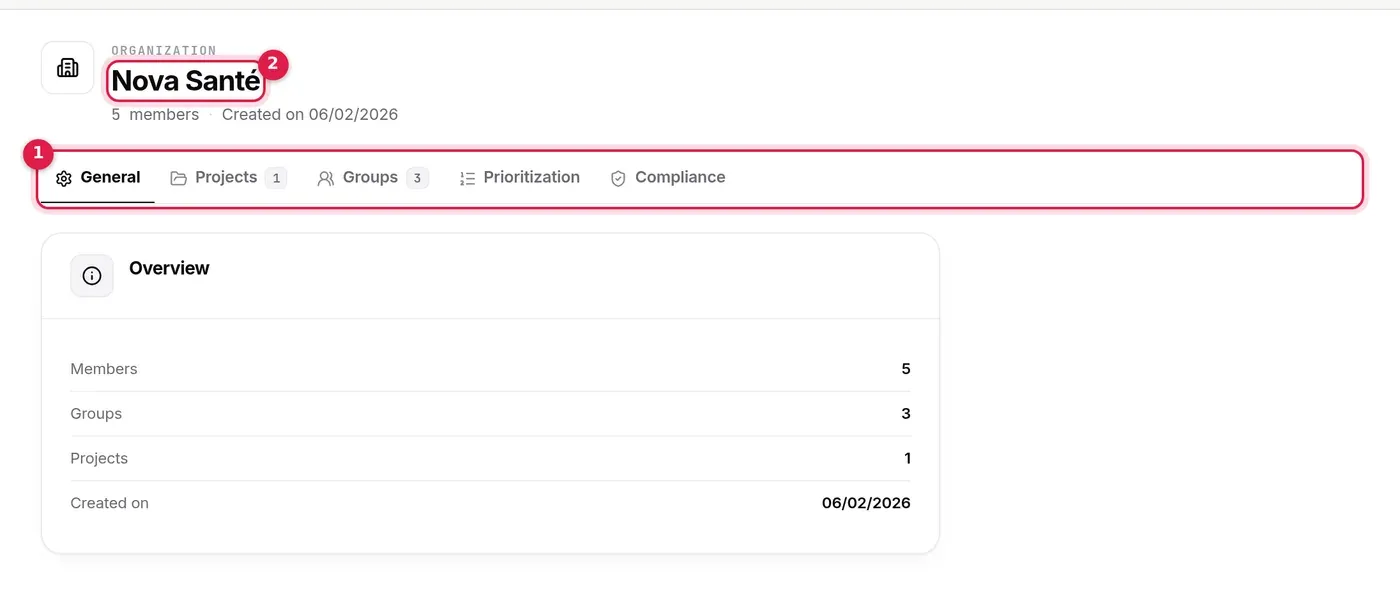
- The pages open to every member.
- No pencil to rename, no Owner badge, no Invite button.
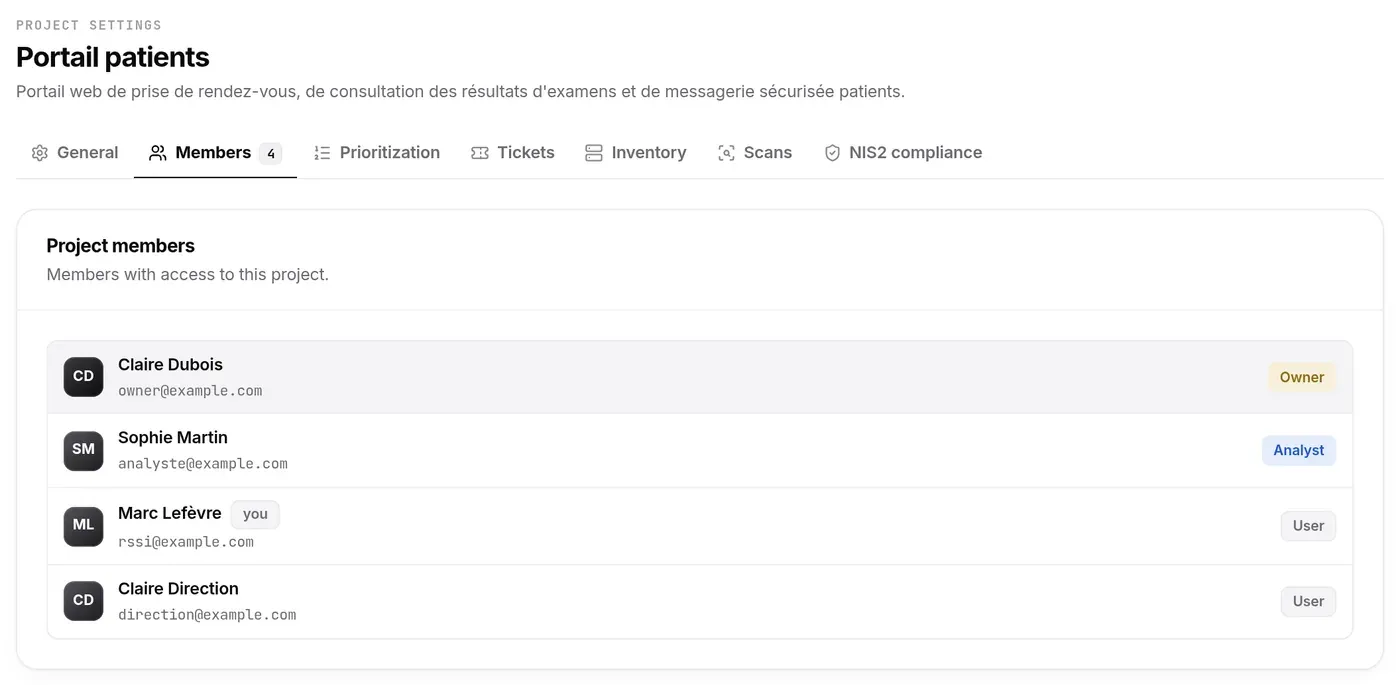
In the settings of a project where they are a User, they see the members but neither the Rights buttons nor the Delete the project section.
Groups
Section titled “Groups”A group brings organisation members together and gives them access to projects, with shared rights.
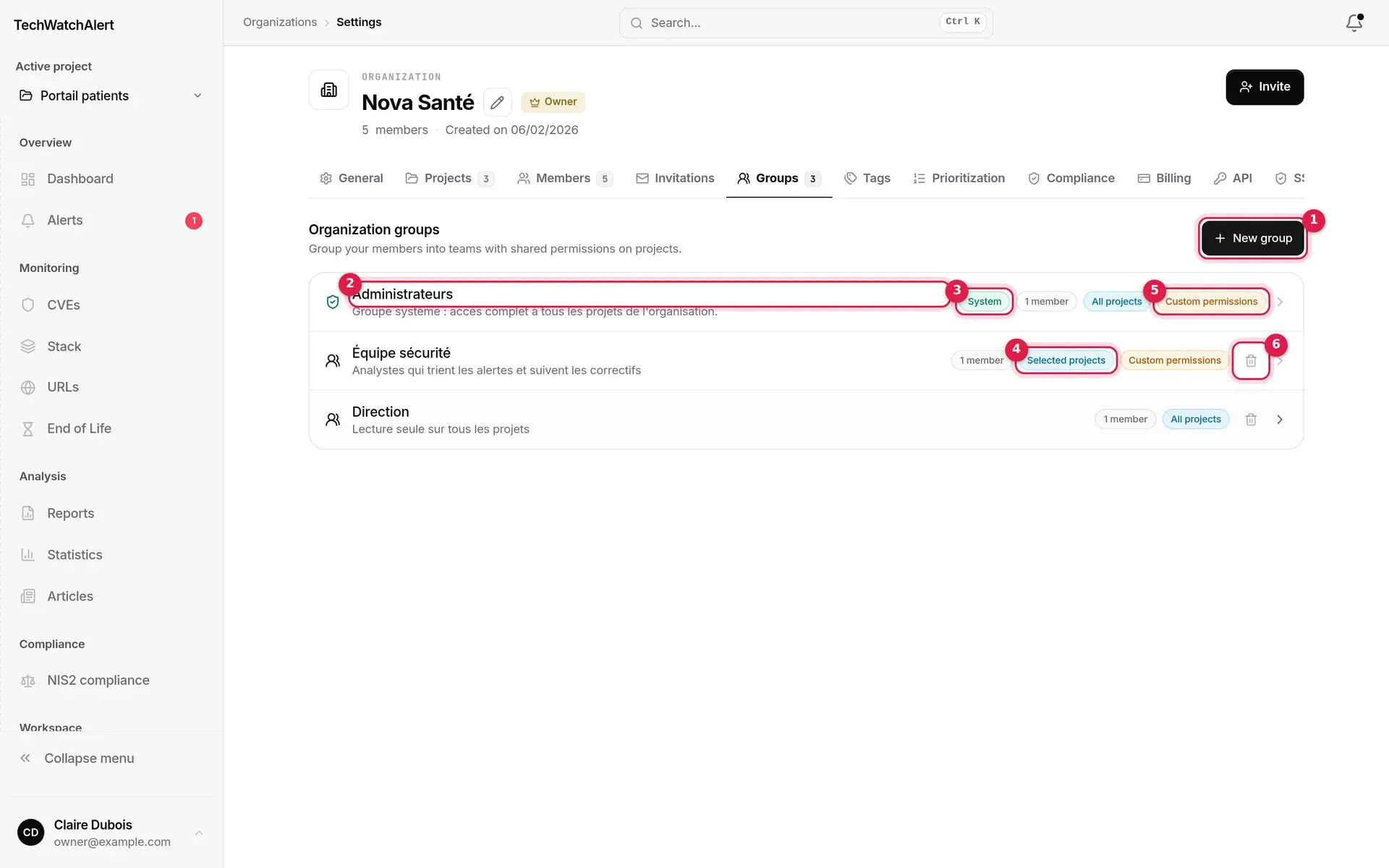
- New group (Admins and Owner).
- The group’s name and description; clicking the row opens its details.
- System: the Administrateurs group, created with the organisation.
- Scope: All projects or Selected projects.
- Custom permissions: the group departs from the base rights.
- Delete (bin), with confirmation. The system group cannot be deleted.
Each row also shows the group’s number of members.
The Administrateurs system group
Section titled “The Administrateurs system group”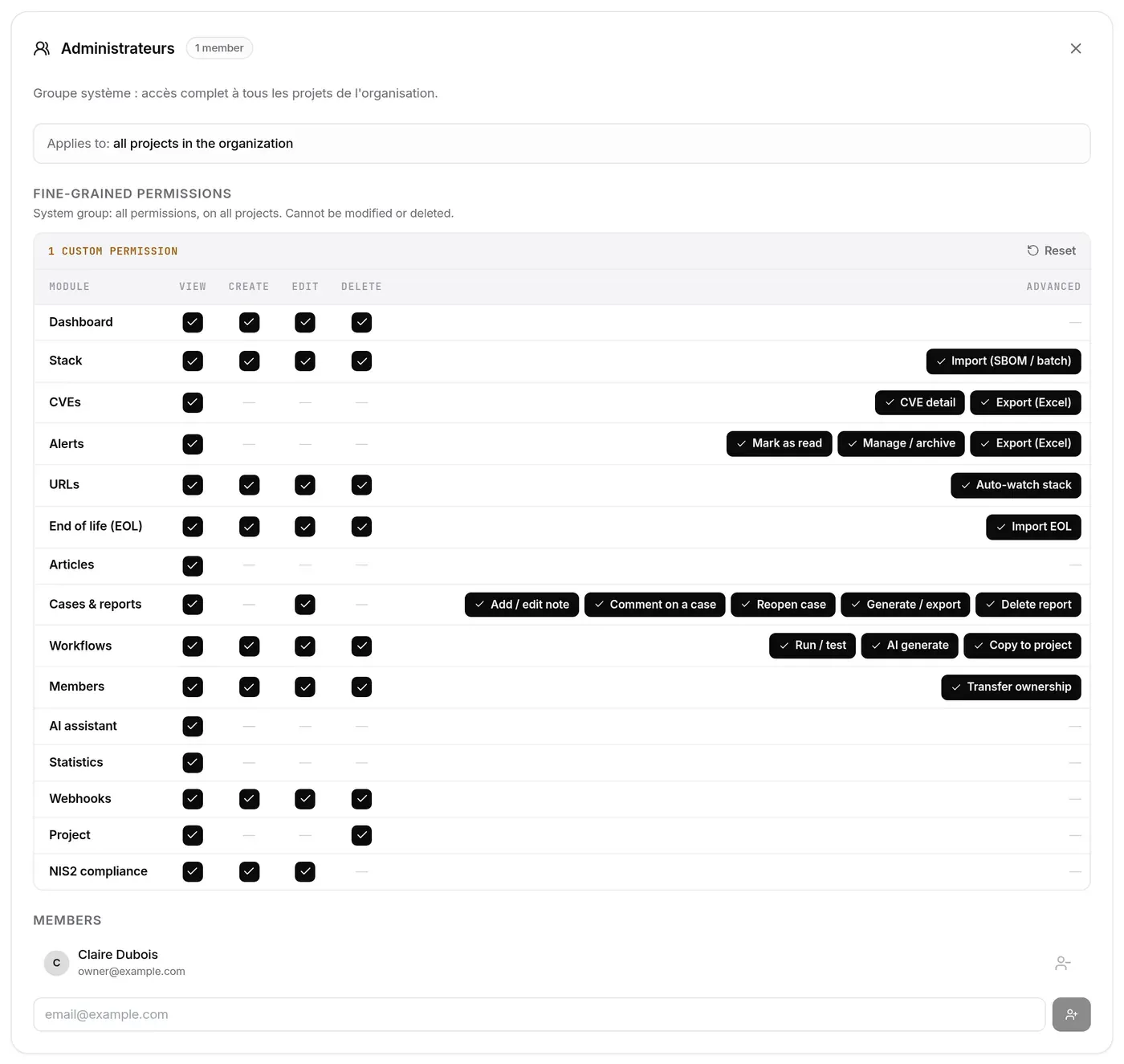
Created with every organisation, it gives its members the organisation Admin role and the Admin role on every project, present and future. Its rights, scope and existence cannot be changed; only its members can. Putting someone in this group makes them an administrator. Its name is displayed in French.
Group details
Section titled “Group details”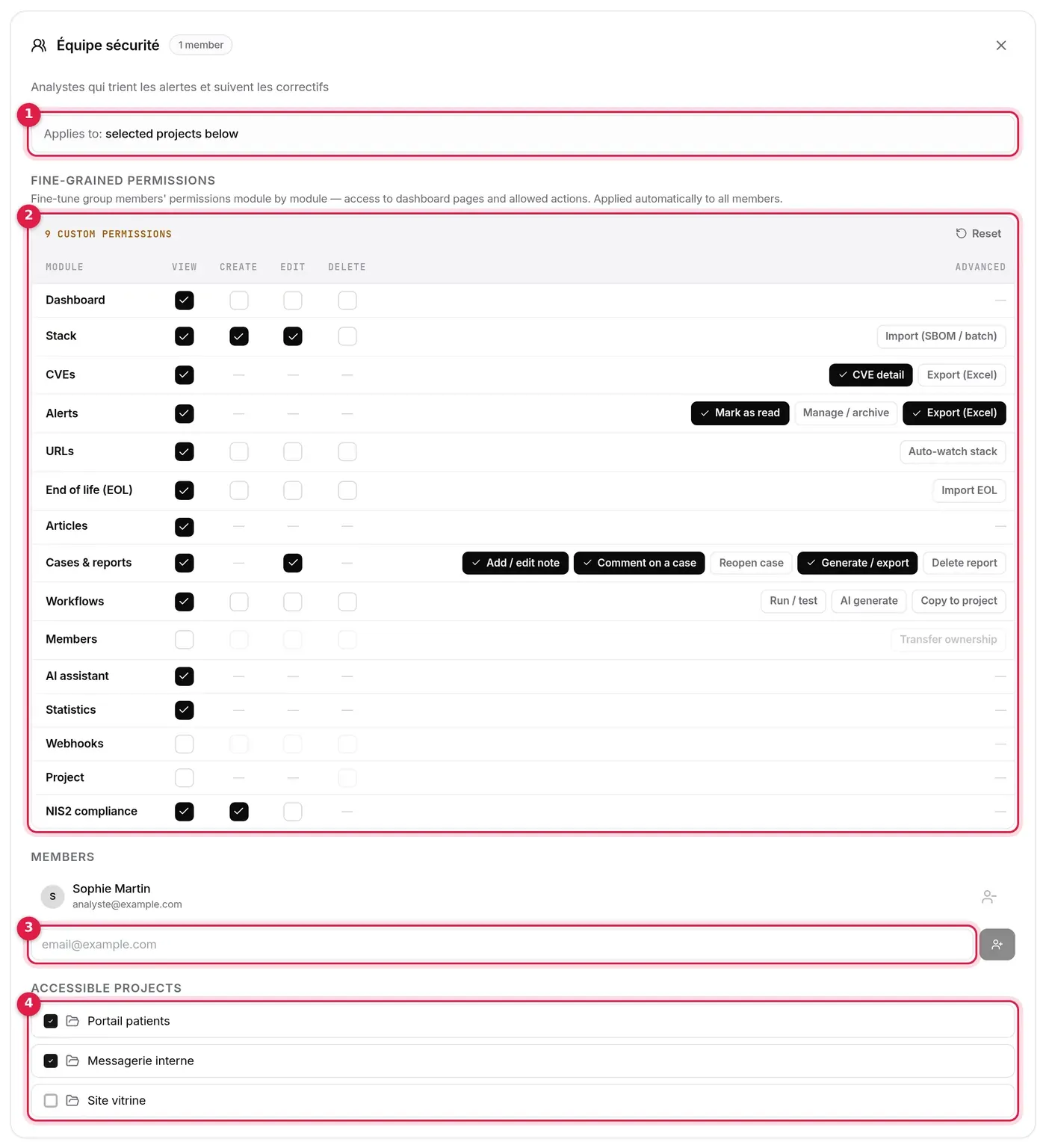
- Applies to: all projects in the organisation, or the projects selected at the bottom of the panel.
- Fine-grained permissions: the matrix of the group members’ rights, based on the User role.
- Members: Add members offers the organisation’s members not yet in the group (searchable list); the icon at the end of a row removes a member from the group (no confirmation). The reverse gesture, Add to a group, is on the member’s profile.
- Accessible projects (“Selected projects” groups only): tick or untick projects.
Each group now has its own page (/settings/groups/{id}): members first, then Access and permissions (scope, projects, matrix) saved together by a single Save (Cancel restores the previous state; leaving the page with changes first asks whether to save them), and Delete the group at the bottom (except the system group).
The cross at the top right goes back to the group list.
Creating a group
Section titled “Creating a group”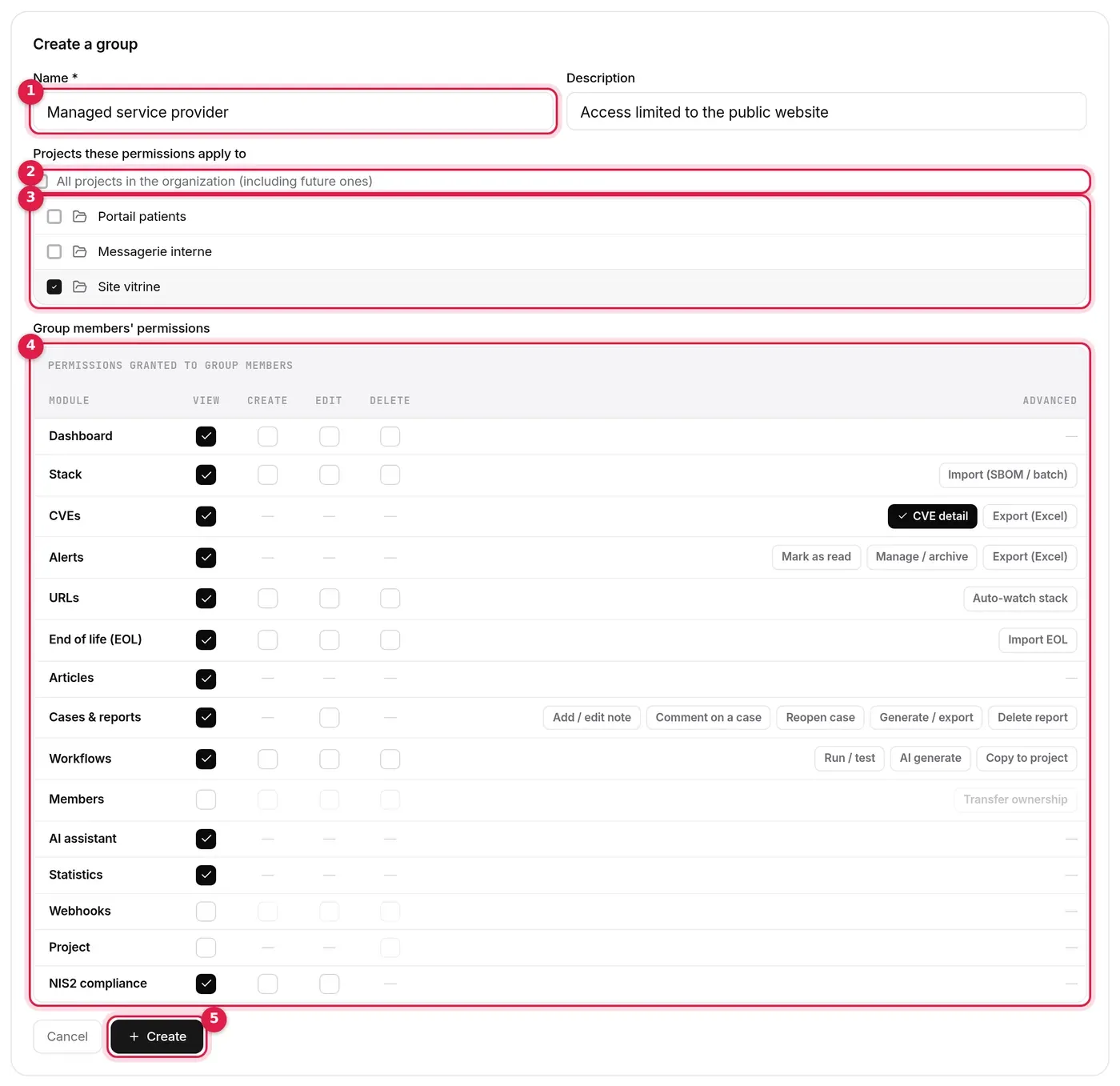
- Click New group.
- Give a name (required) and, if useful, a description.
- Choose the projects: tick All projects in the organization (including future ones), or at least one project in the list.
- Set the group members’ permissions in the matrix. It starts from the User role’s rights: tick what the group should be able to do on top.
- Click Create (greyed out while the name or projects are missing).
- Open the group to add its members.
How groups grant access
Section titled “How groups grant access”- An All projects group gives access to every project in the organisation, including those created later; a Selected projects group, only to the ticked projects.
- On those projects, the member gets the group’s role (User for a group created in the interface, Admin for the system group) and the group’s custom permissions.
- Changing a group’s rights or projects realigns the access of all its members at once: projects removed from the group are removed from them.
- Removing a member from a group removes the access that group had given them; their other groups then apply again.
- Access obtained another way (project creator, access from another group) is never downgraded by a group.
- The organisation role follows the groups: in the Administrateurs group you are an Admin; out of it, you are a Member again. The Owner is never affected.
Inviting a member
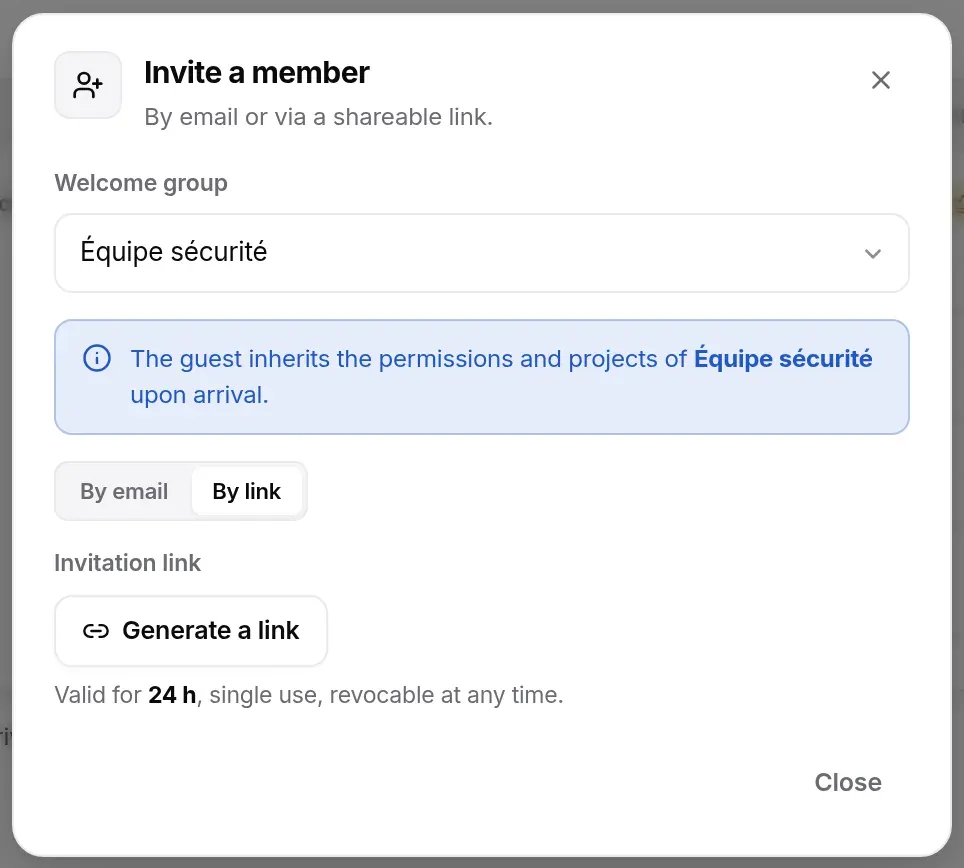
Section titled “Inviting a member”The Invite button (overview or Members page header) opens the invitation window. Reserved for Admins and the Owner; a personal space does not accept invitations.
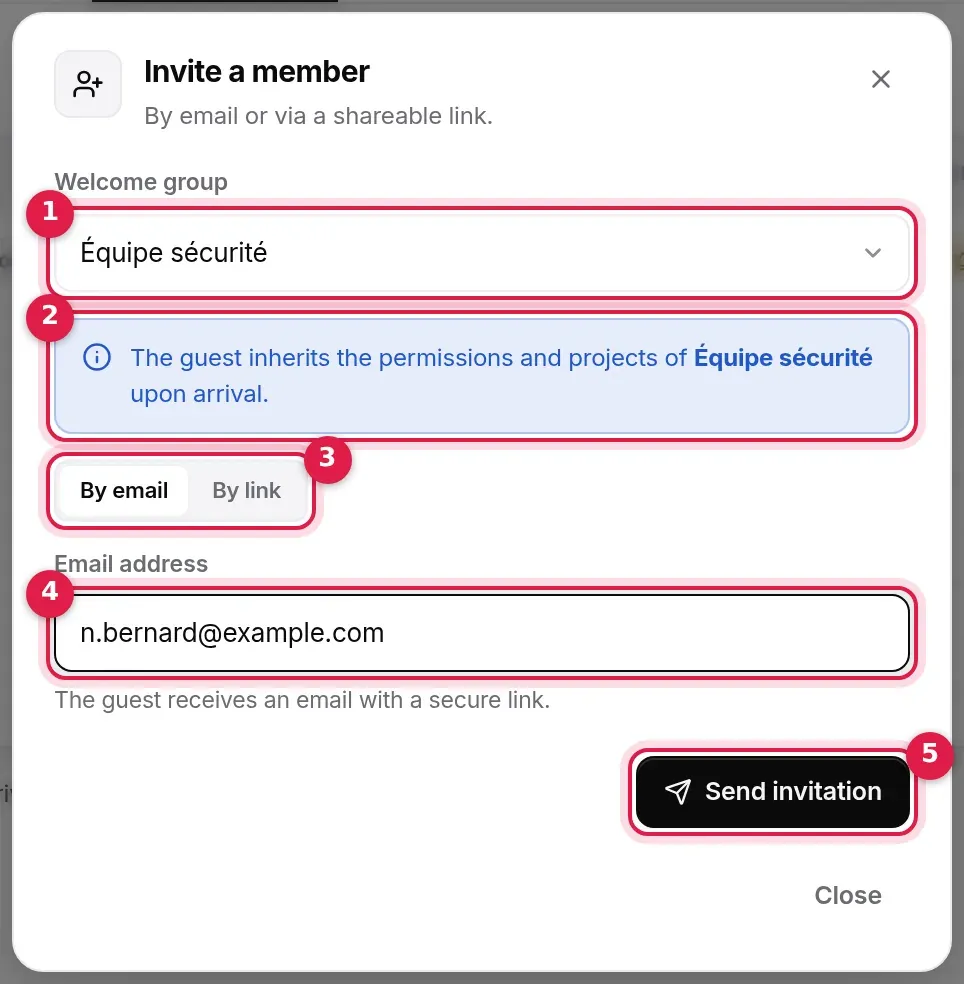
- Welcome group: the group the invitee joins on accepting.
- The banner says what the invitee will get: the chosen group’s permissions and projects.
- By email / By link.
- The invitee’s Email address.
- Send invitation: active as soon as the address contains an “@”.
Without a welcome group, the banner warns that the invitee will arrive with no access: you will have to add them to a group afterwards.
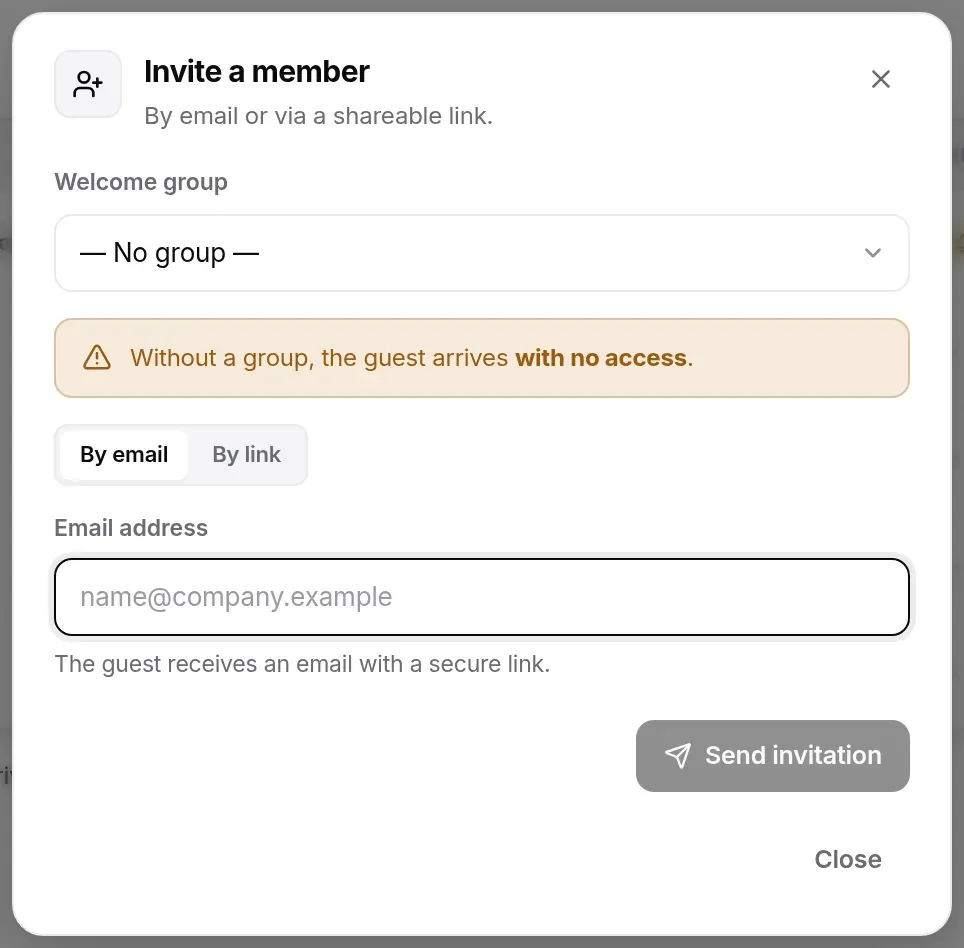
- Choose the welcome group.
- By email: enter the address and click Send invitation. The invitee receives an email with a secure link; if they already have an account, a notification also awaits them in the app. The invitation is valid for 7 days.
- By link: click Generate a link, then copy it and pass it on yourself. The link is valid for 24 hours and works once: the first person to accept it joins the organisation.
- Click Done.
Rules applied:
- One pending invitation per address: a second invitation to the same address is refused until the first is accepted or has expired.
- The number of members is capped by the plan: 1 on Free, 10 on Team, unlimited on Pro and Business. The limit is checked when sending and when accepting.
- Every invitation is recorded in the audit log.
- An invitation is only valid while its author can still invite: if they leave the organisation or lose their Admin role, their pending invitations are revoked.
Following and revoking invitations
Section titled “Following and revoking invitations”The Invited segment of the Members page lists all the organisation’s pending invitations, whichever administrator sent them: address (or shareable link), sender, welcome group, date sent. An invitation’s ⋯ menu offers Copy invitation link and Revoke. Reserved for Admins and the Owner; an invitation pending for more than 7 days appears in the overview’s To do.
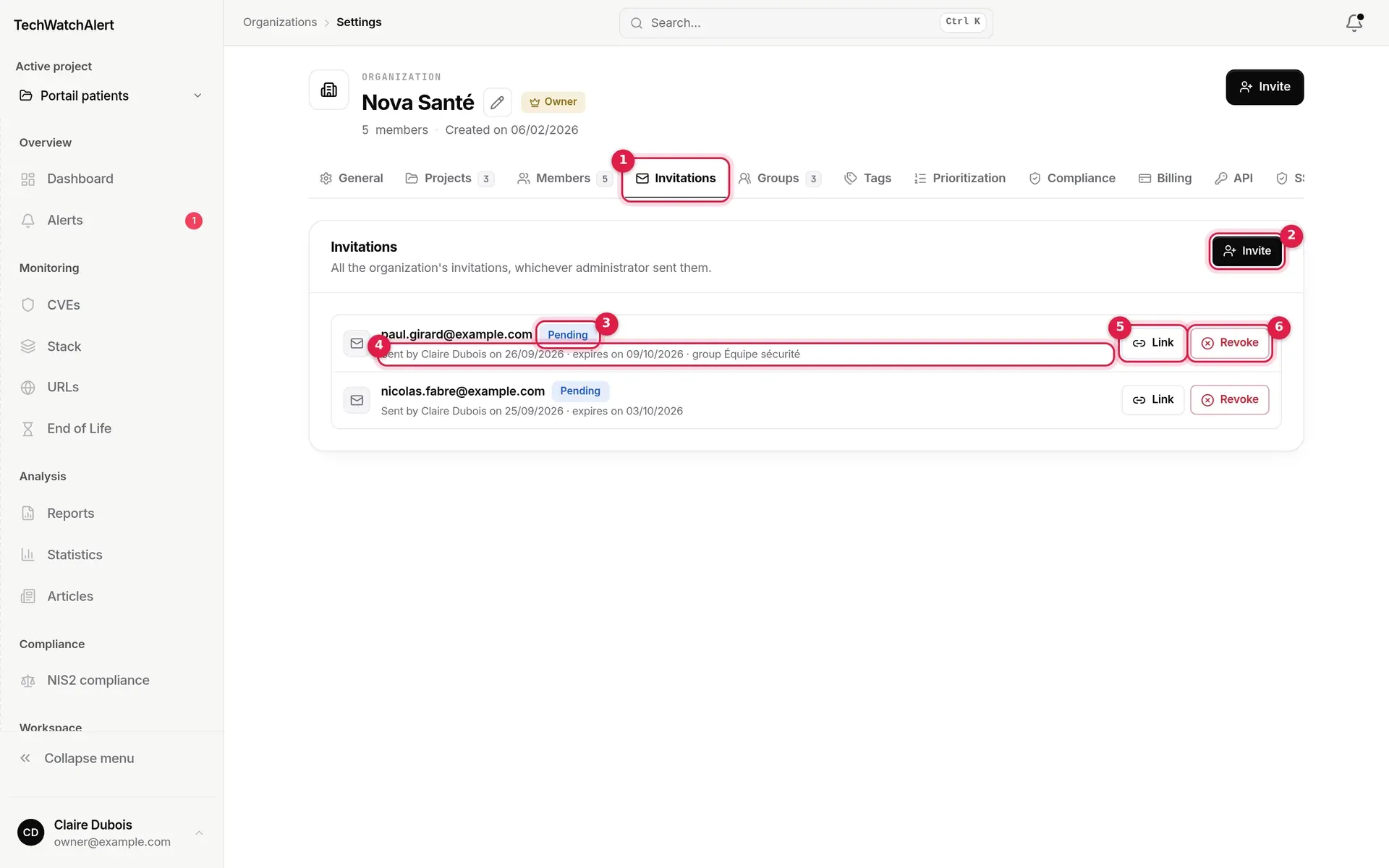
- The invitations (screenshot of the former tab, now the Invited segment).
- Invite: the same window as the header button.
- The status: Pending, Accepted, Declined, Expired or Revoked.
- Who sent it, when, its expiry date and, where relevant, the welcome group.
- Link: shows the invitation’s address, with a Copy button, so you can send it again yourself.
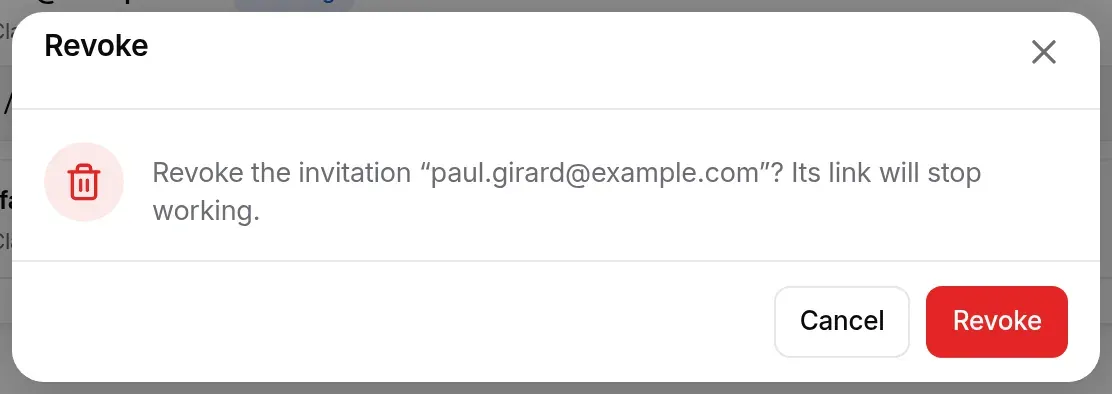
- Revoke: its link stops working at once (after confirmation).
Pending invitations come first; the others are grouped under History. A link invitation is listed as Shareable link. Link and Revoke are only offered for a pending invitation.

Invitations received
Section titled “Invitations received”Someone who already has an account finds their pending personal invitations at the top of the Organizations page, in the Invitations received box: no need to dig out the email. The box only appears when there are some.
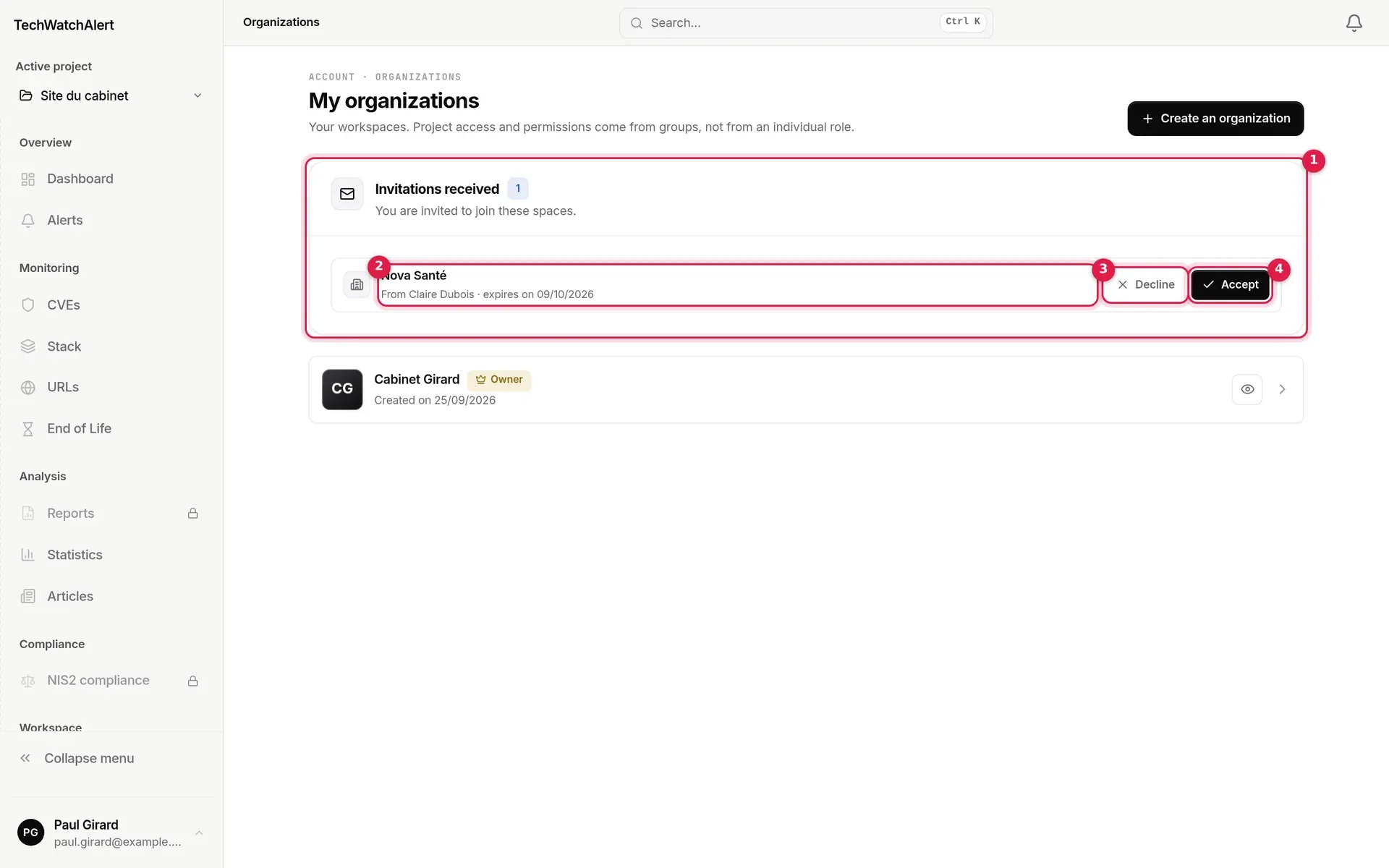
- The Invitations received box and how many there are.
- The space to join (organisation or project), who invites you and the expiry date.
- Decline: the invitation is closed; its author will have to send another.
- Accept: you join the space, with the welcome group chosen by the inviter.
Accepting an invitation
Section titled “Accepting an invitation”The invitee opens the link, signs in or creates an account, and the invitation is accepted: see Account and sign-in › Accepting an invitation. An email invitation can only be accepted by the account with that address; an invitee who creates their account sees it accepted when they confirm their email address, not before. A shareable link cannot be declined: only an administrator can revoke it. The inviter receives a notification on acceptance.
A member’s profile
Section titled “A member’s profile”Clicking a row on the Members page opens the member’s profile, at its own address (/settings/members/{id}); ‹ Members returns to the list.
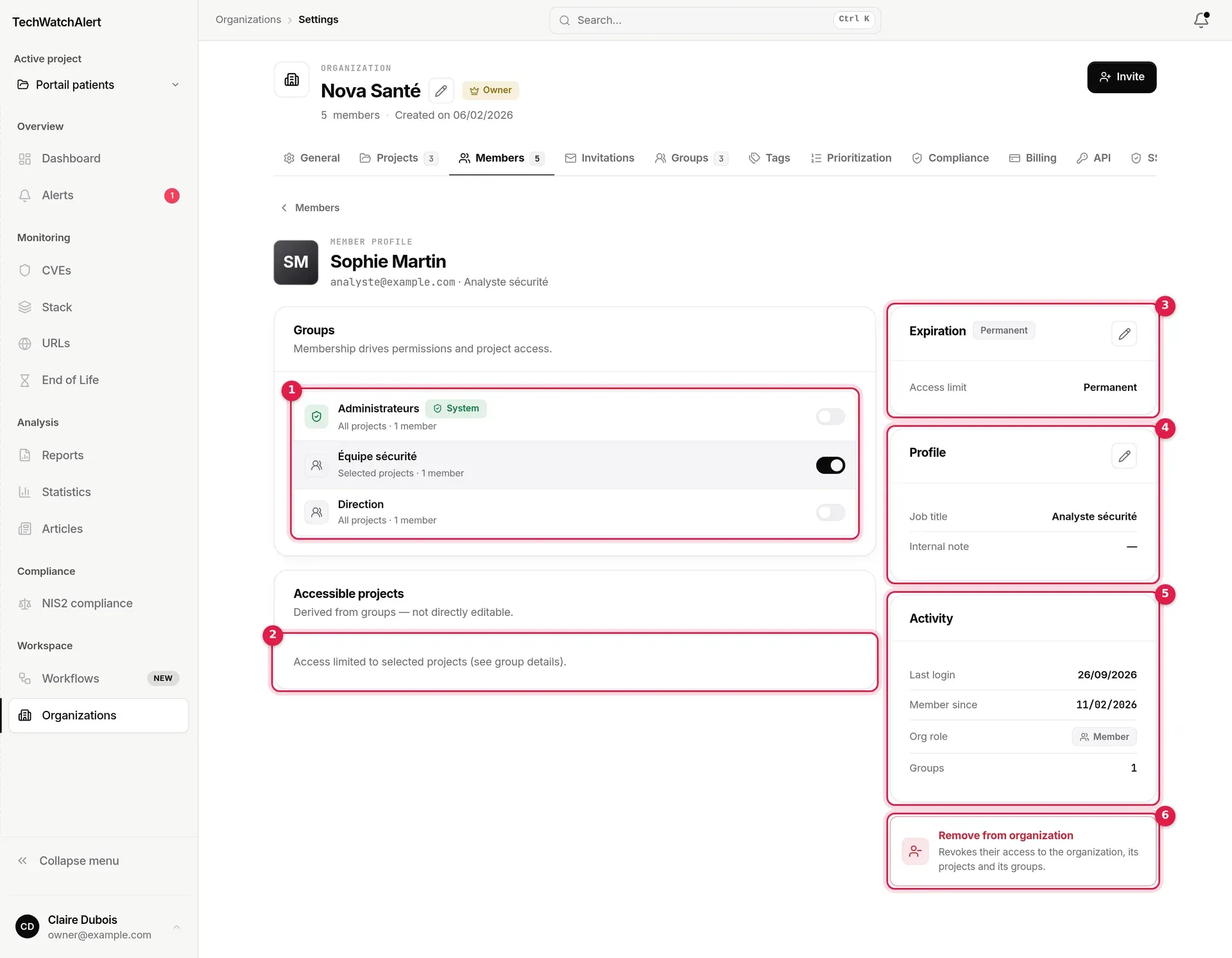
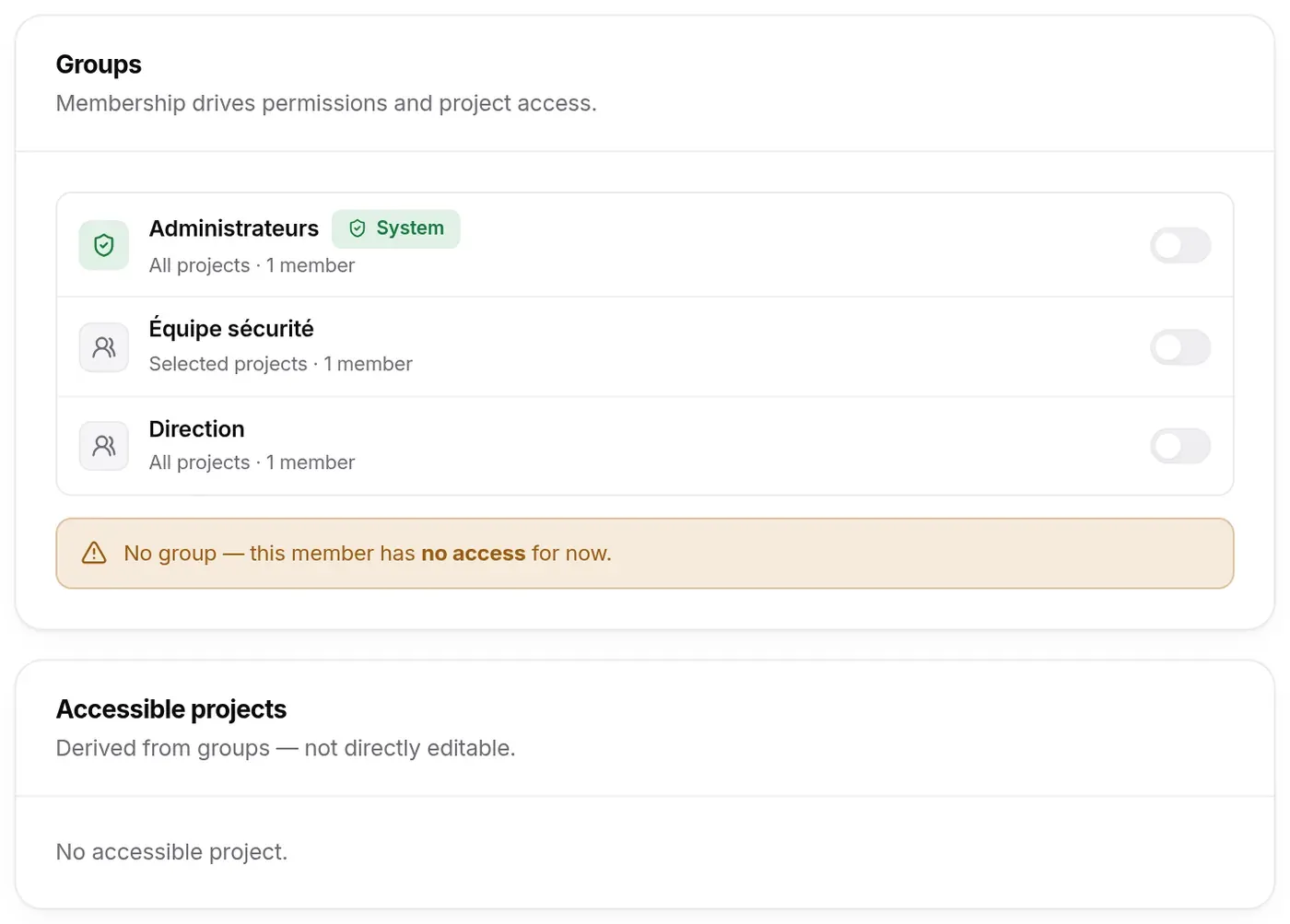
- Groups: one switch per organisation group. Turning it on adds the member to the group, turning it off removes them, with no further confirmation (Admins and Owner; on another Admin’s or the Owner’s profile, the Owner only).
- Accessible projects: the result of their groups, not editable here. With an “All projects” group, the list of projects; with “Selected projects” groups only, a note points to the group details.
- Expiration: Permanent, or an access deadline (Scheduled badge, then Expired). The Owner never has one.
- Profile: Job title and Internal note, visible to Admins and the Owner only.
- Activity: last login, joining date, Org role, number of groups.
- Remove from organization (see below).
A member with no group at all carries a warning banner: they have no access to projects.
On another Admin’s or the Owner’s profile, an Admin reads the deadline and the profile without being able to change them, and does not see the removal section: only the Owner manages peers.
Access deadline
Section titled “Access deadline”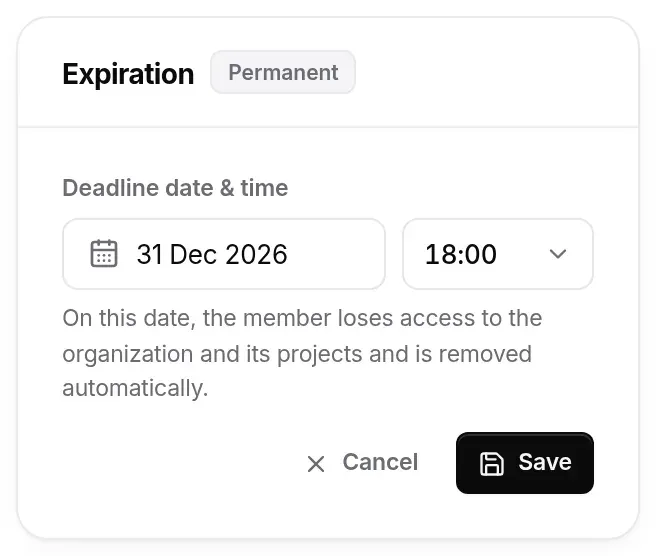
The Expiration section holds the Deadline date & time field, always open; it saves through its own Cancel · Save footer:
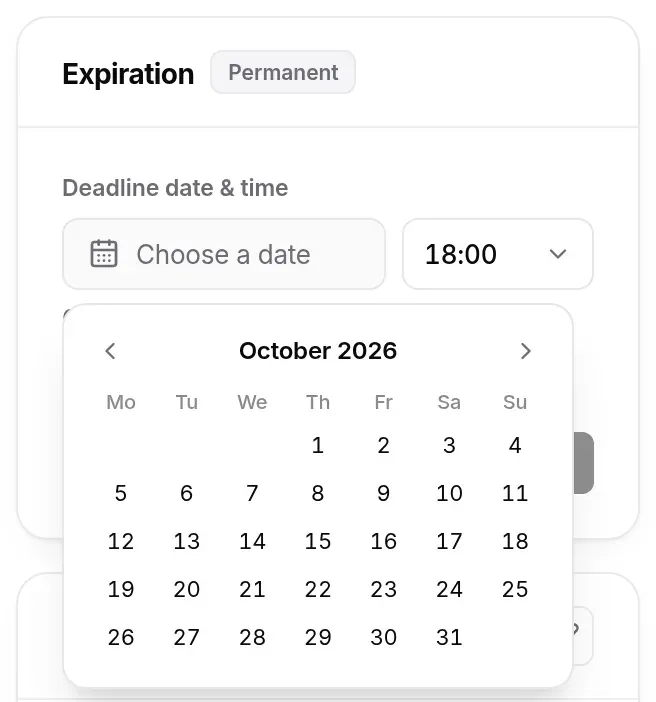
- Click Choose a date (or the date already set): a calendar opens on the current month. The Previous month and Next month arrows change month; you can pick a date up to five years ahead.
- Click the day: the calendar closes and the date shows in the interface language (“31 Dec 2026”).
- Pick the time in the list next to it, on the hour (18:00 by default), in your browser’s time zone.
- Click Save (active as soon as the date has changed). Cancel gives up; Remove, offered when a deadline already exists, clears it. Leaving the profile with a modified deadline or profile first asks whether to save them.
Without the right to change it, the section shows the deadline in full, date and time (for example “31 December 2026 at 18:00”), or Permanent. An Admin cannot change their own deadline (that would be granting themselves access).
The deadline is enforced:
- as soon as it has passed, the member loses all access to the organisation and its projects: they no longer count as a member and no longer hold any NIS2 responsibility;
- within the following quarter of an hour, they are removed from the organisation as if by the removal button (projects, groups, notification settings, case assignments, invitations sent; see below) and receive the “Access expired” notification. The removal is recorded in the audit log.
It is therefore the right tool for an internship, a mission or a fixed-term audit.
Profile
Section titled “Profile”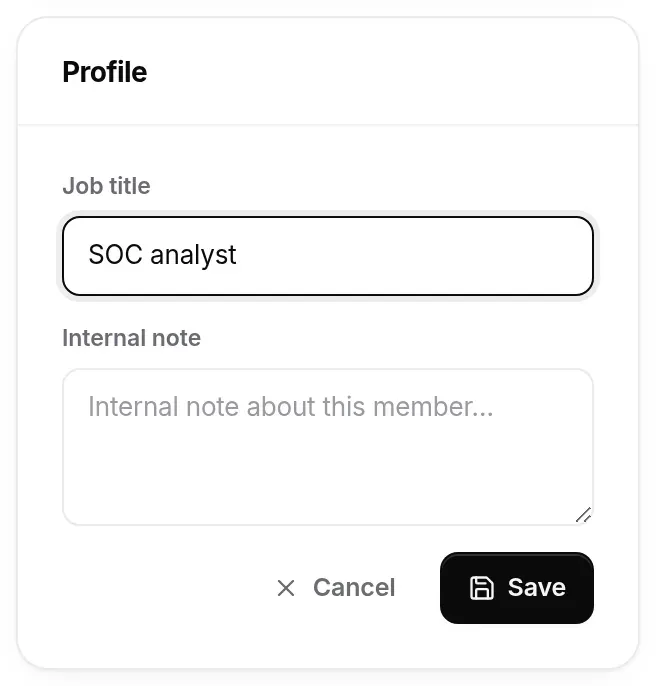
The job title (120 characters at most) appears under the member’s name on their profile. The internal note is only readable by Admins and the Owner.
Removing a member
Section titled “Removing a member”Two routes: Remove member in the ⋯ menu of their row on the Members page, or the Remove from organization button, in the red frame at the bottom of their profile. A confirmation window spells out what the member will lose.
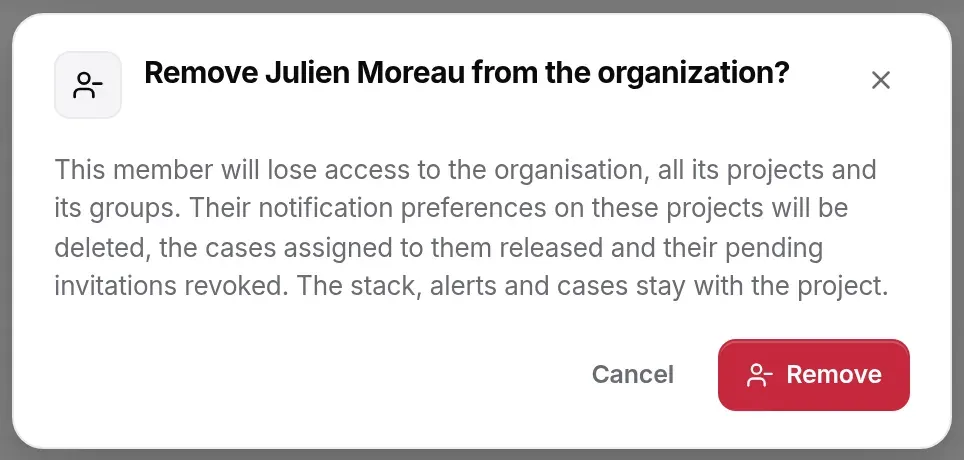
Removal is complete: the member loses the organisation, all its projects and their groups (which therefore cannot give access back); their notification settings on those projects are deleted, the cases assigned to them go back to “Unassigned” and their still-pending invitations are revoked. The projects’ stacks, automatic URL tracking, alerts and cases belong to the projects: they stay in place, and what they wrote (comments, history) keeps their name. If it was their current organisation, another takes its place; if they have none left, they go through the first-run welcome again.
For an Admin who created API keys, the window also offers Also revoke the API keys they created (ticked by default): their keys stop working at once. Each key’s creator is shown on the API keys page (see Organisations › API keys).
- Reserved for Admins and the Owner; an Admin can remove neither another Admin nor the Owner; nobody removes themselves with this button.
- The removed member receives a notification; the removal is recorded in the audit log, with the number of keys revoked.
To remove someone from a single project, use that project’s Members page (see Projects › Removing a member).
Ownership transfer
Section titled “Ownership transfer”The Owner of an organisation transfers it from the General page (Transfer ownership section: pick the member, Transfer) or from the member’s profile (Transfer ownership), then confirms. The member becomes Owner and the former Owner becomes Admin; only the new Owner can undo it. It is the prerequisite for deleting your account when you are the only owner of an organisation that has other members (see Settings › Delete my account).
A project’s ownership, however, cannot be transferred from the interface.
Frequently asked questions
Section titled “Frequently asked questions”How do I make a colleague an administrator? Add them to the Administrateurs system group (switch on their profile, or the group’s add field). They become Admin of the organisation and of all its projects.
How do I give someone the Analyst role? Groups created in the interface start from the User role: tick the useful analyst rights in the group’s matrix (add to the stack, mark alerts as read, change case status…). For one person, choose Rights in the ⋯ menu next to their name on the project’s Members page.
A member sees no project. They belong to no group, or their groups cover no project, or their access deadline has passed. Their profile says so (“No group” banner, the note under Accessible projects, or the Expired badge).
I sent an invitation to the wrong address. Open the Members page, Invited segment, and choose Revoke in the invitation’s ⋯ menu: its link stops working. Send a new one to the right address.
I am an Admin: why can’t I edit a colleague’s profile? They are an Admin too, or the Owner: only the Owner manages an Admin.
Can a plain member open a group’s details? They see the list of groups, but the details (members, projects) are reserved for Admins and the Owner.