Incidents: the register, and NIS2 reporting
The Incidents page (navigation, under Alerts) is the register of every security incident in the organisation: what happened, impact, cause, measures, linked CVEs and the log. When the organisation follows NIS2, it also supports the reporting set out in Article 23 of the directive: it assesses (a checklist suggests, you decide), times the deadlines (24 h early warning, 72 h notification, one-month final report), prepares the texts and logs everything. Without NIS2, those deadlines, the “significant” assessment and the reporting templates are not shown.
The register is reserved for organisation administrators and NIS2 owners (management, security lead, incident contact), because it may contain sensitive information; other members see “Restricted access”. The same people open, assess and edit incidents. An incident from another organisation is never shown.
The register
Section titled “The register”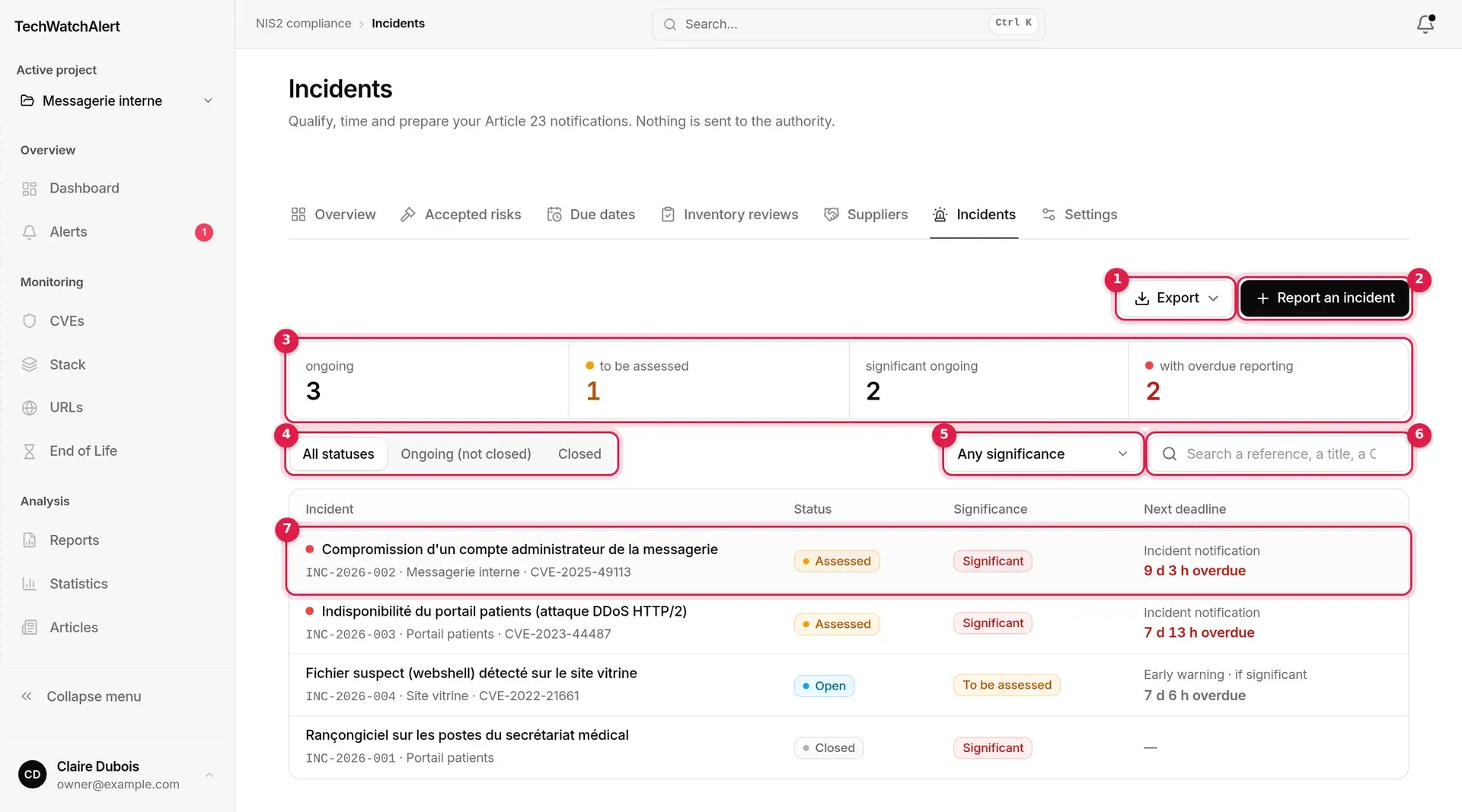
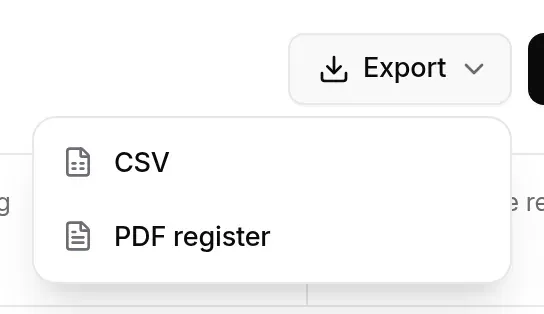
- Export: CSV or PDF register.
- Report an incident: opens a new record.
- Counters, which also act as filters.
- Status: All statuses, Ongoing (not closed), Closed.
- Significance: Any significance, Significant, Not significant, To be assessed.
- Search: a reference, a title, a CVE.
- An incident: click it to open its record.

The ongoing, to be assessed and significant ongoing counters filter the list; a second click returns to the full view. With overdue reporting is a figure only.
The list runs from most urgent to oldest: the API sorts it by next deadline.

Each row gives the title (a red dot flags a delay), the INC-YYYY-NNN reference (numbered per organisation and per year), the project, the linked CVEs, the status (Open, Assessed, Closed), the significance (Significant, Not significant, To be assessed) and the next deadline with its countdown. For an incident still to be assessed, the deadline is followed by “if significant”: it only applies if it is. A non-significant incident shows “No reporting required”.
Reporting an incident
Section titled “Reporting an incident”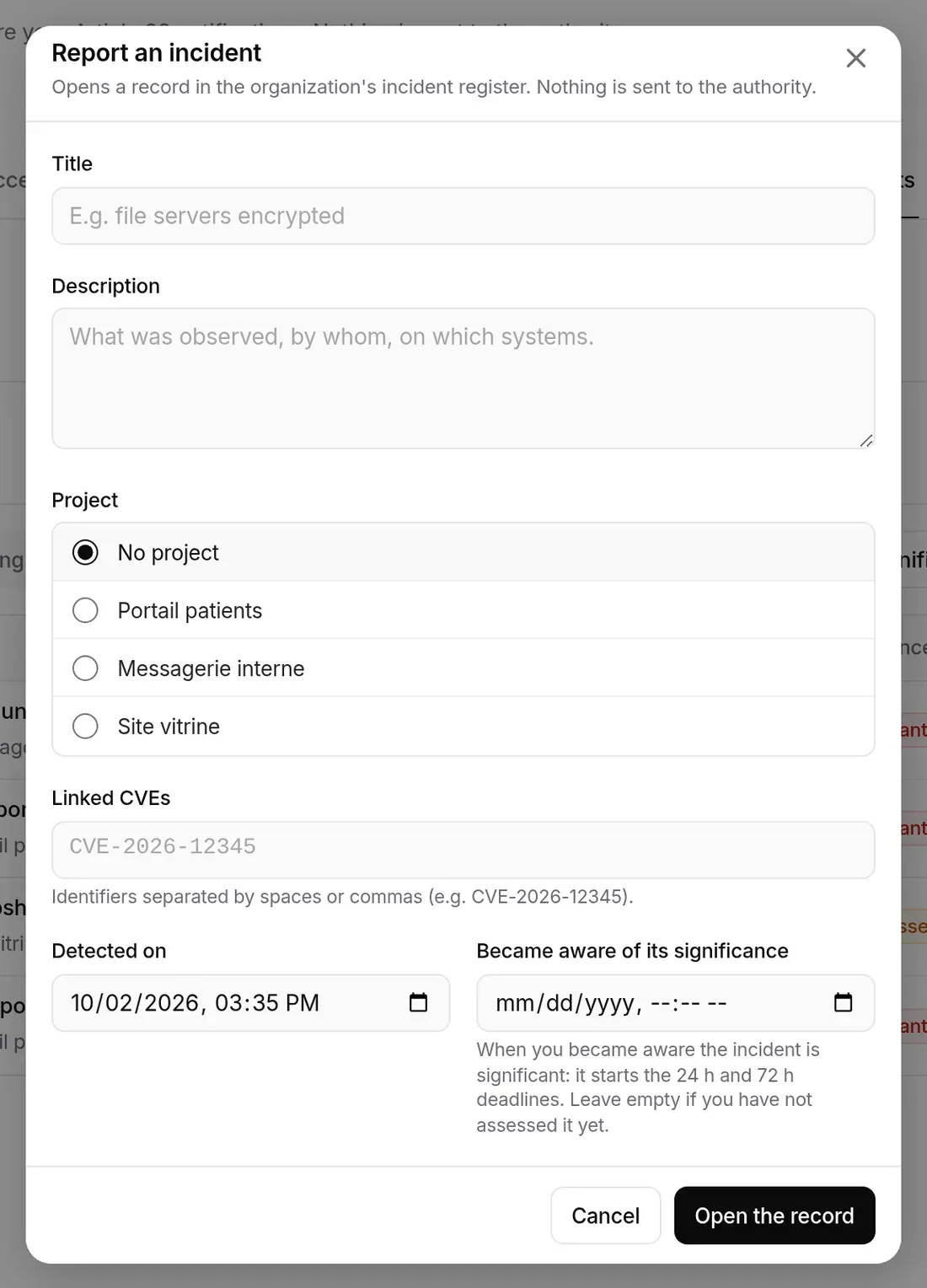
- Click Report an incident.
- Give it a title (required) and a description: what was observed, by whom, on which systems.
- Pick the project concerned, or No project.
- Enter the linked CVEs, separated by spaces or commas; a malformed identifier is flagged.
- Fill in Detected on and, if you already know it, when you became aware of its significance: that is what starts the 24 h and 72 h deadlines. Leave it empty if the incident has not been assessed yet.
- Open the record. The reference is assigned (“Incident INC-2026-005 opened.”).
From an alert’s page, or from the page of an exploited CVE (KEV, ransomware), the Declare an incident button opens the same window, prefilled with the CVE (“Suspected exploitation of …”) and the project: the incident is linked to the CVE and the project. The button is highlighted when the CVE is exploited; if an incident already cites the CVE, its link (“Incident INC-2026-003”) appears next to it. See Handling an alert.
The incident page
Section titled “The incident page”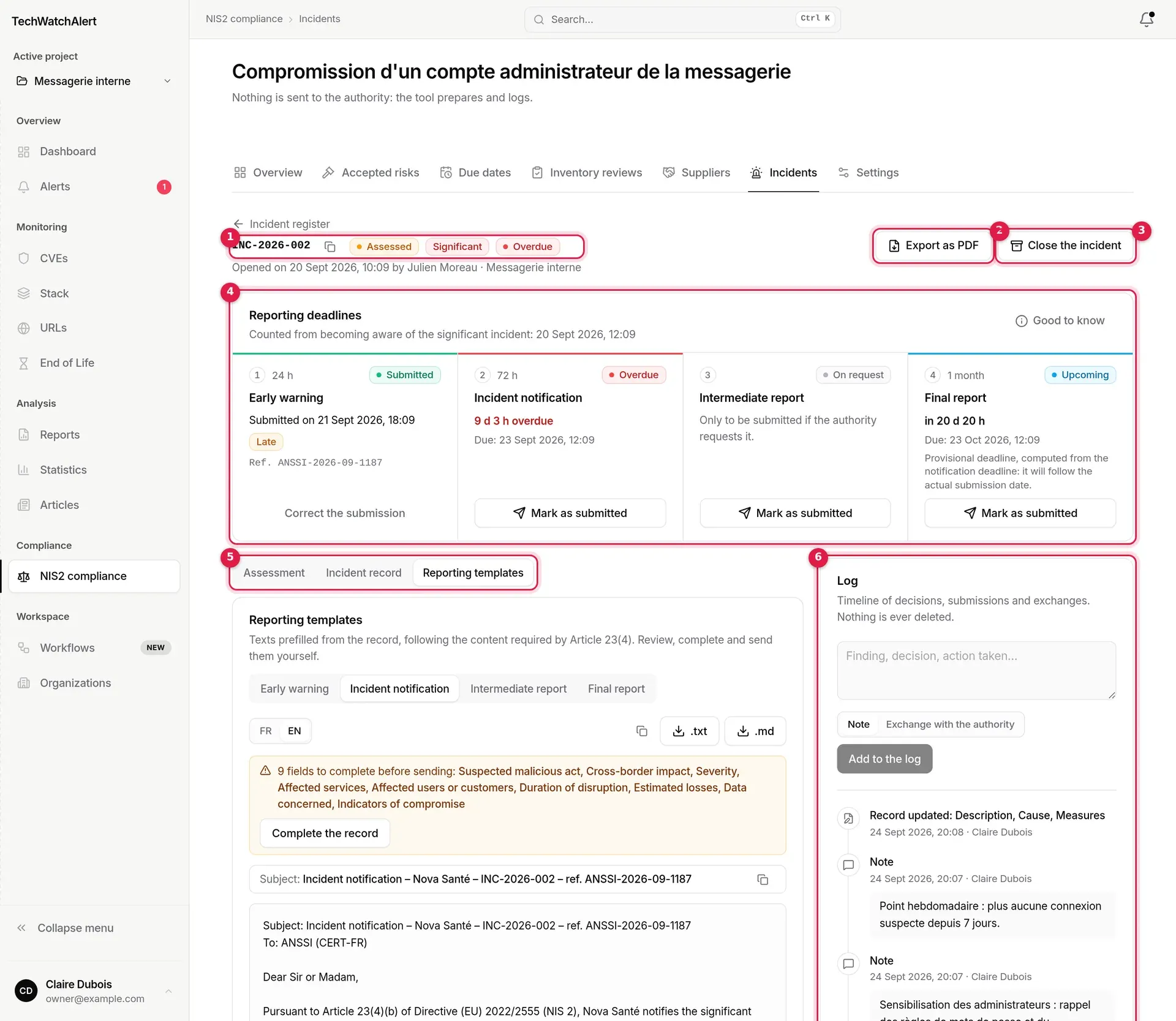
- Header: reference (with a copy button), status, significance, “Overdue” where relevant; below it, who opened it and when, and the project.
- Export as PDF: the incident record as a PDF (see Exports).
- Close the incident.
- Reporting deadlines: the four steps and their due dates.
- Assessment, Incident record, Reporting templates: three tabs. The relevant one opens on arrival: Assessment if the incident has not been assessed yet, Templates if a report is due, otherwise the Record.
- Log: the incident timeline.
Reporting deadlines
Section titled “Reporting deadlines”This part of the incident page (like the assessment and the reporting templates) only shows when the organisation follows NIS2.
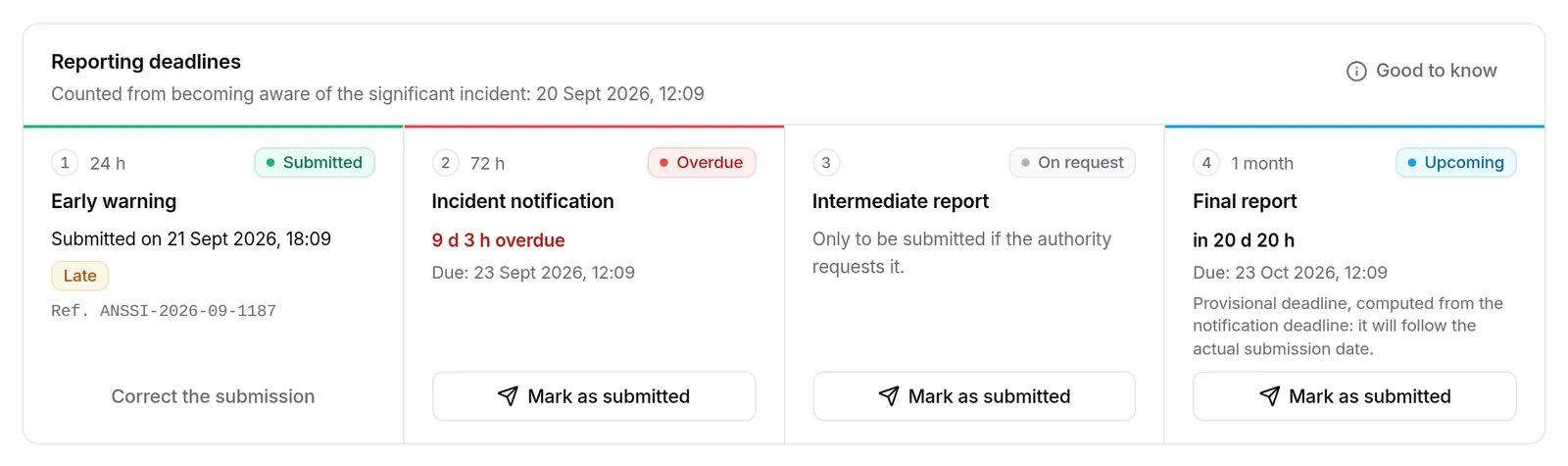
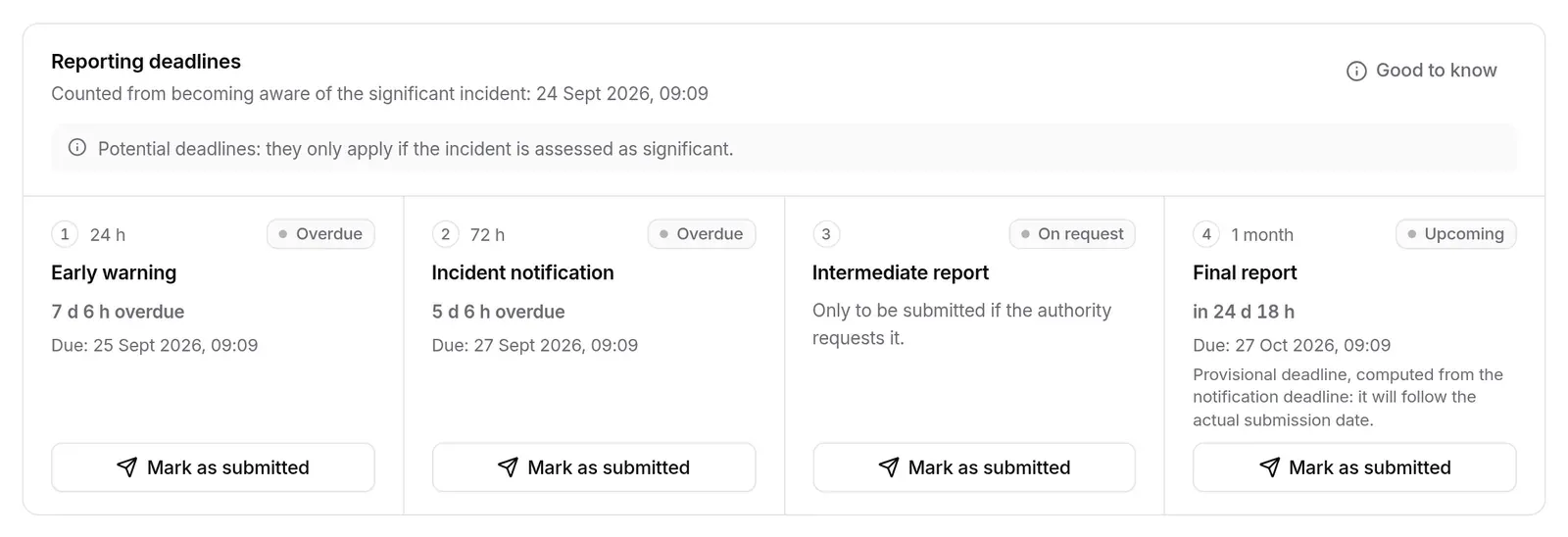
The countdown starts when you became aware of the significance:
| Step | Due |
|---|---|
| 1. Early warning | awareness + 24 h |
| 2. Incident notification | awareness + 72 h |
| 3. Intermediate report | on the authority’s request, no due date |
| 4. Final report | one calendar month after the notification is submitted (or else after its due date, in which case the screen says the deadline is provisional) |
Hours are counted as elapsed time; the month is counted on the calendar, Paris time. Each step shows its state:
| State | Meaning |
|---|---|
| Submitted | the submission is recorded, with its date; Late if it happened after the due date |
| Upcoming | the due date is more than 6 hours away |
| Due soon | the due date falls within 6 hours |
| Overdue | the due date has passed |
| On request | intermediate report |
| Pending | no awareness date is recorded: nothing is running yet |
A banner covers the special cases: potential deadlines for an incident still to be assessed, “no reporting is required” for a non-significant incident, no more reminders for a closed incident.
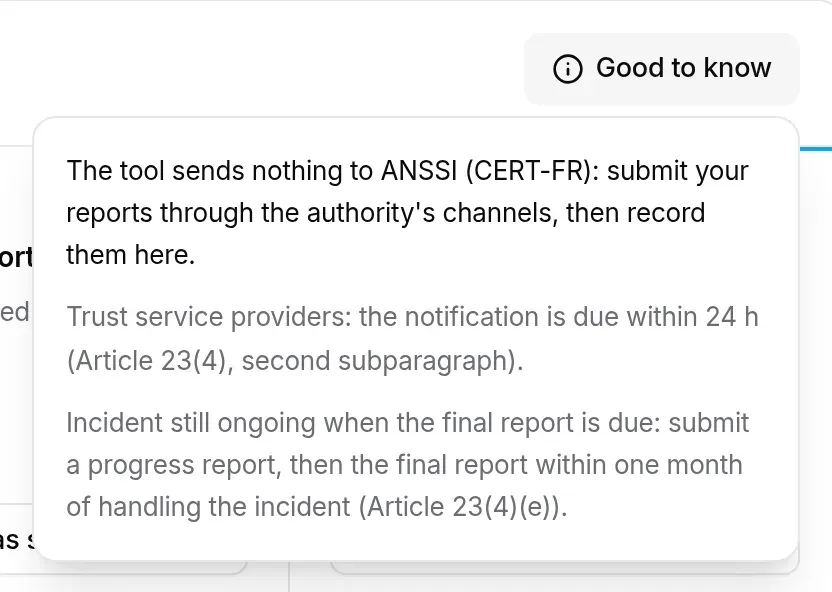
Good to know, at the top right, recalls three points the application shows: the tool sends nothing to the authority; for trust service providers the notification is due within 24 h (Article 23(4), second subparagraph); an incident still ongoing when the final report is due calls for a progress report, then the final report within one month of handling the incident (Article 23(4)(e)).
Reminders
Section titled “Reminders”For a significant incident that is not closed, a reminder goes out at H-6, at H-1 and when the deadline is missed, once each and per step not yet done, to the incident contact and the security lead (NIS2 · Incident reporting workflow). An incident entered after the fact, already overdue, only gets the most advanced reminder. An incident still to be assessed 12 hours after awareness gets a single reminder: if it is significant, the early warning is due in under 12 hours. Nothing is sent for a non-significant incident.
Recording a submission
Section titled “Recording a submission”- Submit the report through the authority’s channels.
- In the timeline, click Mark as submitted under the step.
- Enter the date and time sent, the reference assigned by the authority (case or acknowledgement number), the channel (Online service, Email, Phone, Other) and a comment.
- Record the submission.
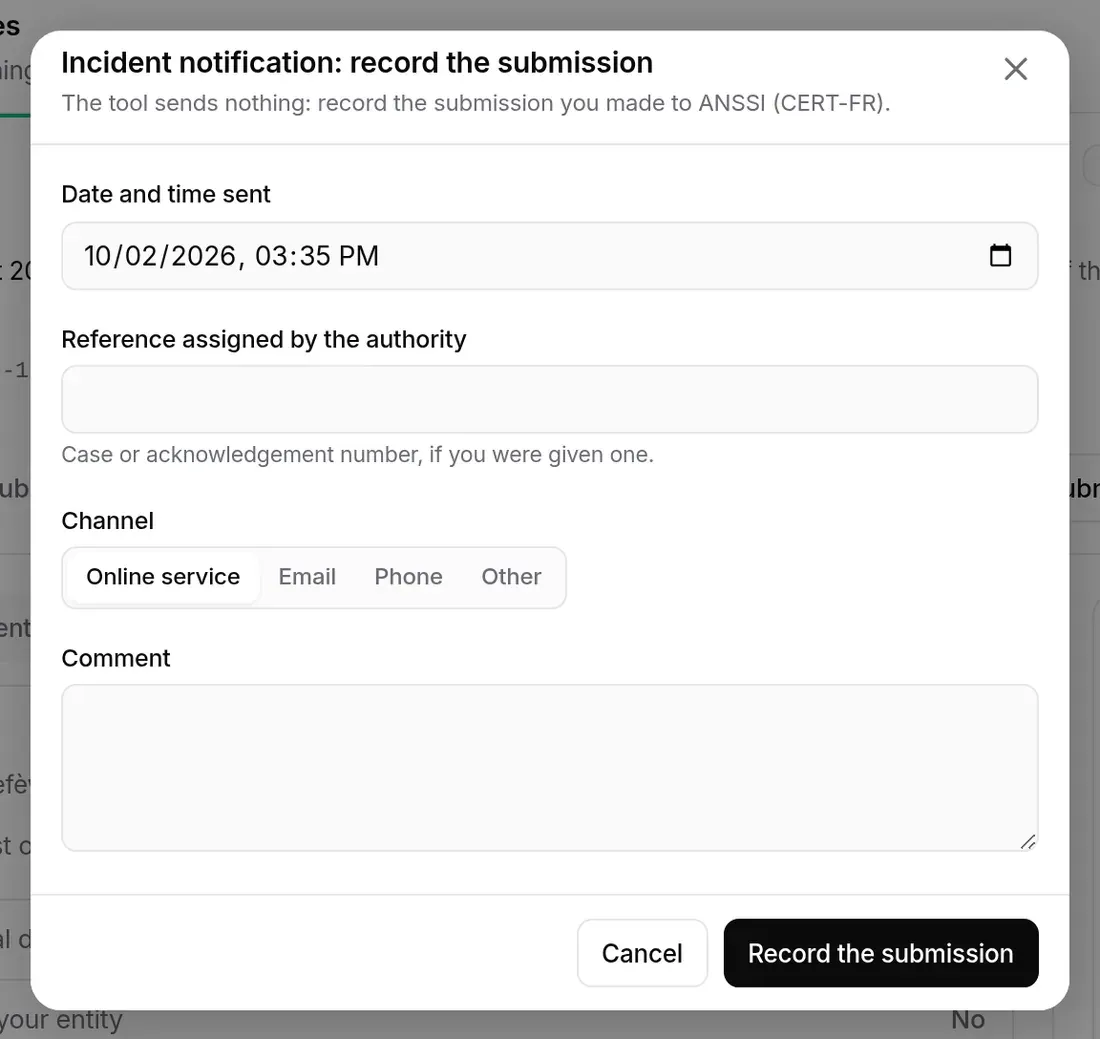
The step moves to “Submitted” and the submission goes into the log. If no early warning has been recorded, the notification also serves as the early warning (the window says so). A step already recorded offers Correct the submission: saving again corrects the date, and the log keeps the previous submission.
Assessing the incident
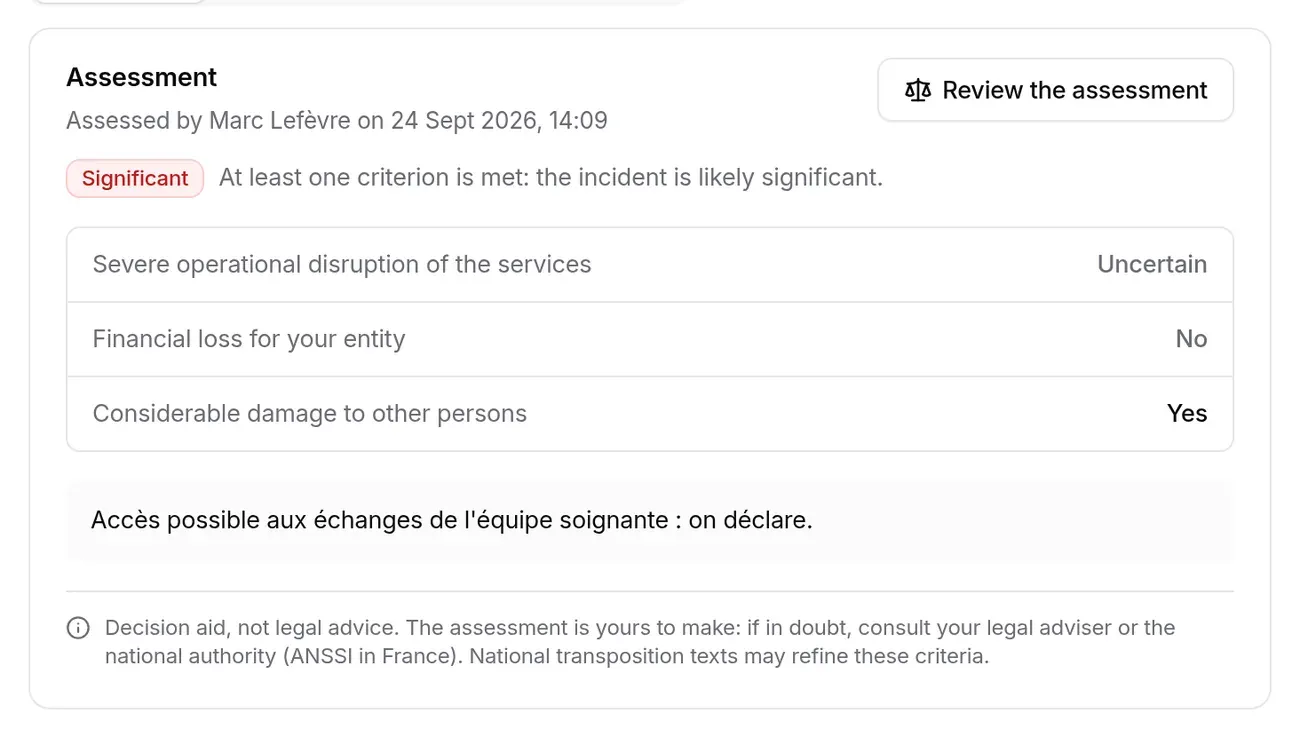
Section titled “Assessing the incident”Assessment tab. An incident is significant if it meets one of the criteria of Article 23(3) of the directive, as the application presents them.
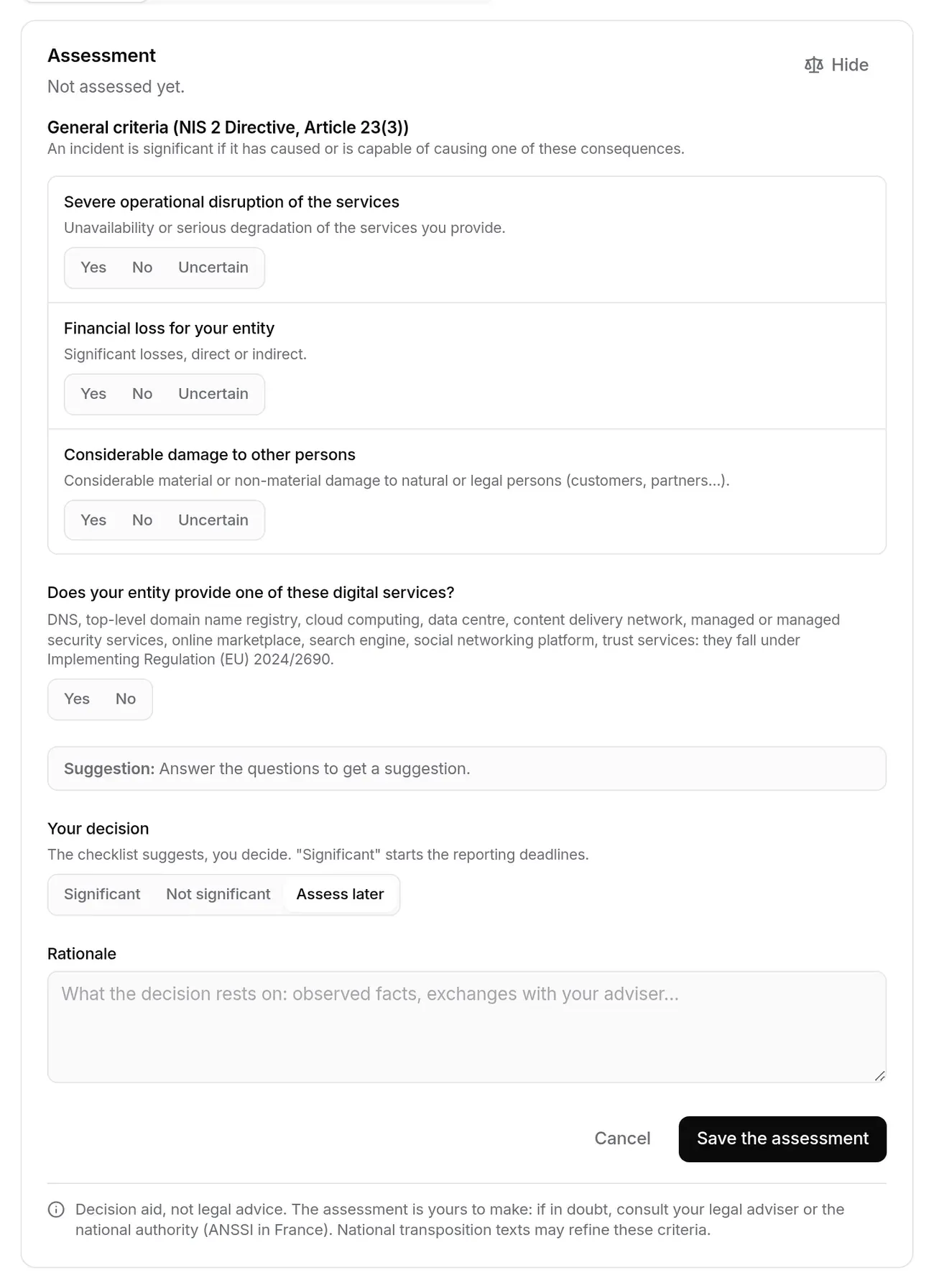
- Click Assess (or Review the assessment).
- Answer Yes, No or Uncertain for the general criteria: severe operational disruption of the services, financial loss for your entity, considerable damage to other persons.
- Say whether your entity provides one of the listed digital services (DNS, cloud computing, data centre, managed services…). If so, criteria from Implementing Regulation (EU) 2024/2690 are added: direct financial loss above the threshold shown, exfiltration of trade secrets, death, considerable damage to health, suspectedly malicious unauthorised access, recurring incidents, thresholds specific to the type of service.
- Read the suggestion: at least one “Yes” → “likely significant”; an “Uncertain” → “confirm with your adviser or the national authority”; all “No” → “does not appear significant”.
- Make your decision: Significant, Not significant or Assess later. Check the awareness date (it starts the deadlines; left empty, it is set to the time of saving) and write the rationale.
- Save the assessment.
The checklist suggests, you decide: “Decision aid, not legal advice.” Assessing as “Significant” starts the deadlines; the decision, its author and its date go into the log.
The incident record
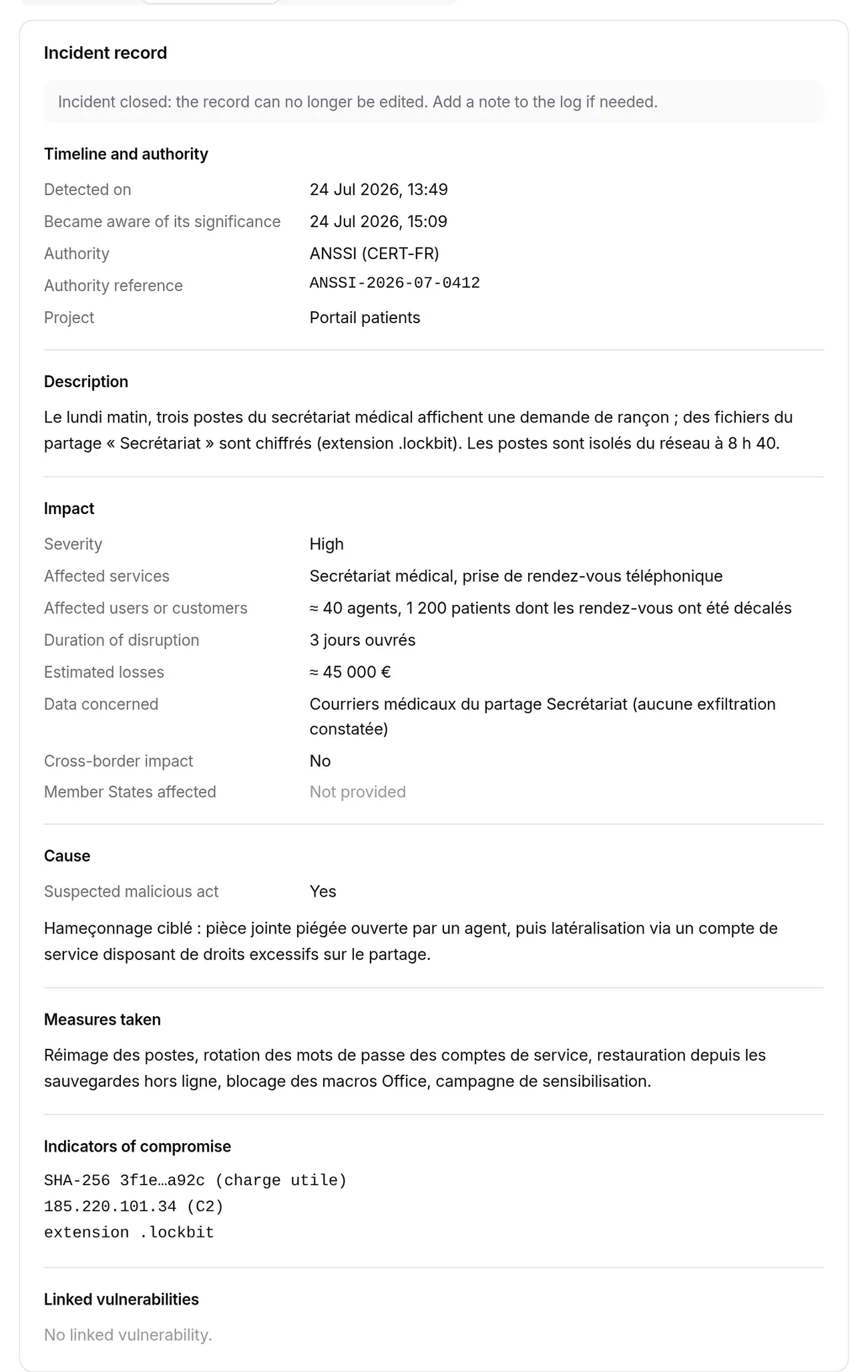
Section titled “The incident record”Incident record tab, editable with Edit as long as the incident is not closed. It gathers what the reports ask for:
- Timeline and authority: detected on, awareness (changing it recomputes the due dates and resets the reminders), authority (“ANSSI (CERT-FR)” by default), authority reference, project;
- Description;
- Impact: severity (low, moderate, high, critical), affected services, affected users or customers, duration of disruption, estimated losses, data concerned, cross-border impact and Member States affected;
- Cause: suspected malicious act (Yes, No, Unknown, which the early warning must state) and cause;
- Measures taken;
- Indicators of compromise (IP addresses, domains, file hashes…);
- Linked vulnerabilities, each with a link to the CVE page or the project’s case.
Every edit goes into the log (“Record updated: Description, Cause, Measures”).
Reporting templates
Section titled “Reporting templates”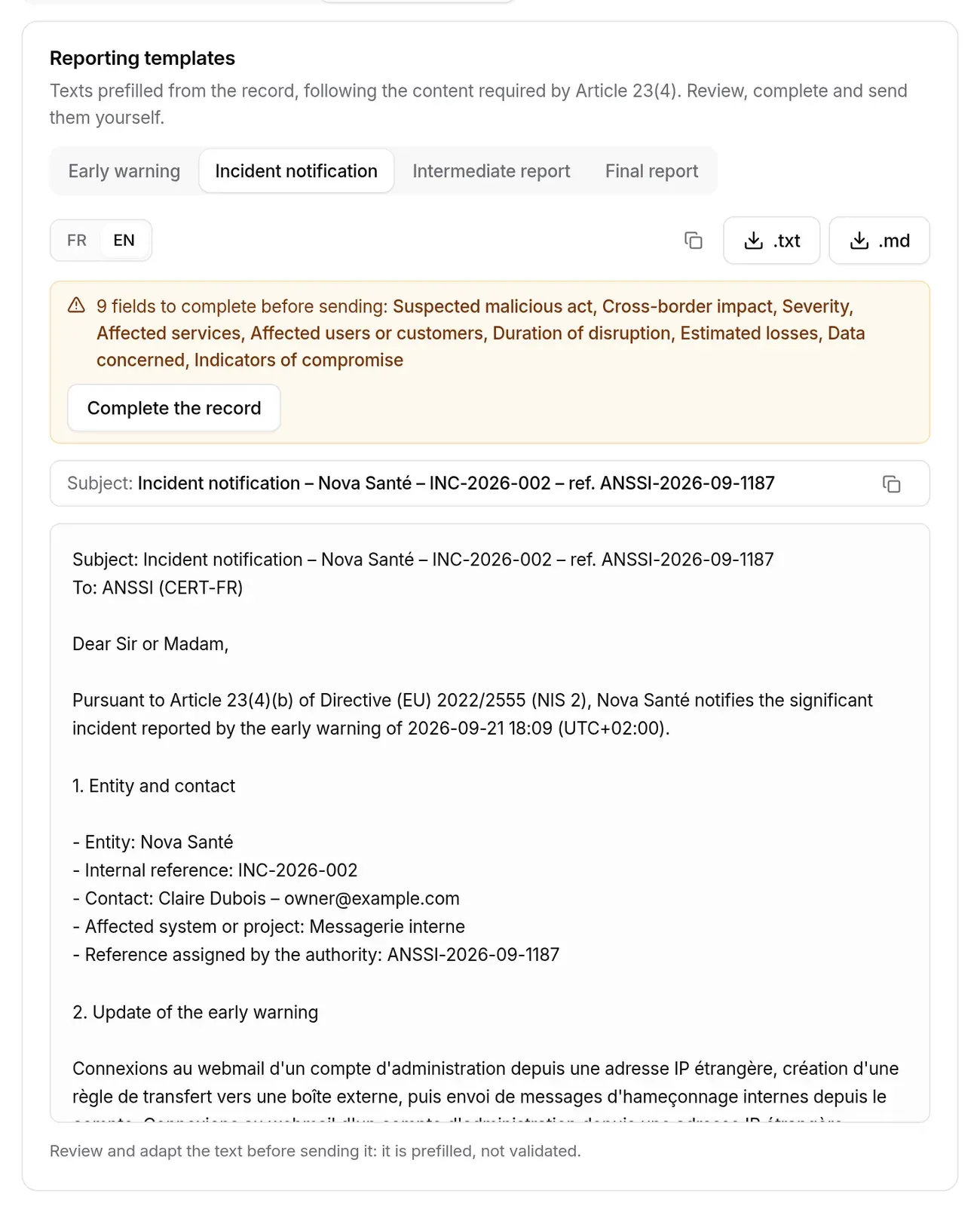
Texts prefilled from the record, following the content required by Article 23(4), for each step: Early warning, Incident notification, Intermediate report, Final report.
- FR / EN: the language of the text.
- A box lists the fields to complete before sending; Complete the record opens the record for editing.
- Subject and text, each with a copy button; .txt and .md download the text.
Review and adapt the text before sending it: it is prefilled, not validated.
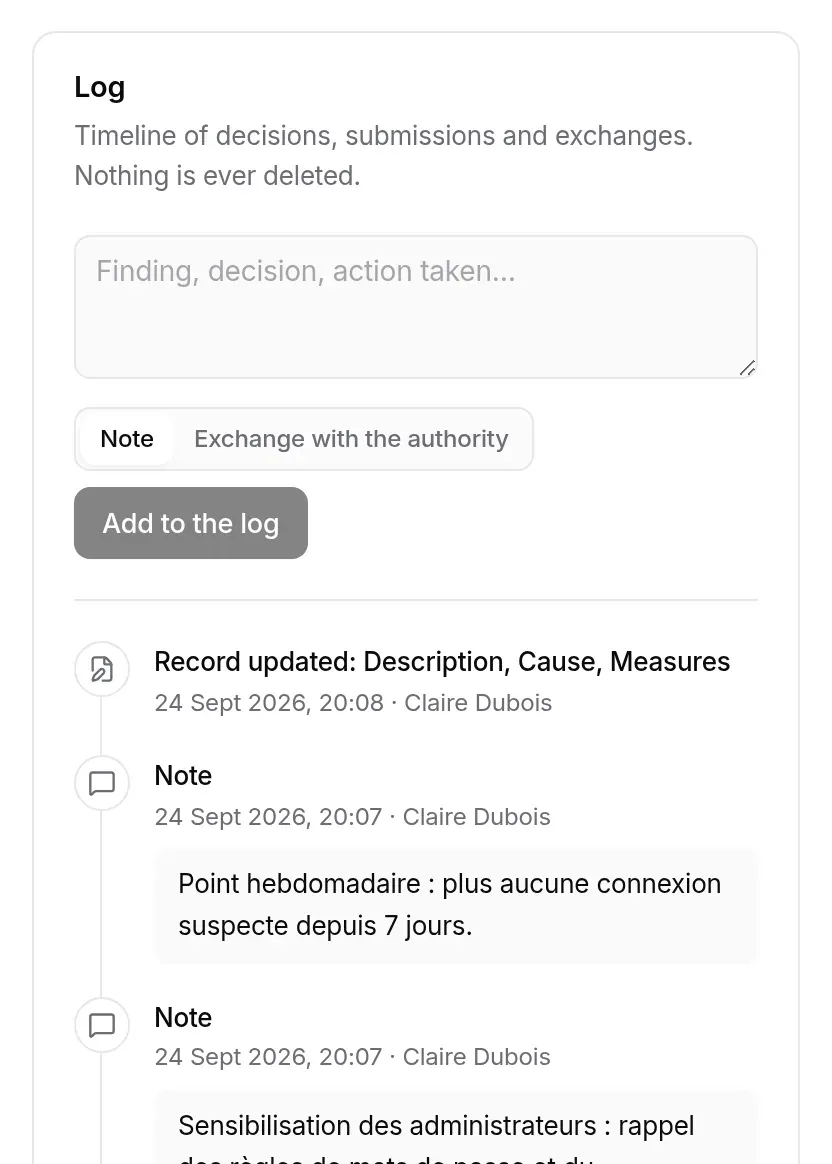
The log keeps, newest first, the opening, the assessment, the awareness date, every recorded submission, every edit to the record, the closure, and the entries typed by hand: Note or Exchange with the authority (“call from the CSIRT, request for an intermediate report…”). Nothing in it is deleted or rewritten; author and timestamp are fixed.
Closing the incident
Section titled “Closing the incident”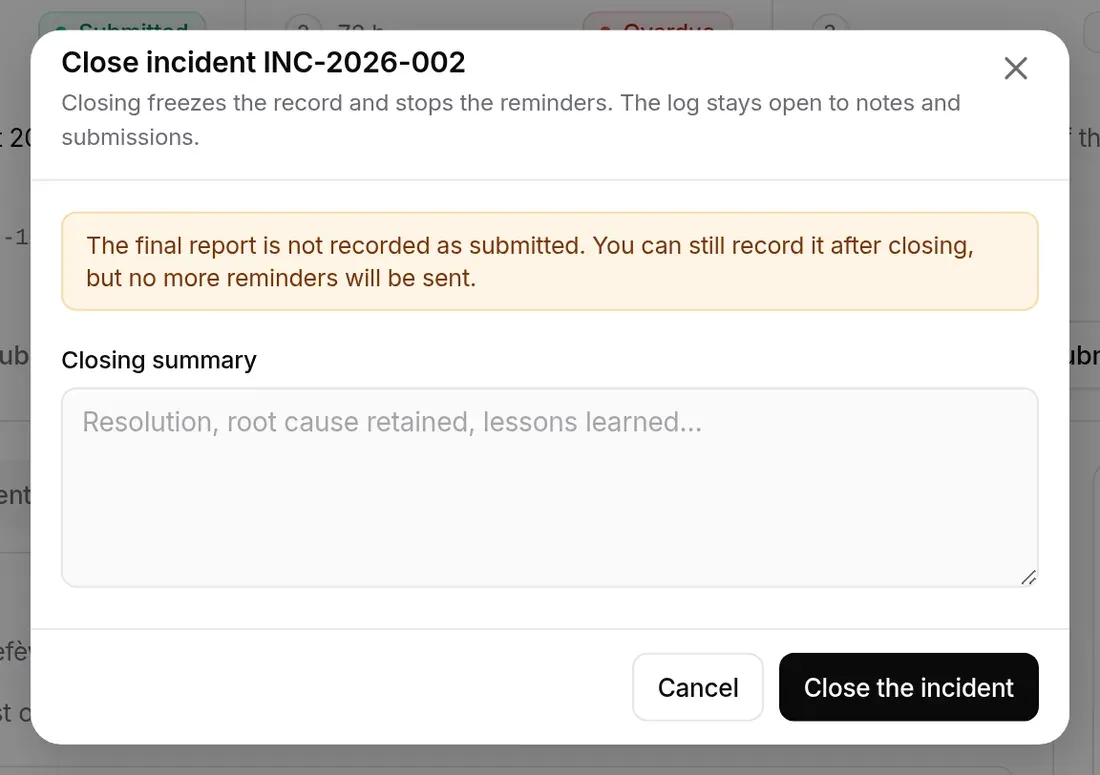
Close the incident asks for an optional closing summary (resolution, root cause retained, lessons learned). Closing freezes the record and stops the reminders; the log stays open to notes and submissions. If the final report of a significant incident has not been recorded, the window warns you: you can still record it, but no more reminders will be sent.
Exports
Section titled “Exports”- Export as PDF, on the incident page: the incident record, “Incident record INC-…”, with the incident, its impact and indicators, its assessment (with the “Decision aid, not legal advice.” note) and its log in chronological order.
- Export, on the register: CSV or PDF register, which groups incidents in three parts: significant, to be assessed, not significant.
If the server cannot produce the PDF, a message says so.
Incidents are evidence to be kept: as long as the register contains one, the organisation cannot be deleted. Export the register as a PDF and keep it; deletion then goes through support (see Organisations).
Available depending on your plan
Section titled “Available depending on your plan”The incident register has its own plan feature, Incidents (Pro and Business). Outside the plan, the entry carries a padlock and the page presents what it brings and the plan that opens it. A plan can include incidents without frameworks: the register then opens without any covered project, without the NIS2 deadlines. See also: Subscription › pages, views and items.
Frequently asked questions
Section titled “Frequently asked questions”When should I fill in the awareness date? As soon as you know the incident is significant: it is the starting point of the deadlines. Leaving it empty while the incident is not assessed is normal; assessing it as “Significant” without a date sets it to the time of saving.
Does the tool send the notification to ANSSI? No. It prepares the text; you send it, then record the submission.
I recorded a submission with the wrong date. Use Correct the submission on the step: the new date replaces the old one, and the log keeps both.