Bell
In-app notification. In-app notification tile. Always immediate.
This page explains how an alert reaches you, and every setting that decides who gets it, where and when. It is for every member (for their personal preferences) and for project administrators (for webhooks).
Three settings apply, in this order:
Bell
In-app notification. In-app notification tile. Always immediate.
Send email tile. Immediate or digest, depending on each recipient.
Webhooks
Slack, Microsoft Teams, Discord or raw JSON. Call webhooks tile. Always immediate.
Tickets
Jira, GitLab or GitHub, set up in the project’s Integrations page. Create a ticket tile.
A workflow runs for each project member who sees its alerts (“View alerts” right, every role by default), plus the project owner: since the stack and the alerts belong to the project, the whole team is told. Everyone gets their own notification and their own e-mail, according to their own preferences; the alert, its case and the webhook call exist only once for the project.
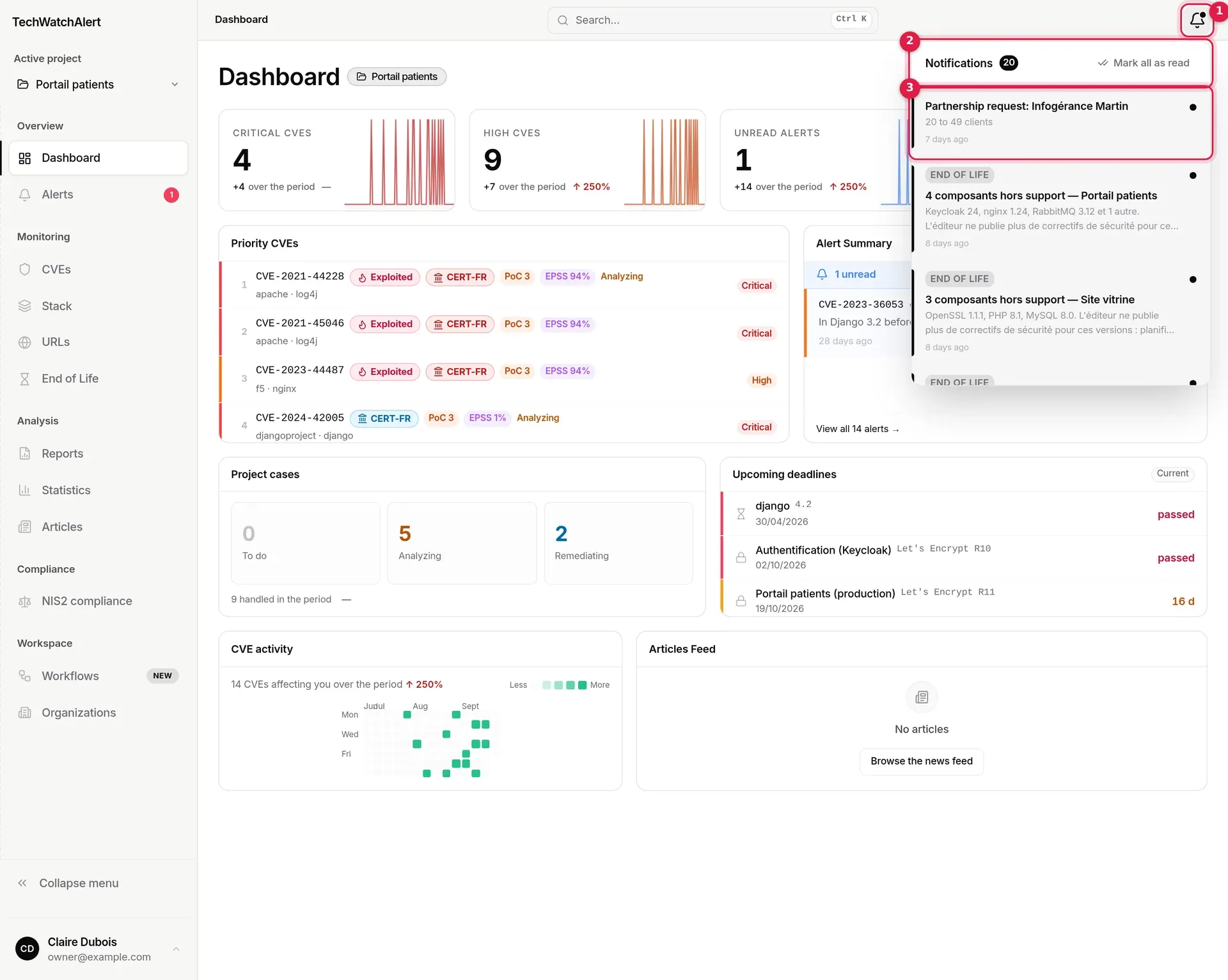
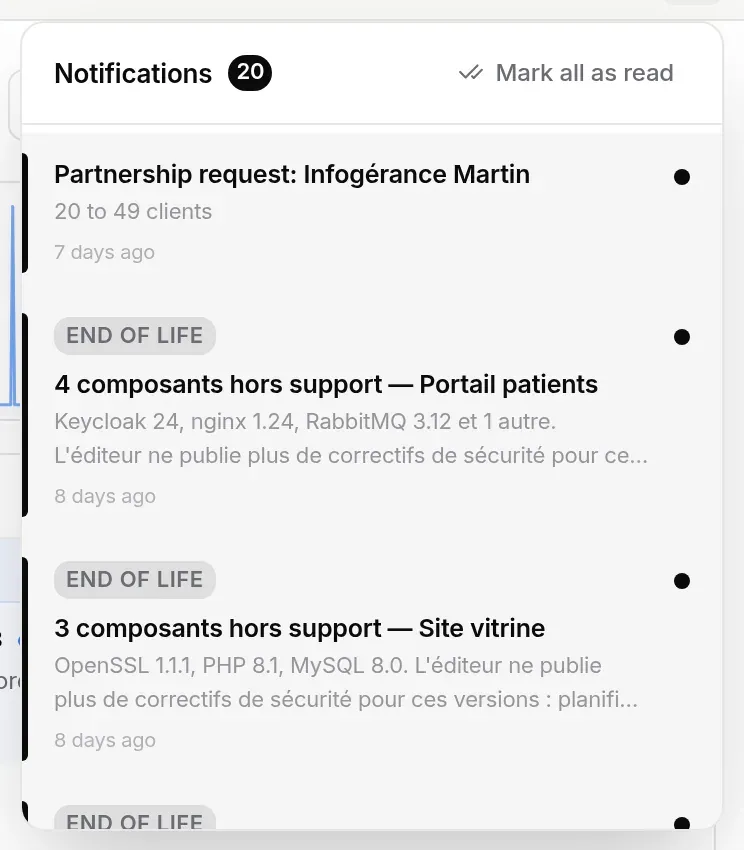
The bell, top right, gathers your in-app notifications. A dot shows there are unread ones.
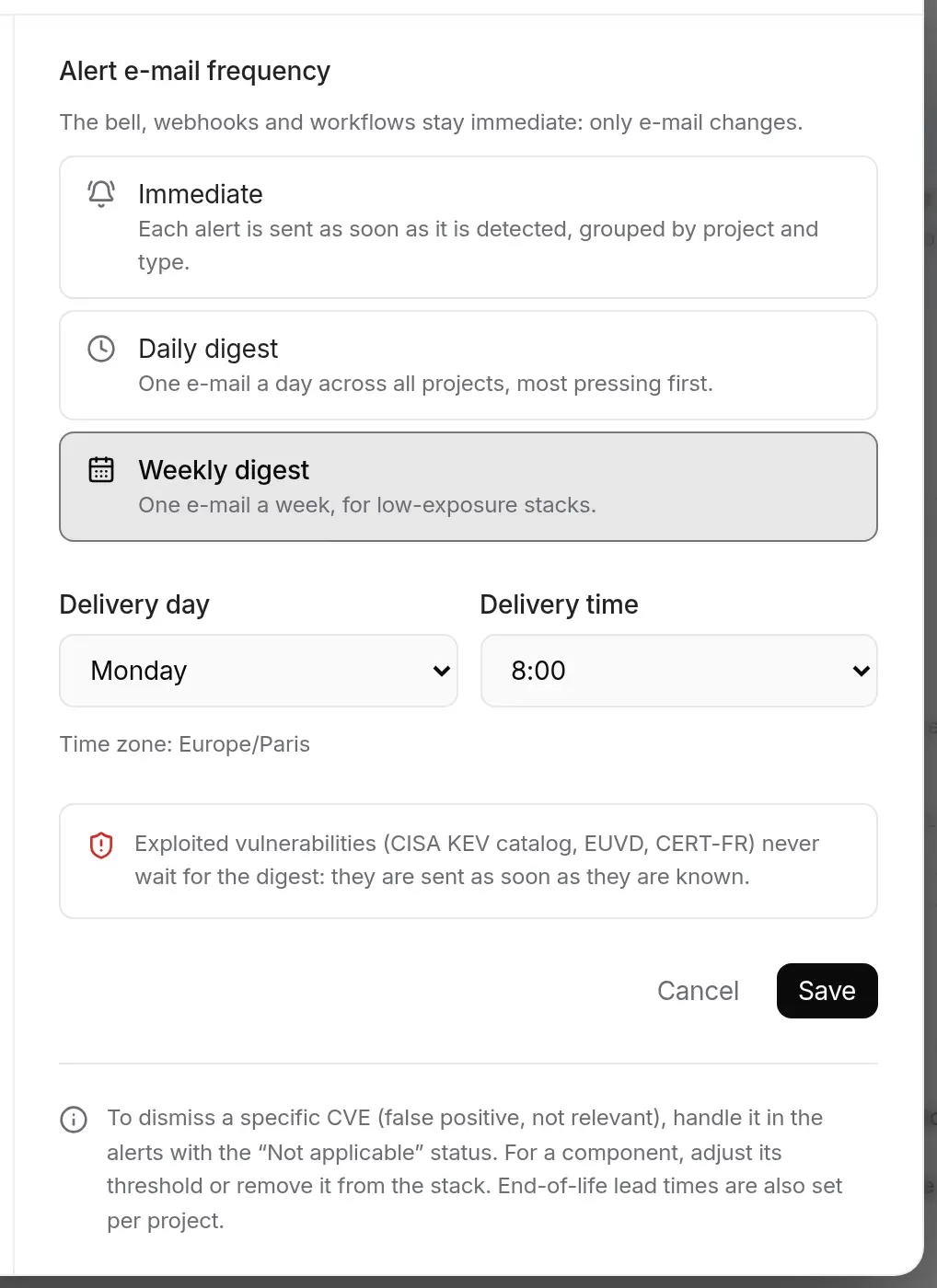
Each member chooses when their alert e-mails go out. Open Settings (your profile menu, bottom left), then the Notifications tab. The Manage notifications link in the e-mails leads to the same place.
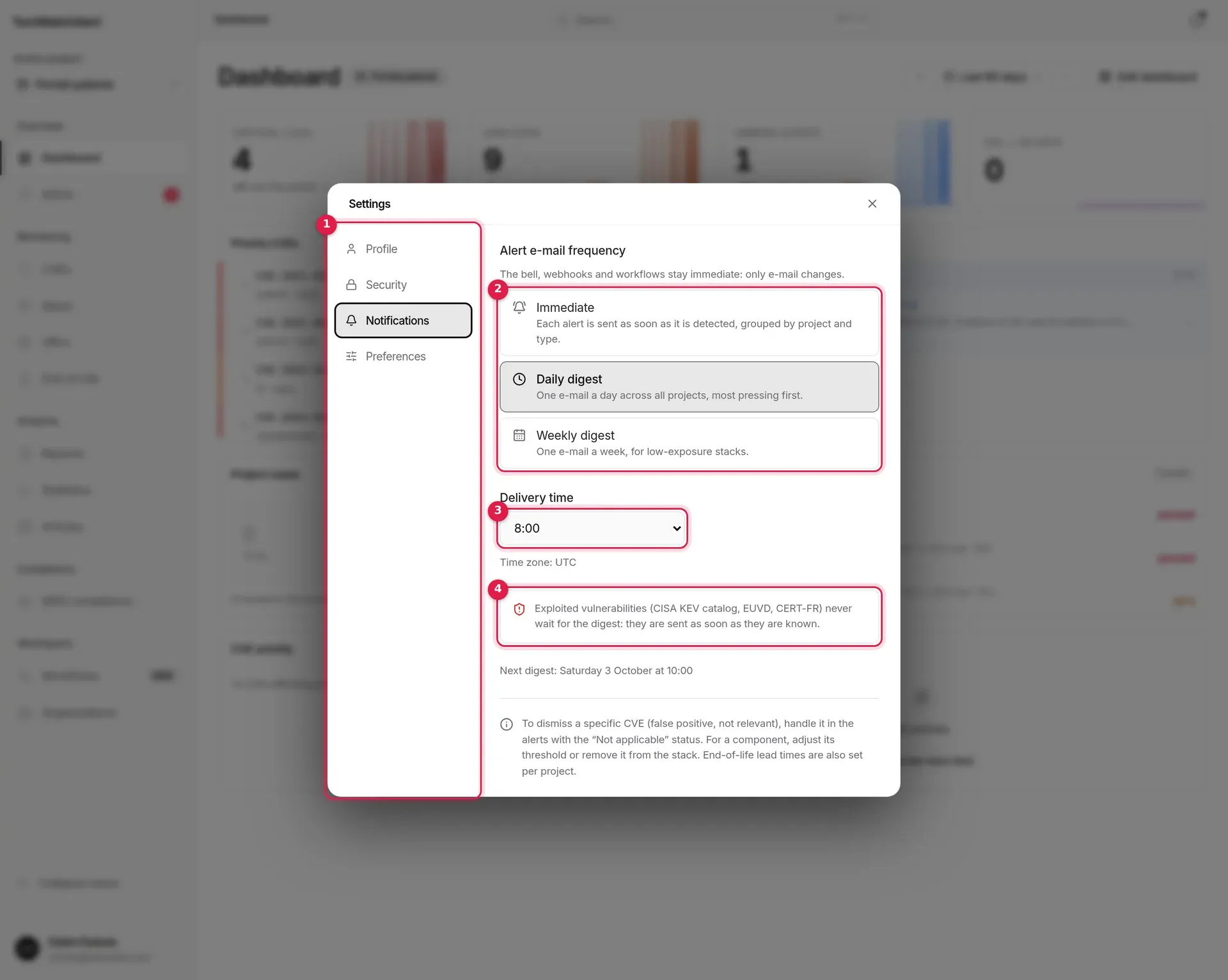
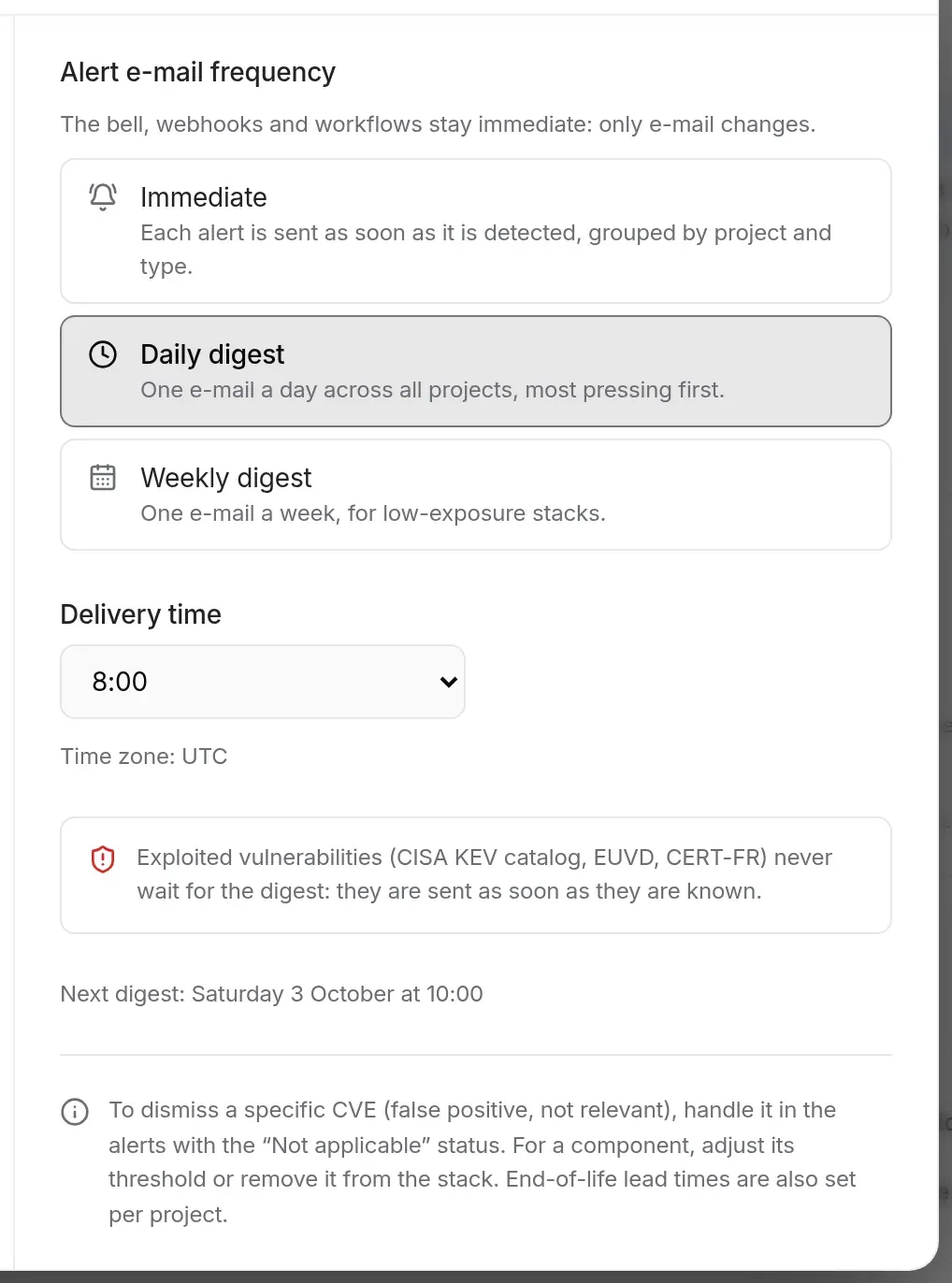
| Frequency | What you receive |
|---|---|
| Immediate | each alert goes out as soon as it is detected, grouped by project and type. |
| Daily digest | one e-mail a day at the chosen time, across all projects, most pressing first. |
| Weekly digest | one e-mail a week, on the chosen day and time. |
The rules that apply:
Under the frequency, the Assignments switch (on by default) decides whether you get the “A CVE alert has been assigned to you” e-mail when a colleague assigns you a case: the CVE, its severity and CVSS score, the exploitation signals, the project, who assigned it and the link to the alert. It is saved as soon as you flip it.
A webhook sends the alert to another tool: a Slack or Teams channel, a Discord server, a SIEM, a script. Webhooks are declared in the project settings: Workspace › Organizations, your organisation, Projects page, the project, then its Integrations page, Webhooks section.
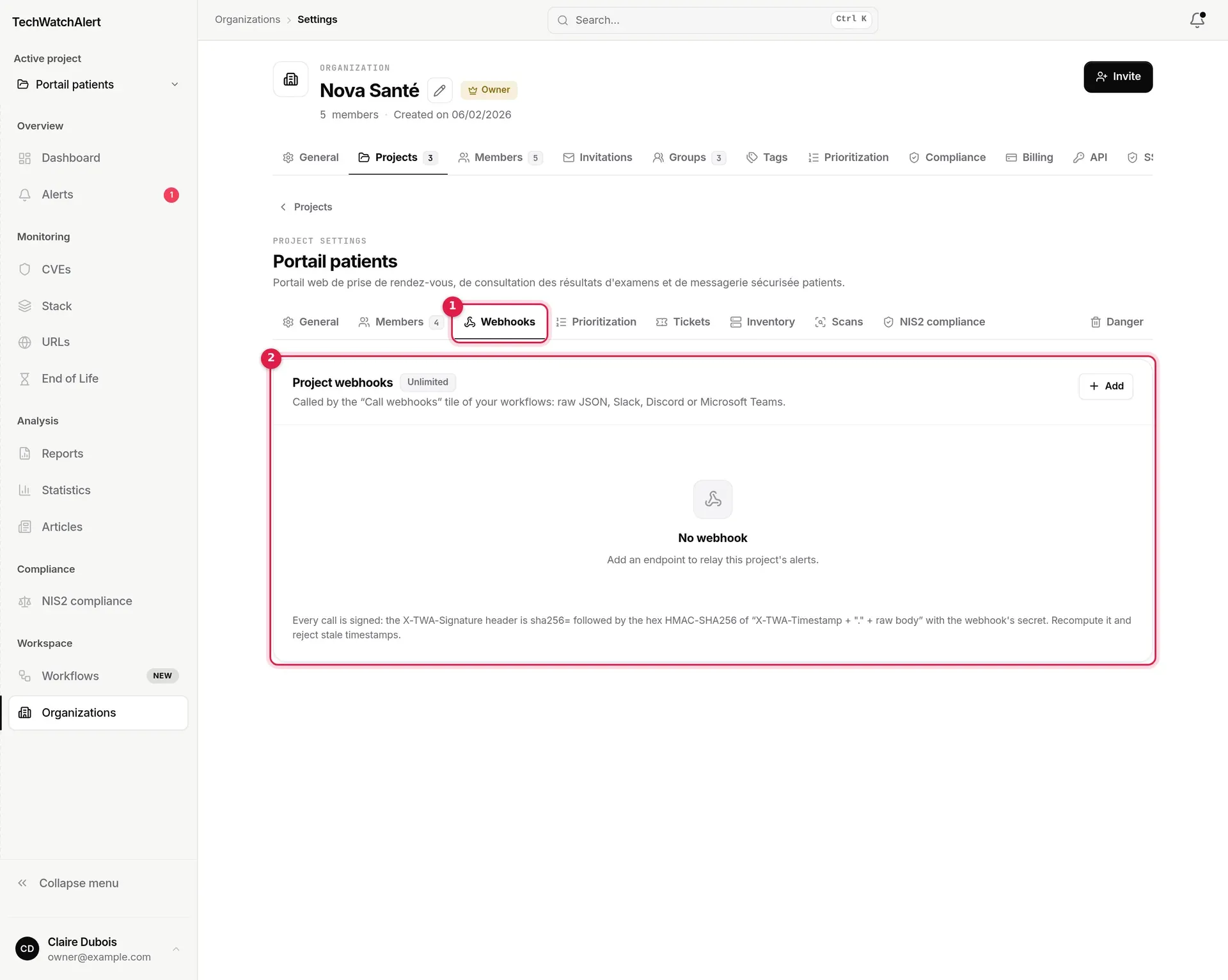
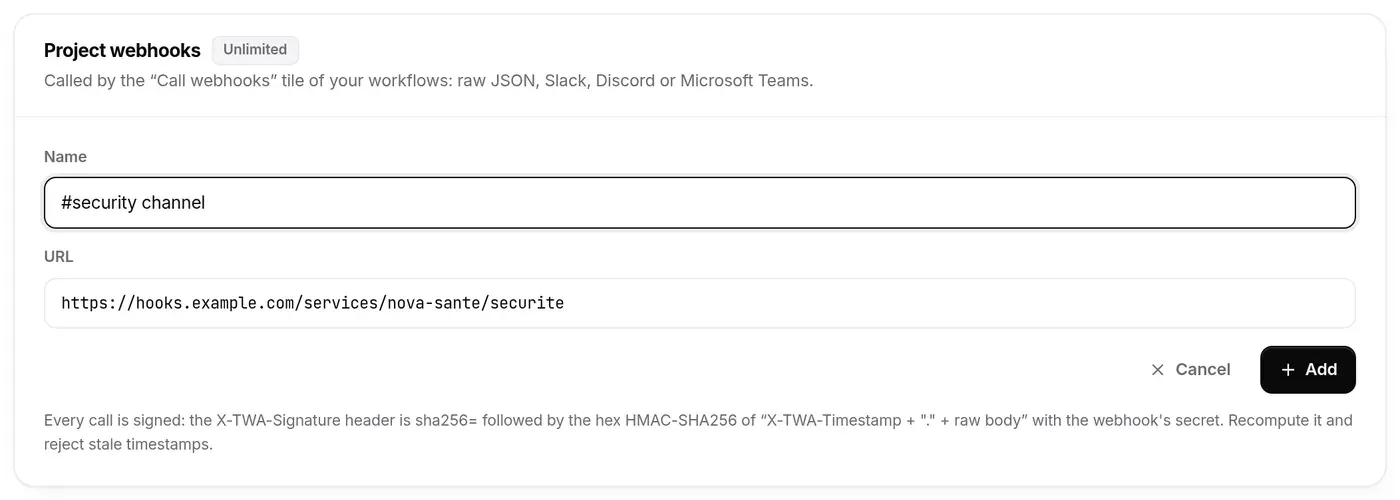
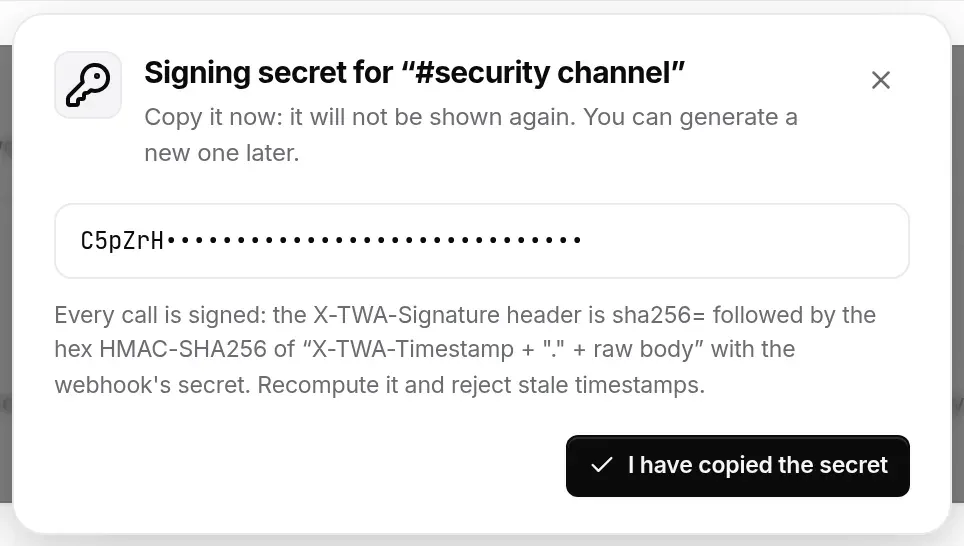
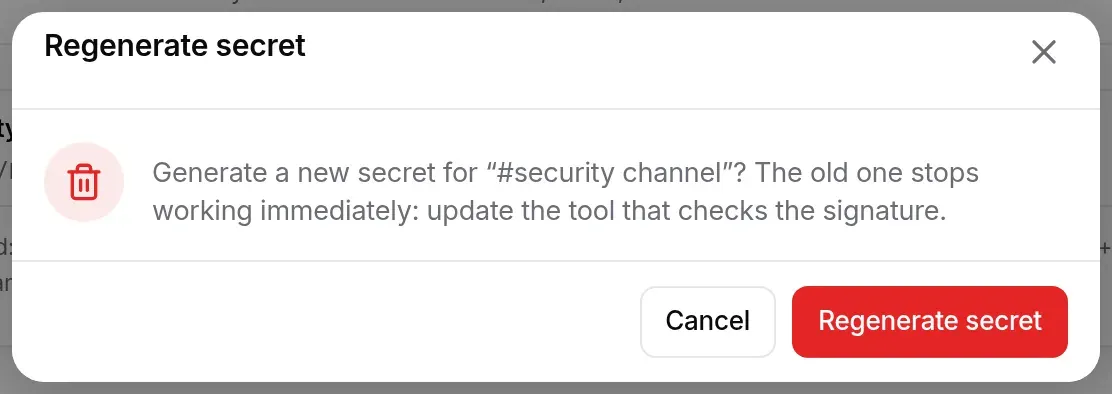
The Signing secret window opens only once: copy the secret into the receiving tool, then click I have copied the secret. It will never be shown again; only a new secret can replace it.

http or https, on port 80, 443, 8080 or 8443, and point to a public address: an internal address is refused, both when saving and on every send.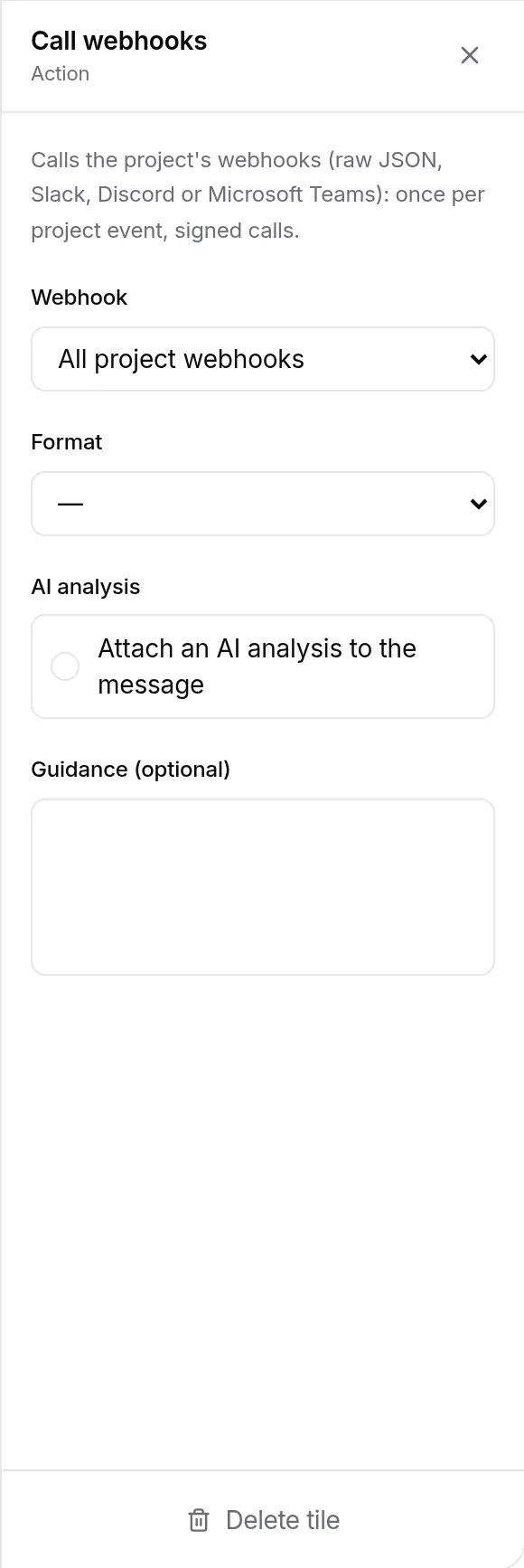
| Format | What is sent |
|---|---|
| Raw JSON (default) | a JSON object: event, project, date, then as applicable the CVE (identifier, severity, CVSS and EPSS scores, PoC, KEV, description, watched item), the product and its end-of-life date, or the URL and its certificate. |
| Slack | a text message: title and main facts. |
| Discord | the same message, in Discord format. |
| Microsoft Teams | an Adaptive Card, for a Teams webhook created with Power Automate. |
The call is a JSON POST, without following redirects, abandoned after 10 seconds. It goes out after the alert is saved, once per project event (not once per member). A transient error (timeout, 429 or 5xx response) is retried later, up to six attempts; any other error response abandons it. The workflow’s run log shows queued, then sent or error. With the tile’s AI analysis option, the message also carries a short analysis. The message labels are in the language of the person who created the webhook.
Every call carries two headers:
| Header | Value |
|---|---|
X-TWA-Timestamp |
the send time, in Unix seconds. |
X-TWA-Signature |
sha256= followed by the hex HMAC-SHA256 of X-TWA-Timestamp + "." + raw body, computed with the webhook’s secret. |
On the receiving side, recompute the HMAC over the raw body received (before any JSON decoding), compare it in constant time, and reject timestamps older than five minutes to rule out replays. Keep the URL secret too: for Slack, Teams or Discord, it is enough to post in the channel.
Who can do what: the section and the list are reserved for those with the View webhooks right; adding, editing (including enabling, disabling and regenerating the secret) and deleting are three separate rights (Create webhook, Edit webhook, Remove webhook). By default only the project’s administrators and owner hold them all; they can be set member by member or per group.
Plan: Free does not include webhooks (the section shows “Plan required”); Team allows 5 per project; Pro and Business, unlimited.
A CVE is not muted: it is handled. A CVE that does not concern the project (false positive, component not exposed) is marked Not applicable from the alert’s tracking bar, with an optional reason posted as a comment (see Handling an alert › Dismissing a CVE). For a whole component, adjust the stack: raise its alert threshold or remove it.
A CVE closed as Not applicable can still come back if it becomes exploited: the project’s CVE now exploited workflow, if active, still sends its notice.
I’m on the daily digest: will I miss an exploited vulnerability? No. KEV additions, CVEs that become exploited and CVEs already exploited go out immediately, outside the digest.
I no longer get any e-mail. Check the Notifications tab of your settings (unsubscription banner), then the project’s Workflows screen: an active workflow with the Send email tile must listen to the event, and Restrict recipients must not leave you out. Finally, if the platform’s email server is not configured, emails are not lost: they stay pending, are not marked as sent, and are retried every 30 minutes until sending is possible.
A colleague wants no more alerts about a retired component, but I still do. The stack applies to the whole project. To filter per person, use Restrict recipients in the workflow’s e-mail tile.