Handling an alert
The alert record brings together everything you need to decide what to do about a CVE that affects the project’s stack: why it raised an alert, what it is, whether it is exploited, which version fixes it, and where the team’s case stands.
- Who it is for: any project member who can see its cases can read the record; each action (status, reopening, notes, tags and assignment, comments) depends on a specific right, granted by default from the Analyst role upwards (see Permissions and plan). Without any of these rights, the record is shown read-only.
- Where: Overview › Alerts, then click a row. The address is
/alerts/<project>/<CVE>; opening a record from a link (in an email, for instance) makes its project the active one in the sidebar. - Example used on this page: CVE-2021-44228 (Log4Shell) in the “Portail patients” project.
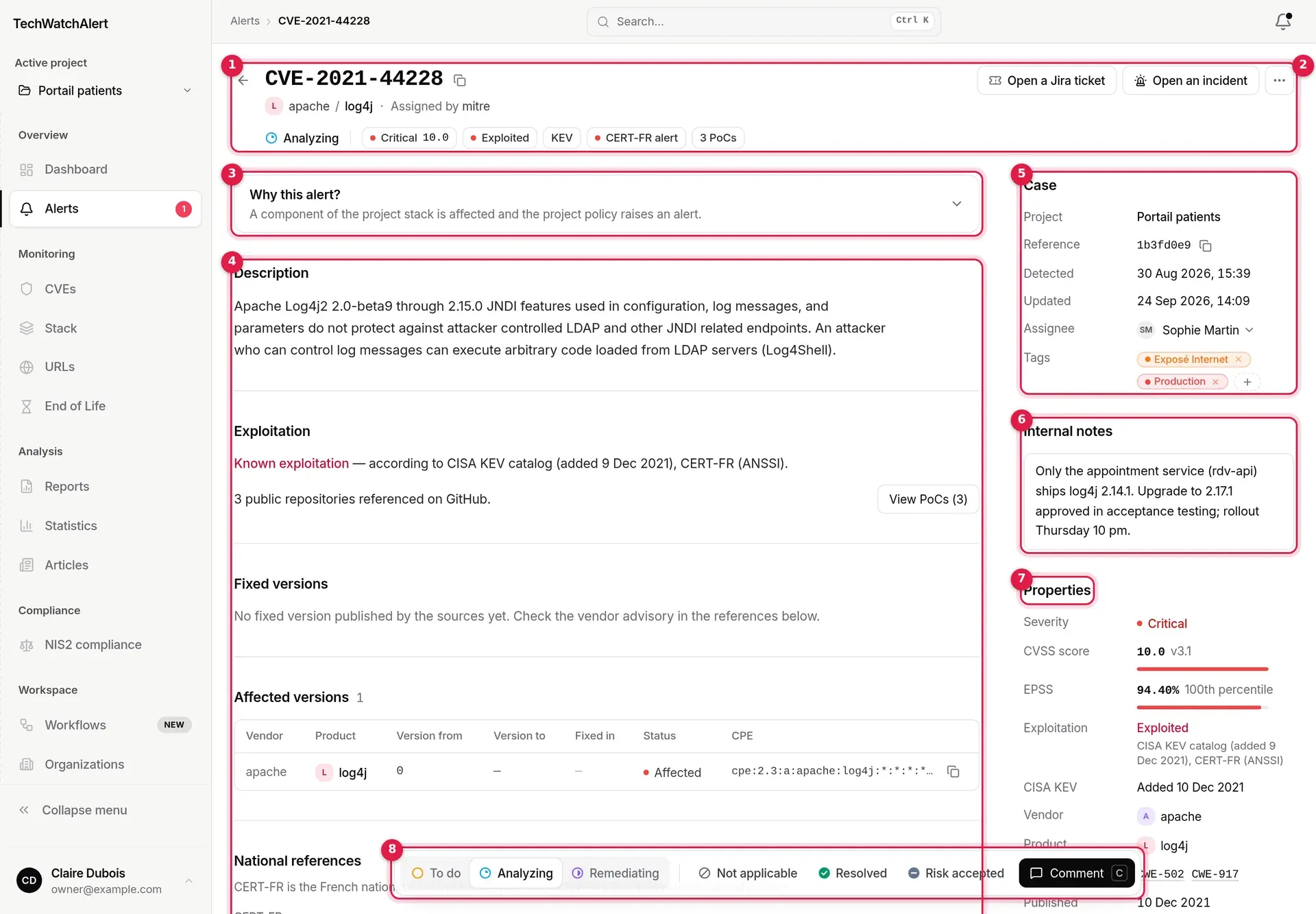
- Header: the identifier and its copy button, the vendor and product, the authority that assigned the CVE identifier (“Assigned by”), then a line with the case status and the CVE’s signals.
- Actions: the ticket button, Open an incident and the … menu (CSV export, printable version).
- Why this alert?: the explanation, collapsed by default.
- Main column: Description, Exploitation, Fixed versions, Interim measures, Affected versions, CERT advisories, then the collapsible extras (CVSS details, MITRE matrices, References), Comments and History.
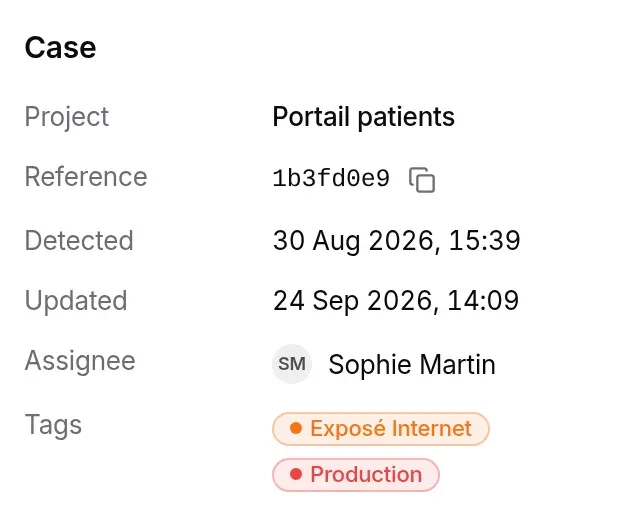
- Case: project, reference, dates, Assignee (one or more people), tags.
- The case’s Internal notes.
- The CVE’s Properties: scores, exploitation, vendor, weaknesses, dates.
- The tracking bar, floating at the bottom of the screen: statuses, closing actions, Assign and Comment.
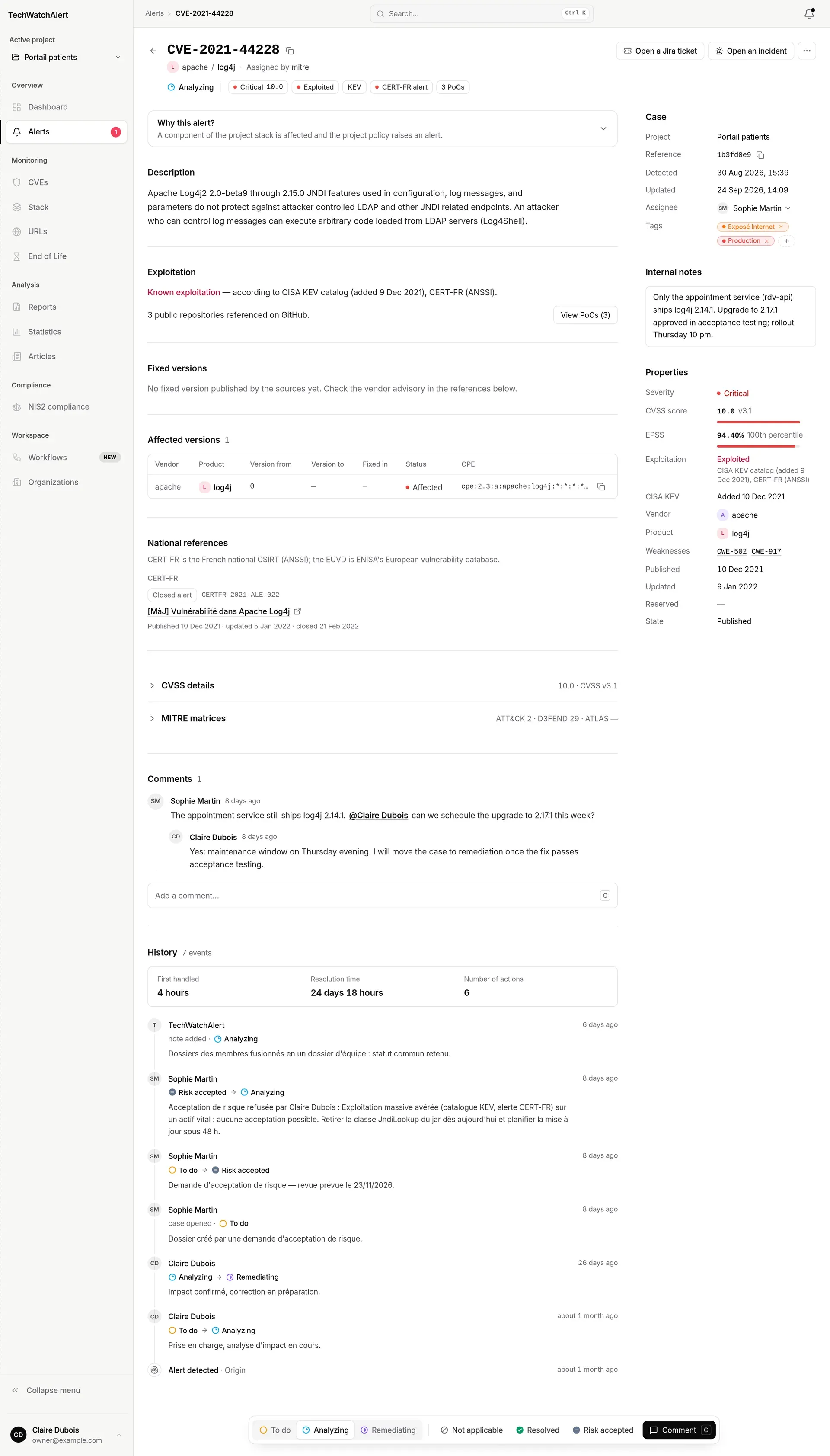
The arrow at the top left goes back to the previous page. The whole record, extras collapsed:
The header
Section titled “The header”
The line under the identifier starts with the case status (its icon and label), followed by the signals:
- Severity and CVSS score (“Critical 10.0”), with a dot in the severity colour.
- Exploited: known exploitation according to at least one source (CISA KEV catalog, VulnCheck KEV, ENISA’s EUVD, CERT-FR); the sources show on hover.
- Ransomware: the CVE is used by ransomware according to the KEV catalogs.
- KEV: the CVE is in the CISA KEV catalog; the date it was added shows on hover.
- CERT: at least one national CERT published about the CVE. A single badge, always red, whatever the CERT; the tooltip flags a CERT-FR alert. The CERTs show on hover, and a click leads to the “CERT advisories” block.
- n PoCs: number of public proofs of concept and exploits; Weaponized instead when a Metasploit module or a Nuclei template exists.
Only severity and exploitation carry a coloured dot; the detail of each signal is also in the Properties.
More actions menu
Section titled “More actions menu”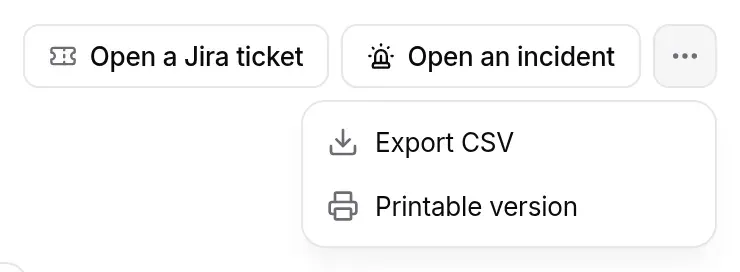
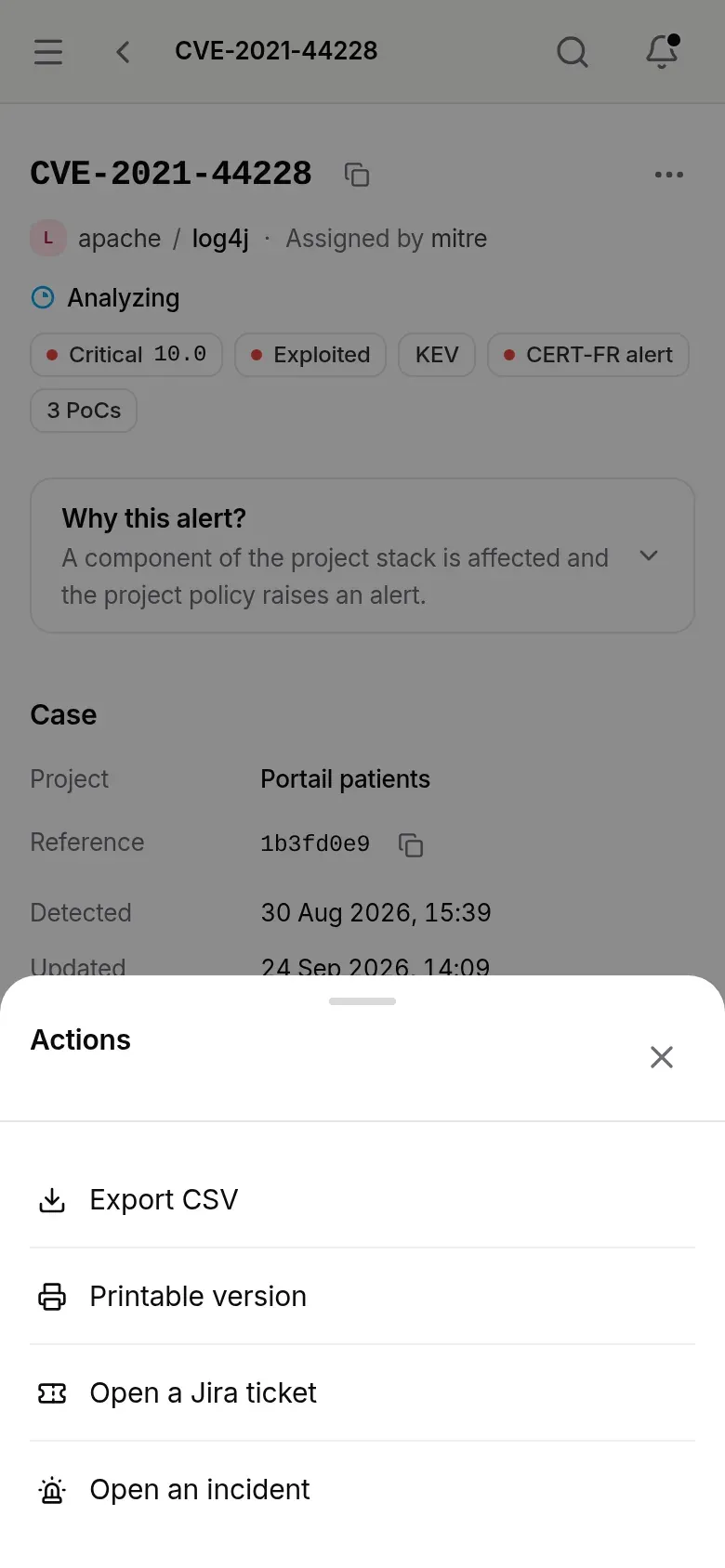
- Export CSV downloads
CVE-…-case-export.csv: case identity, dates and notes, CVE data (scores, product, KEV, PoC, CWE, raw data), references, affected versions and history. - Printable version opens the “CVE case report” page in a new tab (see Exporting and printing).
Why this alert
Section titled “Why this alert”The Why this alert? panel replays the alert engine’s steps for this CVE and the project’s stack. Its summary line gives the verdict; a click expands it.
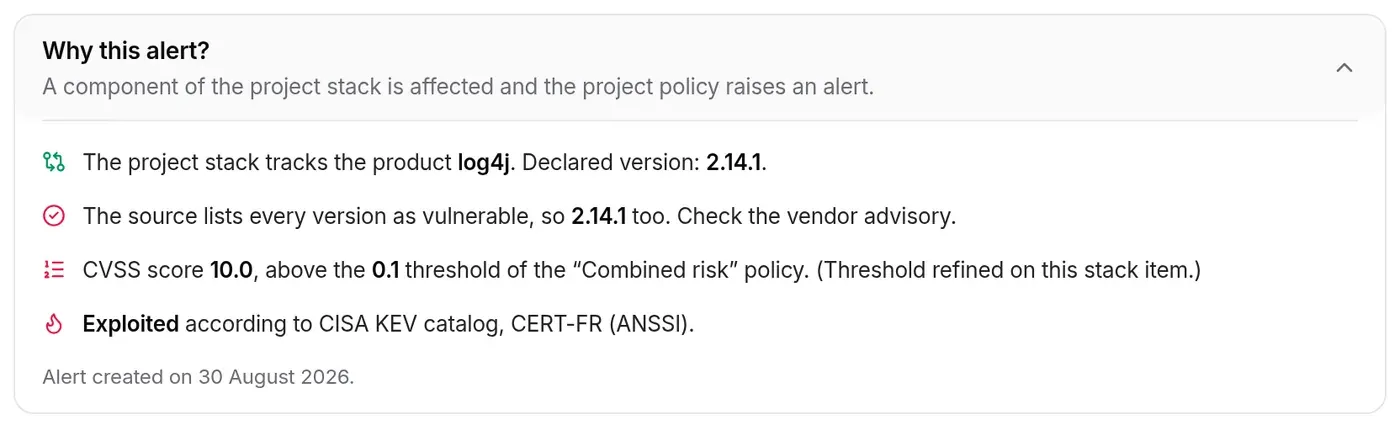
In order, the panel states:
- which stack item matches (“The project stack tracks the product log4j”) and the declared version;
- whether the version is affected: inside a range published as vulnerable, outside every range (not affected), or considered by default when no version is declared or the source publishes no range; or else ruled out because the CPE references point to another vendor;
- what the prioritisation policy says: score above the threshold, exception for reported exploitation, no threshold, or score below the threshold with no exploitation; “(Threshold refined on this stack item.)” when the item carries its own threshold;
- exploitation: exploited according to which sources, or “an exploit is public”, or no known exploitation, with the EPSS;
- the recommended version, when known;
- the alert date, stating whether it came from the catch-up (CVE already published when the component was added);
- the project exclusion rule that targets the CVE, if any, with its author and date: it set the CVE aside, or it was ignored because the CVE is exploited or linked to ransomware, or it has no effect because the alert existed before it (see Projects › Exclusions).
The possible verdicts: “A component of the project stack is affected and the project policy raises an alert”, “Affected, but below the project policy threshold: no alert”, “No component of the project stack is affected as things stand”, “Affected, but published before the project was created: only new CVEs raise alerts”, “Affected, but set aside by a project exclusion rule: no alert”. That last verdict also shows at the top of the CVE page, since there is no alert to read it on. The explanation reflects the current stack and policy: if either has changed since the alert was created, the verdict may differ.
The main column
Section titled “The main column”It reads in the order of the decision: what this is, is it exploited, what to install, what is affected.
Description and exploitation
Section titled “Description and exploitation”The Description is the one published by the source, in English.
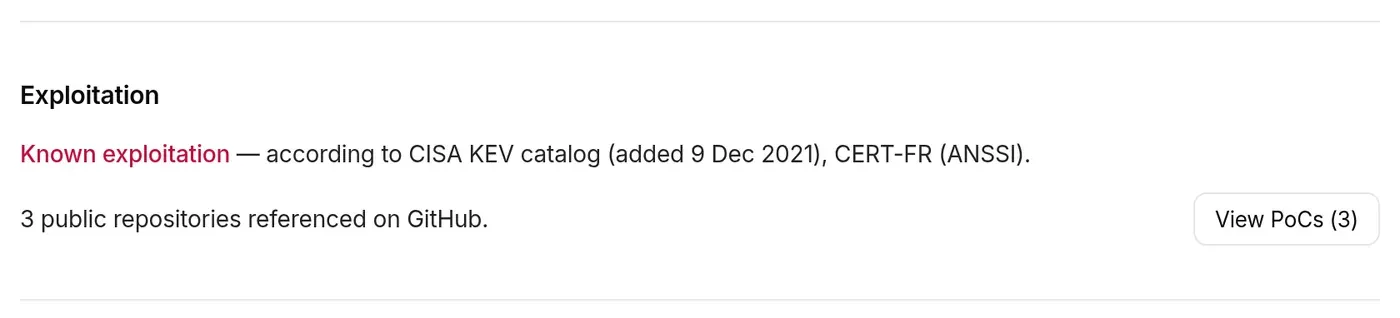
The Exploitation section answers in sentences: known exploitation and its sources (or “No confirmed exploitation is reported…”), use by ransomware, links to exploitation evidence when VulnCheck provides it, the exploit maturity and public references by source and, when CISA publishes one, the SSVC analysis.
The exploit maturity is a single level, from most to least severe:
| Level | Meaning |
|---|---|
| Exploited | Confirmed exploitation (CISA KEV, VulnCheck KEV, EUVD, CERT-FR): real-world attacks are reported. |
| Weaponized exploit | A Metasploit module or a Nuclei detection template exists: anyone can attack (or scan the Internet) without writing code. |
| Public proof of concept | Public code only: a GitHub repository (listed by nomi-sec/PoC-in-GitHub) or an Exploit-DB exploit. |
| None | No public proof of concept or exploit is referenced. |
Below the maturity, the number of references per source: Metasploit, Nuclei, Exploit-DB and GitHub. Sources are read again every day; only each exploit’s title, address, date and type are kept, never its authors.
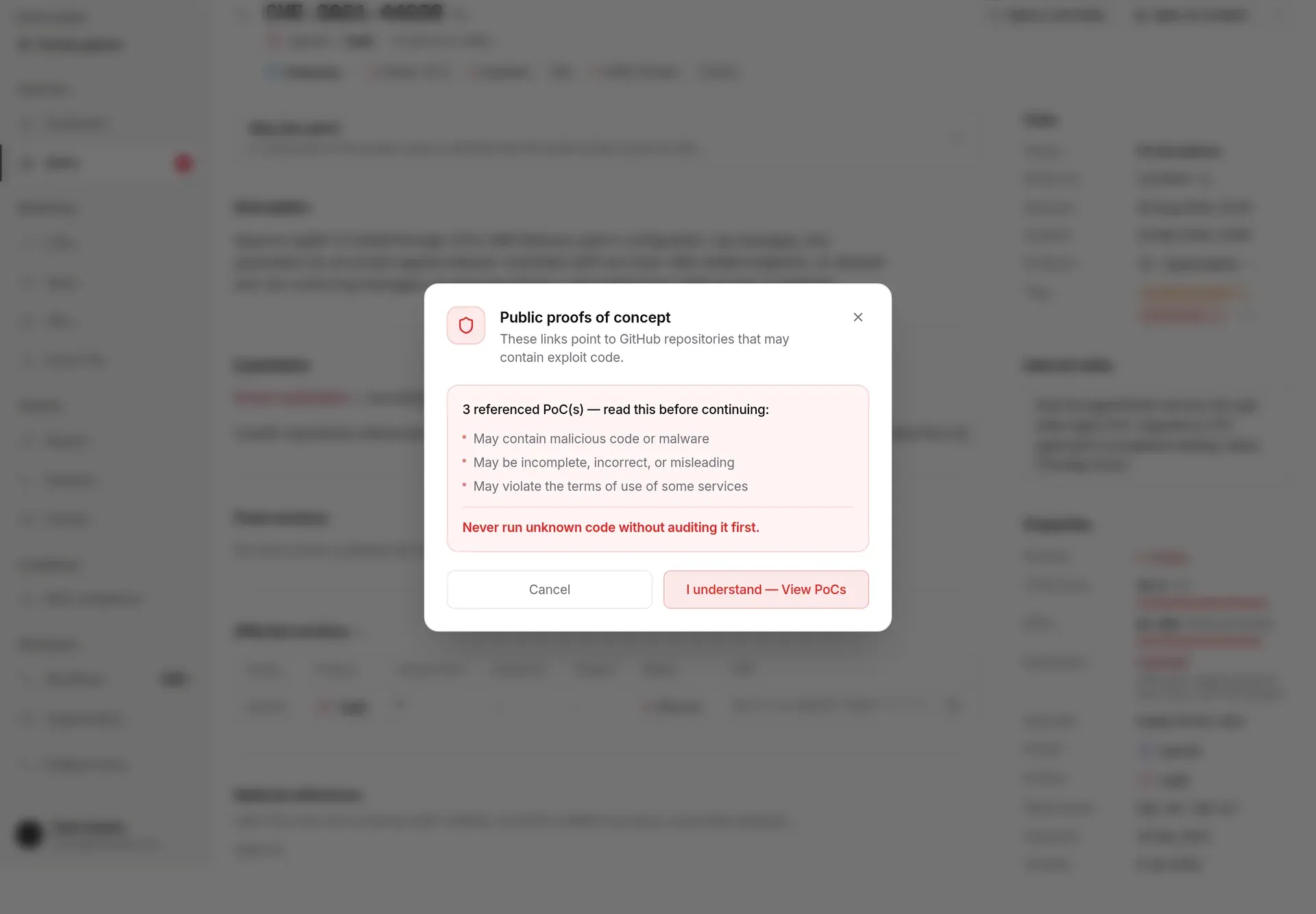
View PoCs first opens a warning, whatever the source: these links lead to code published by third parties, which may be malicious, incomplete or misleading, and they have been neither checked nor tested by TechWatchAlert. Exploit code is only to be run in an isolated environment, against systems you are authorised to test. Show the links opens the list; Cancel closes the window.
The list groups links by source, with a source filter at the top (All, Metasploit, Exploit-DB…). Each link shows the destination site’s icon (GitHub, GitLab, Exploit-DB…; a badge with the domain’s initial for others), its title, address, date and, depending on the source, GitHub stars or Exploit-DB’s verified mark. The icons are built into the application: nothing is loaded from the destination site.
Fixed versions
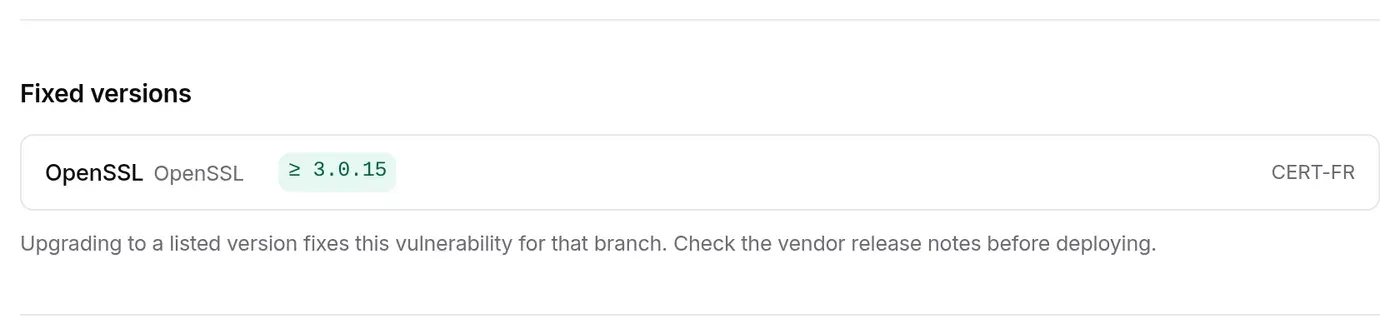
Section titled “Fixed versions”The Fixed versions block answers “which version should I install?”. For each product, the safe versions (“≥ 3.0.15”) and their source: CVE / NVD, GitHub Advisory, OSV or CERT-FR. The product tracked in the stack comes first; the others expand under Other products (n). Nothing is made up: when no source says, the block says so (“No fixed version published by the sources yet…”).
Interim measures
Section titled “Interim measures”The Interim measures block answers “what can I do until the fix ships?”. It shows what the vendor or a CERT publishes, one line per advisory and category, with a badge:
- Workaround: a step that avoids the flaw without fixing it (disable a service, change a setting);
- Mitigation: a measure that reduces the risk or the exposure (network filtering, restricted rights);
- No fix available: the vendor has not released a fix yet;
- No fix planned: the vendor will not release one (end-of-life product, vendor not responding).
Each line gives the affected products when the advisory names them, the text of the measure (longer ones expand with Read more), then the source, the advisory reference, its update date and the Original advisory link. The sources are the CSAF advisories of CISA, NCSC-NL and Siemens ProductCERT, and the “Contournement provisoire” (interim workaround) sections of CERT-FR alerts and notices.
For a vendor advisory republished by CISA (ABB, Hitachi Energy, Mitsubishi Electric, Schneider Electric…), the block shows the category and the link to the vendor’s advisory, without the text: these vendors’ terms do not allow copying it. Each licence is detailed on the Sources and licences page.
An interim measure reduces the risk without fixing the flaw: check that it applies to your version, and plan the update. The block does not appear when no source publishes one. The Workaround available filter of the CVE and Alerts lists finds the CVEs that have one.
Affected versions
Section titled “Affected versions”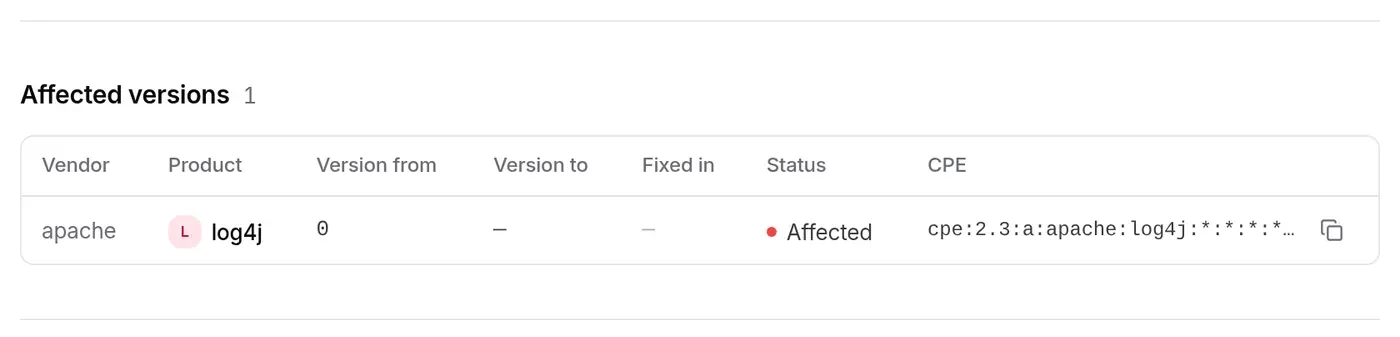
Each published range: vendor, product, Version from, Version to (“< 2.15.0” for an excluded bound, “≤” for an included one), Fixed in, status (Affected, Not affected) and CPE string, with a button to copy it.
CERT advisories
Section titled “CERT advisories”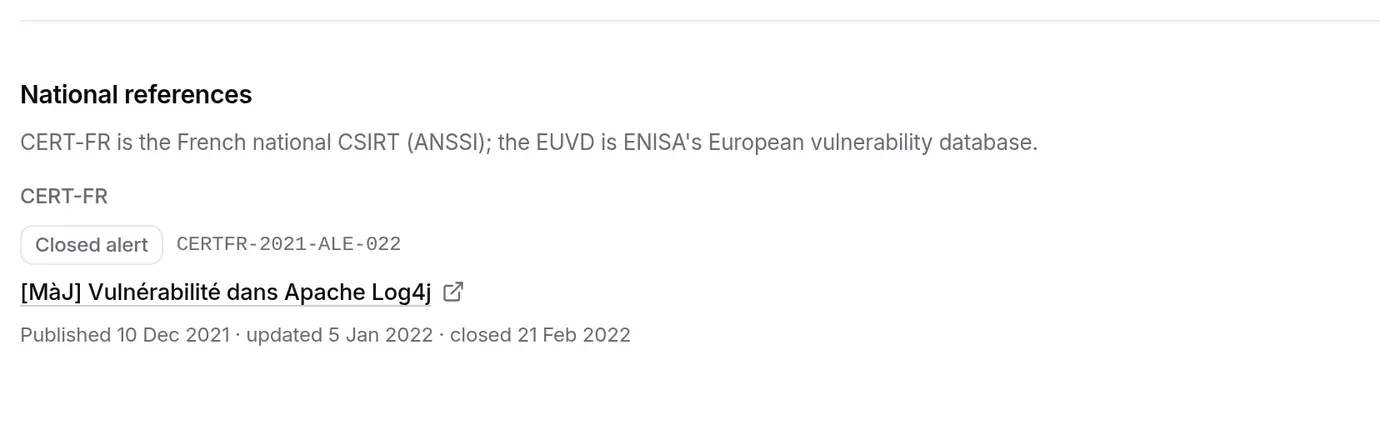
The national CERTs and CSIRTs, from every country, that have published about the CVE: one CERT per row, with its country. CERT-FR is shown in detail (type, reference, linked title, publication, update and closing dates, “Exploitation reported” when the advisory says so), as are ENISA’s EUVD records (exploited or not, score, EPSS). For the others (CERT/CC, BSI, JVN, CCCS, CISA, CERT-EU…), the link to their publication, found in the CVE’s references: their content stays with them. The CERT badge in the header leads to this block. It does not appear when no CERT cites the CVE.
Collapsible extras
Section titled “Collapsible extras”Three secondary sections each fit on one line, with a summary on the right: a click expands them. Your choice (collapsed or expanded) is remembered in this browser: whoever expands the CVSS details finds them expanded on the next record.
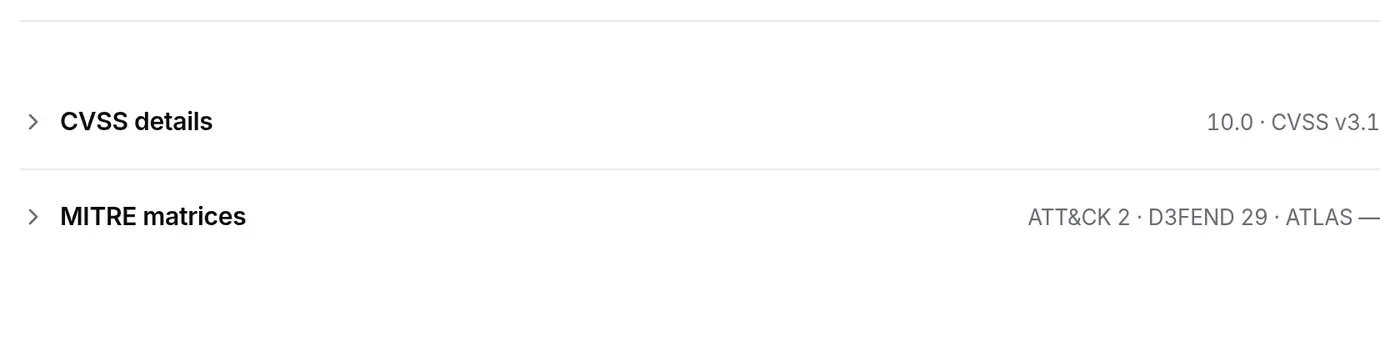
-
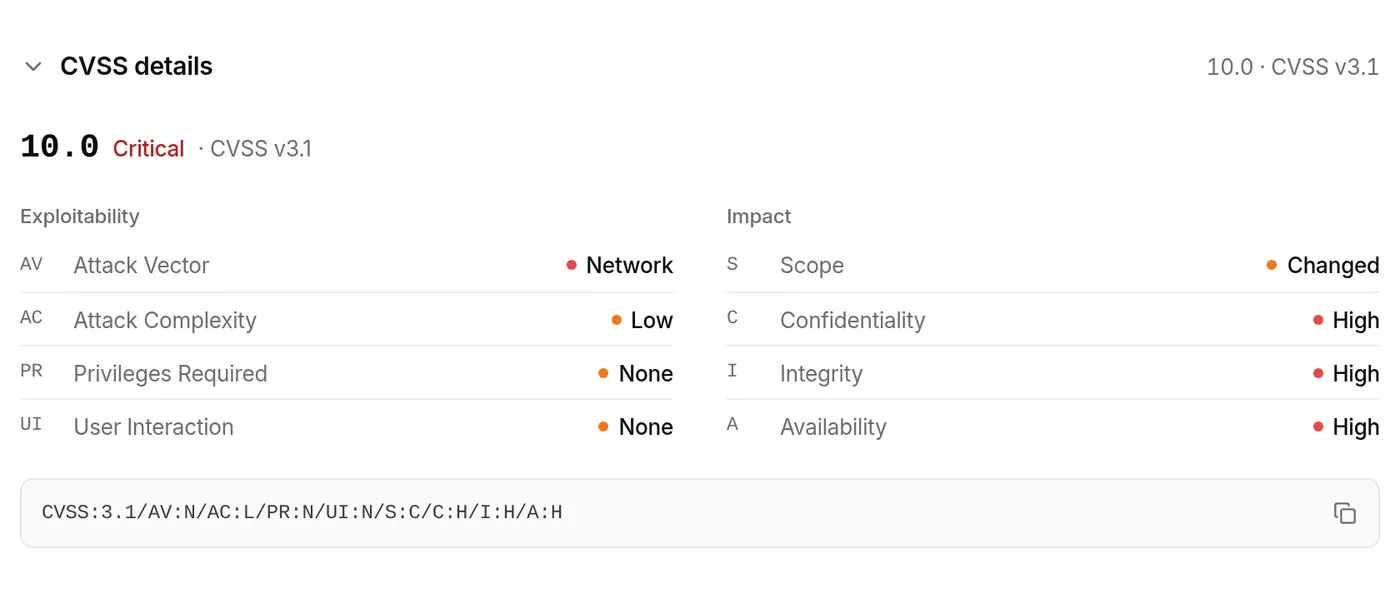
CVSS details: the score, its severity and version, the vector’s metrics grouped (exploitability, impact) and the full vector string, which you can copy. When several sources publish a score (CNA, CISA ADP, GitHub, OSV), there is one tab per source; the most recent is selected by default.
-
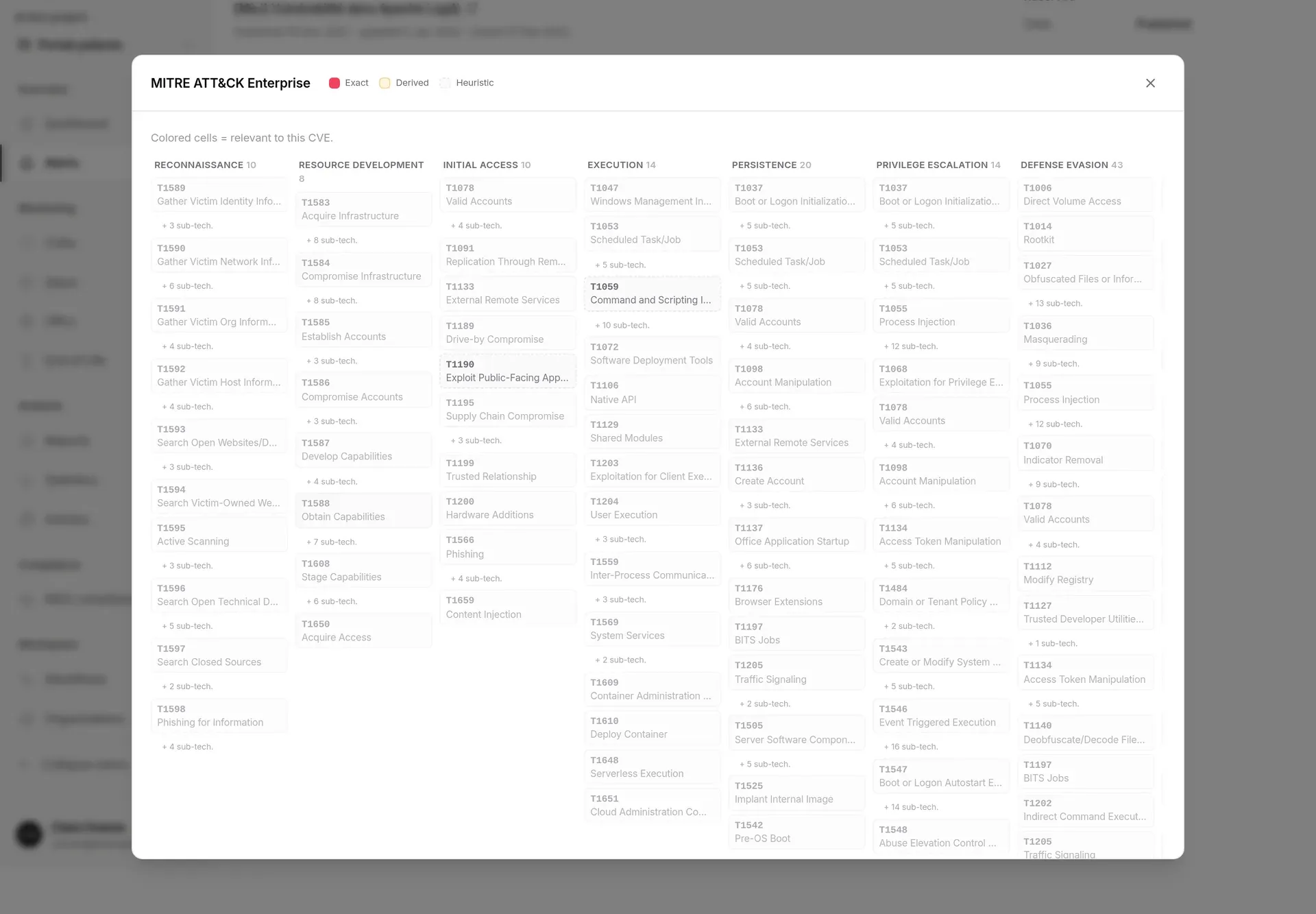
MITRE matrices: how many ATT&CK techniques, D3FEND countermeasures and ATLAS techniques are linked to the CVE. A button opens the full reference matrix, relevant cells in colour (exact, derived or heuristic confidence for ATT&CK).

-
References (“n links”): links to the vendor and to databases, with their origin. The section only appears when the source publishes references.
The side column
Section titled “The side column”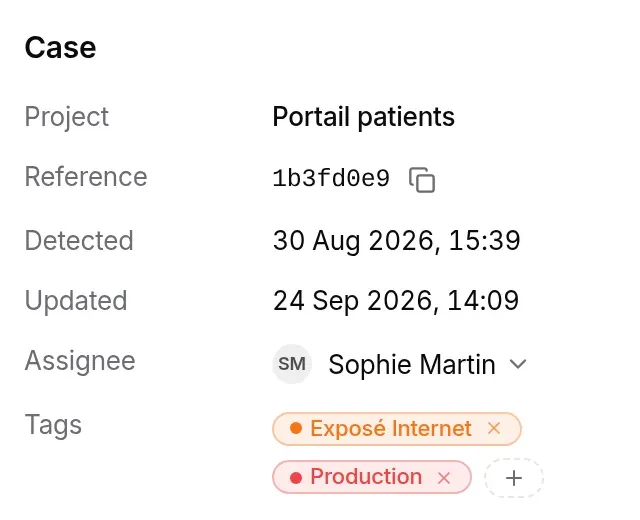
-
Project: the alert’s project.
-
Reference: the first eight characters of the case identifier (the button copies the full identifier).
-
Detected: the alert date; Updated: the case’s last change.
-
Assignee: the people who own the case for the team, or “Unassigned”. See Assigning the case.
-
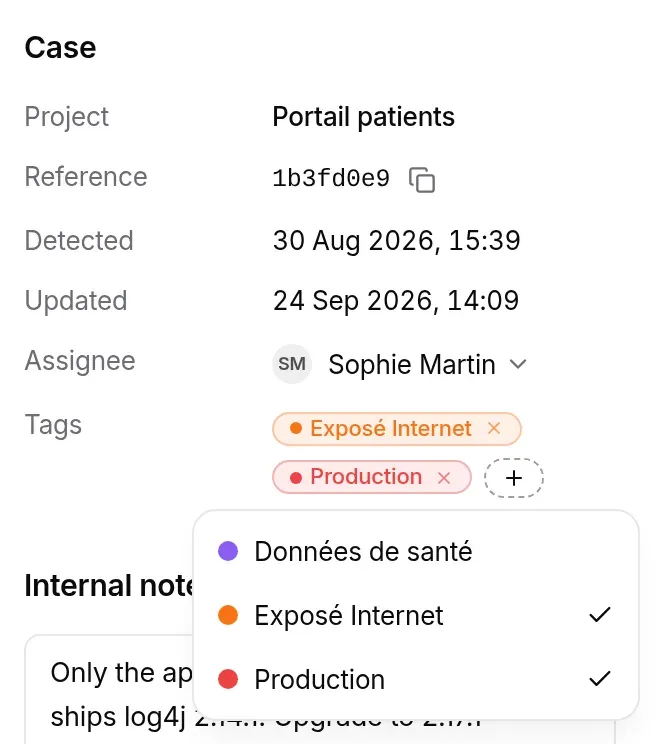
Tags: the case’s tags, shared by the team. The + button (“+ Tag” when there are none) opens the organisation’s tag list; a click ticks or unticks a tag, and the cross on a tag removes it. Tags act as a filter in the alert list; the catalogue is managed with the organisation.
-
Other projects: when the same CVE has a case in other projects whose alerts you can see, each one is listed with its status icon; a click opens its record.
Opening the record for the first time creates the case if it does not exist yet (“case opened · To do” in the history, in the name of whoever opened it).
Without the right to edit the case, Assignee and Tags are shown without controls: no arrow, no +, no crosses (“—” when the case has no tag).
Assigning the case
Section titled “Assigning the case”A case can have one or more assignees, who own it for the team (the analyst and the person who will apply the fix, for instance). It is a way of sharing out the work: assigning does not change the status, the rights or who can act on the case.
- Click Assign in the tracking bar, or the Assignee value in the Case section (the current names or “Unassigned”, followed by an arrow). Both open the same panel.
- If needed, type the start of a name or address in Search members; the ↑ ↓ arrows and Enter tick or untick too.
- Tick the people to add, untick those to remove, then click Apply (the button counts the changes). Nothing is saved before that.
Two shortcuts apply at once, at the top of the panel: Assign to me adds you to the assignees, Remove all assignments leaves the case with nobody.
- The list offers the project members who can see its cases (“View cases” right); you come first, marked “you”. The server refuses anyone else.
- Each newly assigned person is notified:
- by a bell notification (“CVE-… assigned to you”, with the project and the name of whoever assigned it) that leads to the record;
- by an email “A CVE alert has been assigned to you”: the CVE, its severity and CVSS score, the pressing signals (exploited, KEV catalogue, public exploit), the project, who assigned it and the Open the alert button. It is sent right away, in the person’s language, whatever their email frequency; they can turn it off with the Assignments preference (see Notifications › Your preferences).
- Nobody is notified when you assign yourself, when an assignment is made again unchanged (the person already owned the case), or when an assignment is removed.
- Several alerts can be assigned at once from the alert list: each person then gets only one notification and one summary email listing the CVEs.
- The assignees’ initials show in the alert list, whose My assignments quick view finds your cases; the Assigned to me scope of the dashboard metrics only counts the cases assigned to you (alone or with others).
- A member removed from the project (or from the organisation, or whose access has expired) loses their assignments on that project; the other assignees keep theirs.
- Assigning and removing need the right to edit the case (see Permissions and plan); every change is recorded in the organisation’s audit log, with the people added and removed.
Internal notes
Section titled “Internal notes”The Internal notes field keeps the team’s working context: what has been checked, what is planned. It is a single text per case, which any authorised member can edit. As soon as you change it, the Save button appears; Ctrl+Enter (⌘+Enter on a Mac) saves too. “Saved” shows for a few seconds. Saving a note does not add a history line.
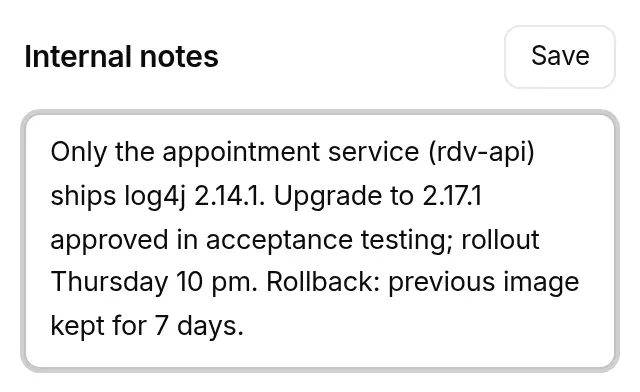
On a closed case, or without the “Add / edit note” right, the note is shown as plain text, with no field or button (“No notes.” when it is empty): a closed case must be reopened before its note can be edited.
Properties
Section titled “Properties”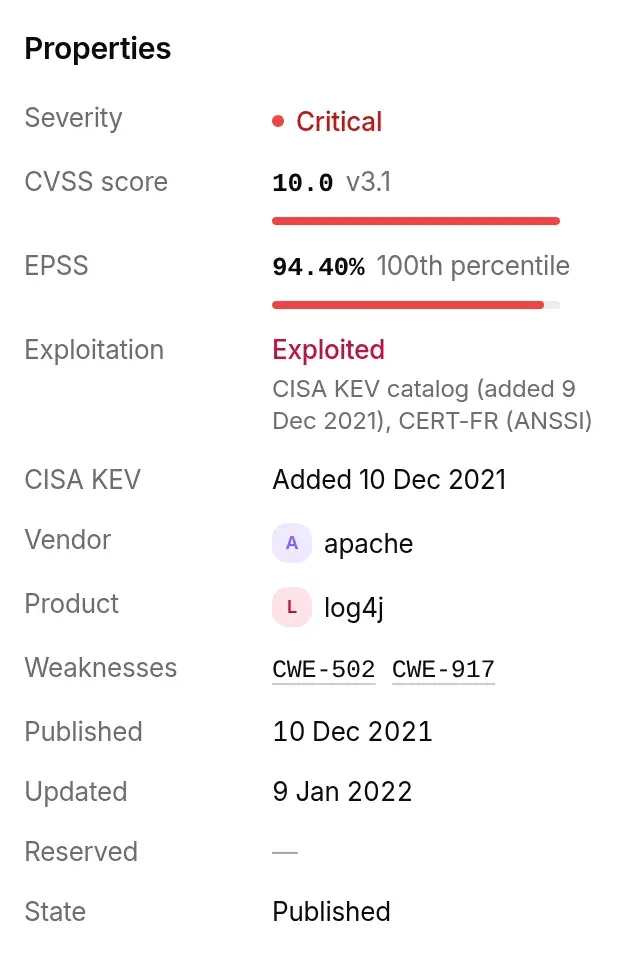
What you check at a glance: Severity, CVSS score (with its version and a gauge out of 10), EPSS (probability of exploitation within 30 days, with its percentile), Exploitation (“Exploited” and its sources, or “Not reported”), CISA KEV (date added, only when the CVE is in it), Vendor, Product, Weaknesses (the CWEs, linking to the MITRE website), the Published, Updated and Reserved dates (full date on hover) and State (Published, Rejected, Reserved).
The tracking bar
Section titled “The tracking bar”The bar floats at the bottom of the screen, centred on the content area: it stays within reach while you read. It is the same bar as the one that appears when you tick alerts in the alert list: same actions, in the same order, with the same labels; the record only adds Comment.

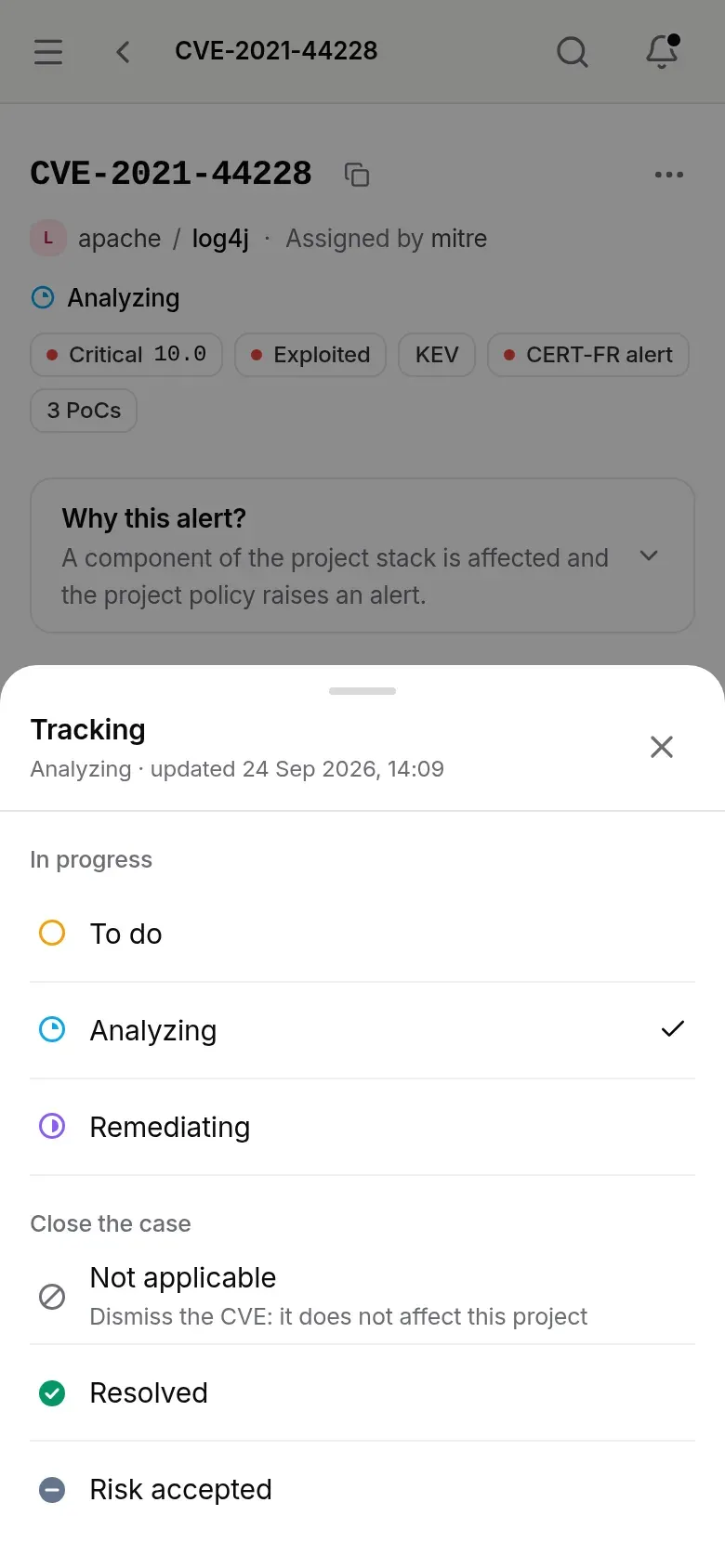
- In progress: To do, Analyzing, Remediating. The current status stands out; its tooltip gives the date of the last update.
- Contain: Mitigated (see Mitigating a CVE).
- Close the case: Not applicable, Resolved, Risk accepted.
- Assign opens the choice of assignees (see Assigning the case).
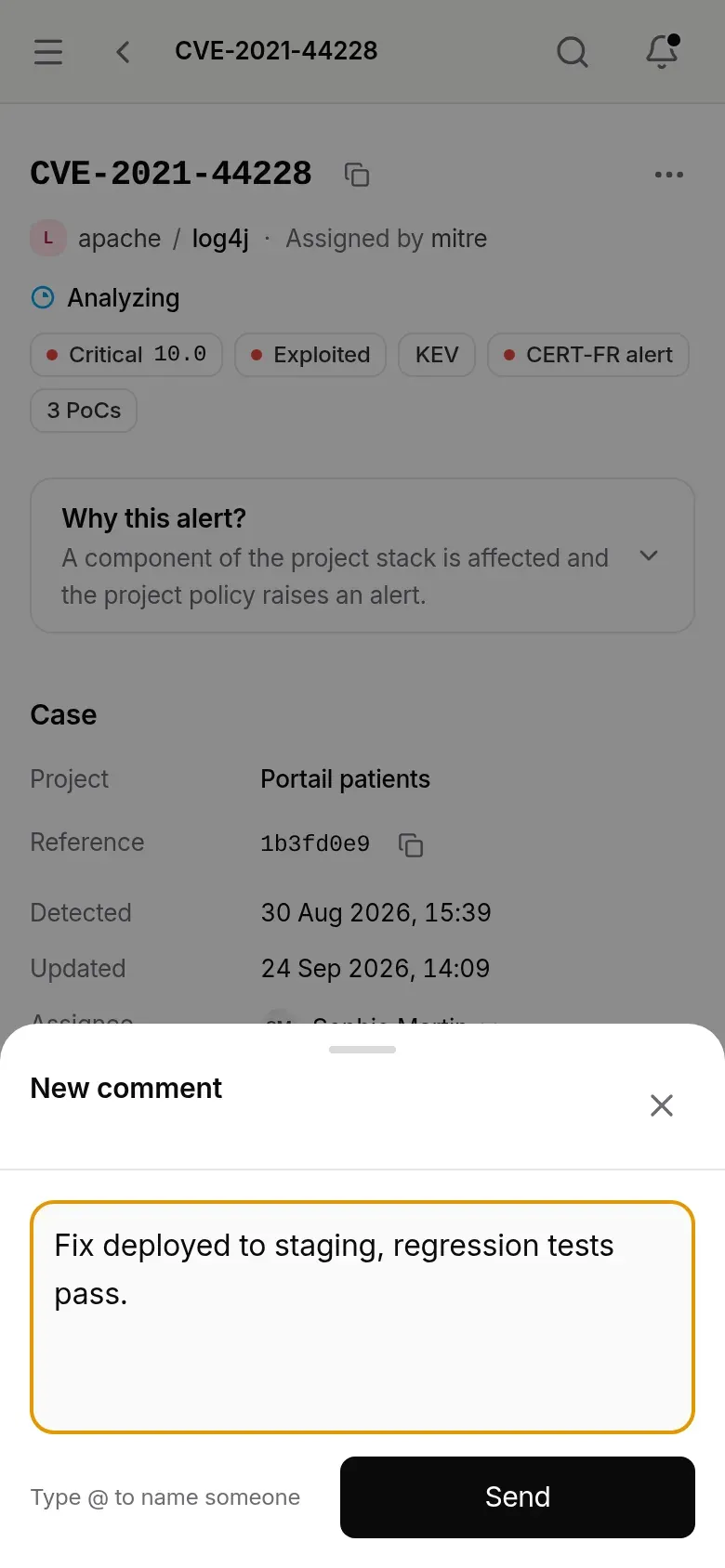
- Comment (C key) opens the composer.
Without the “Change status” right, the statuses are not offered: the bar only shows the current status and its update date, followed by Read-only if you cannot comment either (see The read-only record).
A click on a status saves it immediately and adds a line to the History, in your name. If the change is refused, the bar shows “Unable to update the status. Check your permissions.”
| Status | List tab | Use |
|---|---|---|
| To do | Current Alerts | Not yet picked up. |
| Analyzing | Current Alerts | The team is checking whether the CVE really affects the project, and its impact. |
| Remediating | Current Alerts | The fix is decided or under way. |
| Mitigated | Mitigated | Not fixed: a measure contains it (workaround, WAF rule, feature disabled, isolation), until an expiry date. |
| Not applicable | History | The CVE does not concern the project (false positive, component not exposed, feature disabled…). |
| Resolved | History | Fixed. |
| Risk accepted | History | It affects the project, but the team will not fix it, knowingly. |
Since the status belongs to the team, closing an alert moves it to the History tab of the alert list for every member.
Dismissing a CVE
Section titled “Dismissing a CVE”A CVE that does not concern the project is marked Not applicable, with an optional reason.
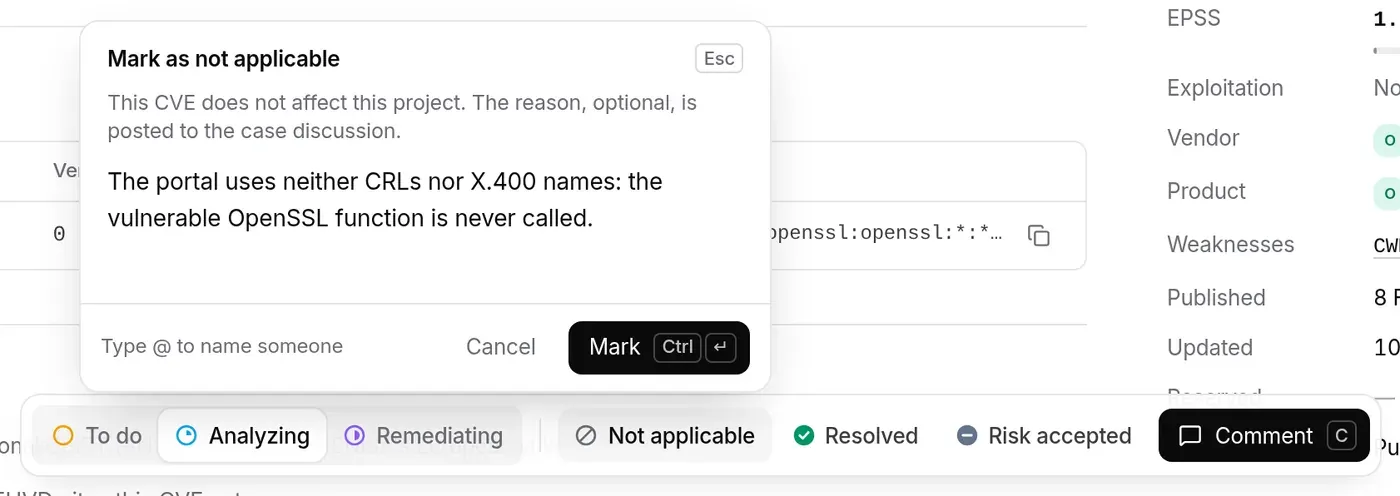
- Click Not applicable in the bar. The Mark as not applicable panel opens: “This CVE does not affect this project. The reason, optional, is posted to the case discussion.”
- Write the reason if you wish (component not deployed, feature disabled…).
@mentions work as in a comment. - Click Mark (or Ctrl+Enter). The reason is posted as a comment on the case, then the case moves to Not applicable.
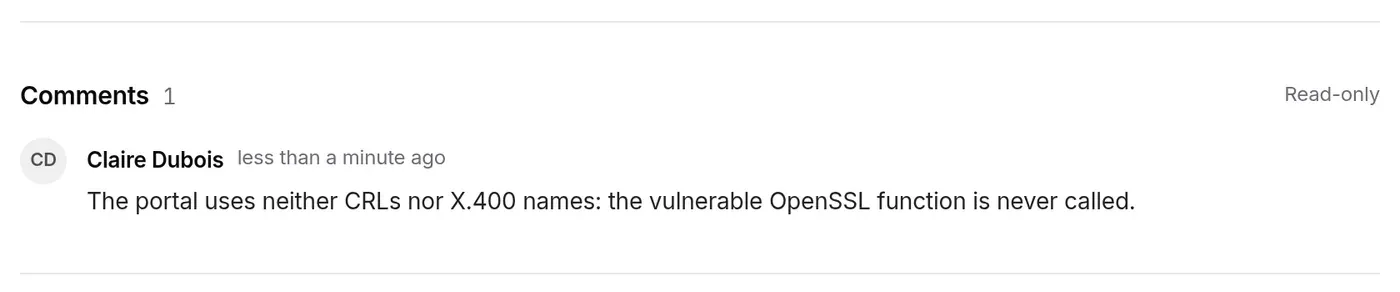
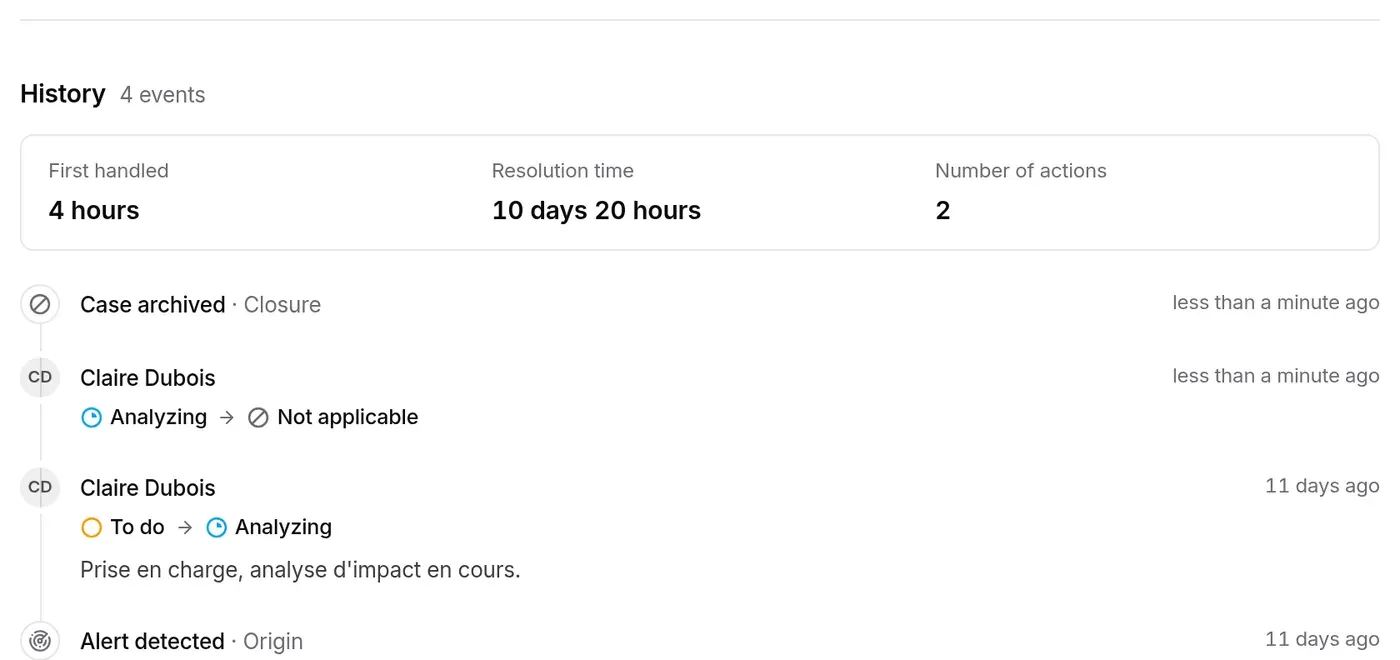
The reason can then be read in the Comments (the thread becomes read only), and the “Analyzing → Not applicable” line in the History:
Without the right to comment, Not applicable closes the case directly, with no reason panel.
To stop a whole component from raising alerts, adjust the stack instead: raise its alert threshold or remove it from the stack.
Mitigating a CVE
Section titled “Mitigating a CVE”Between “to do” and “resolved” lies the window without a fix: the fix does not exist yet, or cannot be deployed right away. If a measure contains the vulnerability in the meantime (vendor workaround, WAF or IPS rule, feature disabled, network isolation), mark the case Mitigated. The vulnerability is not fixed: the status says so, distinct from Resolved everywhere (list, record, dashboard, reports, API).
- Click Mitigated in the bar (Contain group). The Mitigate the vulnerability panel opens.
- Pick the type of measure: Vendor workaround, Virtual patch (WAF, IPS), Feature disabled, Network isolation or Other measure. Nothing is ticked by default.
- Describe the measure in place: the rule, the disabled module, the filtering.
- Write the justification, 20 characters at least: why mitigate rather than fix now.
- Pick the expiry date, required: the last day the measure holds. 30 d, 90 d and Max set it in one click; it falls 180 days from today at the latest (see the box).
- Click Mitigate (or Ctrl+Enter).
The case moves to Mitigated, and the history keeps the measure, the justification and the expiry date, in your name. Under the record header, a block shows it to the whole team: “Mitigated until …”, days left, type, measure, justification, who set it and when.
What Mitigated changes:
- the queue: the alert leaves the Current Alerts tab of the list for the Mitigated tab. While the mitigation holds, the case is no longer “to do”: it counts neither in the backlog age nor in overdue remediation deadlines;
- the exposure: the vulnerability is still exposed. The dashboard counts it separately, as “contained” (Case progress, Exposure and Exposed components cards), and so do the reports;
- the deadlines: it is not a closure. Fixed later (Resolved from Mitigated), the CVE counts as on time if the mitigation was set before its remediation deadline;
- the case stays open: you can comment, and change status directly, for instance to Resolved as soon as the fix is deployed.
Reminders and reopening. TechWatchAlert reminds you of the expiry date 14 days before, then the day before, once each, by the bell and by email: to the person who set the mitigation and to the assignees, or else to the project administrators. The day after the expiry date, without a fix, the case reopens by itself: it goes back to To do, or to Remediating if it was there before the mitigation. The history adds “Mitigation expired”, signed TechWatchAlert, and a notice goes out right away. The CVE gets its original remediation deadline back: mitigation suspends the delay, it does not postpone it.
Renewing. On a mitigated case, Mitigated stands out in the bar; a click opens Renew the mitigation, prefilled except for the expiry date, to pick again. Reminders restart for the new date.
Risk accepted
Section titled “Risk accepted”When the project keeps a register of accepted risks (NIS2 compliance), Risk accepted cannot be set with one click: the button opens a reasoned acceptance request, submitted to management (see NIS2 › Registers). Once the acceptance is requested or approved, the case follows it. Without a register, Risk accepted opens the same panel as Mitigated (the type can be No measure): the acceptance carries a justification and an expiry date, with the same reminders, and the case reopens by itself when it expires. Closed, it can be renewed without reopening: Renew, next to Reopen. With a register, a banner under the header shows the state of the acceptance to the whole team. Likewise, when NIS2 remediation deadlines are active for the project, a panel gives the fix deadline of a case that is still open.
Closed case and reopening
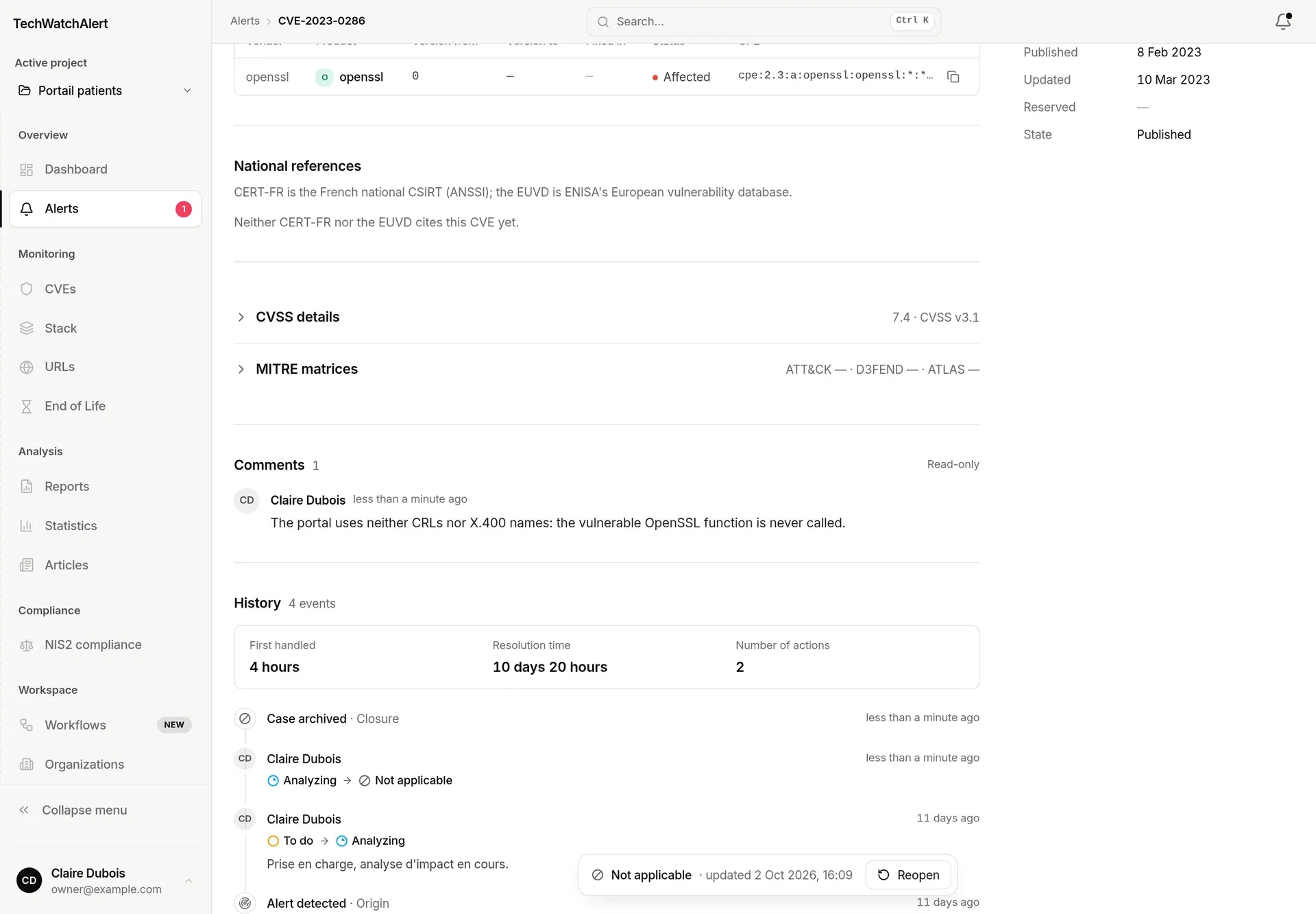
Section titled “Closed case and reopening”A Not applicable, Resolved or Risk accepted case is closed: the bar only shows its status, the update date and Reopen, which moves it back to Analyzing. Reopen needs the “Reopen case” right, separate from “Change status”. Until it is reopened, you cannot change its status, save its note or comment: Comment disappears, the thread shows Read only and Reply is no longer offered.

Commenting
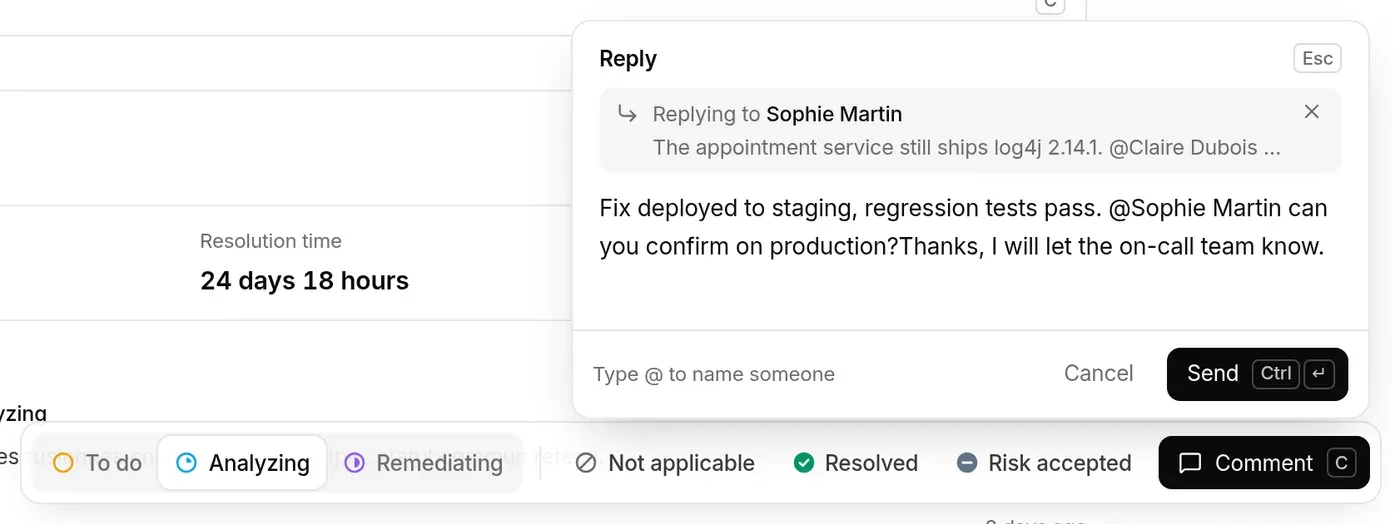
Section titled “Commenting”The Comments are the team’s discussion about the CVE. You write in the composer, anchored to the tracking bar.
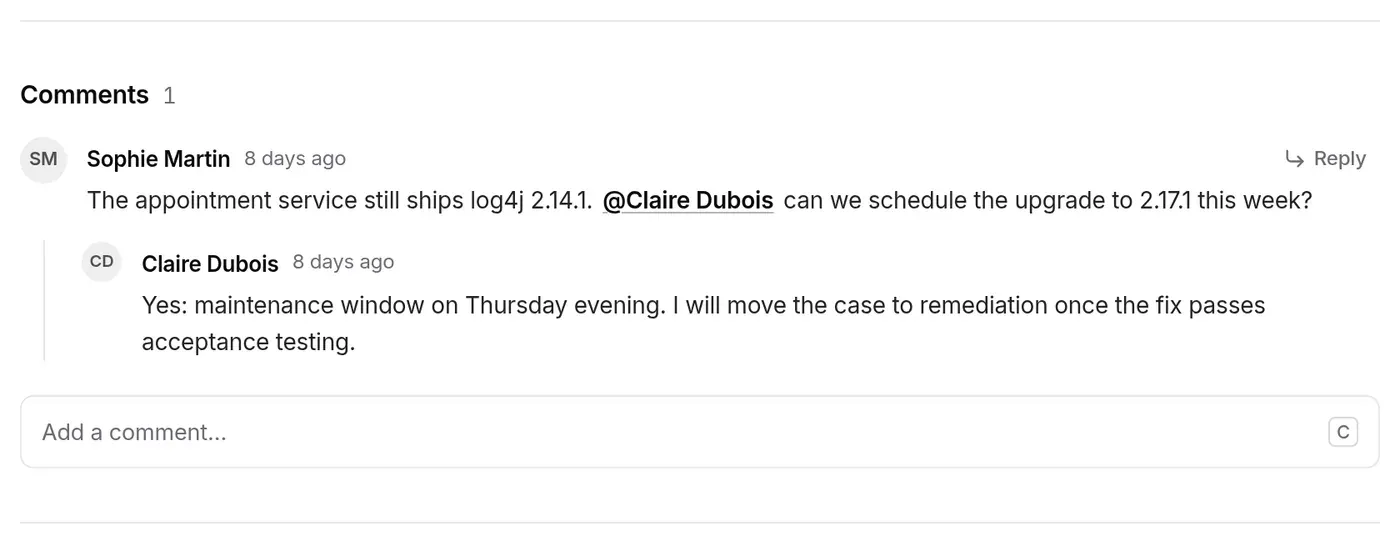
- Open the composer: Comment in the bar, the C key (outside an input field), or the Add a comment… field under the thread.
- Write (4,000 characters at most; a counter appears when fewer than 400 remain).
- Send with Send or Ctrl+Enter (⌘+Enter on a Mac). The bar’s button briefly shows Posted and the message joins the thread.
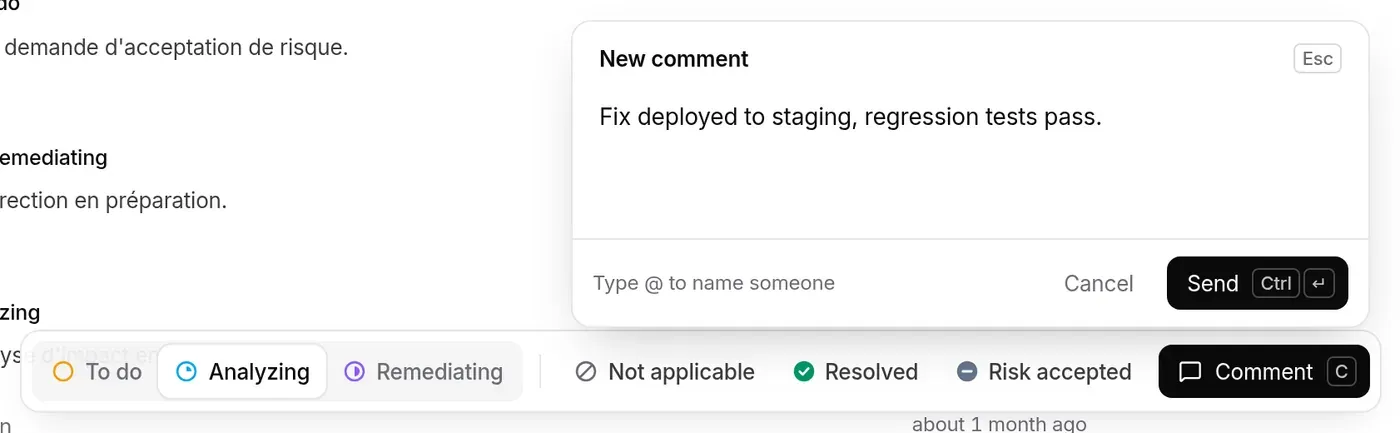
- Esc or Cancel closes the composer. The draft is kept: when you reopen the composer, it is where you left it (as long as the page is not reloaded). The draft of a comment and that of a “Not applicable” reason are separate.
- Each message shows its author, the relative date (exact date on hover) and a blue dot if you had not read it yet. Reading is personal: opening the record marks the comments as read for you alone, your colleagues keep their own dots; your own comments always count as read.
Mentioning a colleague
Section titled “Mentioning a colleague”Type @ and the start of a name or address: the list of project members appears (six at most). Pick with the arrow keys then Enter or Tab, or with the mouse. Esc first closes the list, then the composer.
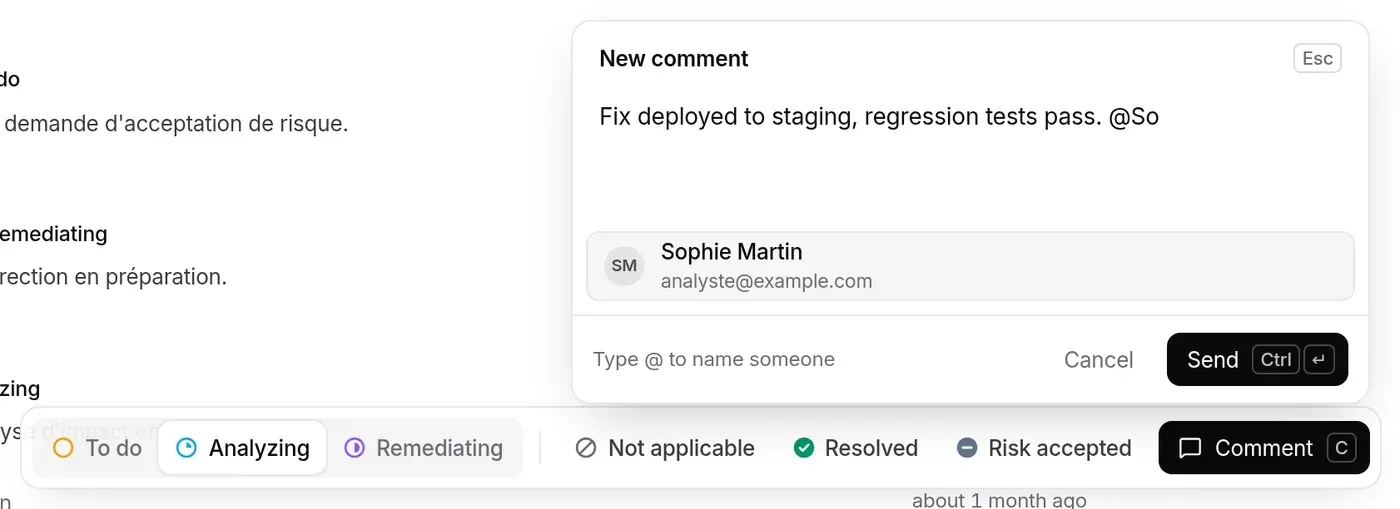
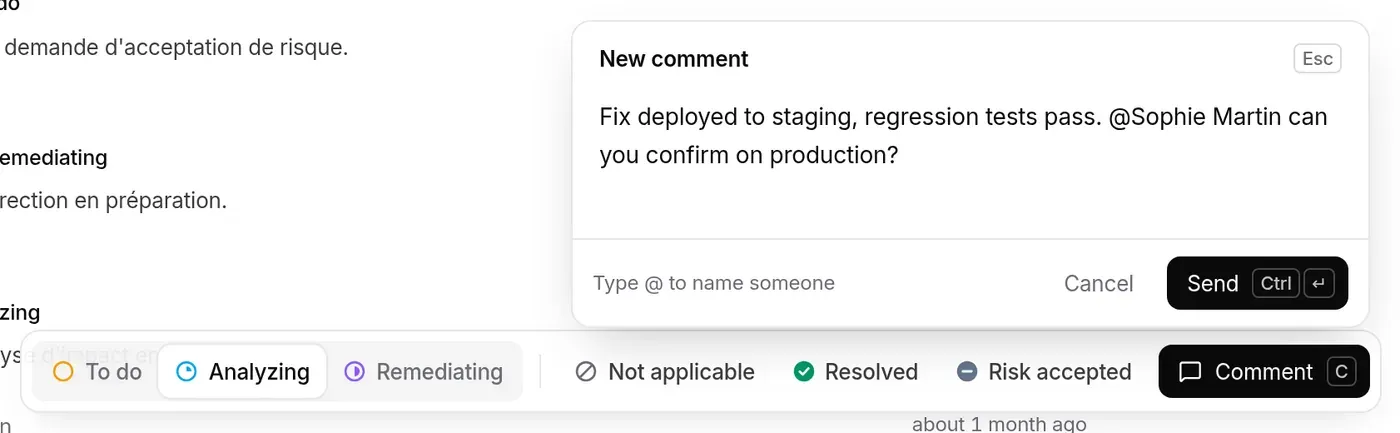
- Each person mentioned receives an email with the message and a link to the record, in their own language. A mention of someone outside the project is ignored; if you edit the inserted name by hand, it becomes plain text again and nobody is notified.
- You also get a copy of your own comment by email.
- In the thread, a mention of you is underlined.
Replying
Section titled “Replying”When you hover over a message, Reply opens the composer as a reply: a “Replying to …” reminder quotes the message; its cross goes back to a plain comment. Replies appear indented under the message, one level only (you cannot reply to a reply).
History
Section titled “History”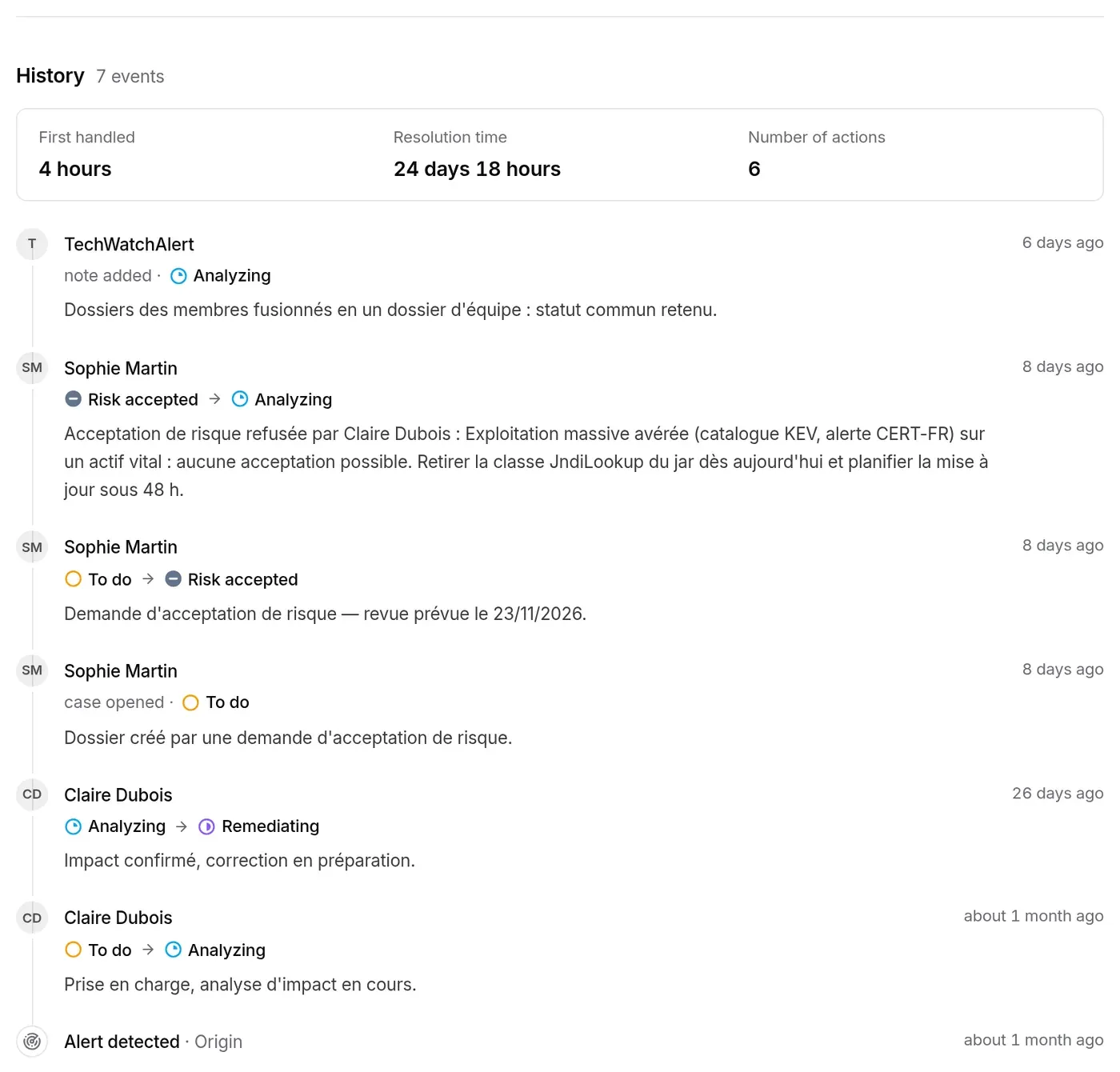
At the top, three figures:
- First handled: the time between the alert’s detection and the first real status change (“Pending” while nothing has moved);
- Resolution time: from first handling to the first move into a closed status (“In progress” until then);
- Number of actions: the lines in the history.
Below, newest first: Case archived · Closure for a closed case, then each change with its author (name, email on hover), the move from one status to another and any comment (“case opened” for the creation, “note added” for a line with no status change), the relative date (exact date on hover); at the very bottom, Alert detected · Origin. A line signed TechWatchAlert is an automatic action (workflow, expiry of a mitigation or of a risk acceptance, merging of the former individual cases into one team case) or that of an account deleted since. Assignments and tags are not listed there.
Tickets and incidents
Section titled “Tickets and incidents”Opening a ticket
Section titled “Opening a ticket”Open a Jira ticket (or GitLab, GitHub), in the header, creates the ticket on click, with no window in between. The ticket contains the severity, EPSS, exploitation, component, fixed versions, description and a link back to the alert. Once created, the button becomes a link to the ticket (“Jira SEC-123”).
- One ticket per CVE and per project, whether it was opened by hand or by the “Create ticket” workflow tile.
- With no tool set up, the button does not appear. Setup is done in the project settings, Integrations page (project administrators).
Opening an incident
Section titled “Opening an incident”Open an incident declares a security incident from this case, with a title suggested from the CVE. The button only appears when the NIS2 Incidents module is active and you can manage incidents (see NIS2 › Incidents).
Exporting and printing
Section titled “Exporting and printing”- … › Export CSV: see More actions menu.
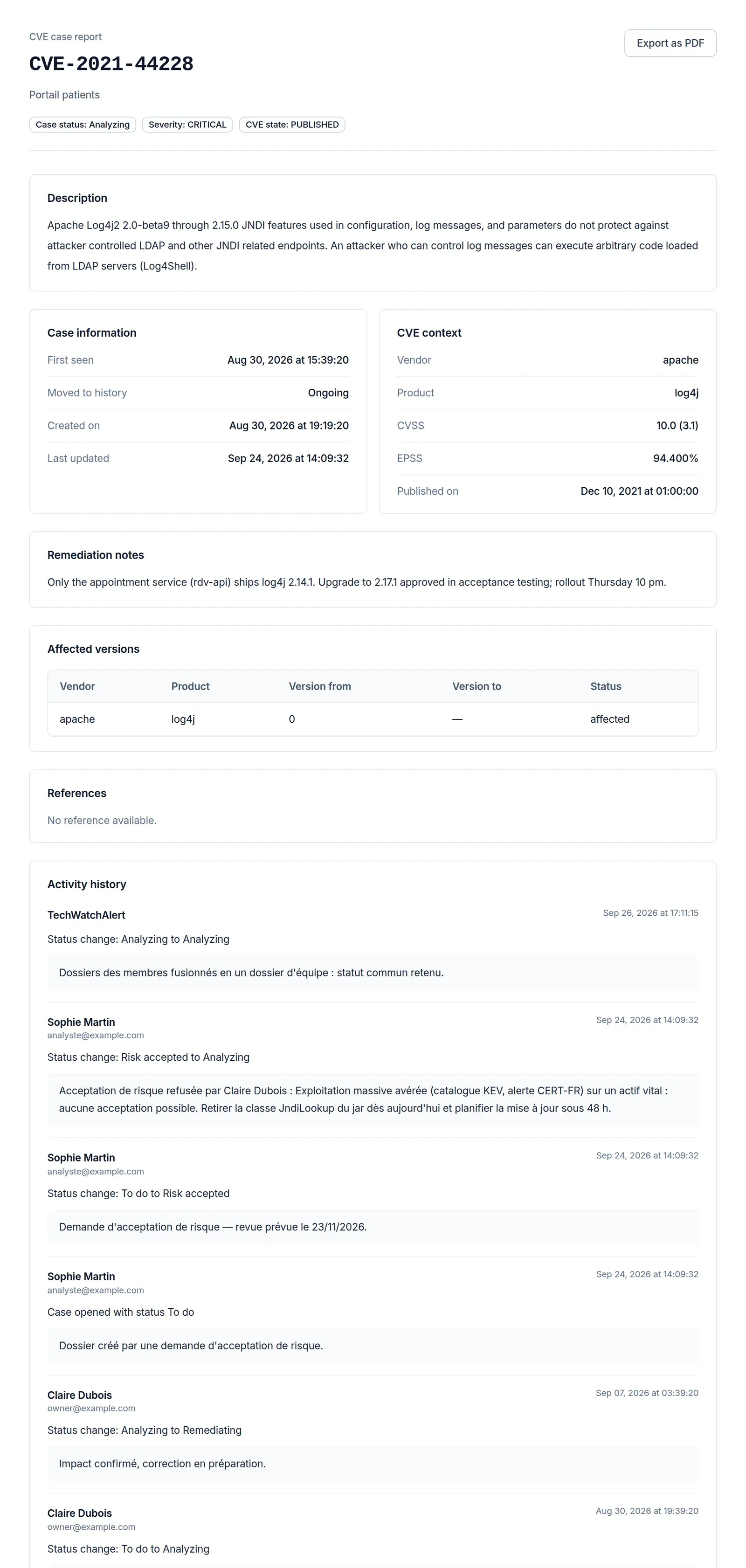
- … › Printable version opens the “CVE case report” in a new tab: case state, description, case information, CVE context, notes, affected versions, references and activity history (without the comments). The browser’s print dialog opens by itself; choose “Save as PDF” to get a PDF. Export as PDF opens it again.
On a phone
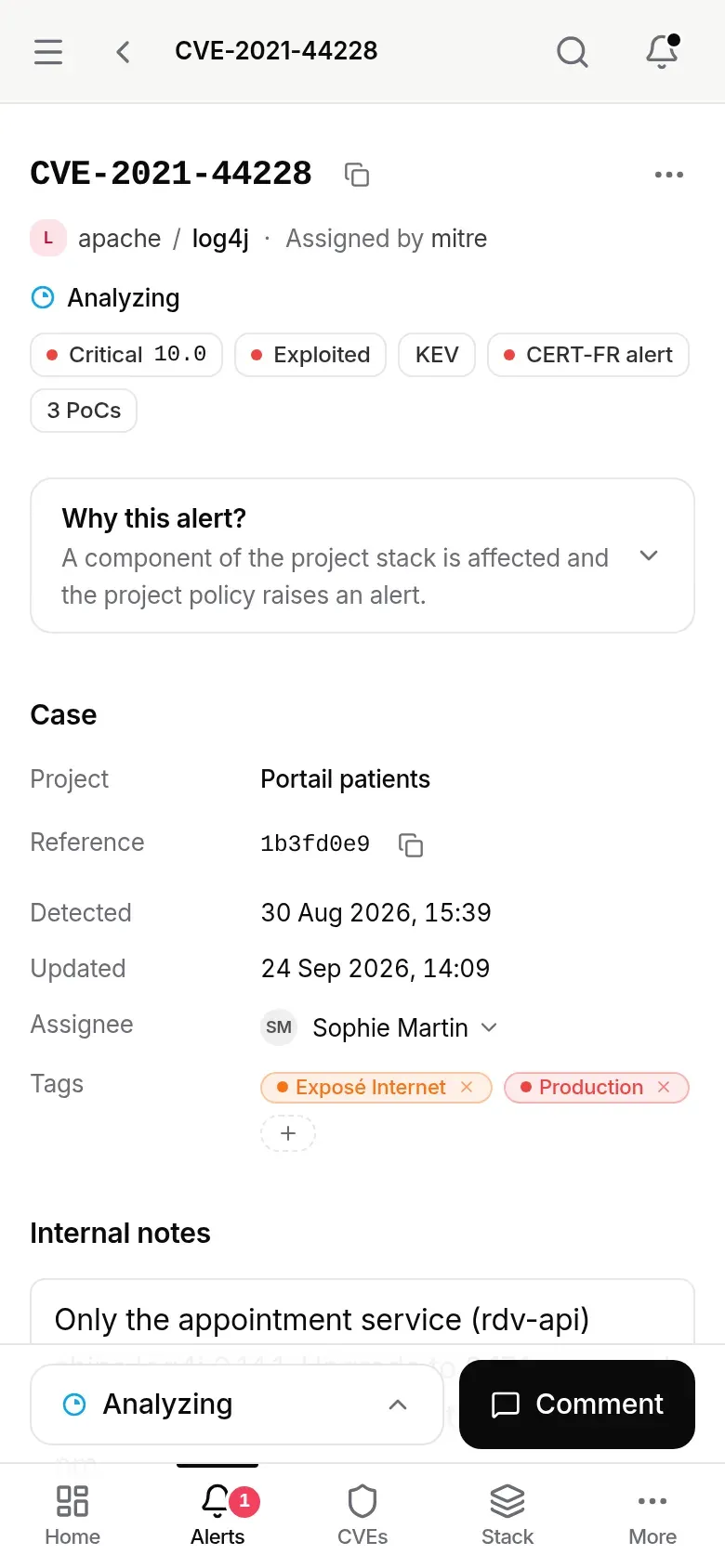
Section titled “On a phone”The record stacks up: the header, Why this alert?, the Case and Internal notes, then the description, the properties and the rest. The tracking bar spans the full width, above the tab bar: the current status on the left, then Assign and Comment.
Choices open in bottom sheets:
- the status opens the Tracking sheet (status and update date, In progress and Close the case groups, or Reopen for a closed case);
- Assign opens the assignment sheet (members to tick, Apply, Assign to me, Remove all assignments);
- Comment opens the composer in a sheet;
- … (header) opens the Actions sheet: Export CSV, Printable version, and the ticket and Open an incident when available.
The read-only record
Section titled “The read-only record”A member who can see the cases but not edit them (the User role, by default) reads the whole record but finds no editing controls on it. Here, Marc Lefèvre, User on the Portail patients project:
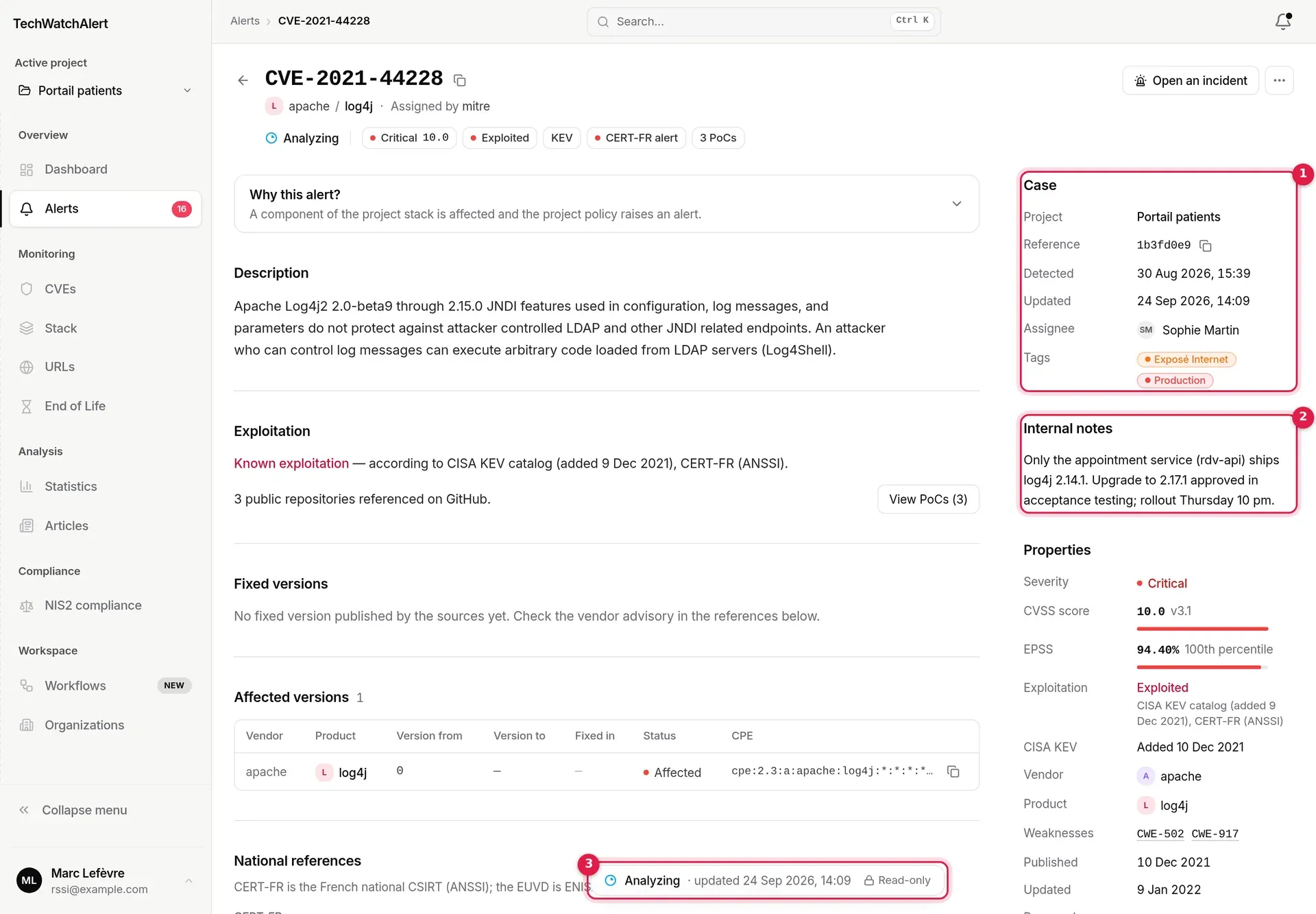
- Case: the assignees and the tags can be read, with no arrow, no + and no crosses.
- Internal notes: the team’s text, with no field and no Save button.
- Tracking bar: the current status, its update date and the Read-only label; no statuses, no Assign, no Comment, and the C key does nothing.

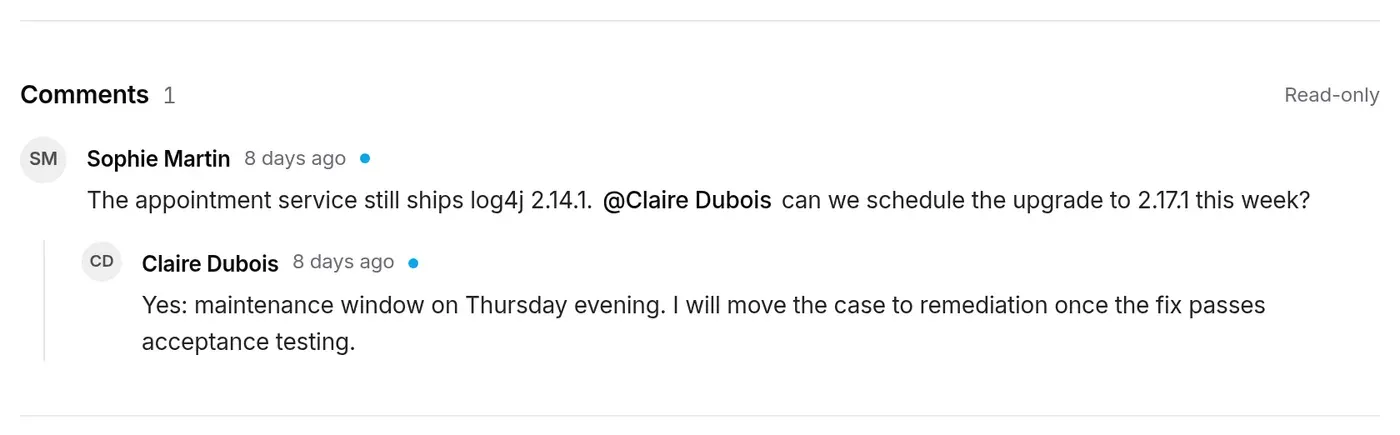
The Comments thread shows Read only: no Add a comment… field and no Reply button. The comments he has not read yet carry the blue dot, for him alone:
Each control follows its own right: a member given “Comment on a case” without “Change status” sees Comment but not the statuses; the bar’s Read-only label only appears when they can neither change the status (nor reopen, on a closed case), nor assign, nor comment. Export CSV, Printable version and Why this alert? remain available.
Shortcuts
Section titled “Shortcuts”| Key | Effect |
|---|---|
| C | Opens the comment composer (outside an input field and any open window, if you can comment). |
| Ctrl+Enter (⌘+Enter) | Sends the comment, closes with the reason, or saves the note. |
| Esc | Closes the mention list, then the composer (the draft is kept). |
| ↑ ↓, Enter, Tab | Move through and insert a mention. |
The global search (Ctrl K) takes you back to a record by CVE identifier.
Permissions and plan
Section titled “Permissions and plan”Each action on the record depends on a specific right, the one the server checks; the interface only offers what you can do. The labels are those of the Cases & reports row of the rights matrix (project settings, Rights button; see Projects › A member’s fine-grained rights).
| Action | Right (matrix) | Default role |
|---|---|---|
| Read the record and “Why this alert?”, export, print | View column (“View cases”) | User and above |
| Change the status of an open case, close it | Edit column (“Change status”) | Analyst and above |
| Mitigate, renew a mitigation (or an acceptance outside the register) | Edit column (“Change status”): a team action, not a management decision | Analyst and above |
| Reopen a closed case | Advanced: “Reopen case” | Analyst and above |
| Edit the internal notes | Advanced: “Add / edit note” | Analyst and above |
| Comment, reply, mention | Advanced: “Comment on a case” | Analyst and above |
| Tags, assignment (Assignee, the bar’s Assign), open a ticket | at least one of “Change status”, “Add / edit note”, “Reopen case” | Analyst and above |
| Set up the ticket tool | — | Project administrator |
These rights can be set member by member or per group, and the server applies the result. The handling case (statuses, assignment, notes, comments, history, tickets) is part of the Team, Pro and Business plans (“Case management”). The risk acceptance request and incidents depend on NIS2 compliance.
Frequently asked questions
Section titled “Frequently asked questions”“Mitigated” or “Resolved”? Resolved: the fix is deployed. Mitigated: it is not, but a temporary measure contains the vulnerability until an expiry date. A mitigation is never counted as a fix; when it expires without a fix, the case comes back to Current Alerts.
A CVE does not concern us: how do we dismiss it? Mark it Not applicable from the tracking bar, with a reason (see Dismissing a CVE). For a whole component, adjust the stack instead: alert threshold or removal.
If I mark an alert “Resolved”, does it disappear for my team? Yes: the case belongs to the team. The alert leaves every member’s Current Alerts tab and moves to History. The case history keeps your name on that change.
A colleague has just joined the project: do they see the existing alerts? Yes. Alerts and cases belong to the project: a new member sees everything already there, with the team’s statuses, notes and comments. The alerts show as unread for them.
Why does “Why this alert?” say “No component of the project stack is affected” when the alert exists? The explanation reads today’s stack. If the component has been removed or its version updated since the alert, it says so: often a sign that the CVE can be marked Resolved.
Where did my “Not applicable” reason go? To the case’s Comments: it is posted just before the case is closed. The history line only records the status change.
The ticket button does not appear. No tool is set up for the project, you have none of the rights that allow editing the case (“Change status”, “Add / edit note”, “Reopen case”), or your plan does not include case management.
I see neither the statuses nor “Comment”, only “Read-only”. Your role on the project (User by default) lets you read cases, not edit them. Ask a project administrator for the rights you need, or for the Analyst role through a group.
Who is notified when I assign a case? Only the newly assigned people, except you: a notification in their bell and an email “A CVE alert has been assigned to you” (unless they turned off the Assignments preference). Making the same assignment again notifies nobody a second time. A colleague who leaves the project loses their assignments: remember to reassign their cases.
Can a case be assigned to several people? Yes: tick them all in the assignment panel. Each sees the case under My assignments and is notified once.
I have read the comments: do my colleagues see them as read? No. The read state of comments, like that of alerts, is personal.