Team, billing and branding
The Partner group in the sidebar brings together what concerns your partner organisation itself: its team, its billing and its branding. These settings live only here, never at a client’s.
- Who it is for: owners and administrators of the partner organisation; invoices and cancellation are reserved for the owner.
- Where: Partner space › Partner › Team, Billing and Branding.
The page lists the members of your partner organisation and its invitations. A reminder at the top: owners and administrators have access to all your clients.
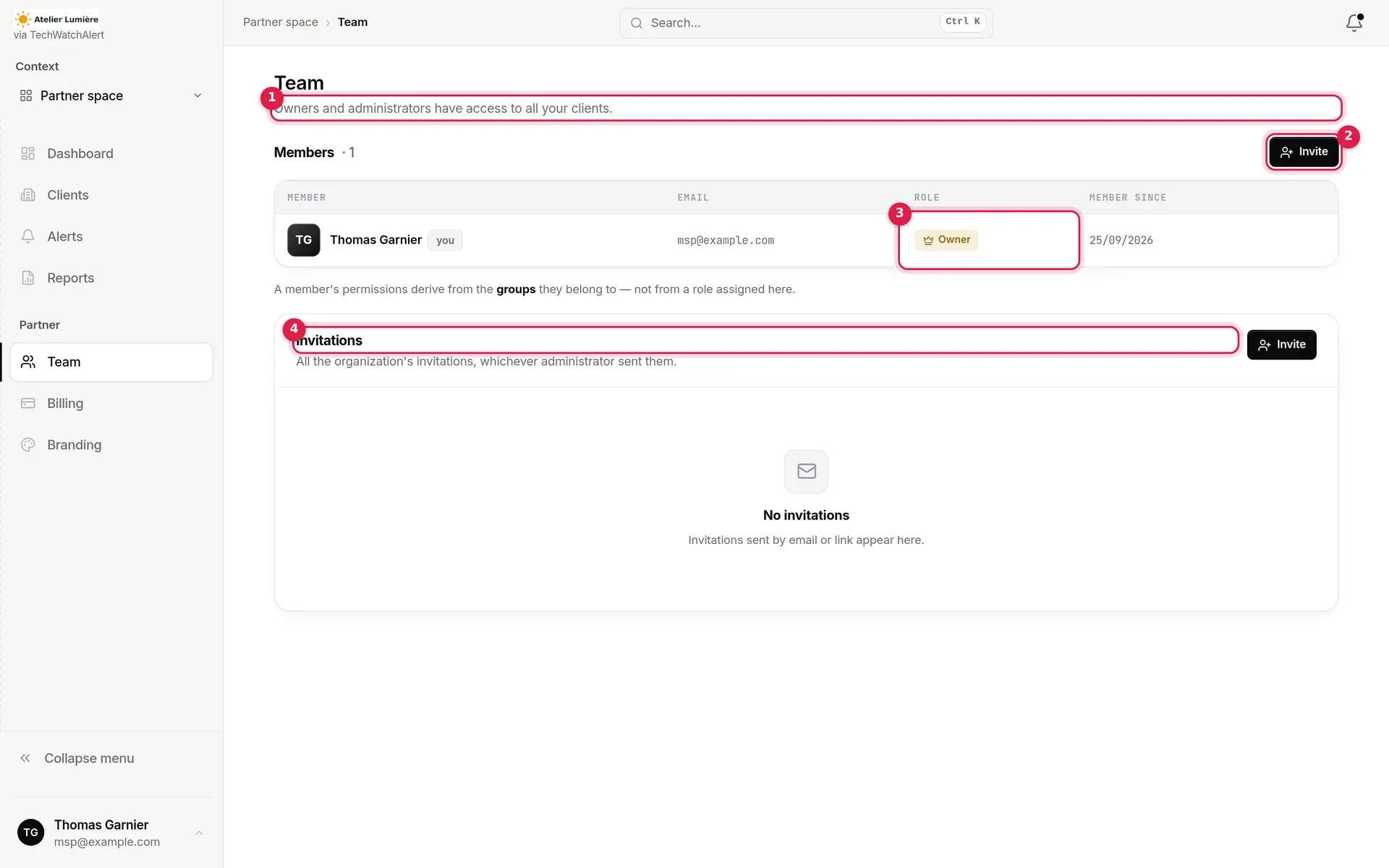
- Reminder of access to clients.
- Invite a member.
- Each member’s role in the partner organisation.
- Invitations sent, whichever administrator sent them.
A member’s rights come from the groups they belong to. For a technician to access your clients, they must be an administrator of the partner organisation: invite them into the Administrateurs group (or a group whose organisation role is Administrator).
-
Click Invite.
-
Under Welcome group, choose Administrateurs.
-
Choose By email (enter the address, then Send invitation) or By link (a shareable link to pass on yourself).
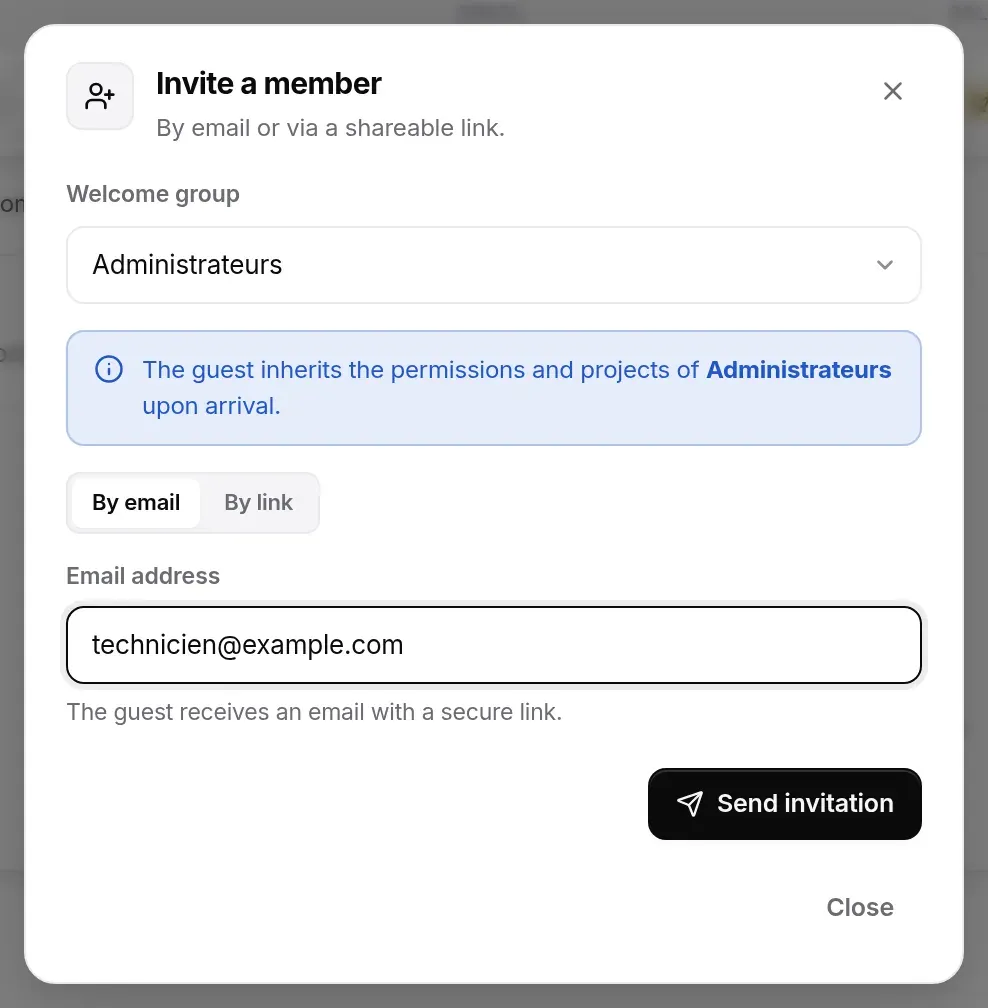
As soon as they accept, the technician gets into all your clients, future projects included; if they leave the team or go back to plain member, they lose access everywhere (see your team’s access). Members, roles and groups are managed as in any organisation: see Team, roles and groups.
Billing
Section titled “Billing”The page presents your partner organisation’s Partner subscription. A single invoice, yours: your clients have no subscription to pay.
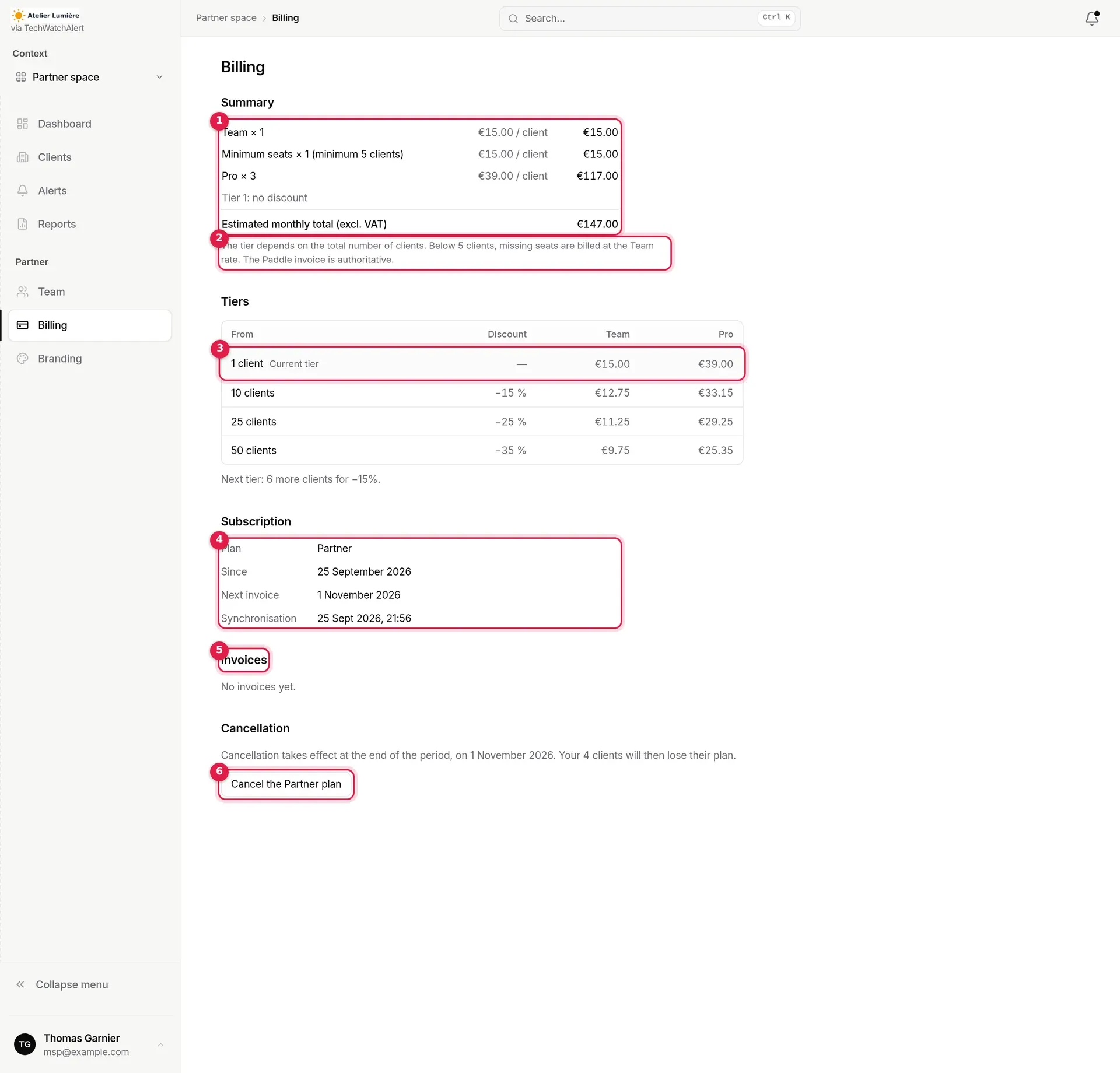
- Summary of the estimated monthly invoice: a Team × n line and a Pro × n line (the number of clients on each plan, at the tier price), a Minimum seats line when you have fewer clients than the minimum billed (5 by default; missing seats at the Team rate), the tier reached, then the estimated monthly total (excl. VAT).
- Note: the tier depends on the total number of clients; the Paddle invoice is authoritative.
- Tiers: from how many clients, the discount and the price per client (Team and Pro); the current tier is highlighted. Below the table, what is missing for the next tier.
- Subscription: the plan, the start date, the next invoice (or “Active until” if a cancellation is scheduled) and the last synchronisation of the subscription.
- Invoices: date, number, amount and PDF link of each invoice.
- Cancel the Partner plan.
Tiers and prices: the discount depends on the total number of your clients, Team and Pro combined, and applies to all of them. The default tiers and their prices per client per month, excluding VAT:
| Number of clients | Discount | Team | Pro |
|---|---|---|---|
| 1 to 9 | — | €15.00 | €39.00 |
| 10 to 24 | −15% | €12.75 | €33.15 |
| 25 to 49 | −25% | €11.25 | €29.25 |
| 50 and more | −35% | €9.75 | €25.35 |
The page always shows the values in force, which the TechWatchAlert team can adjust. Every client added, attached, detached or moved to another plan updates the subscription straight away. If that update fails, a “Billing synchronisation failed: …” box appears at the top of the page (“Partner subscription out of date: …” on the dashboard), and the Synchronisation row reads “failed”; the application tries again every night.
Plan switched on outside online billing
Section titled “Plan switched on outside online billing”When the TechWatchAlert team has switched the Partner plan on without online payment, the summary is replaced by “Partner plan granted outside online billing: no Paddle payment.”, and there are no invoices and no cancellation on this page.
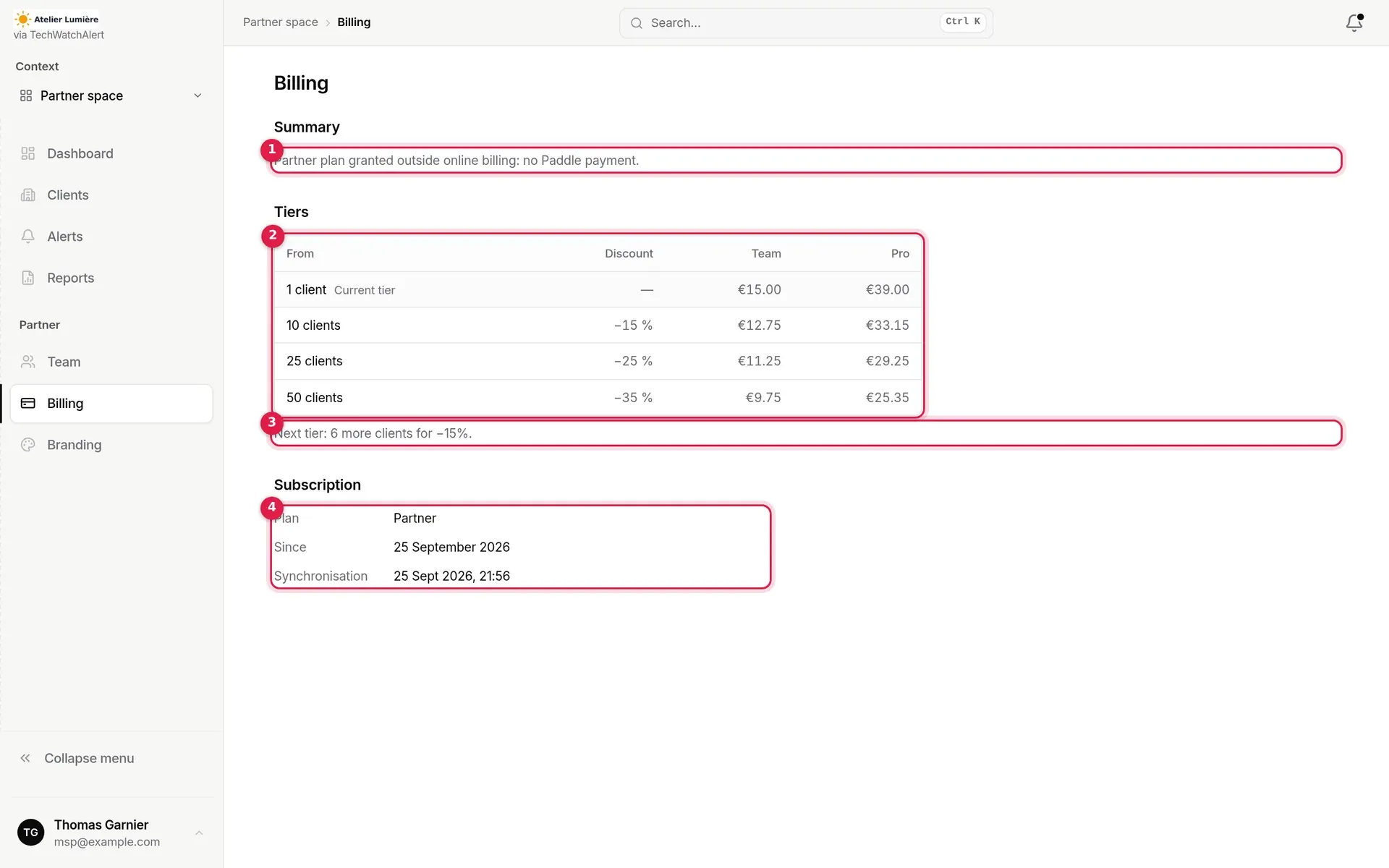
- Summary: the plan is granted outside online billing.
- Tiers.
- Next tier.
- Subscription: plan, start date, synchronisation.
Invoices and cancellation
Section titled “Invoices and cancellation”Invoices are reserved for the owner; an administrator reads “Invoices are reserved for the owner of the partner organisation.”
Cancellation takes effect at the end of the period. Cancel the Partner plan opens, within the page, an explicit warning to confirm:
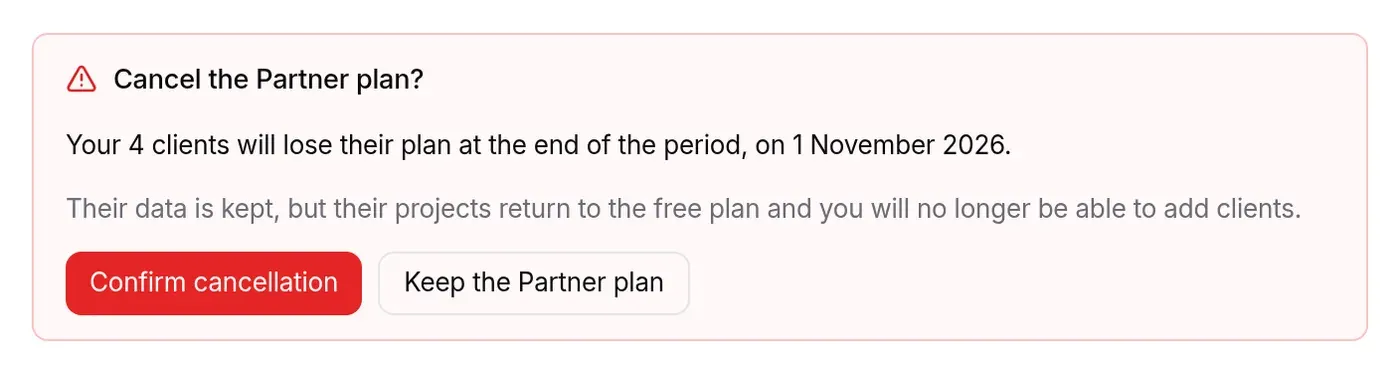
- your clients lose their plan at the end of the period;
- their data is kept, but their projects return to the free plan;
- you can no longer add clients.
Confirm cancellation records it; Keep the Partner plan backs out. A scheduled cancellation is shown with its date and a Resume subscription button.
In the partner organisation’s settings (Workspace › Organizations), the Plan and billing page offers neither plan changes nor cancellation: it points here (Partner billing).
Branding
Section titled “Branding”Your logo replaces the platform’s on your clients’ PDF reports and in their sidebar.
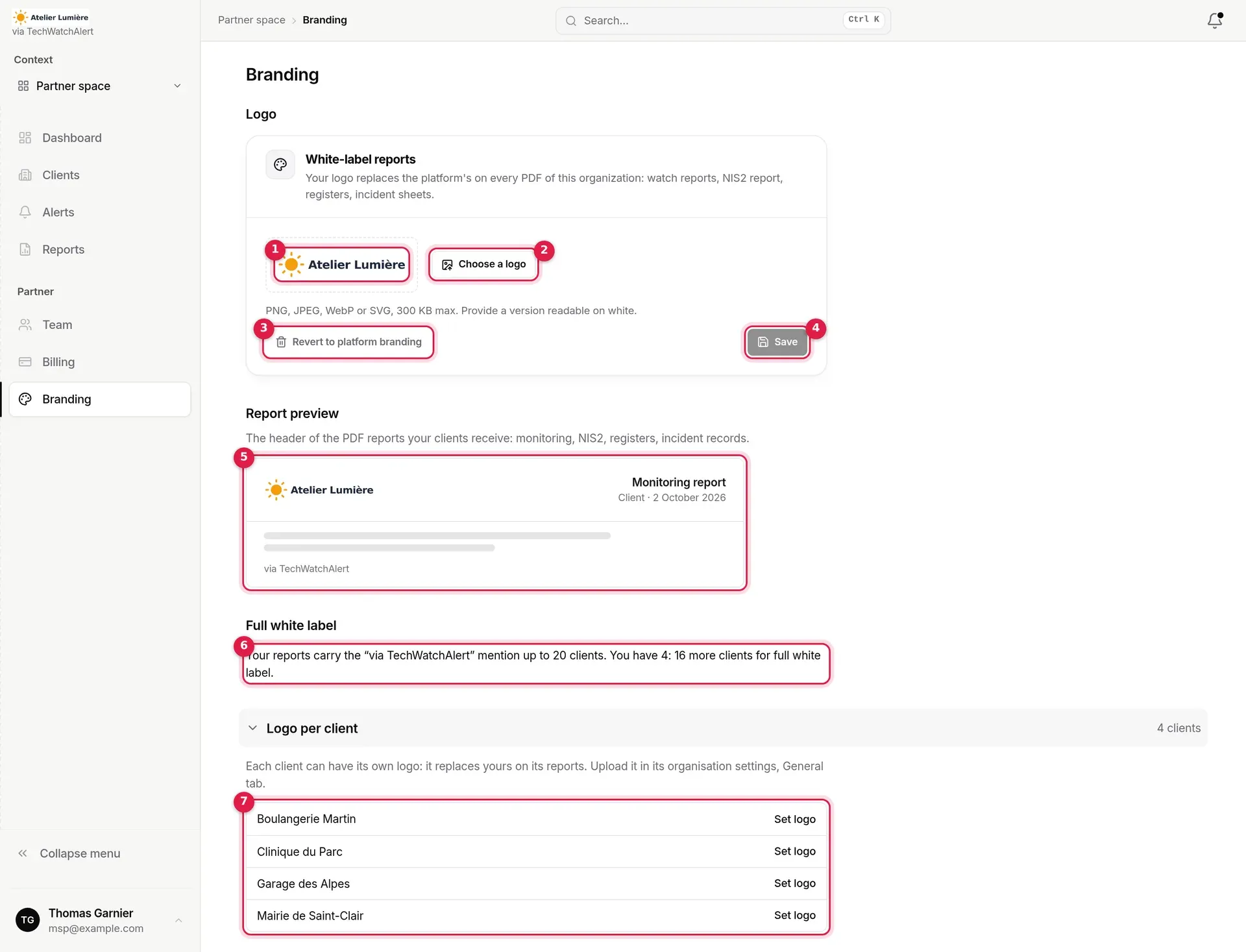
- Preview of your partner organisation’s logo.
- Choose a logo: PNG, JPEG, WebP or SVG, 300 KB at most; provide a version readable on white.
- Revert to platform branding: removes the logo.
- Save: enabled as soon as a new logo is chosen; a message confirms “Branding saved.”
- Report preview: the header of the PDF reports your clients receive.
- Full white label: where you stand against the threshold.
- Logo per client: your clients, each with a Set logo link to its organisation settings.
Only owners and administrators of the partner organisation can change the logo. An SVG containing script or active content is refused. In the partner organisation’s settings, the branding card is replaced by a pointer to this page:

Brand colour
Section titled “Brand colour”Below the logo, Colour sets your brand colour: a picker, or a #rrggbb code, then Save; Remove the colour returns to the default layout. It is used on the quarterly client review (cover band, rules and numbers); severity colours do not change. A client without its own colour takes yours, as for the logo.
Full white label
Section titled “Full white label”Below the threshold (20 clients by default), your PDFs and your clients’ sidebar show your logo followed by “via TechWatchAlert”. Once your active Partner plan has at least that many clients, the mention disappears: “Full white label: your reports no longer mention TechWatchAlert”.
A client’s logo
Section titled “A client’s logo”The logo is inherited: a client without a logo of its own shows your partner organisation’s. Each client can also have its own logo, which replaces yours on its reports: it is uploaded in the White-label reports card of the client organisation’s settings (Workspace › Organizations, the client’s settings, General tab), which flags the inheritance:
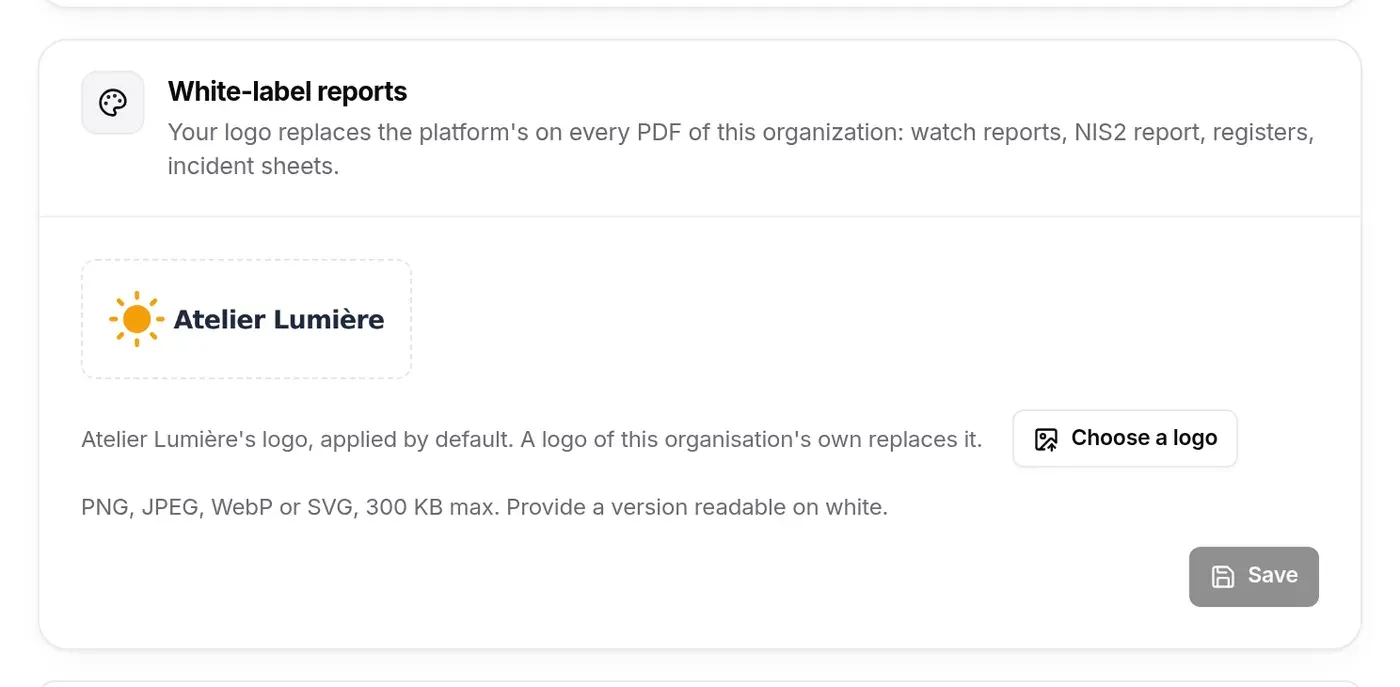
At the client’s, only its administrators (your team included) can change this logo. Revert to platform branding removes the client’s logo: yours takes its place again.
What the client sees
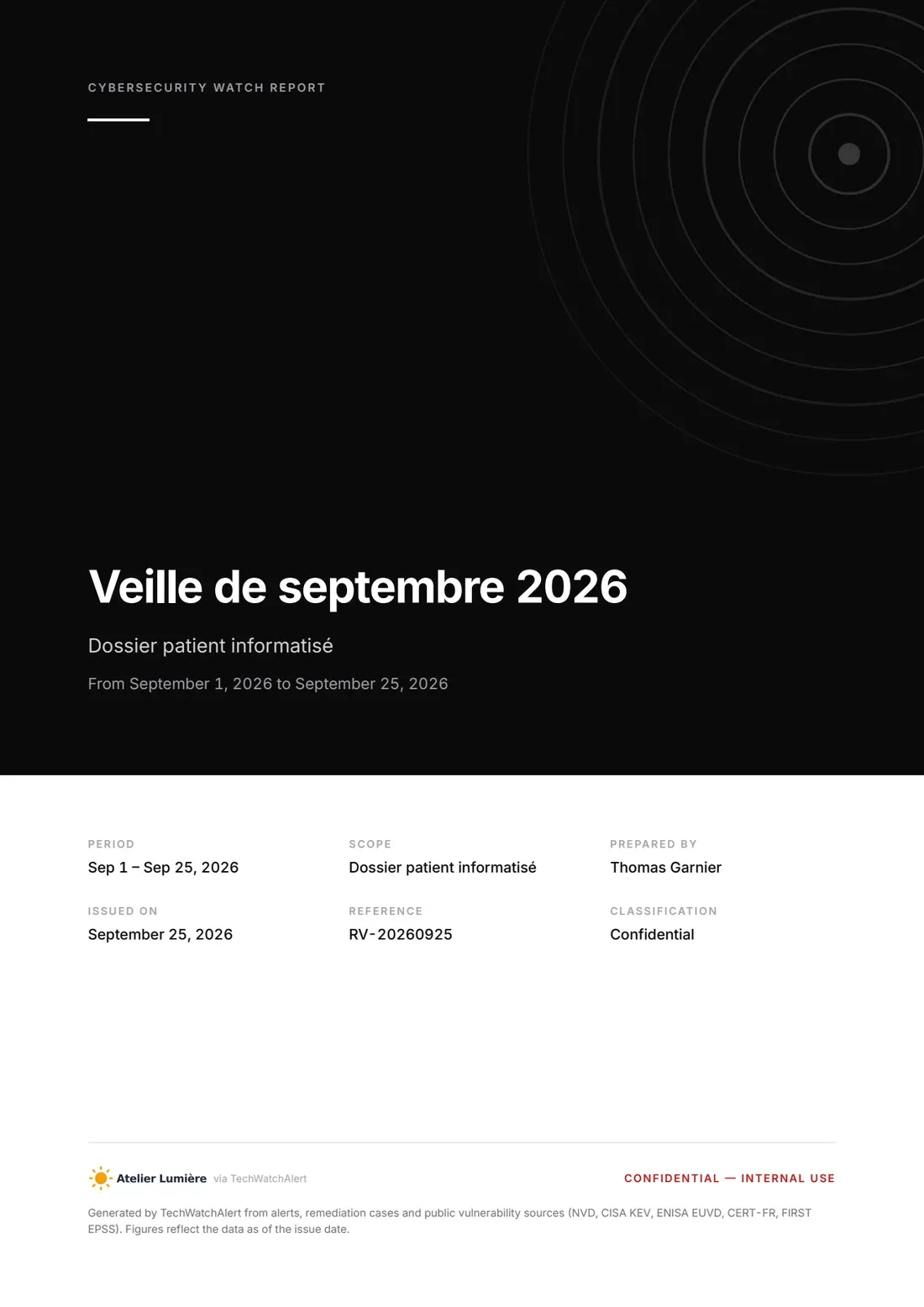
Section titled “What the client sees”- in the client’s projects, the sidebar shows the effective logo (the client’s, otherwise yours), followed by “via TechWatchAlert” below the threshold;
- every PDF of the client’s organisation (monitoring reports, NIS2 report, registers, incident records) carries that logo:

- in the subscription window, the client’s owner reads: “”organisation” is managed by your partner partner, who pays for its subscription. Nothing to pay here.”
See also Reports and NIS2 compliance to produce these documents.