NIS2: activation and access
The tool supports the part of Directive (EU) 2022/2555 that deals with vulnerabilities, inventory, suppliers and incidents: it computes due dates, keeps dated registers, notifies the right people and produces the documents an auditor or management will ask for.
Where to read the compliance status
Section titled “Where to read the compliance status”The overview of the former space (status per obligation, “To do now”, management view) is replaced by the Frameworks coverage page: for each framework followed, NIS2 included, its requirements, the tool’s measures that address them, the evidence screen and the status. Reports for management are in Analysis › Reports, Frameworks (management) tab (see Reports); the link in a “report ready” notice goes straight there.
Links received in notifications or emails sometimes carry ?org=…: on arrival, the active project switches to a project of that organisation.
Turning NIS2 on for a project
Section titled “Turning NIS2 on for a project”NIS2 is off by default, project by project. The plan says what is included; activation says what the organisation has chosen to track. As long as no project of the organisation is enabled, the Incidents and Suppliers pages show “No project covered by your frameworks”, with a link to the Covered projects section of Settings › Frameworks.
You can turn it on in three places, with the same button:
- the Coverage page, Covered projects section, which lists every project of the organisation (the former
/conformite/reglagesand/conformite/activationaddresses lead there); - the project’s settings, Compliance page (see Settings);
- when creating an organisation project, the Turn on NIS2 compliance for this project tick box (unticked by default), offered when the plan includes NIS2 and you are allowed to turn it on.
- Open Settings › Frameworks (organisation settings).
- The Covered projects section shows each project, its state (Not enabled or Enabled) and its compliance workflows.
- Click Enable next to the project. That is all: a message confirms “… is now covered”.
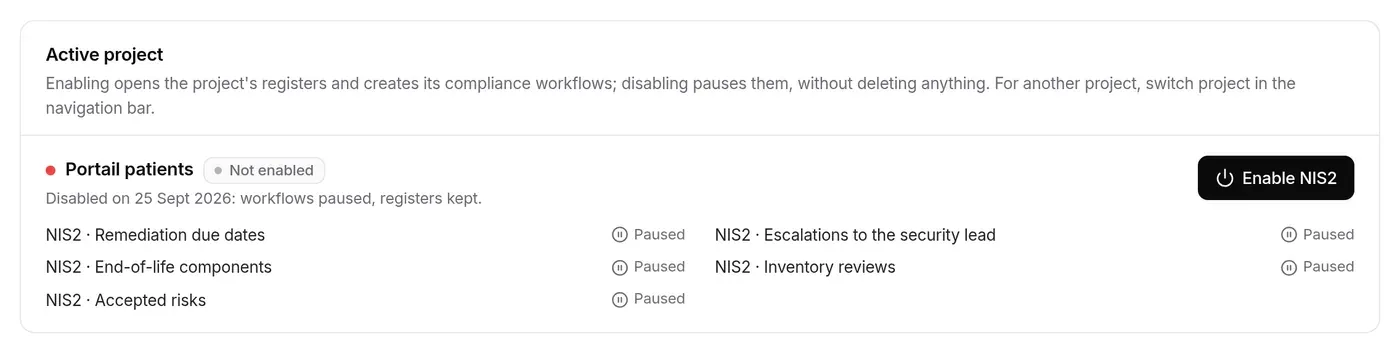
What activation does:
- the project registers open and are computed: remediation due dates, end of life, inventory reviews, accepted risks;
- the project’s compliance workflows are created, one per theme (due dates, escalations, end of life, reviews, risks): they send every compliance notification and email;
- the first enabled project also opens the organisation registers (incidents, suppliers, management report, compliance status) and creates the organisation workflows (incident reporting, suppliers, governance). An organisation stays active as long as one of its projects is.
A workflow whose module is not in the plan is not created. If you have deleted a compliance workflow, a + workflow name chip appears under the list to recreate it.
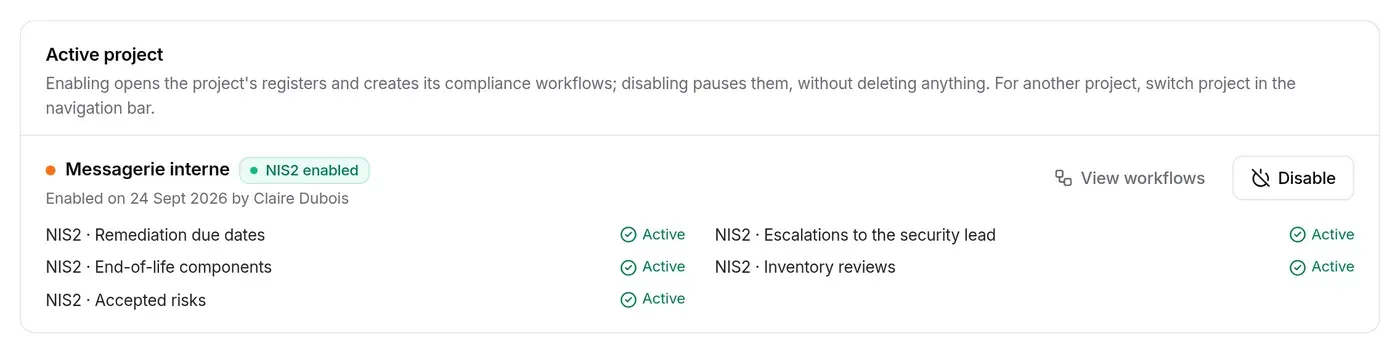
Once the project is enabled, the section offers View workflows (Workflows page) and Disable.
Turning it off
Section titled “Turning it off”Disable opens a panel that spells out what changes before you confirm:
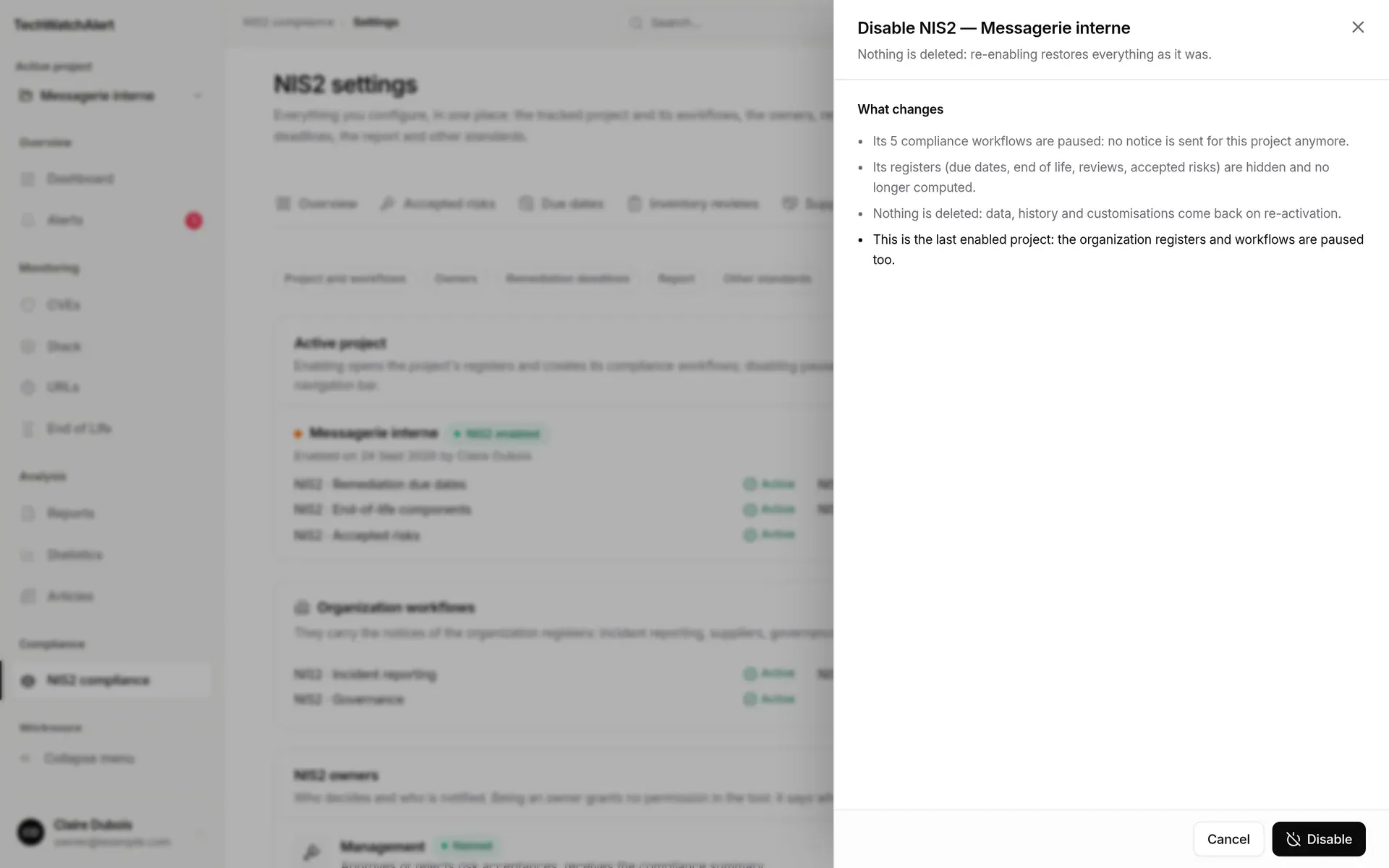
- the project’s compliance workflows are paused: no notice is sent for this project any more;
- its registers (due dates, end of life, reviews, accepted risks) are hidden and no longer computed;
- nothing is deleted: data, history and customisations come back when you turn it on again;
- if it is the last enabled project, the organisation registers and workflows are paused too (the panel shows this line in bold).
Turning it back on resumes the workflows as you left them; a workflow you deleted by hand is not recreated. The project card then reads “Disabled on …: workflows paused, registers kept.”
Getting started in four steps
Section titled “Getting started in four steps”So that the registers have something to work on, in this order:
| Step | Where |
|---|---|
| Fill in the project’s stack (at least one component) | Stack page |
| Name the organisation’s owners | Settings › Owners (organisation owner only) |
| Enable the project | the Coverage page, Covered projects section |
| Import a first scan (Trivy, Grype or CycloneDX) | Stack › Scans (see Imports, connectors and scans) |
The Coverage page then shows what this work already covers, framework by framework.
Owners
Section titled “Owners”Three roles, named by the organisation owner in Settings › Frameworks (see NIS2 owners):
- Management: approves or rejects risk acceptances, receives the compliance summary;
- Security lead: receives escalations and runs the supplier register;
- Incident contact: receives the incident reporting deadline reminders (24 h, 72 h, 1 month).
Until someone is named, someone else covers the role: management falls back to the organisation owner(s), the security lead to management, the incident contact to the security lead.
Where each register lives
Section titled “Where each register lives”NIS2 no longer has a space of its own: each register lives where the work happens, and the Frameworks page shows the coverage.
| Register | Where | Guide page |
|---|---|---|
| Requirement coverage | Frameworks (/referentiels) |
Frameworks |
| Accepted risks and mitigations | Alerts › Exceptions | Alerts |
| Due dates | Planning | Planning |
| Inventory reviews | banner on the Stack page | Stack |
| Suppliers | Inventory › Suppliers | Suppliers |
| Incidents | Incidents | Incidents |
| Settings, owners, covered projects | Settings › Frameworks | Frameworks |
Who can see and do what
Section titled “Who can see and do what”The space is open to every member of the organisation. What each person sees and does depends on their organisation role, their NIS2 roles and their project permissions; the screen only shows what the API allows.
| Who | Sees | Can |
|---|---|---|
| Organisation owner | every register of every enabled project, incidents | everything an administrator can, plus name the owners |
| Organisation administrator | every register, incidents | turn NIS2 on, set the remediation policy, the automatic report and the standards followed, manage suppliers and incidents, generate reports |
| Holder of a NIS2 role (management, security, incident), named or by default | every register of every enabled project, incidents, reports | management: approve, refuse, revoke risk acceptances; security lead: manage suppliers; all three: manage incidents, generate reports |
| Other member | registers of the projects where they have the “View compliance registers” permission (viewer and above by default), the supplier register | depending on project permissions: request a risk acceptance, record an inventory review, plan an end-of-life exit (analyst and above by default) |
Incidents are restricted to administrators and NIS2 role holders because they may contain sensitive information. Others see “Restricted access” instead of the register.
Plan required
Section titled “Plan required”NIS2 comes as a bundle with the Pro and Business plans: a single plan option opens the whole space and its modules. Without it, the space shows “Put your NIS2 obligations to work”; the owner gets a See plans button, other members a reminder that the plan is managed by the owner. Removing NIS2 from the plan deletes nothing: pages close, notices stop, data is kept.
If the plan includes the space but not one of its modules, the module’s page reads “…: not included in your plan”. See Plan and billing.
Frequently asked questions
Section titled “Frequently asked questions”I turned NIS2 on but the coverage says “To do”. Project registers only count enabled projects you can read. Check that the project is enabled (Coverage page, Covered projects section) and that you have the “View compliance registers” permission on it.
Why is there no Accepted risks tab? The register is still empty. It fills up from an acceptance request on an alert’s page.
Does turning NIS2 off erase my registers? No. Workflows are paused and registers hidden; everything comes back when you turn it on again.
Does an owner who is not named block anything? No: someone else covers the role (the owner, then management, then the security lead). But the “Designated owners” measure of the coverage stays partial and getting started is not complete until all three roles are named.