Partner space
The Partner space is for managed service providers (MSPs, IT service companies, integrators) who monitor vulnerabilities for several clients with the Partner plan. Each client keeps its own organisation, kept apart from the others; the provider’s team follows them all from a dedicated area of the application, with its own navigation.
- Who it is for: owners and administrators of a partner organisation (see Who has access).
- Where: at the top of the sidebar, selector Context › Partner space; or the Partner space button on the Workspace › Organizations page; or the ⌘K palette (Ctrl K).
- Next in the guide: Clients (add, attach, contacts, detach), Alerts and reports, Team, billing and branding.
Two levels within one application:
- the Partner space, which gathers all your clients (
/partner/…addresses); - a client’s space, that is, the usual product (dashboard, alerts, stack…) on that client’s projects. You go into a client, not “into a project”: each client is an organisation.
The old /msp address redirects to the Partner space, so old bookmarks and email links still work.
Who has access to the Partner space
Section titled “Who has access to the Partner space”The Partner space only appears for organisations authorised by the TechWatchAlert team. For everyone else nothing changes: no “Context” selector, no palette entries, and the /partner address reads “The partner space is reserved for the teams of partner organisations.”
-
Request. On the public website, the Partners page (linked in the footer) presents the Partner plan and its tiers. Fill in the form: company, your name, work email and number of clients you manage (required), then, if you wish, phone, website, country and a word about your business; tick the consent box and click Send my request. An email confirms receipt. A new request with the same address within 30 days updates the previous one.
-
Review. The TechWatchAlert team reviews the request, matches it with your account if one exists (same email address), then accepts or declines it; you are told by email.
-
Opening. Once accepted, the request opens the Partner space on one of your team organisations. If you have no account or no team organisation yet, it opens on the first one you create. The team can also switch the Partner plan on directly, without online payment (“billed offline”).
-
Subscription. If the plan has not been switched on for you, the organisation’s owner subscribes to Partner from the Partner space (see Partner plan inactive).
Access then follows the role in the partner organisation:
| Role in the partner organisation | Partner space | Manage clients | Subscribe to or cancel Partner, see invoices |
|---|---|---|---|
| Owner | Yes | Yes | Yes |
| Administrator | Yes | Yes | No |
| Member | No | No | No |
Owners and administrators also get into every client without an invitation (see your team’s access). A personal space, or an organisation that is itself a partner’s client, cannot be a partner.
First-sign-in guide
Section titled “First-sign-in guide”The first time the Partner space is opened to you, a three-step guide appears on its own.
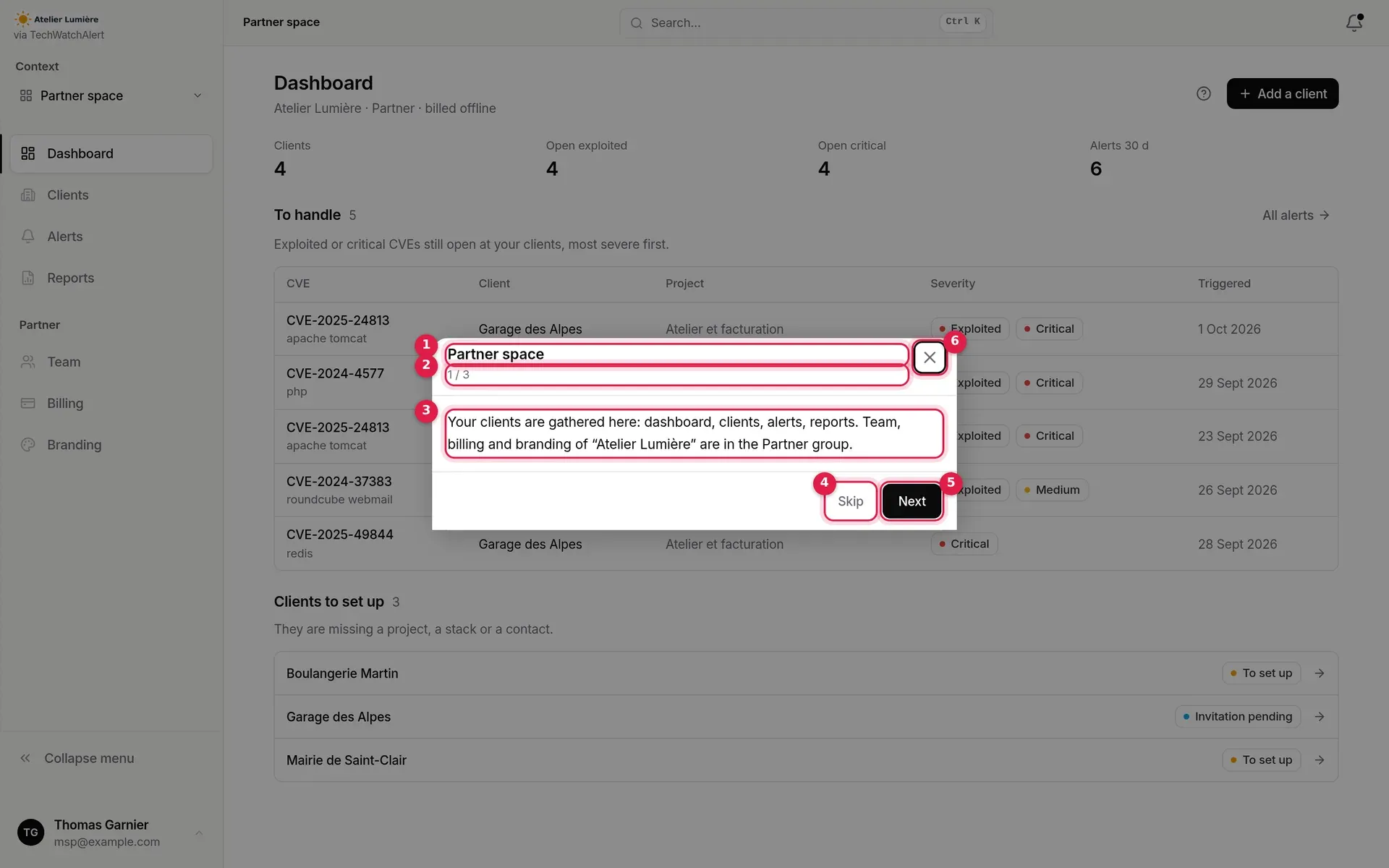
- Title of the step.
- Progress (“1 / 3”).
- Text of the step.
- Skip: closes the guide from the first step (on later steps, this button becomes Back).
- Next; on the last step, Open the partner space.
- Close (cross).
-
Partner space. What the space contains: dashboard, clients, alerts, reports, and the Partner group (team, billing, branding). If the Partner plan is not active, the text gives the exact situation: to subscribe, awaiting activation, to ask the owner, or an own subscription to cancel.
-
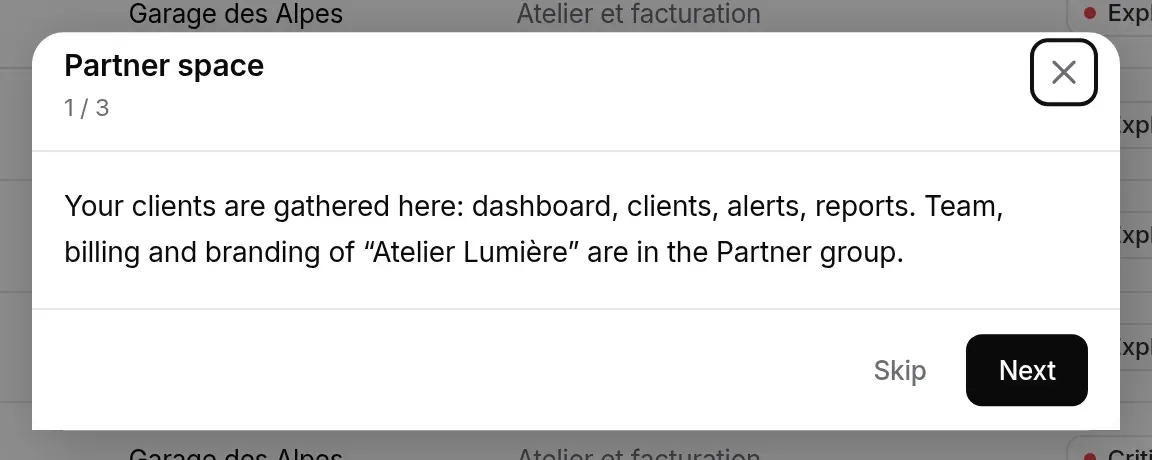
Switch between clients. The selector at the top of the sidebar, and the ⌘K palette.
-
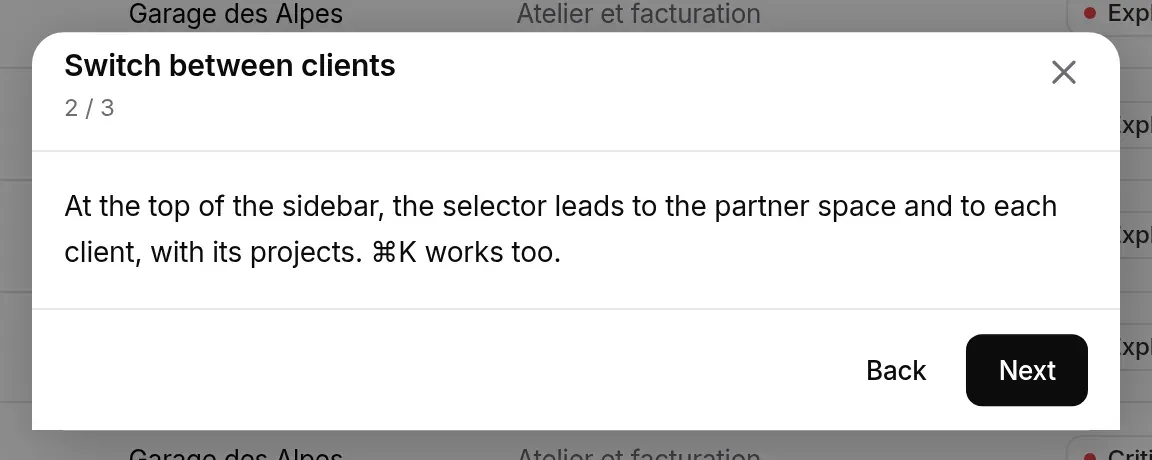
Add a client. Create a client’s organisation and its first project, or attach an existing organisation; at a client’s, a banner reminds you where you are.
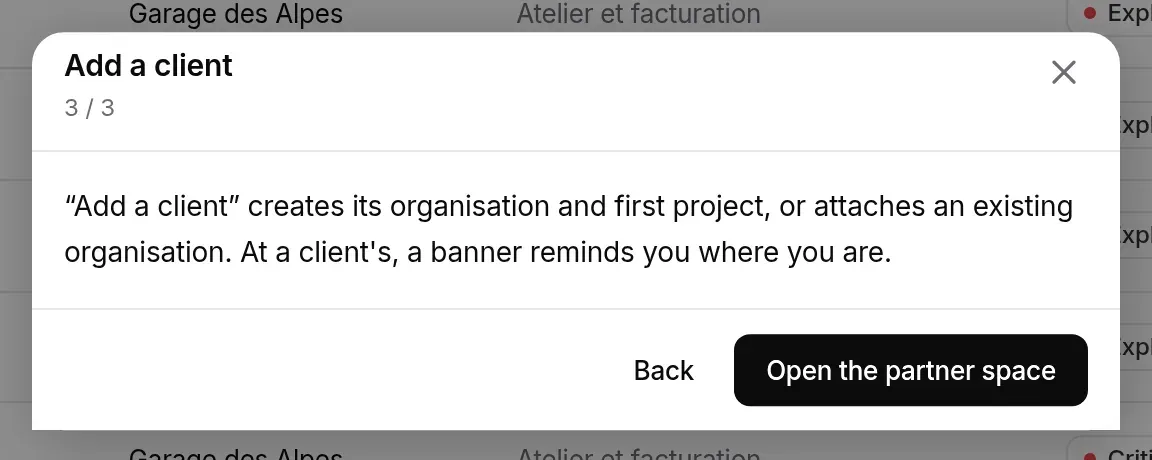
Whether you finish it, skip it or close it, the guide is marked as seen on your account: it does not open on its own again, on any device. To see it again, click the ? icon (Show the guide again) at the top of the Partner space dashboard.
The dashboard
Section titled “The dashboard”Partner space › Dashboard shows what needs your attention at your clients.
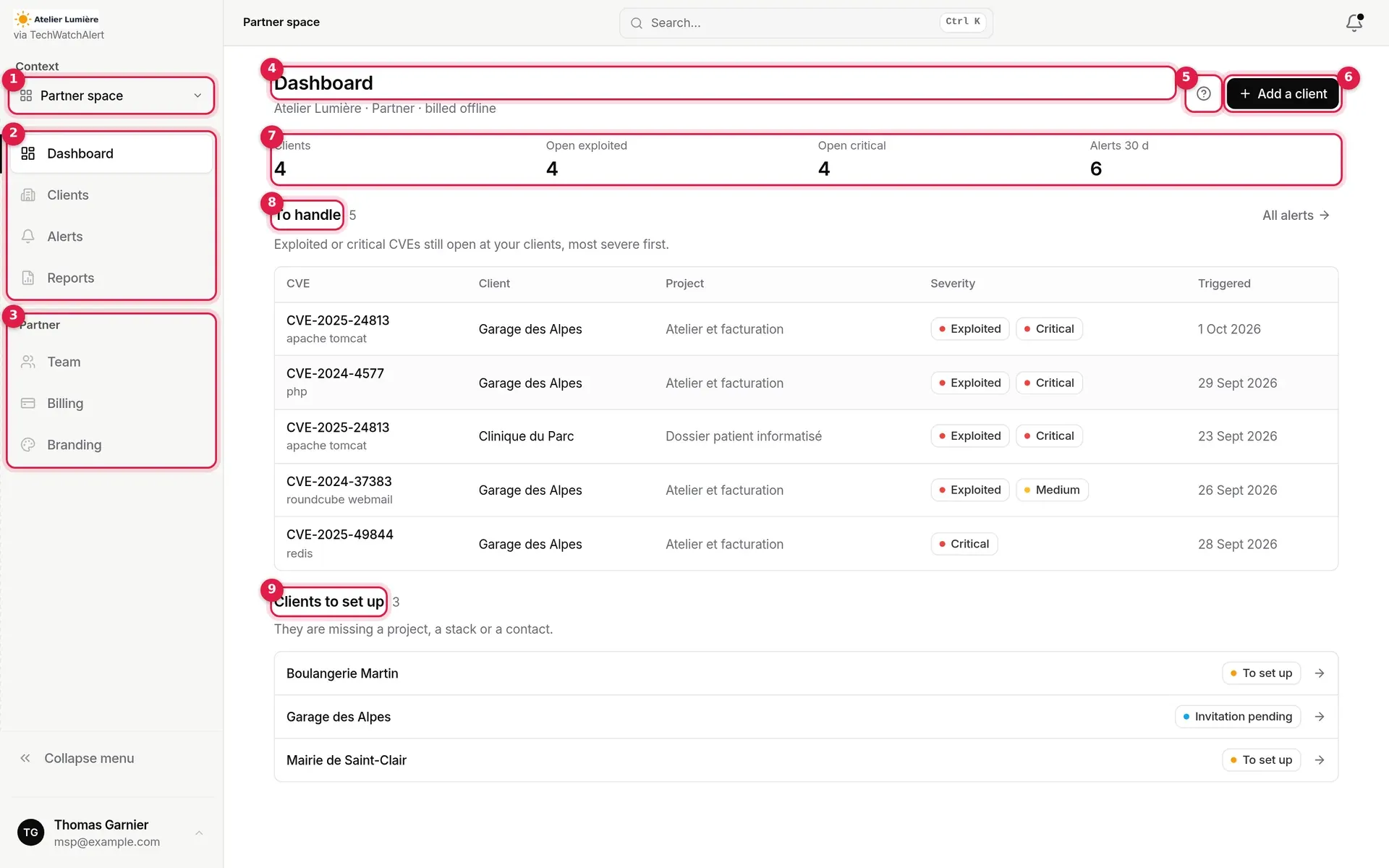
- Context selector: here, “Partner space” (see below).
- Space navigation: Dashboard, Clients, Alerts, Reports. It replaces the usual menu while you are in the Partner space.
- Partner group: Team, Billing, Branding of your partner organisation.
- Title, with the partner organisation’s name below it, “Partner” and, for a plan switched on without online payment, “billed offline”.
- Show the guide again.
- Add a client (see Clients).
- Counters: Clients, Open exploited, Open critical, Alerts 30 d.
- To handle: exploited or critical CVEs still open at your clients.
- Clients to set up: those whose status is not “Active”.
The counters
Section titled “The counters”| Counter | What it counts |
|---|---|
| Clients | The number of clients of your partner organisation. |
| Open exploited | Alerts still open whose CVE has confirmed exploitation, across all clients. |
| Open critical | Alerts still open with critical severity. |
| Alerts 30 d | Alerts triggered in the last 30 days (excluding history alerts). |
An alert is open as long as the CVE’s case in the project, shared by the team, is not closed (or has not been opened yet). The counters only cover projects you are a member of: two technicians may therefore see different figures.
To handle
Section titled “To handle”The first ten open alerts that are exploited (confirmed exploitation or listed in the KEV catalogue) or critical, most severe first: exploited first, then by severity, then the most recent. Each row gives the CVE and affected product, the client, the project, the severity and the trigger date. A click opens the alert’s page at the client’s (its project becomes the current project). All alerts leads to the full queue.
Clients to set up
Section titled “Clients to set up”Clients with the To set up or Invitation pending status, in alphabetical order; a click opens their page. Statuses are explained in Clients.
With no clients yet, the dashboard offers New client and Attach an organisation. If updating the subscription failed, a “Partner subscription out of date: …” box appears at the top, with See billing.
The context selector
Section titled “The context selector”At the top of the sidebar, under Context, the selector always tells you where you are: “Partner space”, or the client’s name with the open project below it. It replaces the usual project selector for a partner’s team.
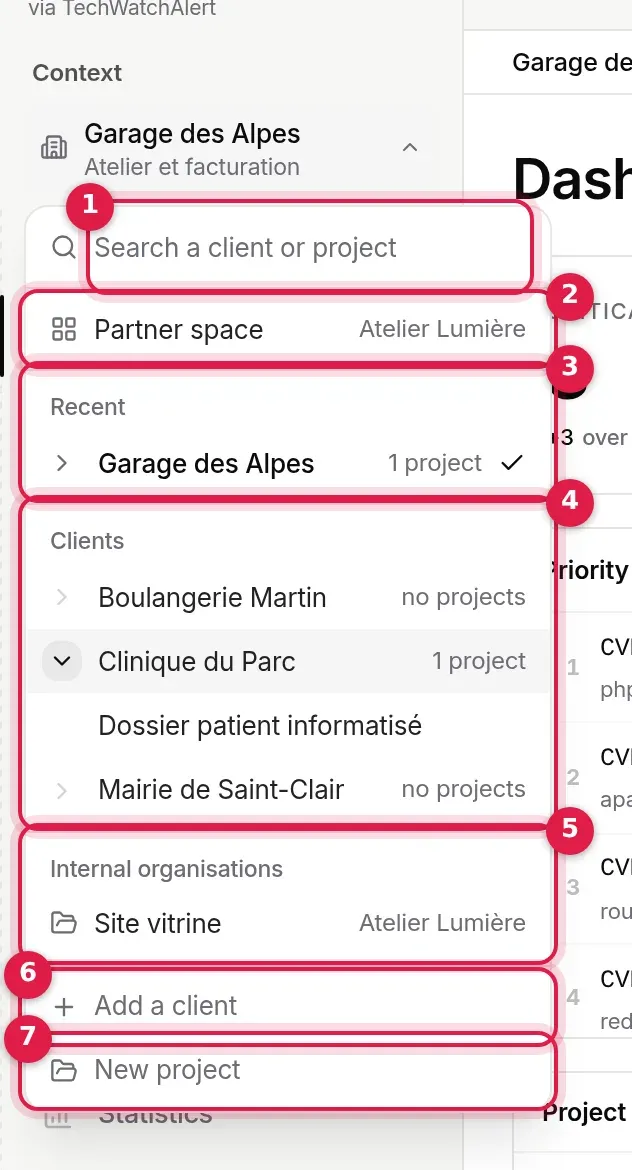
- Search as you type, on client and project names, ignoring case and accents.
- Partner space: back to the space’s dashboard (one row per partner organisation if you have several).
- Recent: the clients opened lately in this browser (five at most).
- Clients: all your clients, alphabetically, with their number of projects. The arrow expands a client to show its projects.
- Internal organisations: the projects of your organisations that are not clients (yours, for instance).
- Add a client (Partner plan active).
- New project.
Choosing a client opens its default project (failing that, its first project) on its dashboard; if it has no project, its page in the Partner space. Choosing a project opens it directly. A search that only matches a project expands its client automatically:
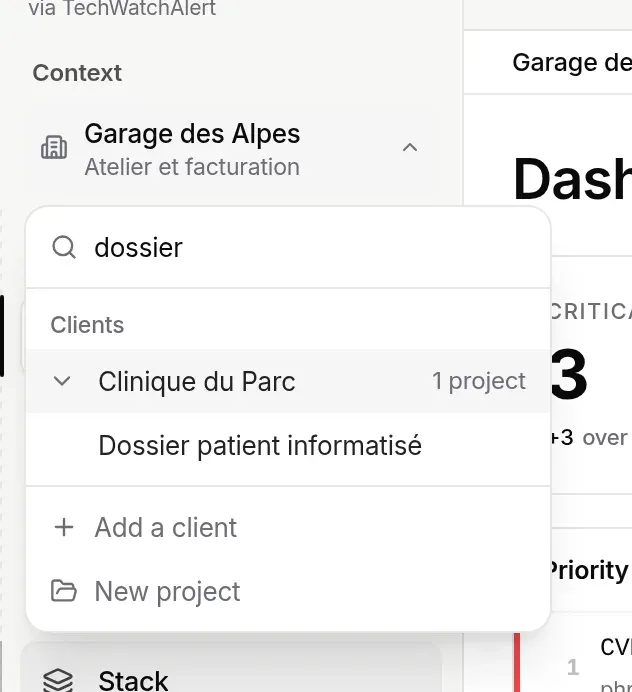
With the keyboard: ↑ ↓ to move, → to expand a client, ← to collapse it, Enter to choose, Esc to close.
The banner at a client’s
Section titled “The banner at a client’s”When the open project belongs to one of your clients, you work in the usual product, on that client’s data, and the interface says so.
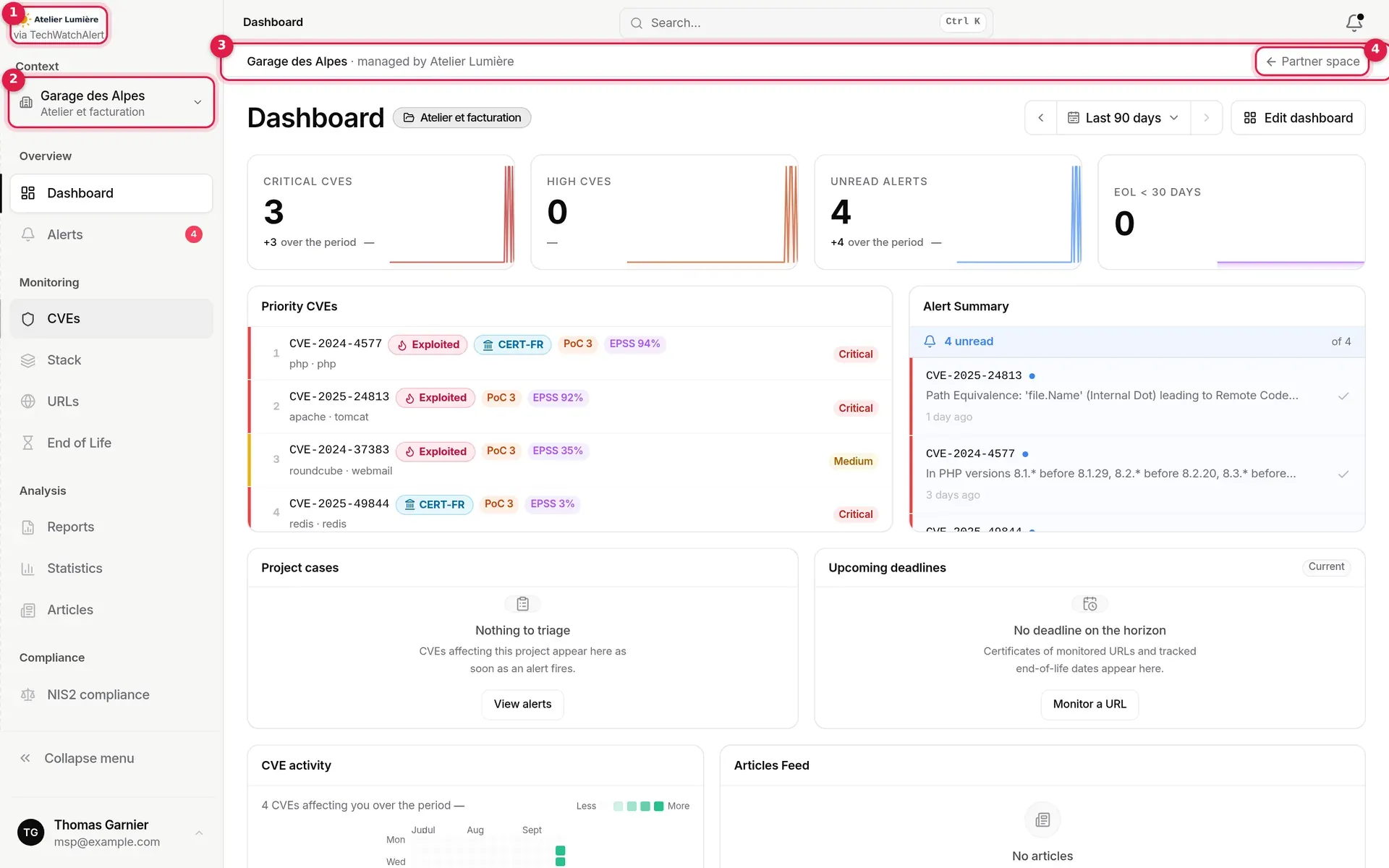
- Your partner organisation’s logo in the sidebar, followed by “via TechWatchAlert” until full white label is reached (see Branding).
- Selector: the client’s name and, below it, the open project.
- Banner: “client · managed by partner”.
- Partner space: back to the space’s dashboard.

The banner follows the open project, whatever the page. It is hidden in the Partner space itself and in the administration area, and only shows for the partner’s team: the client’s contacts do not see it.
The ⌘K palette
Section titled “The ⌘K palette”The search palette (⌘K on Mac, Ctrl K elsewhere) also offers Partner space and Clients; as you type, it adds your clients (Clients group). Choosing a client opens it as the selector does.
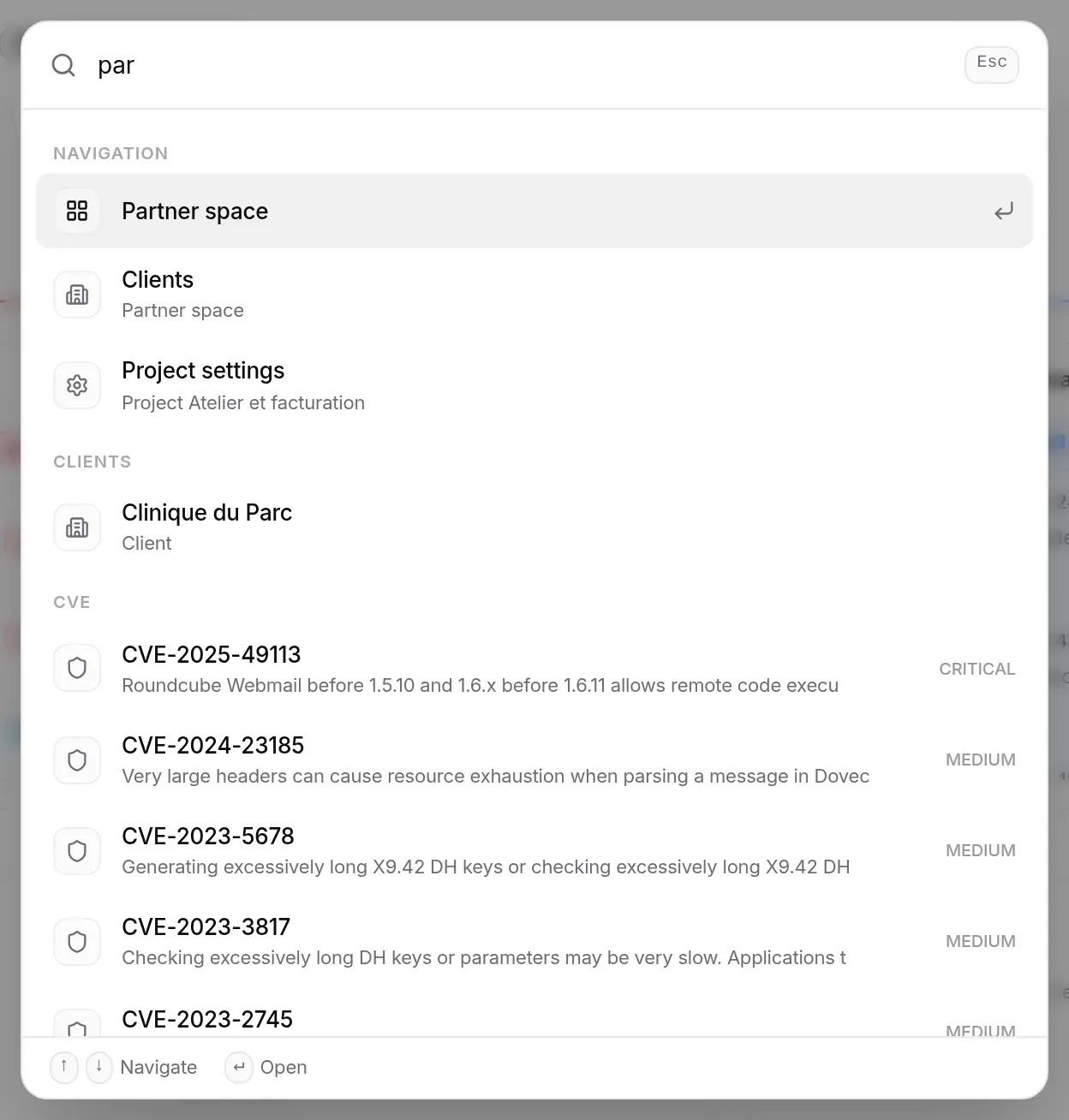
The Workspace › Organizations page also has a Partner space button, next to Create an organization:

Partner plan inactive
Section titled “Partner plan inactive”As long as the Partner plan is not active for your organisation, each page of the space shows a single Partner plan inactive box, with the reason and the possible action:

- Title of the box.
- Reason and what to do.
- Subscribe to Partner: opens the secure Paddle checkout over the page (owner only).
| Text shown | Situation |
|---|---|
| “Subscribe to Partner to add your clients: from price per client per month, n-client minimum.” | You are the owner and online sales are open: the Subscribe to Partner button is shown. |
| “Only the owner of “organisation” can subscribe to Partner: ask them to.” | You are an administrator. |
| “The Partner plan for “organisation” is awaiting activation by the TechWatchAlert team.” | Online sales are not open. |
| “”organisation” already pays for its own subscription: cancel it or contact us to switch to Partner.” | The organisation already has a subscription; the Manage the subscription button leads to its billing settings. |
| “A personal space or a partner’s client cannot subscribe to Partner.” | The organisation is not eligible. |
If you administer several partner organisations, a list lets you choose the one concerned. Payment is validated by Paddle: the plan switches on as soon as the subscription is confirmed.
I am an administrator of the partner organisation but I cannot see the Partner space. The organisation must have been authorised by the TechWatchAlert team, and you must be its owner or an administrator (a plain member has no access). Reload the page after a role change.
The guide no longer opens. It only opens on its own once per account. Use Show the guide again (? icon) on the dashboard.
Can a client see the other clients? No. Each client has its own organisation; its contacts only see its projects, and the Partner space is reserved for the partner’s team.
Why does a colleague not see the same counters as me? The counters and the alert queue only cover the projects each person is a member of.