Team chat
Team chat (“Discussions” in the French interface) is your team’s messaging, built into TechWatchAlert. Members of the same organisation talk in the organisation channel, which bears its name (for example # Acme Security), or in a direct message with a colleague, mention someone and cite an alert without leaving the screen they are on. Messages are end-to-end encrypted: they are encrypted in your browser and only decrypted in the browsers of the conversation’s participants.
The same window also gives access to Vigie, the AI assistant, as a direct conversation (see Finding your way around › The AI assistant). Vigie never joins the organisation channel or direct messages.
Where to find it
Section titled “Where to find it”On a computer, team chat has its own rail: a narrow column, always visible on the right edge of every screen, below the top bar. It is not part of the navigation menu: you can see your conversations and unread messages without leaving the page.
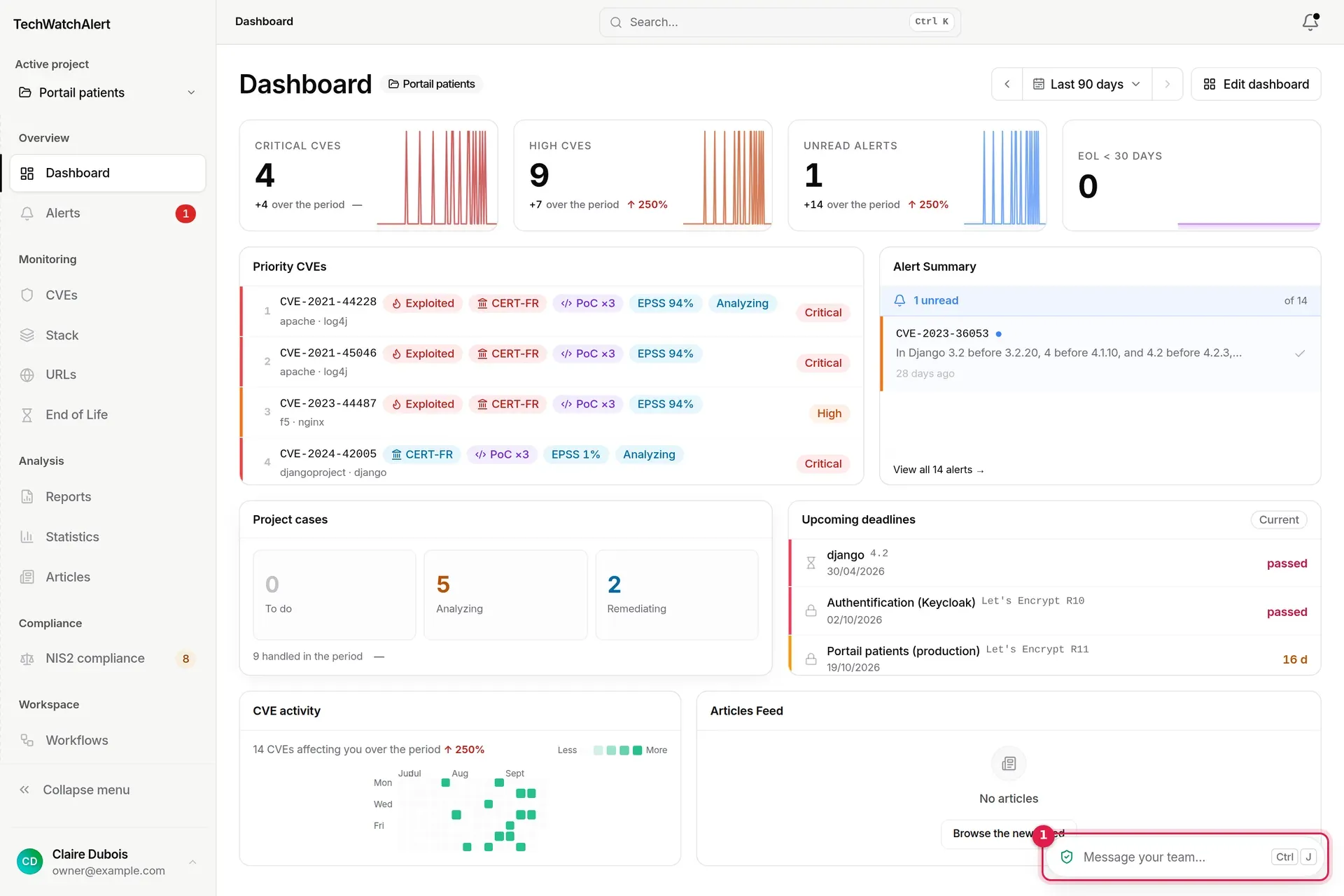
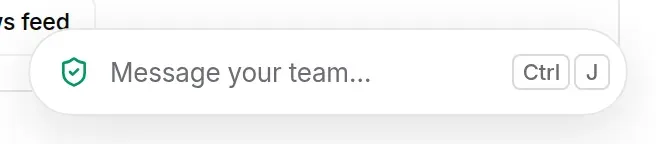
From top to bottom, the rail shows:
- one button per conversation, your favourites first: the organisation’s initials for its channel, the person’s avatar for a direct message. Hover over it to read its name;
- on a conversation, a badge: a red @2 counter when it has unread mentions, otherwise the number of unread messages. It updates live as soon as a message arrives;
- if you belong to several organisations, their conversations are grouped by organisation: the current organisation first, each under a small header (its initials and an arrow). Clicking the header collapses the group; collapsed, it shows its total of unread messages (mentions first, in red). Your browser remembers this choice;
- New direct message (pencil icon), if you are allowed to send direct messages;
- then Vigie (when the assistant is enabled and your organisation lets you use it) and Support, with the number of unread replies.
To open the panel:
- click a conversation in the rail: the panel opens on it, just to the left of the rail; clicking the conversation already shown closes it. Vigie and Support work the same way;
- press Ctrl J (⌘ J on a Mac) from any page: the panel opens where you left it and the cursor goes to the message bar; the same shortcut closes it.
With the keyboard, Tab moves into the rail, and the ↑ and ↓ arrows go from one button to the next.
The button for what is shown is marked with a bar on its left. The panel is 420 px wide; drag its left edge to widen it. On a large screen (1280 px and up), the page narrows to make room for it and rearranges its content (secondary table columns hidden, dashboard cards on two columns or one); otherwise it slides over the page. Esc or the Minimise button closes it; an unsent draft is kept, conversation by conversation.
On a phone, there is no rail: open the menu, then the Team chat row, which also shows the number of unread messages. The panel then opens full screen; the cross closes it.
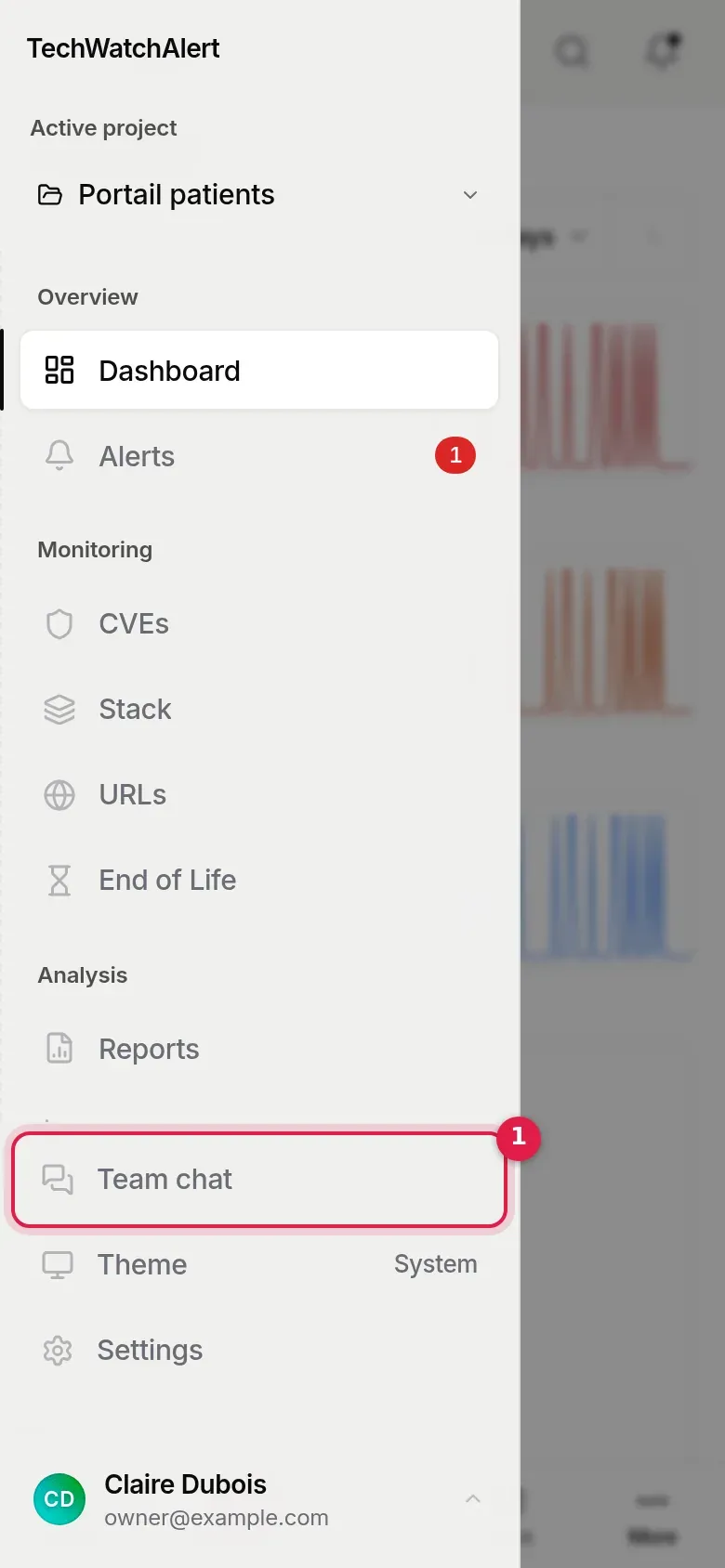
The panel shows the conversations of all your organisations, whatever project or organisation is active in the top bar: you see a message from another organisation arrive without switching to it. The active project’s organisation (with no project, the one you last looked at, or your default organisation) comes first, and its channel opens by default. Opening a conversation of another organisation does not change the active organisation: each conversation keeps its own, with its members and permissions. An organisation you no longer belong to (including an expired membership) disappears from the list, and its conversations are no longer accessible. An organisation whose plan does not include team chat is not listed. If you are not a member of any organisation, the panel says “Join an organisation to chat with your team.” A personal workspace has no team chat.
The panel
Section titled “The panel”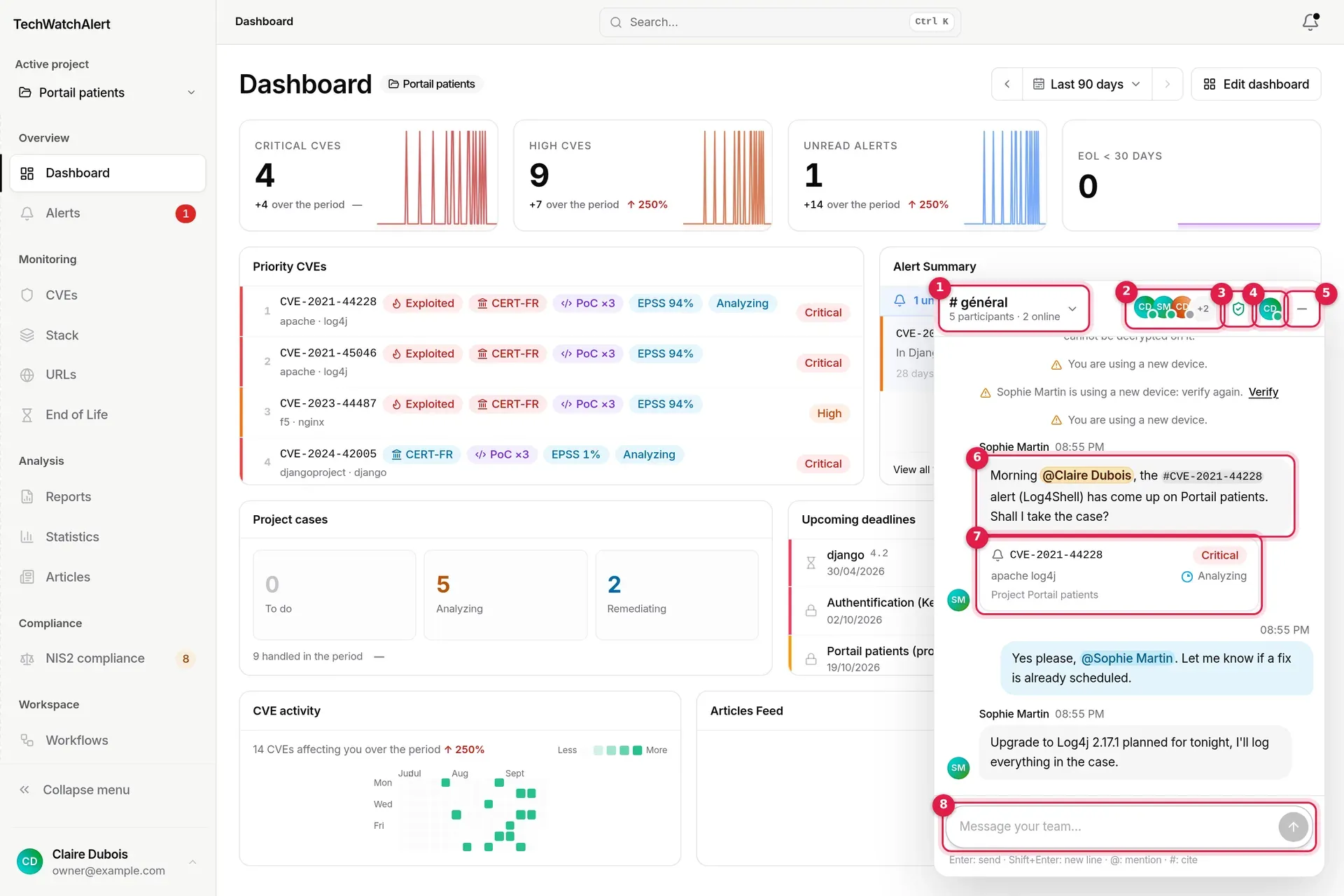
- Current conversation (here the organisation channel), with the number of participants and of people online. Click it to open the conversation list.
- Participants: the first three avatars, with their presence dot. Click to open the participant list.
- Shield “End-to-end encrypted”: the encryption window and its verification emojis.
- Minimise (Esc).
- A message that mentions you: your name is highlighted in amber.
- The card for the alert cited with
#. - The message bar.
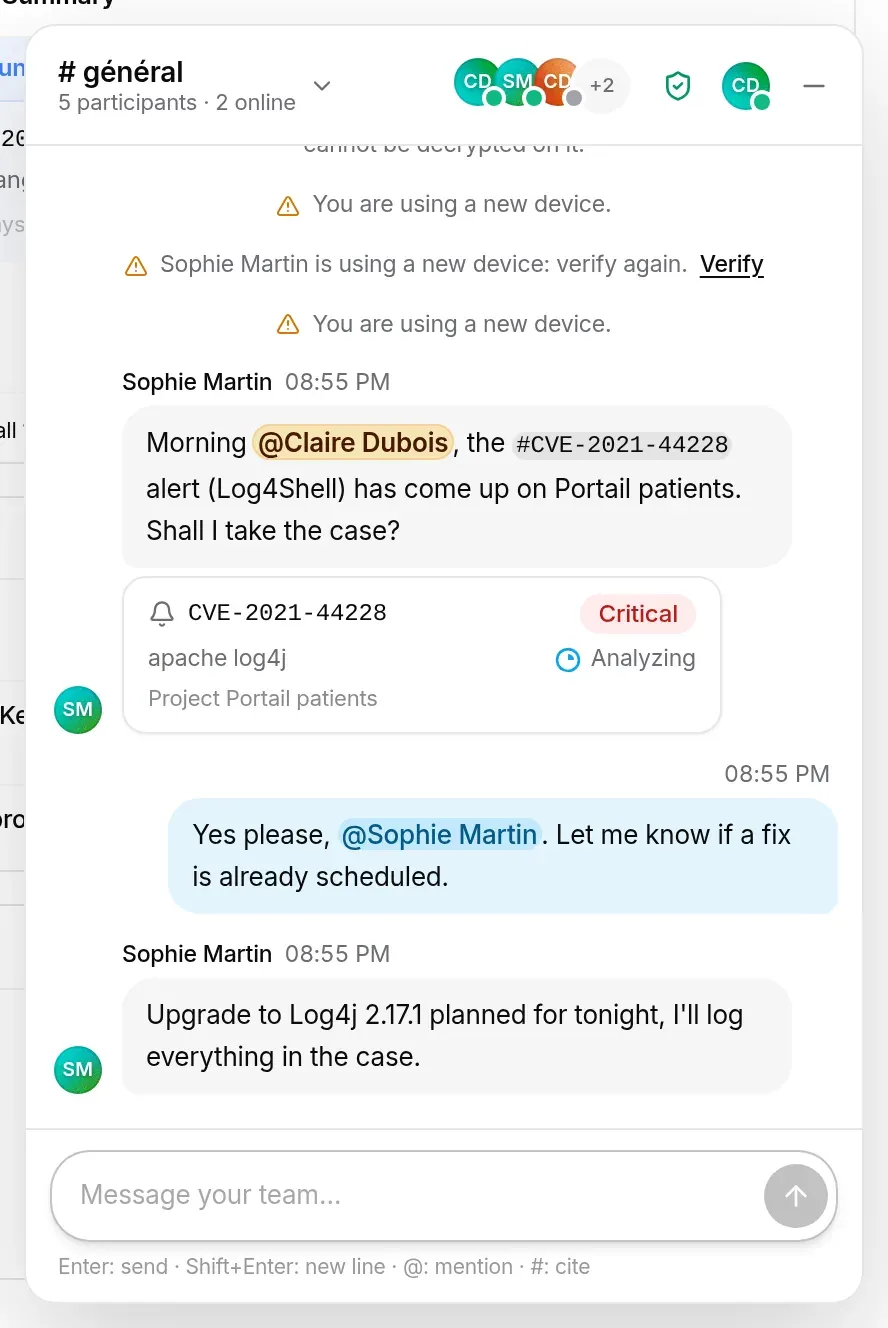
In the thread, your messages are on the right, on a blue background; other people’s are on the left, with their name and avatar. Messages sent by the same person within the same minute are grouped, and a divider marks each day (“Today”, “Yesterday”, then the date). Centred lines show conversation events: “Sophie Martin joined the conversation”, “… left the conversation”, “… is using a new device: verify again.” (see Verifying with emojis).
When you hover over a message, a small toolbar offers a reaction and, on your own messages, editing. It appears next to the bubble, never over the text.
If the conversation holds messages older than your device, the thread says so once, above the first message you can read: “Messages readable on this device start here: older messages cannot be decrypted on it.” This is expected: see On a new device.
A message counts as read when the panel is open on its conversation and you have scrolled the thread to the bottom. Your reading position is kept by the server, conversation by conversation: a message read on your computer no longer counts as unread on your phone. The server counts unread messages without reading them (it only sees who wrote, and when). If you have scrolled back through the history, the Latest messages button takes you back down.
Conversations
Section titled “Conversations”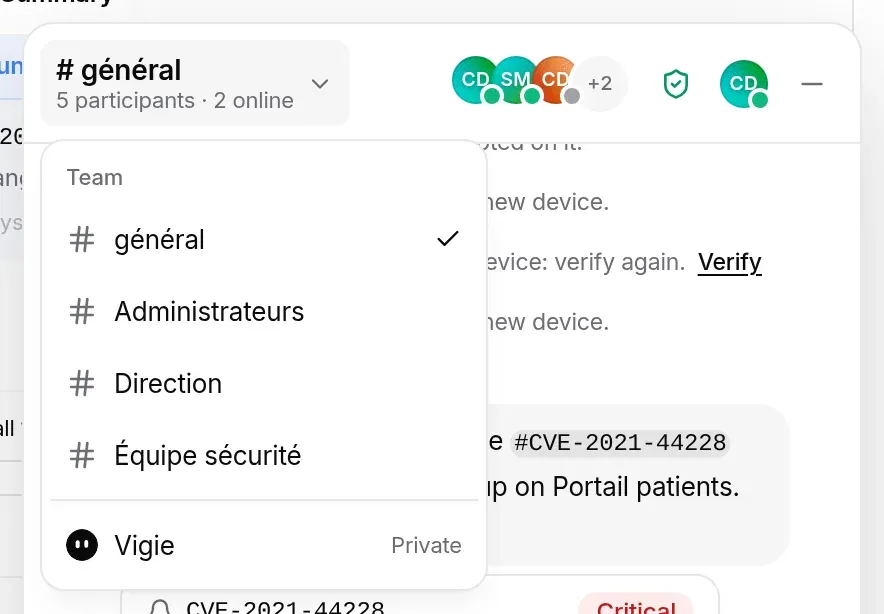
The list, under Team, contains:
- your favourites, at the top;
- Organisation: the organisation channel, named after it, the organisation’s only channel;
- Direct messages: your one-to-one conversations, under the other person’s name;
- Vigie: your direct conversation with the AI assistant, when the assistant is enabled and your organisation lets you use it.
If you belong to several organisations, the list is grouped by organisation (favourites first in each group), each group under a header that collapses it and shows its unread total. A red counter gives a conversation’s unread mentions, a blue dot flags unread messages, and a blue dot next to the current conversation’s name means there is something new elsewhere.
The organisation channel
Section titled “The organisation channel”Each organisation has one and only one channel, created with it, which bears the organisation’s name (# Acme Security). When the organisation is renamed, its channel follows; it cannot be renamed by hand or deleted. A channel name is not encrypted (it is server data, like the organisation’s name): renaming it touches neither the messages nor the encryption. Channels named # général before this rule have taken their organisation’s name. Nobody is invited to it: its members are, automatically, the organisation’s members who have the Organization channel permission (see Who can do what). When an administrator changes a group or its permissions, the channel follows: someone who loses the permission loses access straight away, and someone who gains it sees the channel appear.
You cannot create other channels.
Direct messages
Section titled “Direct messages”A direct message is a conversation between two people in the same organisation, end-to-end encrypted like the channel. To start one:
-
Click New direct message (pencil) in the rail or in the conversation list — or Message next to someone in the participant list of the organisation channel.
-
Pick the person (search by name or e-mail). Only people you can write to are listed.
-
The conversation opens; if it already existed, you find it with its history.
You can only send a direct message to someone who, like you, has the Direct messages permission in the organisation. If one of you leaves the organisation, the conversation stays readable for the other but becomes read-only: the message bar is replaced by “… is no longer part of the organisation: this conversation is read-only.” The same happens if one of you loses the direct messages permission.
Writing
Section titled “Writing”Enter sends, Shift + Enter starts a new line. The message appears in the thread straight away with “Sending…”; if it could not be sent, it shows “Not sent” and a Retry link. Until encryption is ready (a few seconds the first time you open it), sending is disabled and the message bar says so: “You can send once encryption is ready.” A message can be up to 8,000 characters long.
Mentioning someone with @
Section titled “Mentioning someone with @”Type @: the list offers the conversation’s participants (up to seven, not including you), with their e-mail address and presence. Keep typing to filter (name or address, ignoring accents), then use ↑ ↓ and Enter or Tab, or click. Esc closes the list without closing the panel.
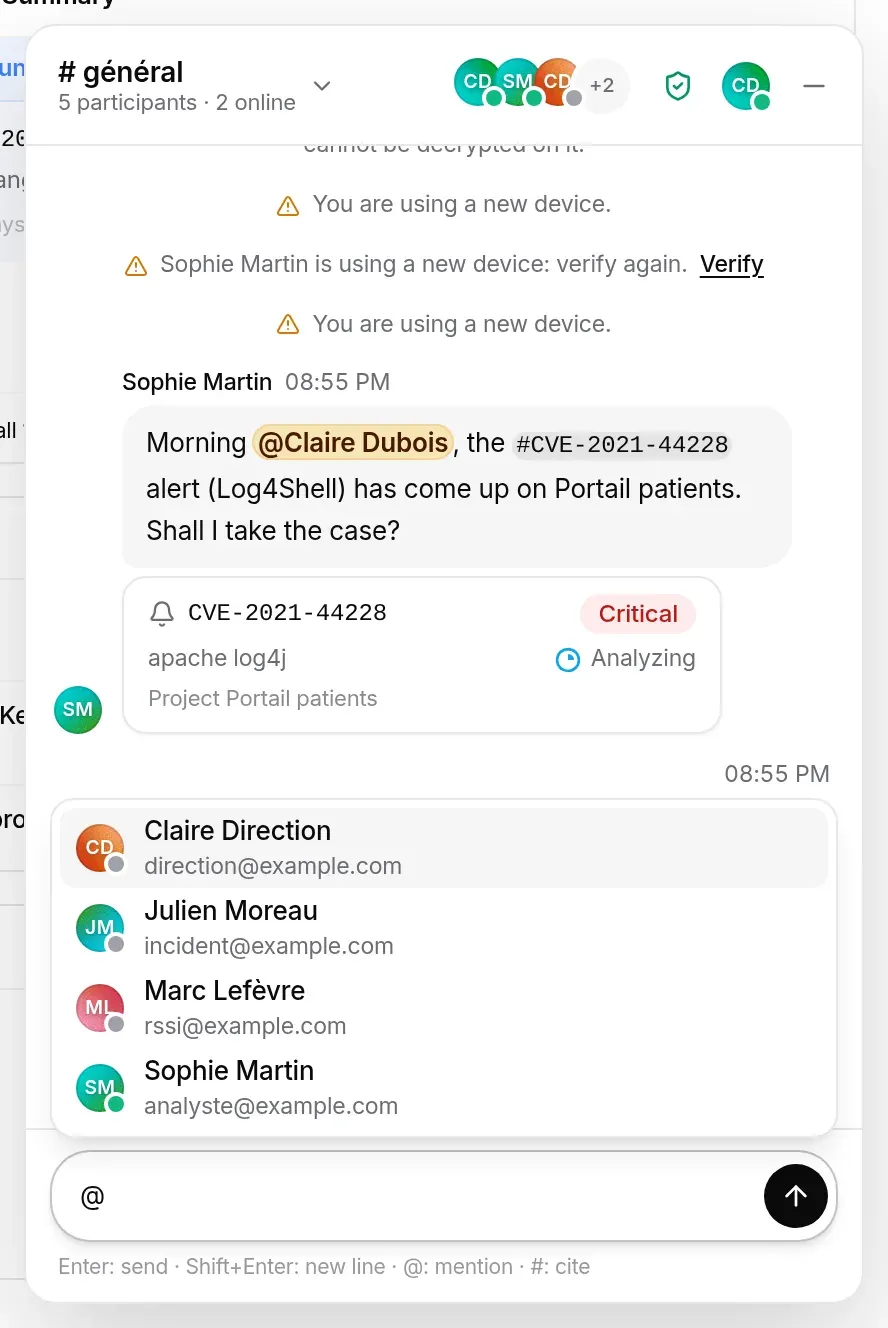
The mention is inserted as a blue chip. In the thread, a mention of you is highlighted in amber.
The person mentioned gets a notification in the bell: “Claire Dubois mentioned you in #Acme Security” (or “… in a direct message”). The notification does not contain the message text, which the server cannot read; clicking it opens the panel on the right conversation. Only people who have access to it are notified (at most 20 per message), and never the author.
Citing an alert or a CVE with
Section titled “Citing an alert or a CVE with”Type # followed by at least two characters (an identifier such as CVE-2021-44228, or a word): the list offers the matching CVEs and, for each one, the alerts in the projects where you can see it (“Alert · Patient portal”), with their severity.
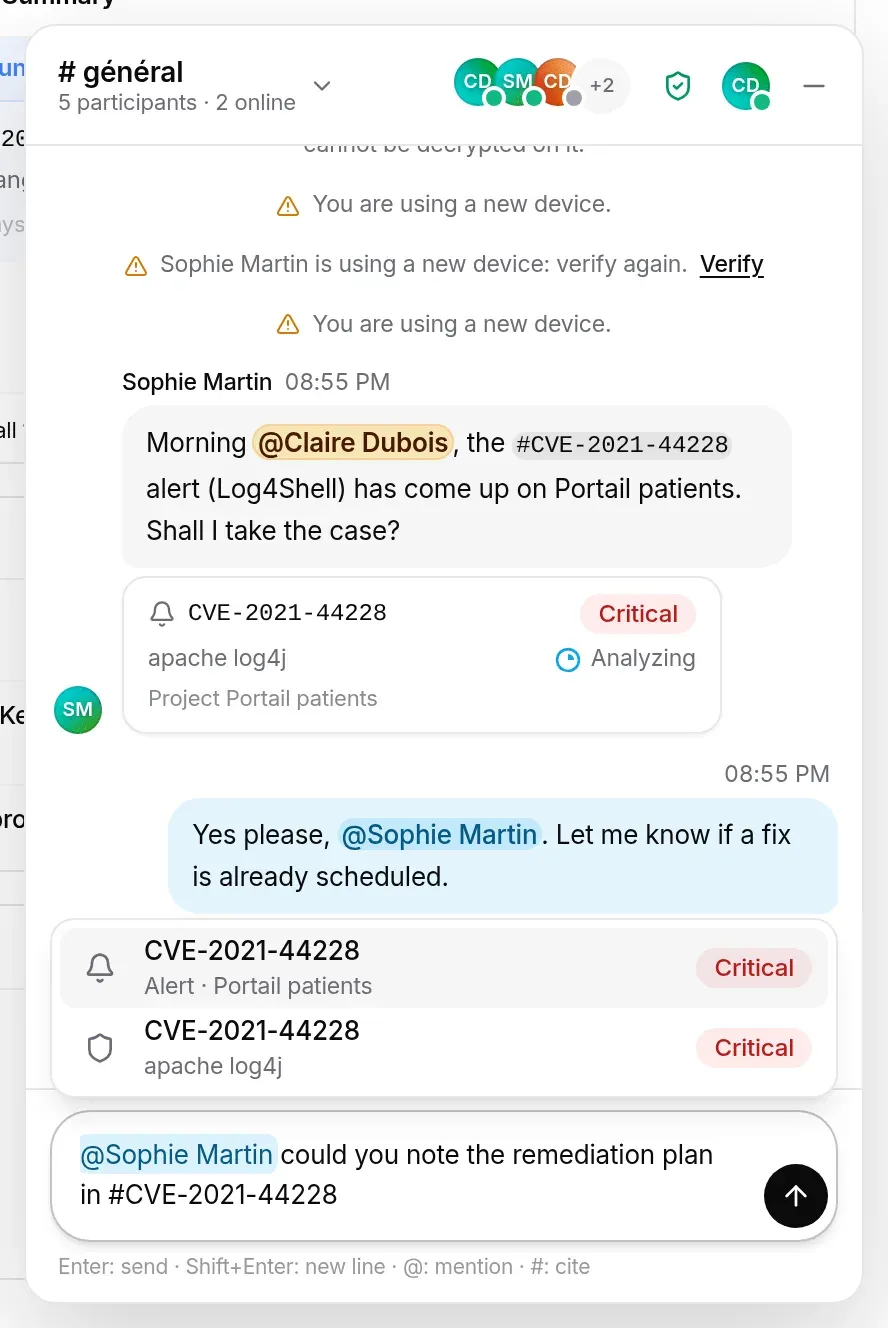
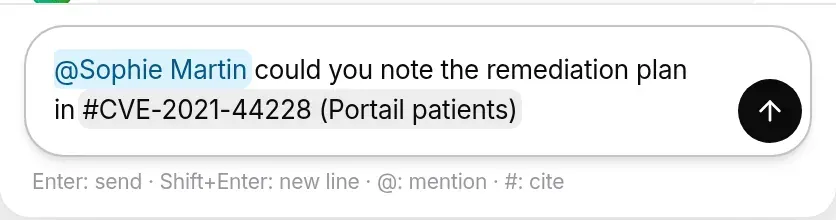
In the message, the reference reads #CVE-2021-44228; below it, a card shows the identifier, severity, product and, for an alert, its status and project. Clicking it opens the alert (or the CVE page).
The card is loaded again by each reader, with their own permissions. A colleague who cannot access that project’s alerts sees “Alert not accessible” and nothing more than the CVE identifier, already in the text. Likewise, the # search only offers what you can open.
Participants and presence
Section titled “Participants and presence”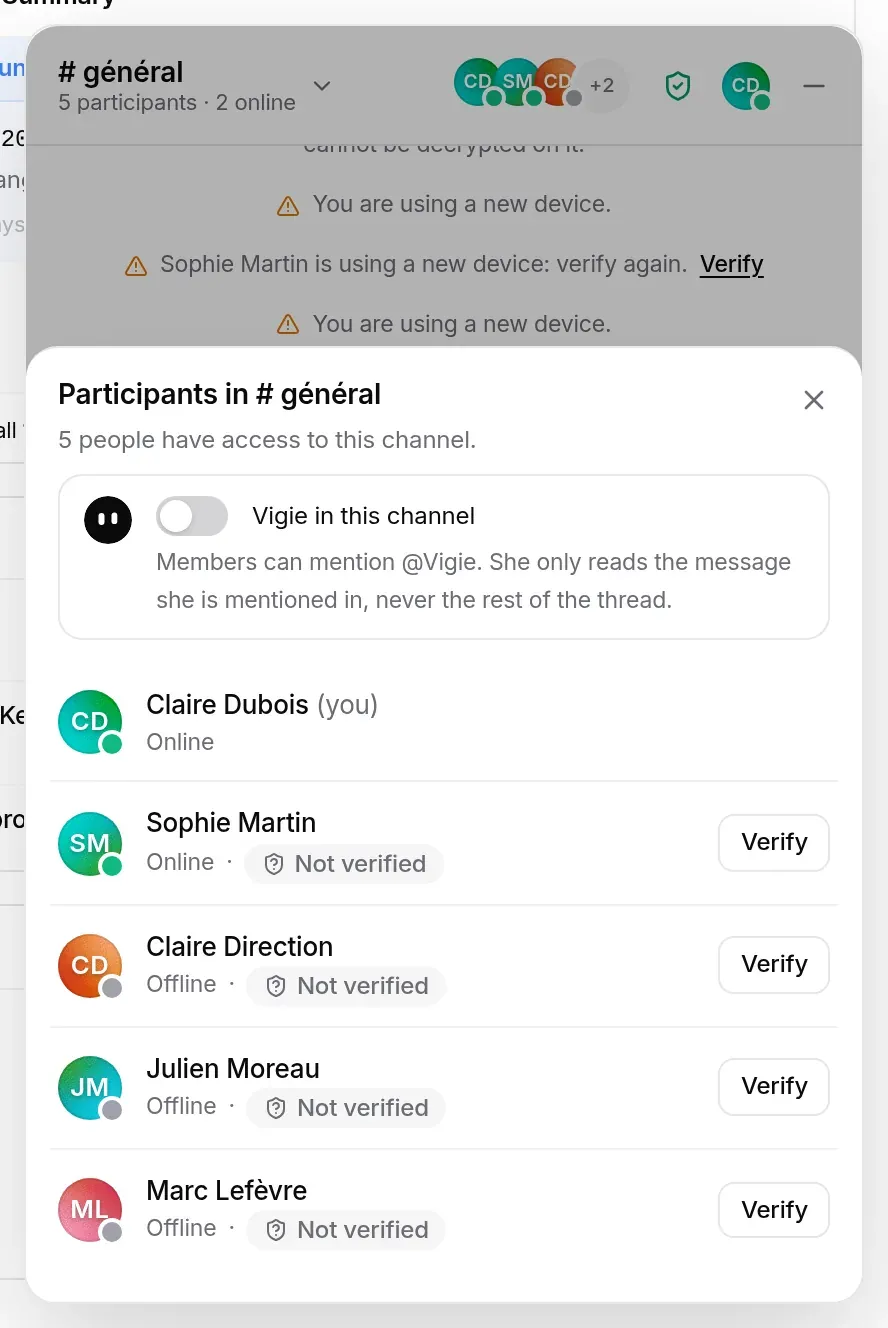
Clicking the avatars opens the list of people with access to the conversation, those present first. For each one: their presence, their verification status, a Verify button and, in the organisation channel, Message to send them a direct message when that is possible.
Presence has four states:
| Dot | Status | When |
|---|---|---|
| Green | Online | TechWatchAlert is open and you are active. |
| Amber | Away | The tab is hidden, or there has been no activity for 5 minutes. |
| Red | Busy | Chosen by you. |
| Grey | Offline | No TechWatchAlert page is open. |
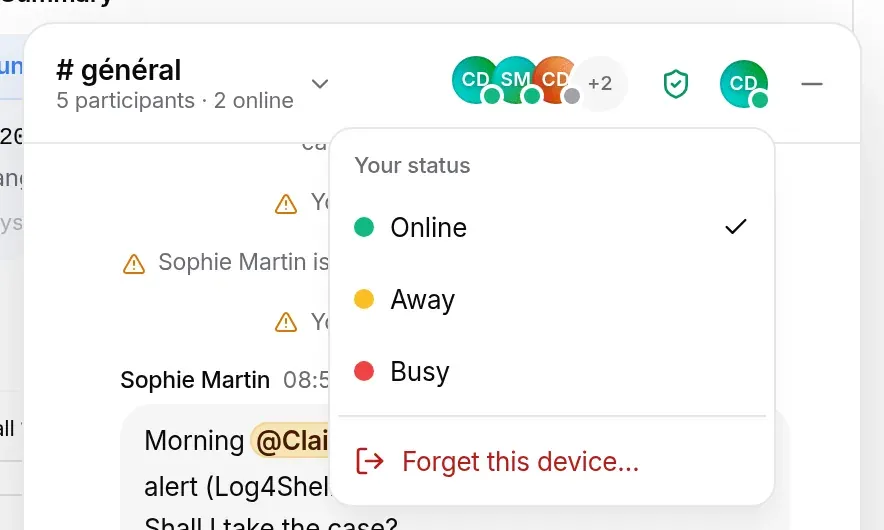
Your avatar, at the bottom right of the panel under the message bar, opens Your status: Online, Away or Busy. Going back to Online hands control back to the automatic status (away after 5 minutes of inactivity).
End-to-end encryption
Section titled “End-to-end encryption”The green shield in the header opens the End-to-end encrypted window.
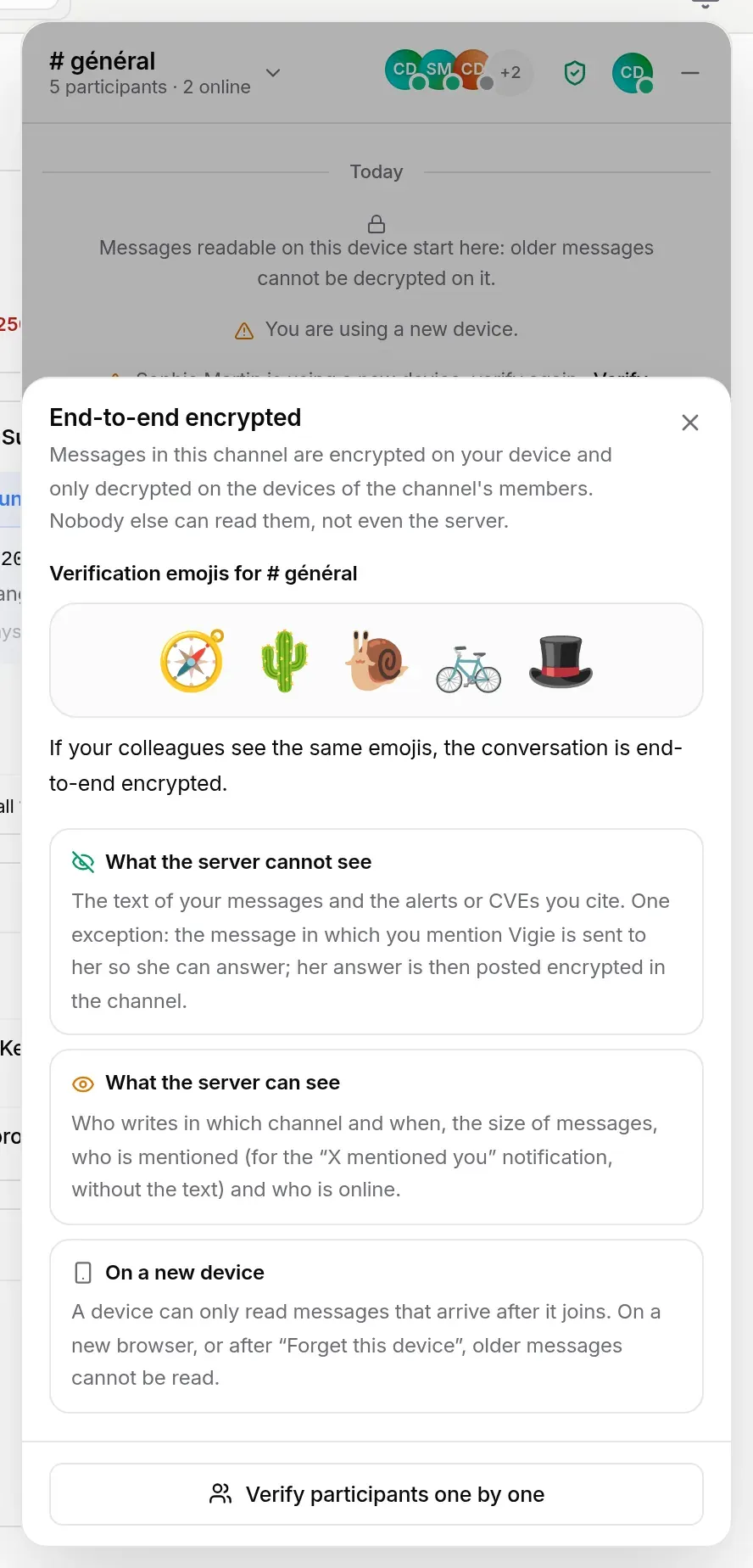
In plain terms:
- your messages are encrypted in your browser before they leave, and only decrypted in the browsers of the conversation’s participants. The TechWatchAlert server relays them and keeps them in order, but holds no keys: it cannot read them;
- what the server cannot see: the text of your messages and the alerts and CVEs you cite in them;
- what the server can see: who writes in which conversation and when, the size of messages, who is mentioned (which is how it can send the “X mentioned you” notification, without the text) and who is online.
Encryption uses the MLS protocol; each conversation is a group whose keys are held only by authorised devices. The server publishes each conversation’s list of authorised devices, and your browser rejects any added device that is not on it: a red banner “Encryption problem: …” then reports it. When someone loses access, the server immediately stops sending them anything, and the first participant online removes their devices from the group. One case remains that no software can rule out on its own: a server lying about that list. That is what emoji verification lets you detect.
On a new device
Section titled “On a new device”A device is one browser on one computer (two browsers, or a private window, count as two devices). The keys stay in that browser. As a result, as with consumer encrypted messaging apps, a device can only read messages that arrive after it joins. On a new computer, another browser, or after clearing the site’s data, older messages cannot be read; the line “Messages readable on this device start here” marks, once, where what you can read begins. This is not a fault, and the server cannot give them back to you.
Forget this device
Section titled “Forget this device”Your status › Forget this device… asks for confirmation:
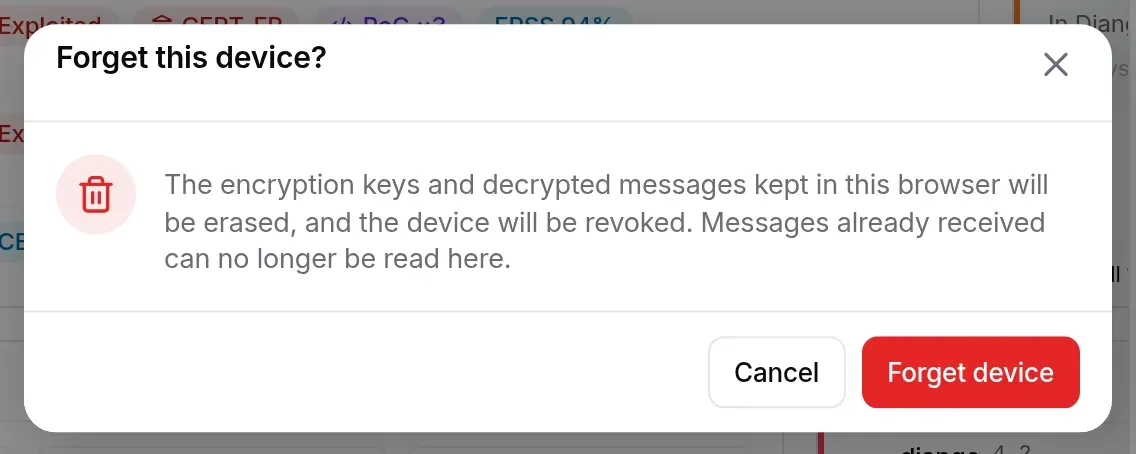
The encryption keys and decrypted messages kept in this browser are erased, and the device is revoked: it no longer receives anything. Messages already received can no longer be read on this computer. Do this on a shared computer, or one you are leaving. If you open team chat again afterwards, this browser registers as a new device.
Verifying with emojis
Section titled “Verifying with emojis”The conversation
Section titled “The conversation”The encryption window shows five emojis for the conversation, worked out by each device from the group’s keys.
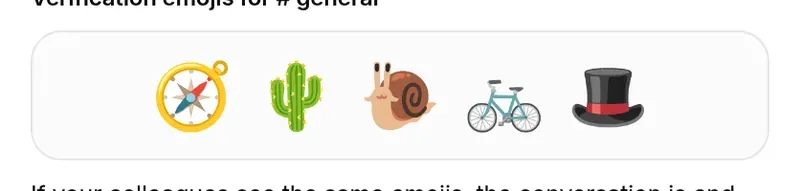
If your colleagues see the same five emojis, in the same order, nobody else has slipped into the conversation. They change when the group changes (a device joins, someone leaves): compare them at the same moment.
One person
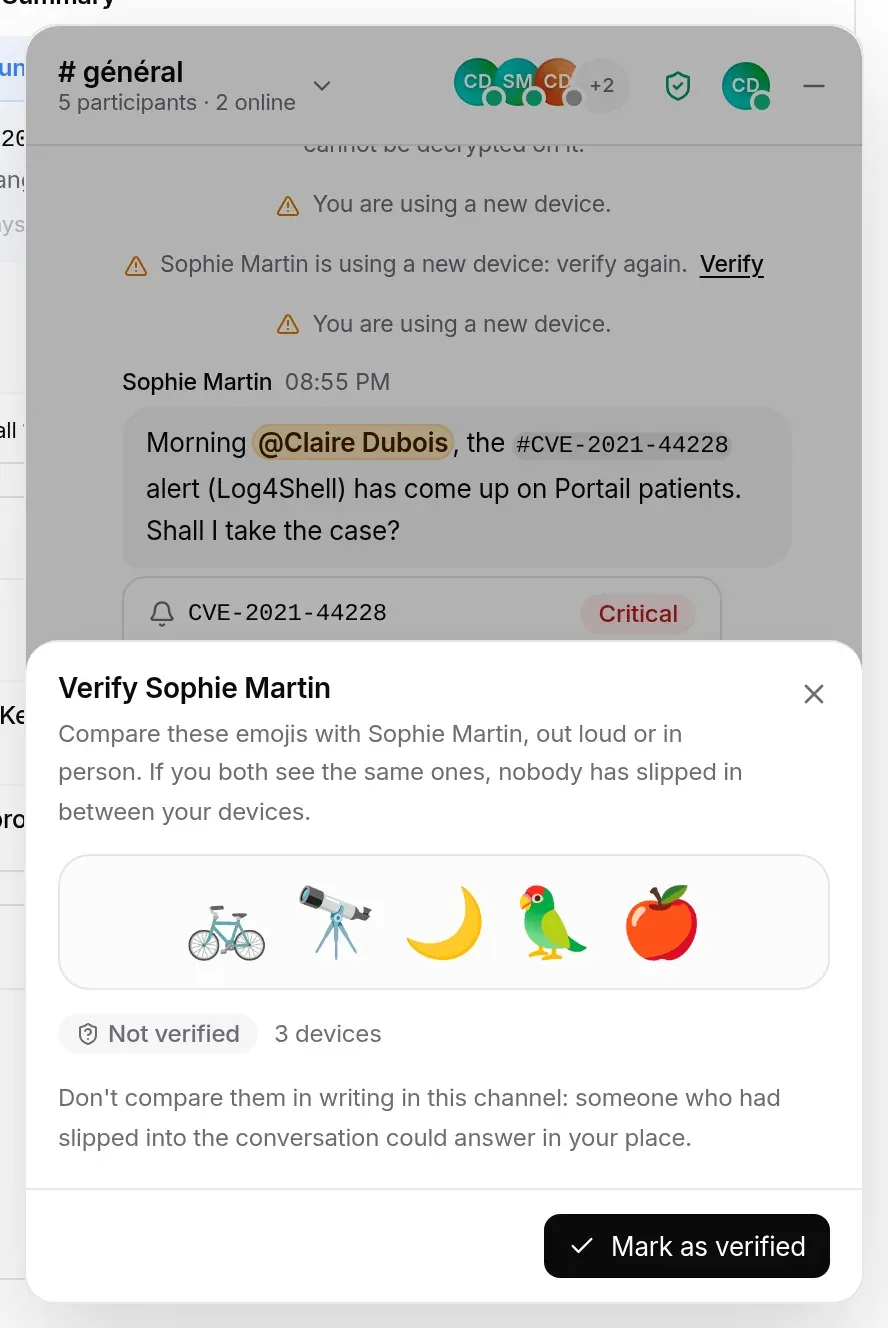
Section titled “One person”To verify a particular colleague, open the participant list (or Verify participants one by one, at the bottom of the encryption window), then click Verify on their row.
-
Compare the five emojis with the person, out loud or in person. Don’t do it in writing in the conversation: someone who had slipped into the conversation could answer in their place.
-
If you both see the same ones, click Mark as verified.
-
Their status changes to Verified in the participant list. Remove verification undoes it.
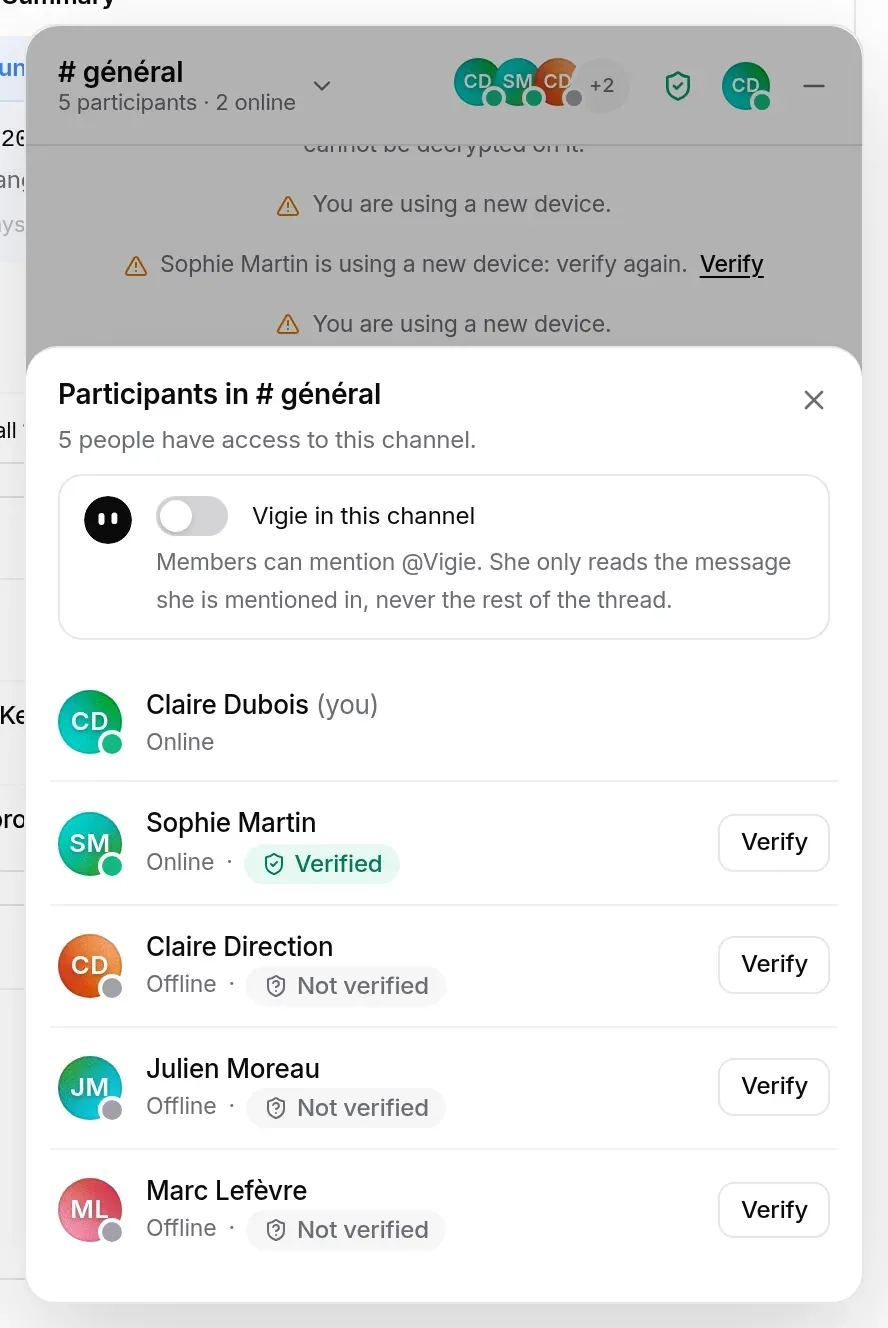
These emojis depend on the authorised devices of both of you; the window shows how many devices the person has. If one of their devices changes, the status goes back to Verify again, the window explains it (“… has used a new device since the last verification: compare the emojis again.”) and the thread shows “… is using a new device: verify again.” with a Verify link.
The “Verified” status is kept in your browser: on another device, you need to verify again.
Who can do what
Section titled “Who can do what”Team chat has its own permission, Team chat, with three levels, carried by the organisation’s groups:
| Level | Effect |
|---|---|
| None | The person sees no conversation. |
| Read | They receive and read messages but cannot post: the message bar is replaced by “Read-only: you can read this channel but not post in it.” |
| Write | They read and post. This is the default for every role, read-only users included. |
Three organisation permissions come on top, also set group by group. They are granted by default; an administrator removes them from whichever group they choose (contractors, interns…):
| Permission | Effect |
|---|---|
| Organization channel | Being a member of the organisation channel. It is the only way in: nobody is invited. |
| Direct messages | Starting a direct conversation and writing in it. Both people need it: removed from someone, it also stops them receiving direct messages. |
| Vigie (AI) | Using the Vigie assistant (and AI workflow generation). Without it, the Vigie entry disappears from the interface. |
Rules enforced by the server:
- these are organisation permissions, not project ones: a person gets the highest level among their groups (a permission removed by one group is kept if another group grants it); a member who is in no group has write access and all three permissions;
- the organisation’s owner and administrators always have write access and all three permissions;
- a membership whose expiry date has passed no longer gives access to team chat;
- up to 30 messages per minute per person.
Only Vigie also depends on the AI assistant being enabled and on your subscription.
Frequently asked questions
Section titled “Frequently asked questions”I can’t see yesterday’s messages. You are on a new device (another computer, another browser, a private window, cleared site data, or a forgotten device). A device can only read messages that arrive after it joins: open team chat on your usual computer to read the history.
A colleague is marked “Verify again”. They have used a new device since you last verified them. That is not necessarily suspicious (new computer, another browser): compare the emojis with them again, out loud.
I can’t see my organisation’s channel. Your organisation has not given you the Organization channel permission, or your Team chat permission there is None, or your membership has expired, or its plan does not include team chat. Also check that its group is not collapsed in the rail.
How do I create a channel for my team? You can’t: each organisation has a single channel, named after it, whose members follow the permissions the administrator sets. To talk one to one, start a direct message.
I can’t find a colleague under “New direct message”. One of you does not have the Direct messages permission, or the person is not a member of this organisation.
My direct conversation has become read-only. The person has left the organisation, or one of you has lost the direct messages permission. The history stays readable on your devices.
The server refuses to register this device. A person can have at most 20 active devices. Forget the ones you no longer use (Your status › Forget this device…, on each of them).
Can I mention Vigie in a conversation? No: Vigie reads neither the organisation channel nor direct messages. Ask her your questions in her direct conversation.
See also
Section titled “See also”- Finding your way around: the top bar, notifications and the AI assistant.
- Team, roles and groups: the groups that set team chat permissions.
- Handling an alert: the alert a reference card opens.