NIS2 settings and the report for management
Everything you configure now lives in the organisation settings, Compliance group (Frameworks, Owners and Management report pages) and Monitoring and remediation group (Remediation deadlines page); covered projects are on the Coverage page. The former /conformite/reglages and /conformite/activation addresses lead to the matching page. You set there: the frameworks followed and the entity’s NIS2 status, the owners, the covered projects and their workflows, remediation deadlines and the report for management. Settings can be prepared even before a project is enabled. See Frameworks.
The Compliance page of each project’s settings (activation and project-specific deadlines) completes it.
The Settings tab
Section titled “The Settings tab”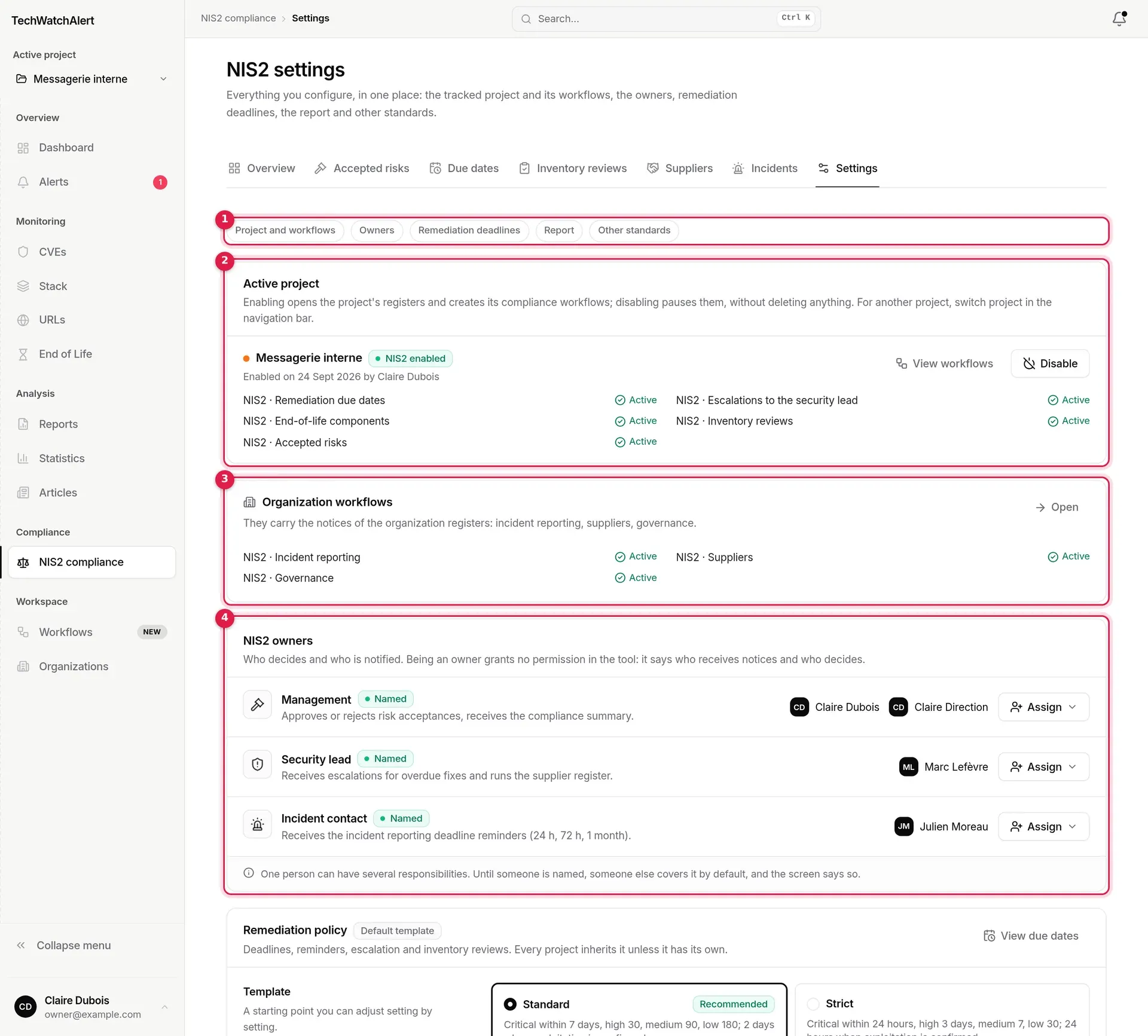
- Section links: one chip per section, which scrolls the page to it. Links in the application and in emails target these sections too.
- Active project: the NIS2 state of the navigation bar’s project, its workflows, Enable or Disable (see Turning NIS2 on for a project).
- Organization workflows: those that carry the notices of the organisation registers.
- NIS2 owners.
Then come Remediation policy, Management report, Other standards followed and the Workflows created on activation catalogue.

Project and workflows
Section titled “Project and workflows”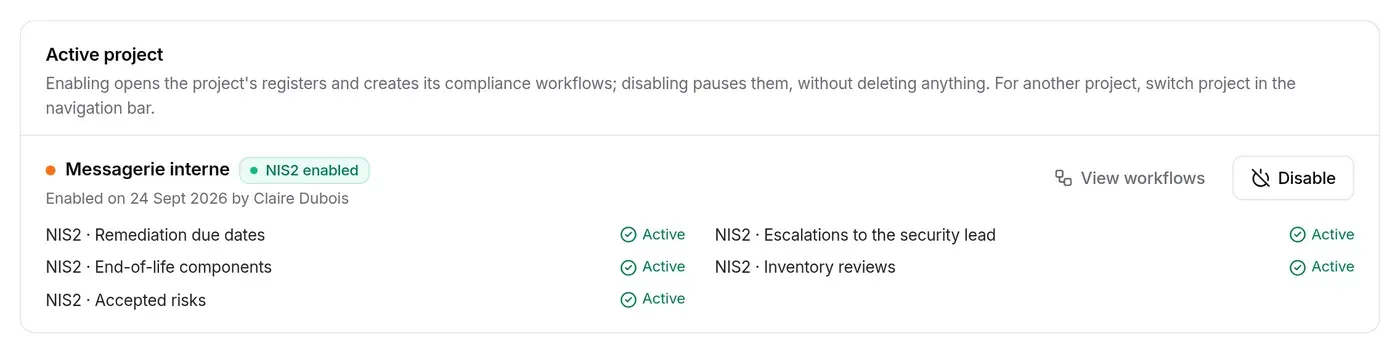
Each of the project’s compliance workflows shows its state: Active, Disabled (by a user on the Workflows page) or Paused (NIS2 turned off for the project). A catalogue workflow that is missing (deleted by hand) appears as a + name chip: one click recreates it.

The Organization workflows section appears as soon as one project is enabled. Open leads to the Workflows page, Organisation scope. Administrators can recreate a deleted organisation workflow there with a chip.
NIS2 owners
Section titled “NIS2 owners”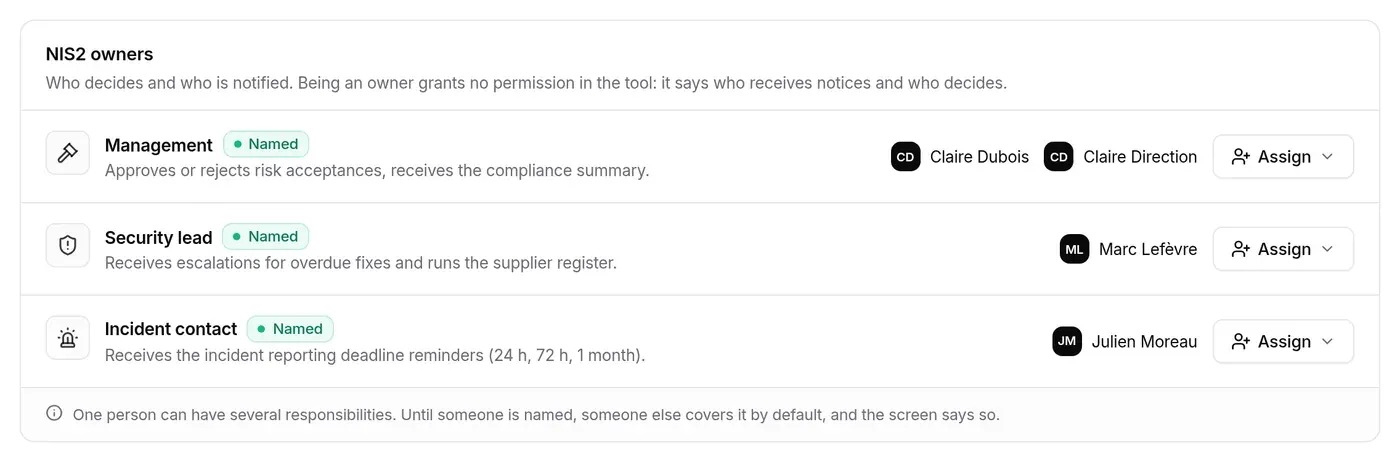
Three roles, which say who receives the notices and who decides. Being an owner grants no administration rights in the tool; only management has a power of its own: approving or refusing risk acceptances.
| Role | Description shown | By default (not named) |
|---|---|---|
| Management | approves or rejects risk acceptances, receives the compliance summary | the organisation owner(s) |
| Security lead | receives escalations for overdue fixes and runs the supplier register | management |
| Incident contact | receives the incident reporting deadline reminders (24 h, 72 h, 1 month) | the security lead |
The pill reads Named or Not named; a crown next to a name marks a default holder.
- Click Assign next to the role.
- Tick or untick members in the list: each click is saved straight away (“Owners saved”).
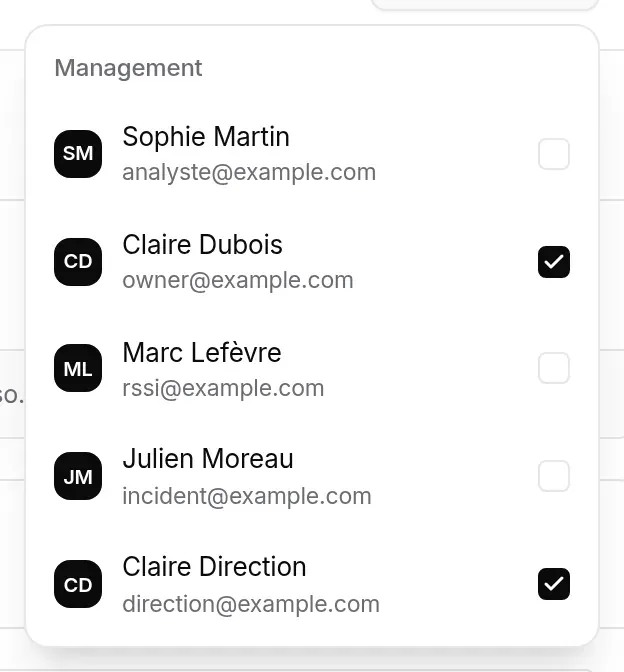
A role can have several holders, and one person several roles. Only the organisation owner names owners; other members see the section read-only, with “Only the organization owner names the NIS2 owners.” The newly named person is notified (“You now hold the … role”, through the NIS2 · Governance workflow), and the change is recorded in the organisation’s audit log.
Remediation deadlines
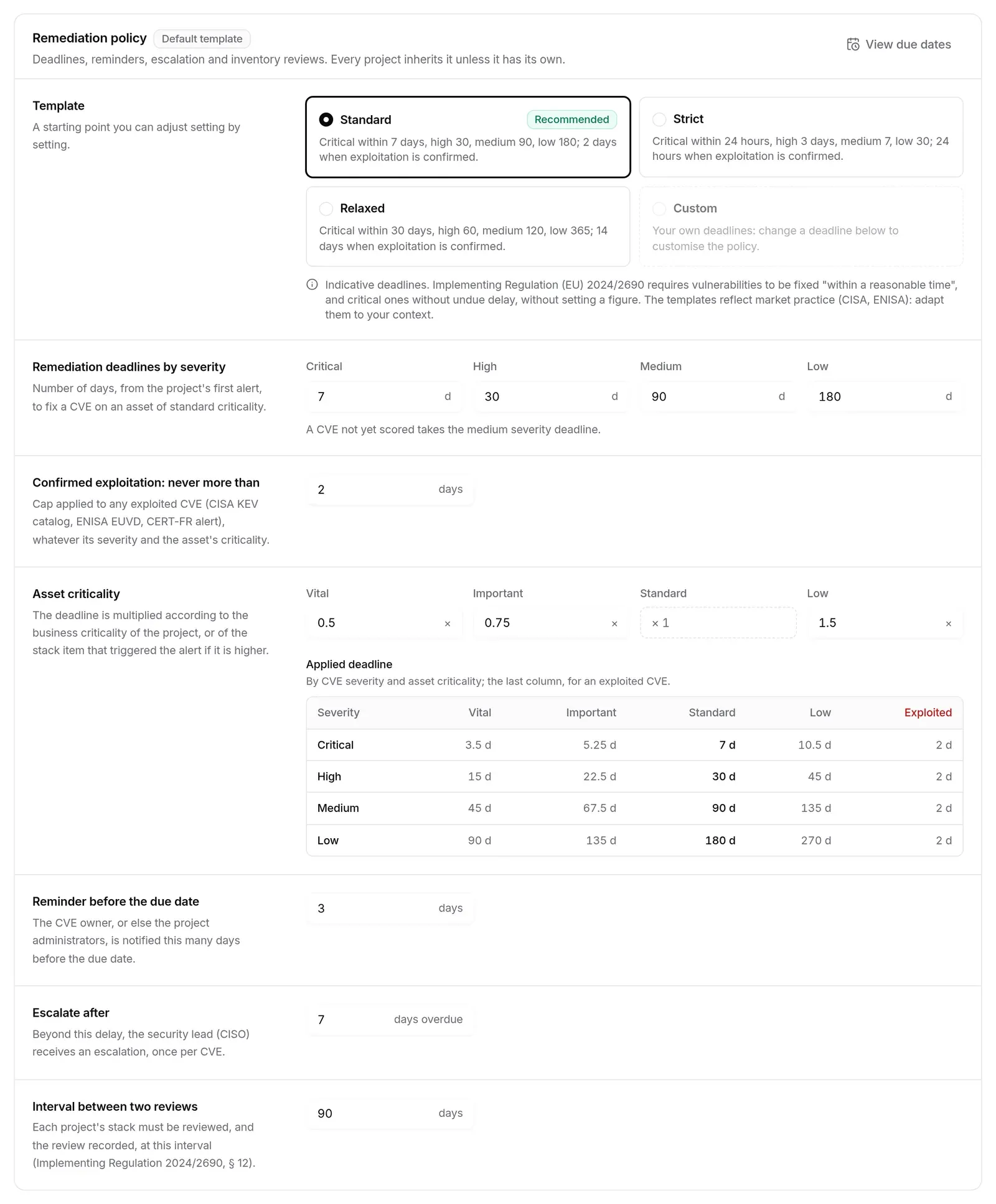
Section titled “Remediation deadlines”The organisation’s Remediation policy sets CVE due dates, their reminders, escalation and the inventory review interval. Every project inherits it unless it has its own. The pill next to the title reads Set by the organization or Default template; View due dates opens the Due dates tab.
| Setting | Effect | Allowed values |
|---|---|---|
| Template | starting point: Standard (recommended), Strict, Relaxed; it becomes Custom as soon as a deadline changes | — |
| Remediation deadlines by severity | days, from the project’s first alert, to fix a CVE on an asset of standard criticality; a CVE not yet scored takes the medium severity deadline | 1 to 730 days; a more severe level cannot have a longer deadline |
| Confirmed exploitation: never more than | cap for any exploited CVE, whatever its severity and the asset’s criticality | 1 to 90 days |
| Asset criticality | multiplies the deadline by the criticality of the project or stack item; the Applied deadline table shows the result | vital and important from 0.1 to 1, low from 1 to 5; standard is always 1; a vital asset cannot have a longer deadline than an important one |
| Reminder before the due date | the owner, or else the project administrators, is notified this many days before | 0 to 30 days |
| Escalate after | beyond this delay, the security lead receives an escalation, once per CVE | 0 to 90 days |
| Interval between two reviews | each project’s stack must be reviewed, and the review recorded, at this interval | 7 to 365 days |
| Maximum mitigation expiry | a mitigation, or a risk acceptance outside the register, carries an expiry date at most this many days ahead; when it expires, the case reopens by itself (see Mitigating a CVE) | 7 to 365 days (180 by default) |
The three templates:
| Template | Critical | High | Medium | Low | Exploited |
|---|---|---|---|---|---|
| Standard | 7 d | 30 d | 90 d | 180 d | 2 d |
| Strict | 24 h | 3 d | 7 d | 30 d | 24 h |
| Relaxed | 30 d | 60 d | 120 d | 365 d | 14 d |
The deadlines are indicative; the screen says so: the Implementing Regulation requires vulnerabilities to be fixed “within a reasonable time”, without setting a figure. Changing reminders, escalation, factors or the review interval does not turn the template into “Custom”: only the deadlines define it.
Any change shows “Unsaved changes” at the bottom of the section, with Cancel and Save; an out-of-range setting is flagged and blocks saving. Back to the default template clears the organisation’s policy. A project’s criticality is set in its settings, a stack item’s on the Stack page.
Only organisation administrators and the owner can change the policy; other members can read it.
The report for management
Section titled “The report for management”The report is a frozen document: it captures the state of every register of the organisation at the time it is generated, for a given period. Correcting a register afterwards does not change a report already issued.
Automatic report
Section titled “Automatic report”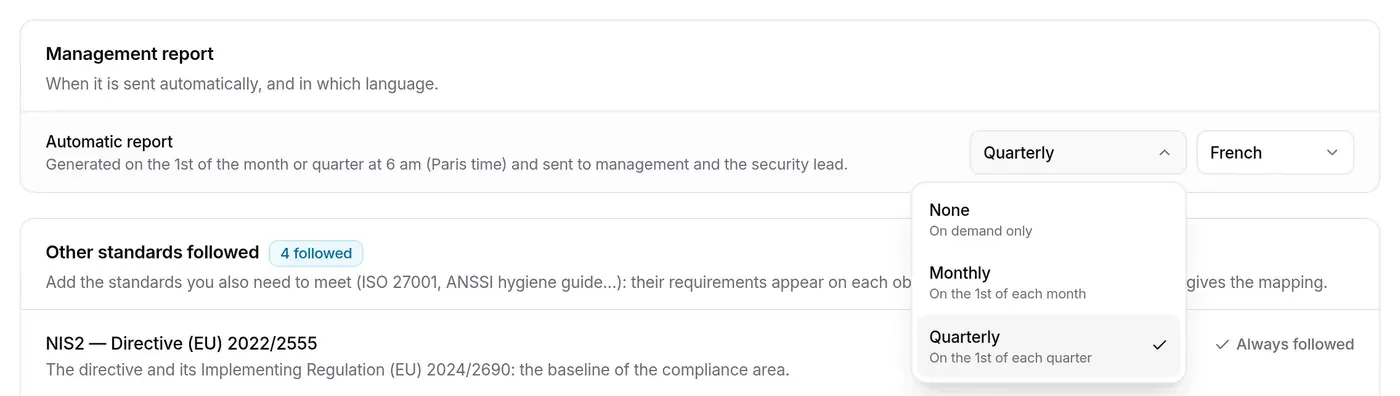
Two lists, saved as soon as you choose:
- Frequency: None (on demand only), Monthly (on the 1st of each month), Quarterly (on the 1st of each quarter);
- Language: French or English.
The automatic report is generated on the 1st of the month or quarter from 6 am, Paris time, for the period just ended, unless a report already exists for that period; if the service was down, it catches up until the 7th. A “report ready” notice goes to management and the security lead (NIS2 · Governance workflow), with a link that highlights the report in the history. Only organisation administrators can change this setting.
Generating a report
Section titled “Generating a report”You generate a report from the Reports page, Frameworks (management) tab.
- Click Generate a report.
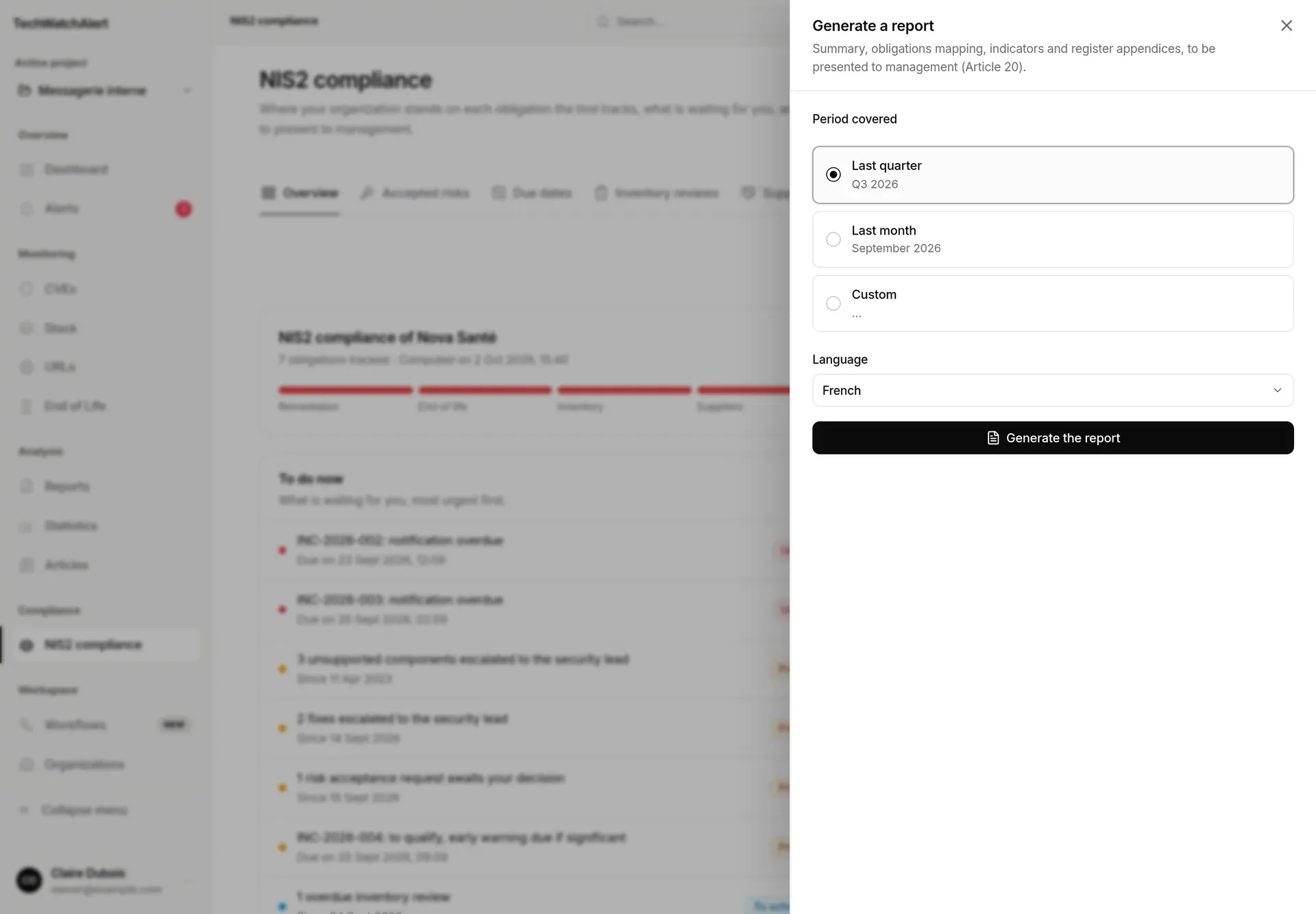
- Choose the period covered: Last quarter (default, e.g. “Q2 2026”), Last month, or Custom.
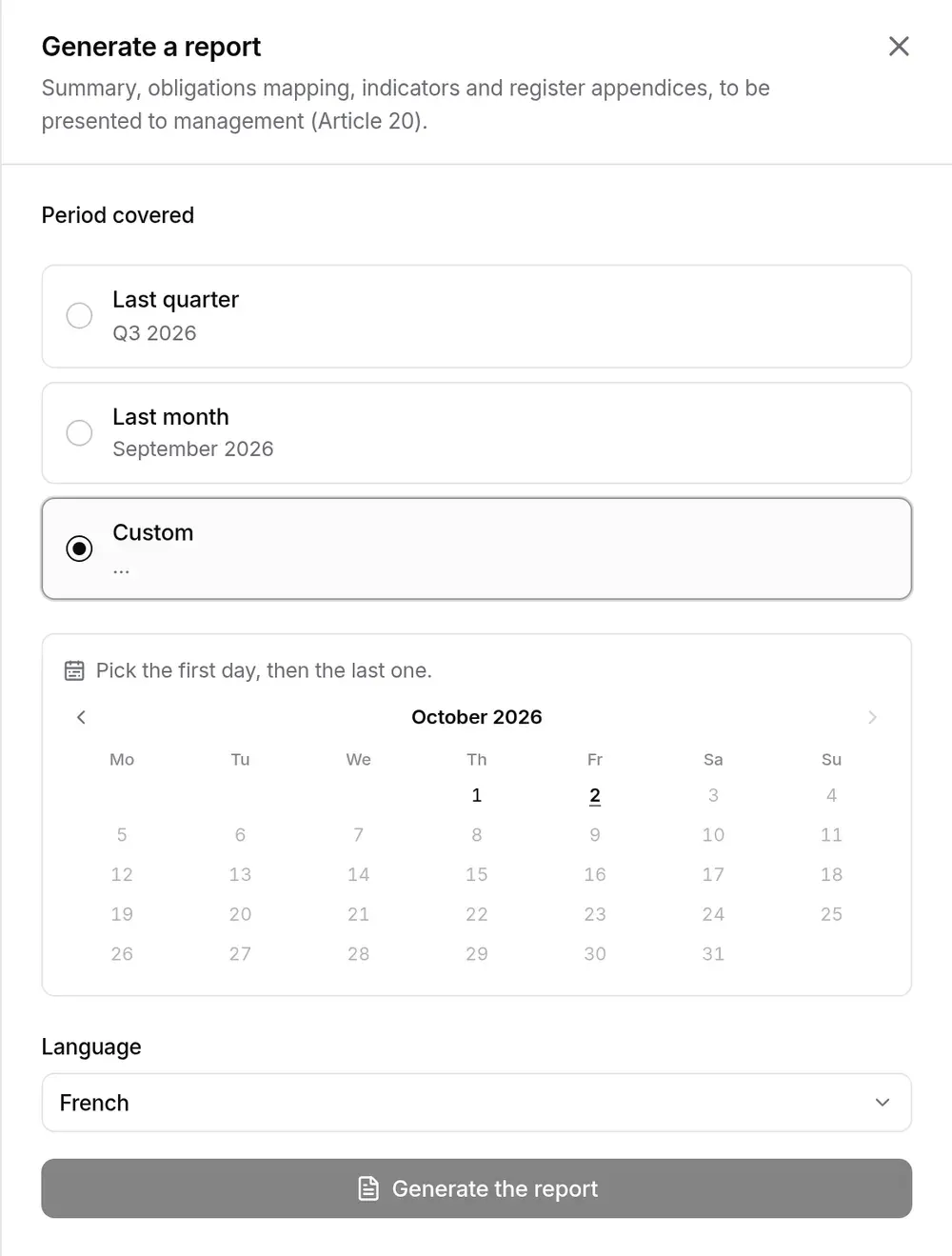
- For a custom period, pick the first day then the last in the calendar: the end follows the start, does not go past today, and the period covers 366 days at most.
- Choose the language (by default, the one in the setting).
- Generate the report. The new report appears at the top of the history.
The history
Section titled “The history”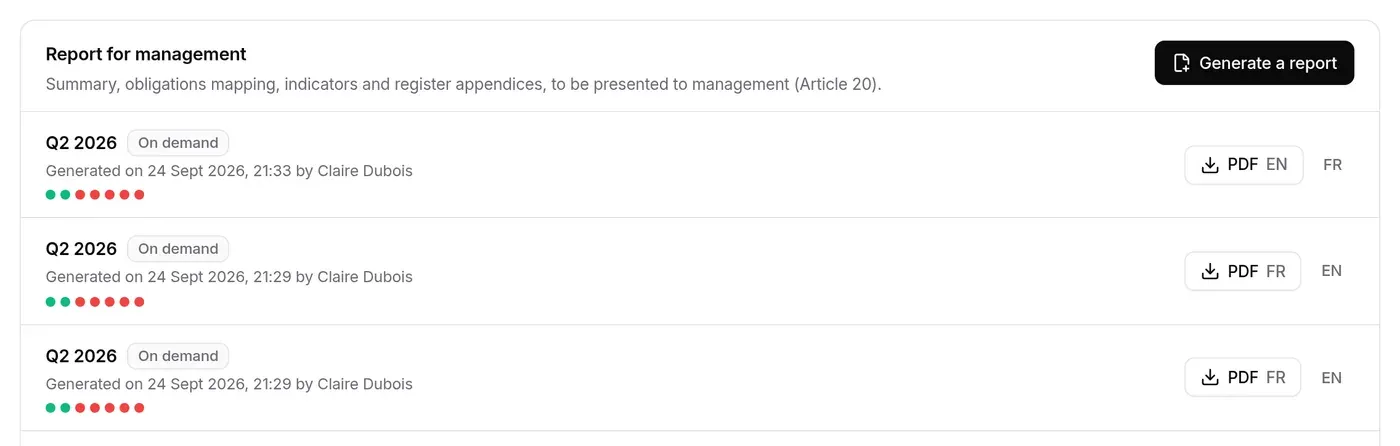
Each row gives the period (“Q2 2026”, “September 2026”, or its dates), the origin (On demand, Monthly, Quarterly), when it was generated and by whom (or “automatically”), and a row of dots: the status of each obligation in that report, detailed on hover. PDF downloads the report in its language; the button next to it (EN or FR) downloads it written in the other language, from the same data.
What the PDF contains
Section titled “What the PDF contains”The “Frameworks report — management” PDF (formerly “NIS2 compliance report”), marked “Confidential”, follows the frameworks the organisation followed when it was generated. It contains:
- a cover “For management — NIS2, Article 20” if NIS2 is followed, otherwise “For management —” followed by the frameworks followed (for example “ISO 27001”): organisation, period, closing date, author or automatic generation;
- the Management summary: status per obligation, highlights, decisions expected from management (pending acceptance requests, escalated vulnerabilities and components to arbitrate, acceptances to review, owners to name, vital suppliers never assessed, overdue incident reports), designated owners. Each obligation cites its NIS2 articles if NIS2 is followed, otherwise the requirements of the frameworks followed;
- the Obligations mapping: for each obligation, the supported measure, the evidence available and the status, plus the assessment of effectiveness (this table of NIS2 articles only exists if NIS2 is followed); then one table per other framework followed;
- Detailed indicators, as of the report date and over the period;
- Appendices: accepted risks in force, overdue fixes, components unsupported or nearly so, inventory reviews by project, vital suppliers, incidents of the period;
- a Management approval block (name and role, date, signature);
- the closing statement: it “is neither a certification nor legal advice”.
An obligation whose module is not in the plan does not appear in the report.
The Reports page
Section titled “The Reports page”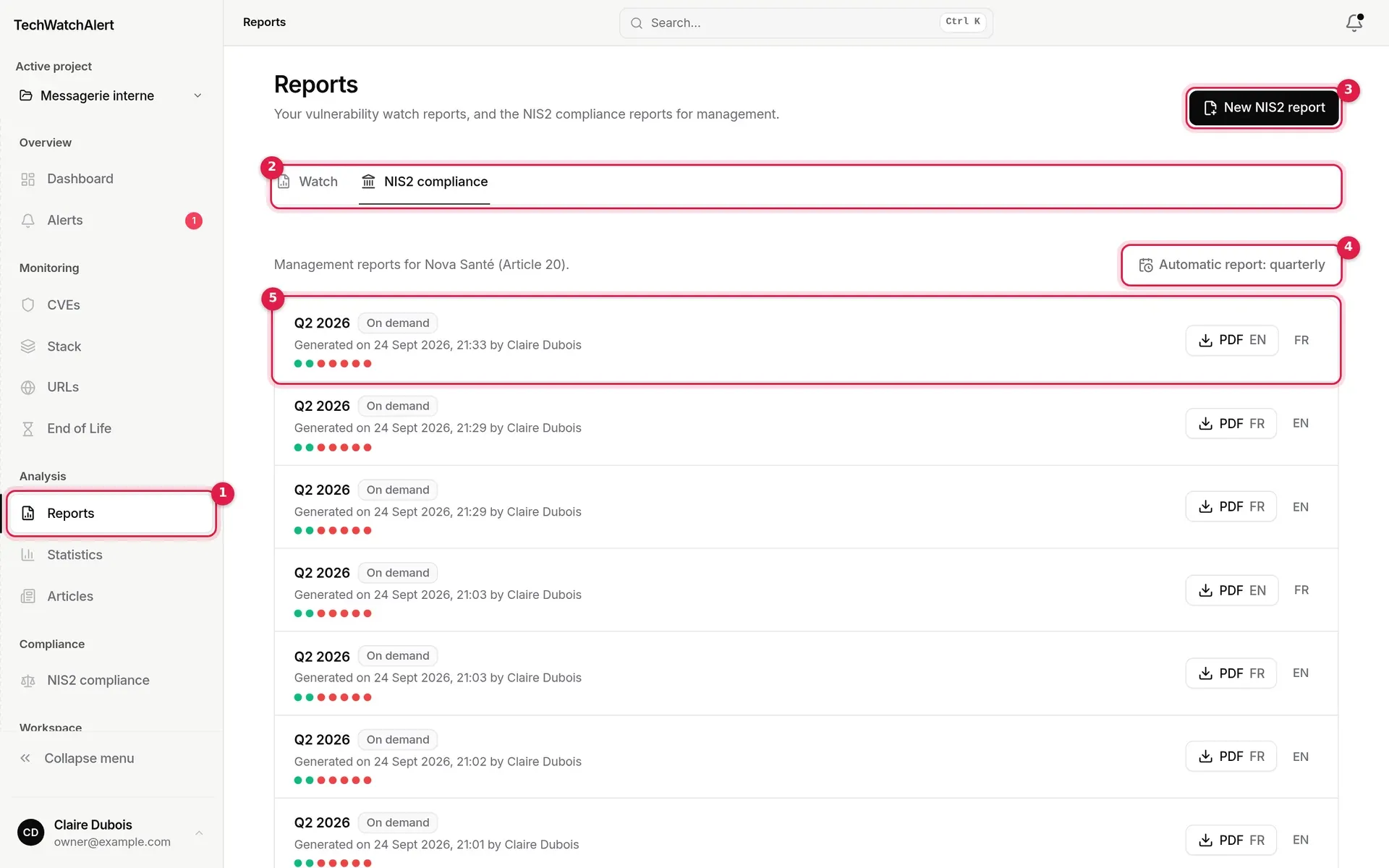
- Analysis › Reports.
- Frameworks (management) tab (formerly “NIS2 compliance”), shown once a project of the organisation is enabled and it follows at least one framework.
- New frameworks report: the same generation panel.
- Automatic report: quarterly: the current frequency, and a link to Settings › Frameworks.
- The history, with the same rows and PDF buttons as in the space.
See also Reports.
Reading and generating reports is reserved for organisation owners and administrators and NIS2 owners; others see “Reports are reserved for organization administrators and NIS2 owners.”
Other standards followed
Section titled “Other standards followed”NIS2 is no longer followed by default: it is chosen like ISO/IEC 27001:2022, CIS Controls v8 and the ANSSI IT hygiene guide, in the Followed frameworks section of Settings › Frameworks, together with the entity’s NIS2 status. An organisation that had turned NIS2 on keeps following it. A framework you follow is a reading grid over the same measures: its coverage is read on the Frameworks page, its labels appear on the screens that produce evidence, and the management report includes its mapping table. See Frameworks.
Compliance workflows (the notices)
Section titled “Compliance workflows (the notices)”Every notice of the NIS2 space (reminders, escalations, follow-ups, report ready…) is sent through workflows. The catalogue at the bottom of the Settings tab says what each one does:
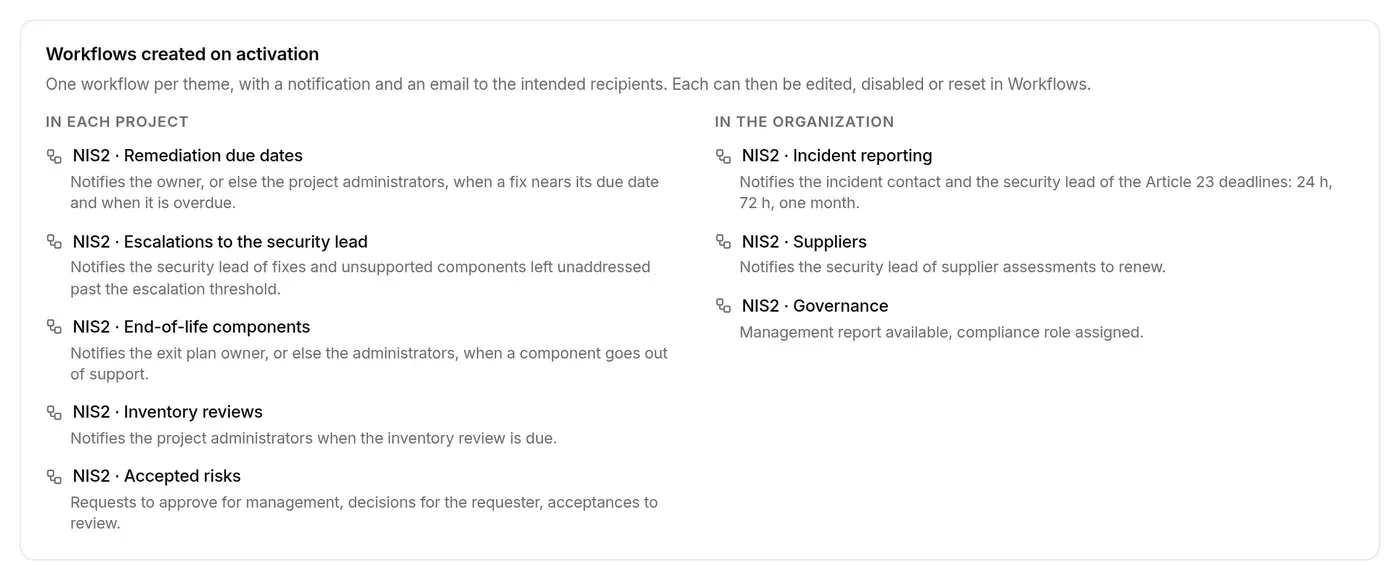
| Workflow | Scope | Notifies |
|---|---|---|
| NIS2 · Remediation due dates | project | the owner, or else the project administrators, when a fix nears its due date and when it is overdue |
| NIS2 · Escalations to the security lead | project | the security lead, of fixes and unsupported components left unaddressed past the escalation threshold |
| NIS2 · End-of-life components | project | the exit plan owner, or else the administrators, when a component goes out of support |
| NIS2 · Inventory reviews | project | the project administrators when the inventory review is due |
| NIS2 · Accepted risks | project | management (requests to approve), the requester (decision), and acceptances to review |
| NIS2 · Incident reporting | organisation | the incident contact and the security lead of the 24 h, 72 h and one-month deadlines |
| NIS2 · Suppliers | organisation | the security lead of supplier assessments to renew |
| NIS2 · Governance | organisation | management report available, compliance role assigned |
A workflow outside your plan is greyed out with “Not in your plan”. Each workflow sends a notification and an email to the recipients the register intends.
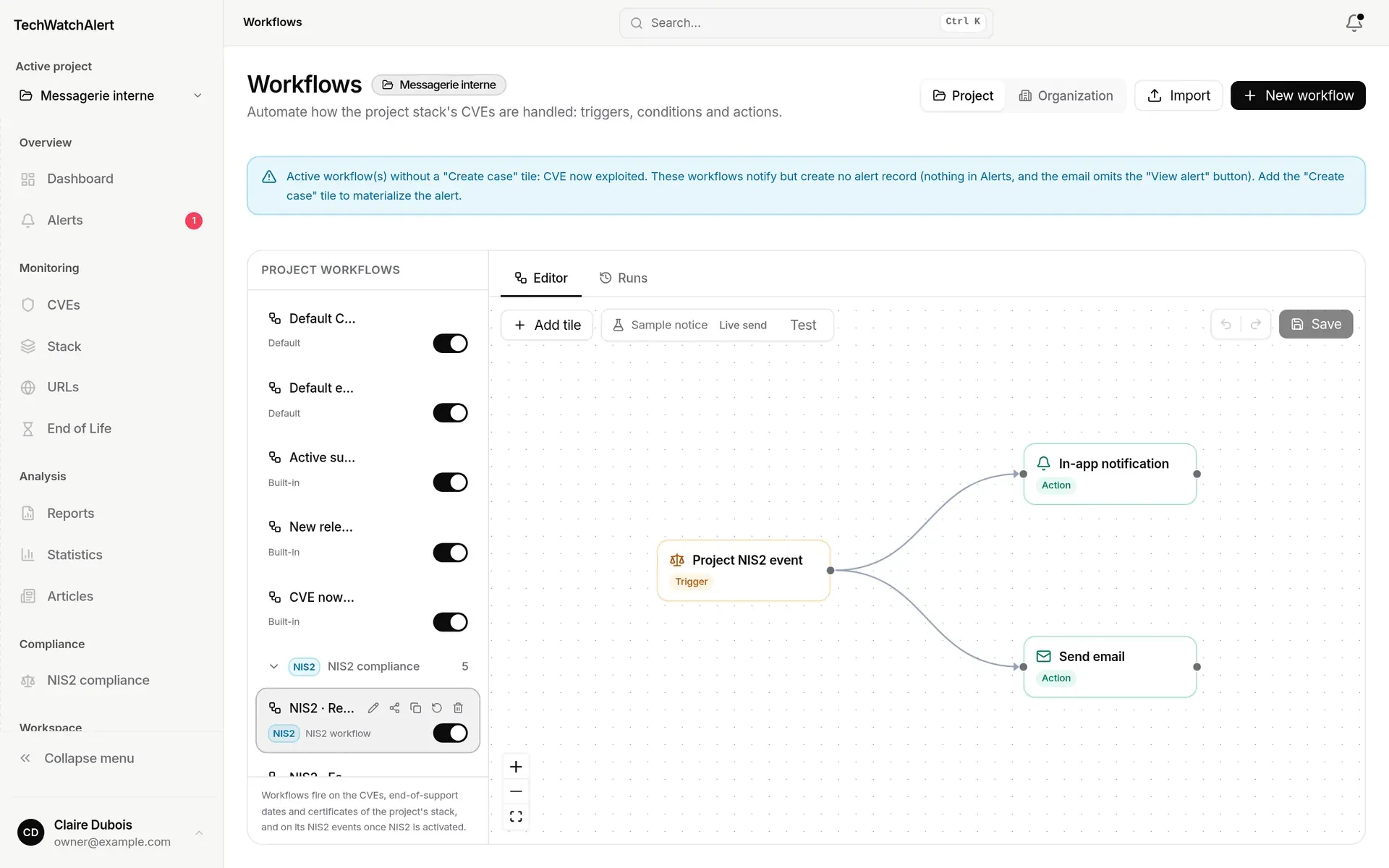
On the Workflows page, a project’s NIS2 workflows sit in the NIS2 compliance group, with the NIS2 pill; the organisation’s are under the Organization switch. They are ordinary workflows: you can rename them, change their recipients (the intended ones, management, the security lead, the incident contact, project or organisation administrators, named people for email) and channels, disable them, test them on a sample notice or reset them to their template. They do not count towards the plan’s workflow limit. A person never receives the same notice twice through the same channel, even if two workflows target them. With no active workflow for an event, nothing is sent. See Workflows.
Organisation settings
Section titled “Organisation settings”Under Workspace › Organizations, the organisation settings sort everything above into pages every member can read: Frameworks, Owners, Remediation deadlines and (Admins and Owner) Management report. The former Frameworks tab (formerly Compliance) held these five topics on a single page. See Frameworks and Organisations.
Project settings, Compliance page
Section titled “Project settings, Compliance page”In a project’s settings (from Workspace › Organizations, Projects page), the Compliance page (formerly the Frameworks and NIS2 compliance tabs) sets what belongs to the project.
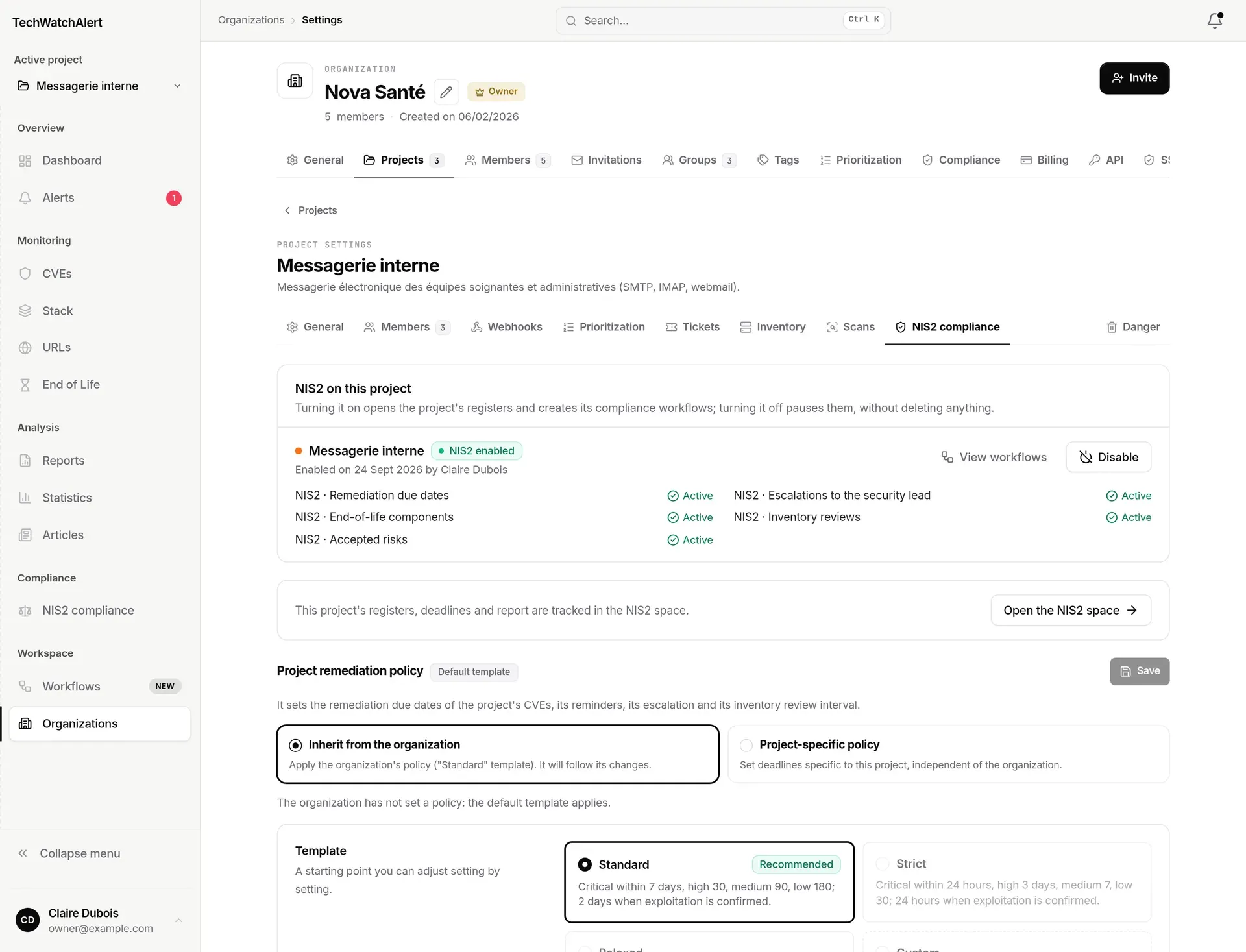
- Coverage of this project: the state, the workflows, Enable or Disable (same panel as in Settings › Frameworks).
- Open frameworks: makes this project the active project and opens the Coverage page.
- Project remediation policy: Inherit from the organization (the project follows the organisation’s policy and its changes) or Project-specific policy (independent deadlines, starting from the inherited policy). The pill reads Set by the project, Inherited from the organization or Default template. Editing requires the “Project settings” permission.
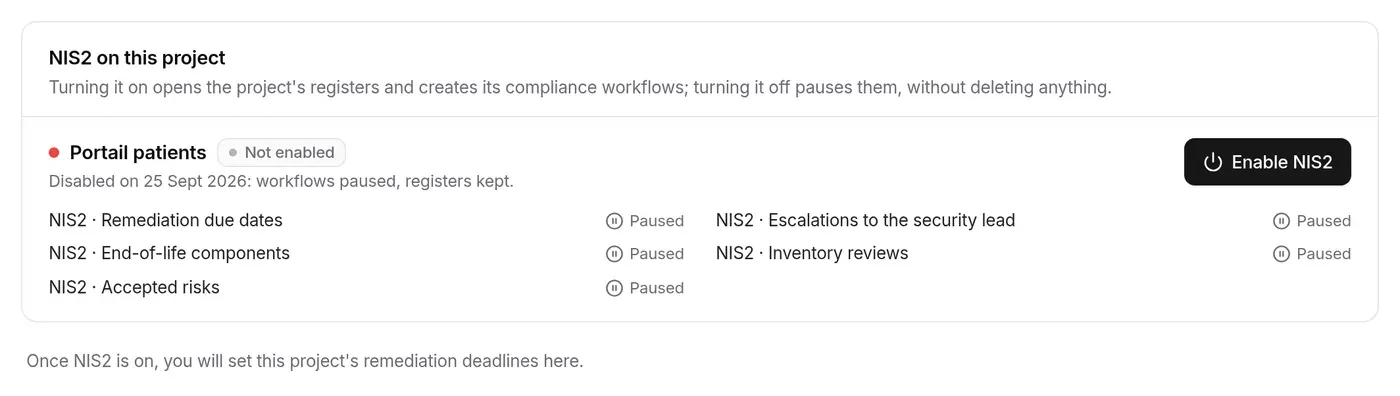
As long as the project is not enabled, the page only shows the activation card. Without an organisation, or if the organisation’s plan does not include framework tracking, it explains why. See Projects.
Disclosure procedure template
Section titled “Disclosure procedure template”On the Frameworks page, the Coordinated disclosure measure offers Download the template, which downloads a coordinated vulnerability disclosure procedure template, in Markdown (vulnerability-disclosure-procedure.md, in French if the interface is in French), prefilled with the organisation’s name.
It is a document of your own, to complete and have approved outside the tool: the passages in brackets are to be filled in. It covers purpose and scope, how to report a vulnerability to you, your response times, what you ask of reporters, internal handling, coordination and publication (including the national CSIRT), the legal framework to have checked, and the yearly review. The template states that it is not legal advice. Any organisation member can download it.
Who can set what
Section titled “Who can set what”| Setting | Who |
|---|---|
| Turn NIS2 on or off for a project | organisation owners and administrators; for their own project, anyone with “Project settings” |
| Name the owners | the organisation owner |
| Organisation remediation policy, automatic report, frameworks followed and NIS2 status | organisation owners and administrators |
| A project’s remediation policy | anyone with “Project settings” on that project |
| Generate and read reports for management | owners, administrators, NIS2 owners |
| Edit compliance workflows | a project’s: per the project’s Workflows permissions; the organisation’s: its administrators |
Other members can read the settings but not change them.
Frequently asked questions
Section titled “Frequently asked questions”The automatic report did not arrive on the 1st. It is generated from 6 am, Paris time, and only if no report exists yet for the period just ended. The “report ready” notice goes through the NIS2 · Governance workflow: check that it is active.
Why is the Governance row “Action needed” when everyone is named? No report has been generated for more than 100 days. Generate one, or set a frequency.
Can a project have different deadlines from the rest of the organisation? Yes: in its settings, Compliance page, choose Project-specific policy.