Planning: everything with a date
The Planning page (navigation, under Alerts) answers a single question: what is coming due, and when? It gathers in one timeline everything in TechWatchAlert that has a date, whichever screen it is handled on.
The timeline
Section titled “The timeline”| Type | Where the date comes from | Where it is handled |
|---|---|---|
| Remediation deadline | the project’s remediation policy (see below) | the alert page |
| Team commitment | the deadline set by the team on a fix action | the alert page |
| Remediation action | the nearest deadline of a fix action (“Upgrade openssl 3.0.11 → 3.0.15”) | Alerts › By fix action |
| End of life | the end of life of a stack component, or its exit plan | the End of life view, below |
| Inventory review | the project’s next review due | the Stack page |
| Expiring exception | the deadline of a mitigation or an accepted risk | Alerts › Exceptions |
| Incident deadline | the next reporting step (24 h, 72 h, one month), if the organisation follows NIS2 | Incidents |
Items are grouped by period: Overdue, This week (the next 7 days), This month (up to 30 days), Later. The period selector filters them and shows how many each holds. Type chips and the project list filter the timeline too; a fix action spanning several projects stays visible under each. A red icon flags what is pressing: exploited CVE, escalated deadline, overdue review, significant incident. A click opens the screen where the item is handled.
Where the remediation policy runs, two detailed views complete the timeline: Remediation deadlines and End of life (the second one’s badge counts unsupported components).
Remediation deadlines
Section titled “Remediation deadlines”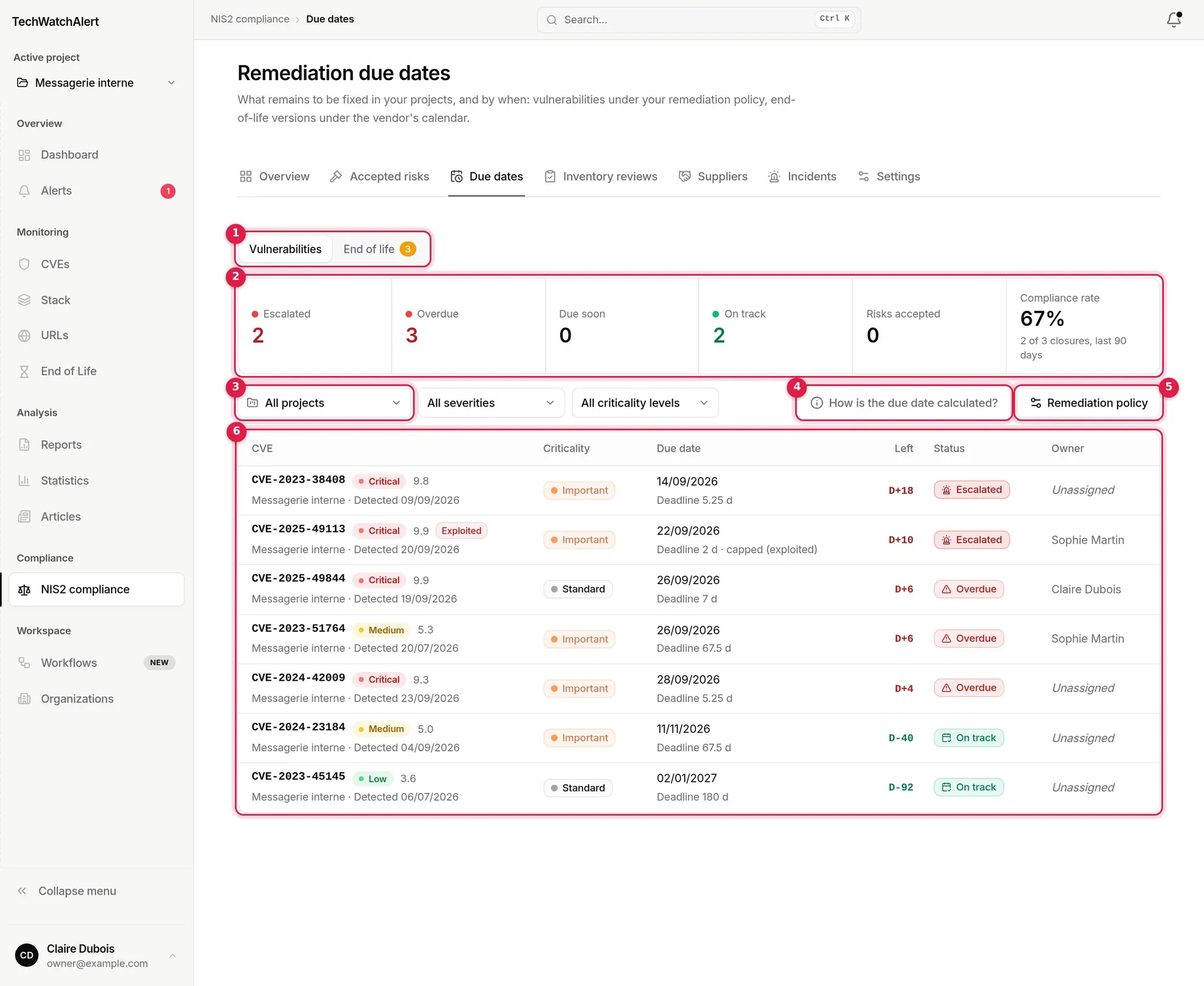
- Timeline / Remediation deadlines / End of life: the planning views.
- Status indicators, which also act as filters, and the compliance rate.
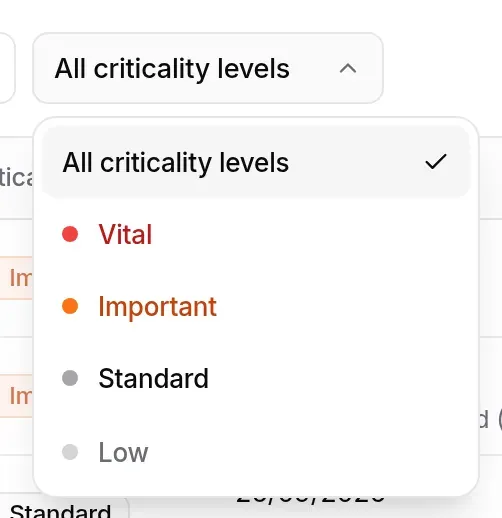
- Filters: project, severity, criticality.
- How is the due date calculated?: the explanation, in a pop-up.
- Remediation policy: opens Settings, Remediation deadlines section.
- The table of open CVEs.

Clicking an indicator filters the table on that status; clicking it again clears the filter. The figures keep showing every status. Filters live in the page address: notification links arrive already filtered, and the page can be shared as you see it. Clear filters appears as soon as a filter is set.
The calculation, as the screen explains it:
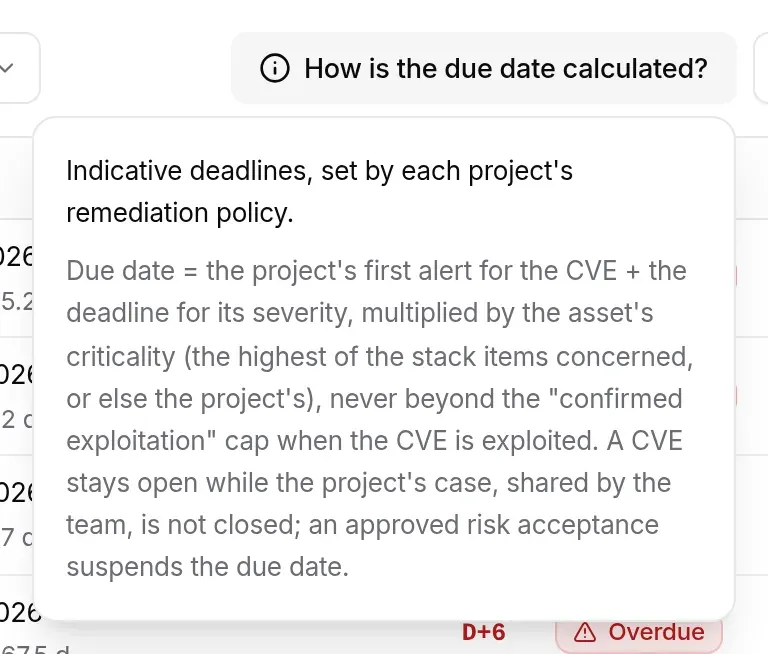
- due date = the project’s first alert for the CVE + the deadline for its severity, multiplied by the asset’s criticality (the highest of the stack items concerned, or else the project’s);
- never beyond the confirmed exploitation cap when the CVE is exploited; the cap is absolute and no factor goes beyond it;
- a CVE not yet scored takes the medium severity deadline;
- a CVE stays open while its case, shared by the project team, is not closed (an alert nobody has opened yet counts as open);
- an approved risk acceptance suspends the due date; a pending request excuses no delay.
With the default policy (Standard template): critical 7 days, high 30, medium 90, low 180, exploited 2 days; criticality factors vital × 0.5, important × 0.75, standard × 1, low × 1.5. These deadlines are indicative and are set in Settings.

| Column | Contents |
|---|---|
| CVE | identifier, severity, score, “Exploited” pill; below it, the project and detection date |
| Criticality | the stack item’s (solid pill) or, failing that, the project’s (faded pill); hovering says which |
| Due date | the date and the deadline applied (“Deadline 5.25 d”, “capped (exploited)”); for an accepted risk, “Risk accepted until …” |
| Left | D-N before the due date, D0 on the day, D+N overdue |
| Status | see below |
| Owner | the person assigned to the case (the Assignee line of the alert record, see Assigning the case), or “Unassigned” |
Statuses, judged in calendar days, Paris time (the status changes at midnight):
| Status | Rule (default settings) |
|---|---|
| On track | more than 3 days before the due date |
| Due soon | within the 3 days before the due date, due day included |
| Overdue | from the day after the due date |
| Escalated | overdue for 7 days or more: the security lead is notified |
| Risk accepted | an approved acceptance suspends the due date |
The 3 and 7 days are the reminder before the due date and escalate after settings of the remediation policy. The compliance rate counts CVEs closed over the last 90 days and the share closed on time (“2 of 2 closures, last 90 days”).
Clicking a row opens the alert page if you are a member of the project, otherwise the CVE page.
Reminders: the owner (or else the project administrators) is notified when a due date gets close, then when it is missed; the security lead receives the escalation. Each step is announced once per due date, as one summary per project (NIS2 · Remediation due dates and NIS2 · Escalations to the security lead workflows).
End of life
Section titled “End of life”A version the vendor no longer fixes will never get a CVE to warn you: its end of life is its due date. This view gives stack components the same treatment as fixes.
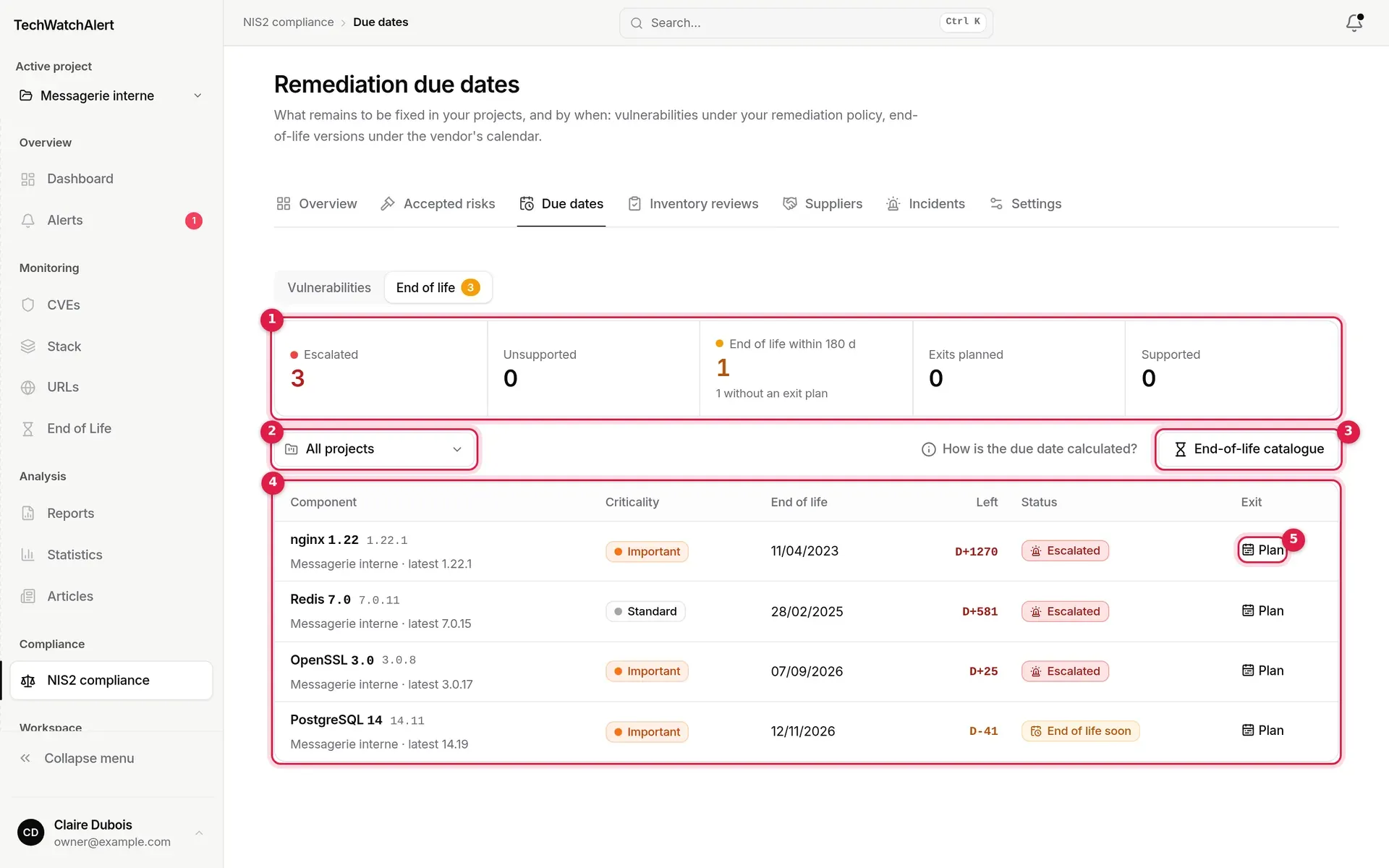
- Status indicators (which filter the table): Escalated, Unsupported, End of life within 180 d (with how many have no exit plan), Exits planned, Supported.
- Project filter.
- End-of-life catalogue: opens the End of life page.
- The table: component and running version, criticality, end of life, days left (D±N), status, exit.
- Plan: opens the component’s exit plan.
| Status | Rule |
|---|---|
| Supported | end of life more than 180 days away |
| End of life soon | end of life within 180 days |
| Exit planned | end of life passed, dated exit plan still ahead |
| Unsupported | end of life passed, no plan kept |
| Escalated | unsupported for at least the escalation delay of the remediation policy |
A stack product is matched to its cycle through its version (“1.1.1t → 1.1.1”); an item with no usable version is counted separately, with a Complete the stack link.
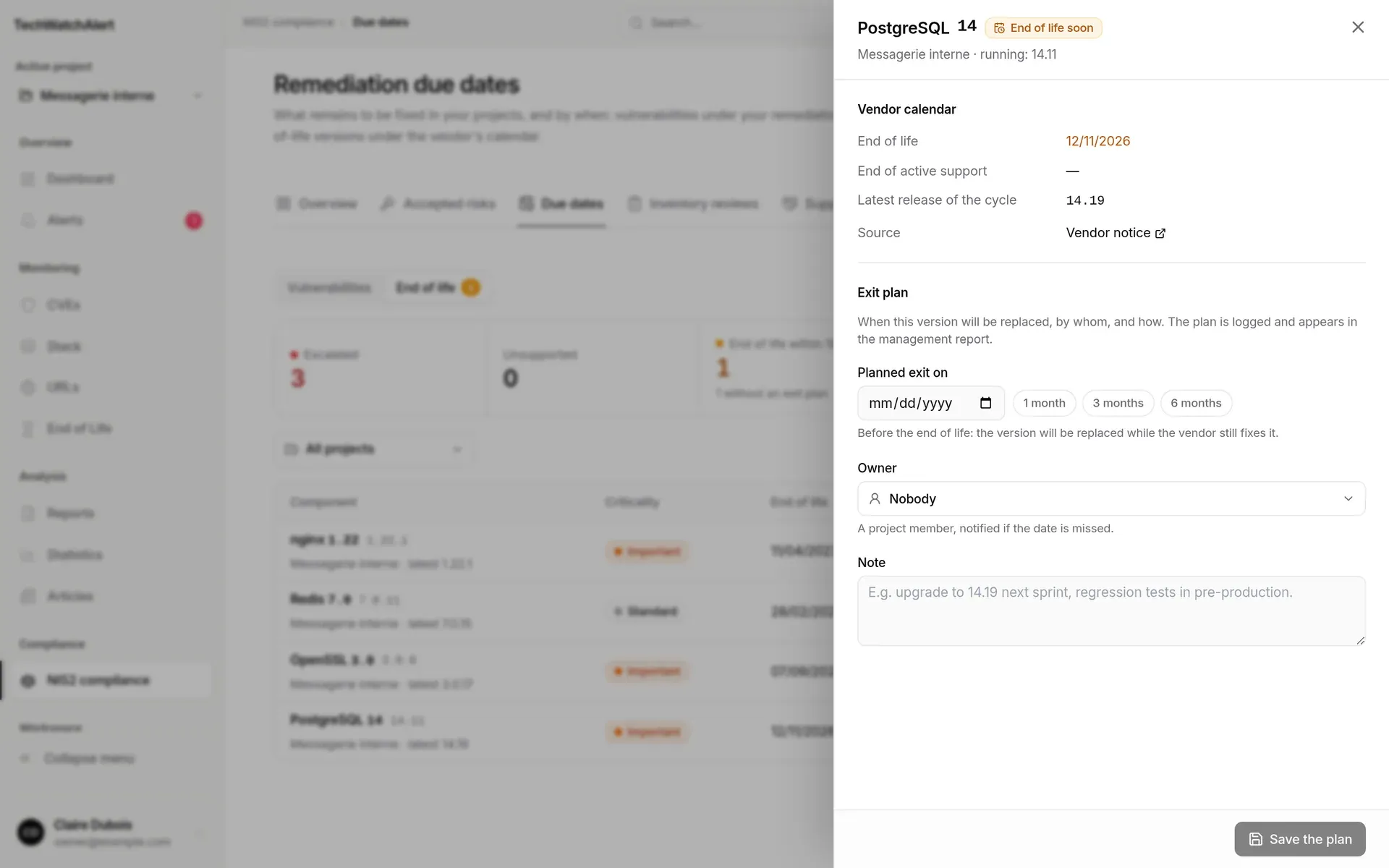
The exit plan says when the version will be replaced, by whom and how: Planned exit on (1, 3 and 6 month shortcuts), Owner (a project member, notified if the date is missed), Note. Until the planned date, the component no longer counts as overdue; after it, it does again and escalation resumes. The plan is logged and appears in the management report; Clear the plan removes it. Planning requires the “Record an inventory review” permission on the project.
Notices: unsupported component → the owner (or else the administrators), escalated → the security lead (NIS2 · End-of-life components and NIS2 · Escalations to the security lead workflows). There is no “end of life soon” notice here: subscriptions on the End of life page already cover that.
The Due dates view has no export; its figures appear in the management report.
Available depending on your plan
Section titled “Available depending on your plan”The Schedule has its own plan feature, Schedule, included in every plan by default. If it is removed from a plan, the entry carries a padlock and the page presents the plan that opens it. Remediation actions and exceptions only appear if the plan also includes those views. See also: Subscription › pages, views and items.