CVE database
The CVE database is the complete reference feed of vulnerabilities that TechWatchAlert imports, whether or not they affect your projects’ stacks. You use it to look up a CVE mentioned in an advisory, see what is coming out for a vendor, and decide whether to track it.
- Who it is for: any signed-in user.
- Where: menu Monitoring › CVEs.
- How it differs from alerts: an alert is a CVE matched against a project’s stack that has passed the project’s prioritisation policy; it has a handling case, shared by the team, and a status. The CVE database shows every CVE, with no case and no status. The active project is used for only two things here: the “Risk” order and the Priority filter follow its prioritisation policy, and the record’s tracking buttons act on its stack.
The page reads from top to bottom:
- Header: the title, Excel to export the results (Team plans and above) and Columns to choose which columns to show.
- Search: identifier, description, vendor or product.
- Quick views and sort order: ready-made filter combinations, and the order of the list.
- Quick filters: severity, Exploited, KEV, Public PoC, publication period, then the Advanced filters button.
- Results and active filters: the number of CVEs found, one chip per filter applied, and Clear all.
- Headers: CVSS, EPSS, Date and Last updated can be sorted.
- A row: a click opens the CVE’s record.
The Alerts page has the same filter bar (see Alerts › Filtering).
Searching
Section titled “Searching”Type in the Search a CVE, a product, a vendor, a word… field:
- an identifier, whole or partial (“CVE-2024”, “2021-44228”), searches identifiers only;
- any other text searches each CVE’s description, vendor and products, with tolerance for typos.
The list follows your typing after a short pause; Enter applies the search at once. Esc clears the field (a second press moves the cursor out of it), the cross on the right of the field clears it too, and the / key puts the cursor in the field from anywhere on the page. The search combines with the filters; it has no chip, since it can be read in its field.
Filtering
Section titled “Filtering”The most used filters sit in the bar, one click away. They apply at once and add up: Exploited and KEV together keep only the CVEs that have both signals.
- Severity: Critical, High, Medium, Low, which can be combined (Critical and High together show both critical and high CVEs).
- Exploited: known exploitation according to CISA KEV, VulnCheck KEV, ENISA’s EUVD or CERT-FR.
- KEV: in the CISA KEV catalog.
- Public PoC: a public proof of concept or exploit exists.
- Publication period: Any time (default), Last 24 h, Last 7 days, Last 30 days, Last 90 days or Last 12 months, on the CVE’s publication date.
- Advanced filters opens the panel with the other filters (below).
Hovering a signal button gives its details. Every filter change goes back to the first page.
Advanced filters
Section titled “Advanced filters”Advanced filters unfolds a panel under the bar; the same button, or Collapse at the bottom of the panel, folds it again. The panel is folded every time you arrive on the page, even when the address carries advanced filters: those filters show as chips, and the button shows how many there are.
- Exploitation:
- Weaponized exploit (a Metasploit module or a Nuclei template exists) and Ransomware (used by ransomware, according to CISA or VulnCheck);
- Exploit source: GitHub, Exploit-DB, Metasploit, Nuclei, combinable; a CVE is kept if at least one of its PoCs or exploits comes from one of the chosen sources. Each button carries the icon of the site its links lead to, as in the record’s PoC list (Metasploit modules and Nuclei templates are published on GitHub);
- CERT advisories: one or more national CERTs, picked from a list grouped by region (France, Europe, Americas, Asia-Pacific, Middle East), with a field to search a CERT by name or country. A CVE is kept if at least one of the chosen CERTs published about it: these are the CERTs of the record’s “CERT advisories” block, CERT-FR and EUVD included. CERT-FR, which had its own button until now, is one of them.
- Remediation:
- Priority (with an active project): P1, P2, P3, combinable. These are the exploitation tiers of the active project’s prioritisation policy, the ones that open the Risk order: P1, confirmed exploitation (KEV, EUVD, CERT-FR) when the policy puts it first; P2, an exploitation signal the policy counts (EPSS above its threshold, public PoC); P3, none. With the CVSS only model, which counts no signal, everything is P3.
- Fix: All, Available (at least one fixed version is known: those of the record’s “Fixed versions” block, taken from the CVE, GitHub or OSV advisories and CERT-FR notices) or None known.
- Workaround available: only the CVEs for which the vendor or a CERT publishes a workaround or a mitigation (the record’s “Interim measures” block: CSAF advisories from CISA, NCSC-NL and Siemens, CERT-FR alerts and notices). “No fix available” and “No fix planned” are not enough.
- Product: Vendor and Product, as partial text (“micro” finds microsoft). Every product the CVE affects counts, not just the first one.
- Scores: CVSS score (0 to 10) and EPSS probability (%), each with a Min and a Max, bounds included. EPSS is entered as a percentage, as it is shown everywhere else. An out-of-range value is outlined in red and does not filter.
- Dates: Published between two days. This range replaces the period in the bar, which then shows “Chosen dates”; choosing a period in the bar clears the range.
- Technical: Weakness (CWE), for example CWE-79; With CPE, to keep only CVEs with at least one CPE reference; Rejected CVEs, which shows rejected CVEs (withdrawn by the authority that assigned them) instead of published ones.
Text fields apply after a short pause in typing, or on Enter; scores, after a short pause.
Quick views
Section titled “Quick views”Quick views, to the right of the search, applies a common combination in one click:
- Exploited criticals: Critical severity and Exploited;
- KEV catalog: KEV;
- Used by ransomware: Ransomware;
- Public PoC, last 30 days: Public PoC, published in the last 30 days;
- Cited by CERT-FR: CERT advisories › CERT-FR;
- Exploited, fix available: Exploited and Fix › Available, what can be fixed right away among what is under attack.
A view replaces the search and the filters applied; the sort order and rows per page stay. When the filters match a view exactly, the button shows its name.
Active filters
Section titled “Active filters”Under the bar, a line gives the number of CVEs found (“42 results”), then one chip per filter applied: “Critical”, “Exploited”, “Product: nginx”, “CVSS ≥ 7”, “EPSS 10–50 %”, “Published from 01/01/2024 to 31/12/2024”, “CERT: BSI CERT-Bund, CISA”, “Exploit: Metasploit”, “Priority: P1, P2”, “Fix available”… Filters from the advanced panel have their chip too: no need to unfold it to know what is filtering the list. Several choices of one advanced filter (sources, CERTs, tiers) fit in one chip, counted once by the Advanced filters button.
The cross on a chip removes its filter. Clear all removes the search and every filter, keeping the sort order and rows per page.
Sharing a filtered list
Section titled “Sharing a filtered list”The search, filters, sort order, page and rows per page are written into the page address, without a history entry for each click: a copied link reopens exactly the same list, and the browser’s Back button leaves the page. Only departures from the defaults appear; whether the advanced panel is open never does.
| Parameter | Meaning |
|---|---|
q |
search |
severity=CRITICAL,HIGH |
severities (CRITICAL, HIGH, MEDIUM, LOW) |
exploitee=1, kev=1, poc=1, outille=1, rancongiciel=1 |
exploitation signals |
exploit=metasploit,nuclei |
exploit source: github, exploitdb, metasploit, nuclei |
cert=certfr,bsi |
CERT advisories, by identifier (certfr, cert-eu, euvd, bsi, ncsc-nl, cisa, jvn…) |
periode |
publication period: 24h, 7j, 30j, 90j or 1a (12 months) |
du, au |
publication range, as YYYY-MM-DD |
vendor, product |
vendor, product |
cvss_min, cvss_max, epss_min, epss_max |
scores, EPSS in % |
priorite=p1,p2 |
priority: p1, p2, p3 |
correctif=oui |
fix: oui (available) or non (none known) |
cwe, cpe=1, state=REJECTED |
weakness, with CPE, rejected CVEs |
sort |
order: date, updated, score or epss (absent: Risk) |
page, page_size |
page, rows per page |
Older links are still read, then the address is rewritten in its current form: adv_vendor, adv_product, adv_cwe, adv_has_cpe, adv_cvss_min and adv_cvss_max, adv_epss_min and adv_epss_max (as 0–1, converted to %), adv_date_from and adv_date_to, adv_cve_id and adv_description (moved into the search), year (becomes that year’s range), certfr=1 (the former CERT-FR button, becomes cert=certfr); adv=1 is ignored.
From the Stack, an entry’s name opens the CVE database filtered on that product (?product=…) or vendor (?vendor=…): the filter shows as a chip and the advanced panel stays folded.
Sorting the list
Section titled “Sorting the list”The order is chosen in the list to the right of Quick views:
- Recently published (default): most recently published first.
- Risk: the order of the active project’s prioritisation policy (or, without a project, your default organisation’s): exploitation tier, then main criterion (CVSS for the Combined risk model), then secondary criterion, then publication date. It is the same calculation as the Risk view of alerts. The Exploitability column only appears in this order.
- Recently updated: most recently updated first.
- CVSS score and EPSS score: highest score first.
CVEs without a value come last. The CVSS, EPSS, Date and Last updated column headers can still be sorted: a click chooses the matching order.
The Exploitability column follows the same rule as the alert list: 100% when exploitation is known; with a public PoC, EPSS raised halfway towards 100% (50% minimum); otherwise EPSS alone.

Clicking the row opens the record; Ctrl or Cmd + click (or a middle click) opens it in a new tab. The button after the identifier copies it; the icons that follow flag known exploitation (flame), a CERT-FR citation (red building) and public PoCs (chevrons; orange swords for a weaponized exploit), with details on hover.
Choosing columns
Section titled “Choosing columns”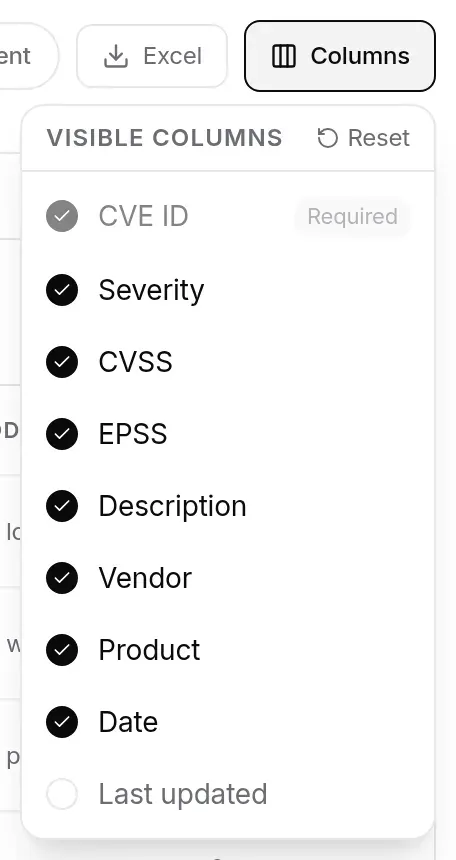
Columns lists the columns you can show: Severity, CVSS, EPSS, Description, Vendor, Product, Date and Last updated (hidden by default). CVE ID is always shown (required). Reset returns to the default choice. Your choice is kept in this browser: it does not follow you to another computer. On a screen narrower than 1,536 pixels, the Vendor column (if chosen) gives way to the vendor written in small type under the product: the description then takes all the remaining width.
Pagination and export
Section titled “Pagination and export”- Rows per page: 20, 50 or 100; Previous and Next move between pages.
- Excel downloads an
.xlsxworkbook: the CVEs matching the search and filters on display, in the chosen order, in batches of 2,500 rows. Up to 2,500 results, one click is enough; beyond that, the button opens the list of batches (“Rows 2,501 to 5,000”), each one a file named after its rows (cves-2501-5000.xlsx). - One row per CVE: line breaks in descriptions become spaces. Columns: CVE, Severity, CVSS score, CVSS version, EPSS score, EPSS percentile, Vendor, Product, CWE, Exploited, KEV, PoC, CERT-FR, Description, Published, Updated; scores are numbers and dates are dates, ready to sort and filter. With the French interface, the headers are in French.
- The export is included in the Team, Pro and Business plans. On Free, the button shows a padlock and opens the plan picker. With an active project, the CVEs’ Export (Excel) right is also required.
A CVE’s record
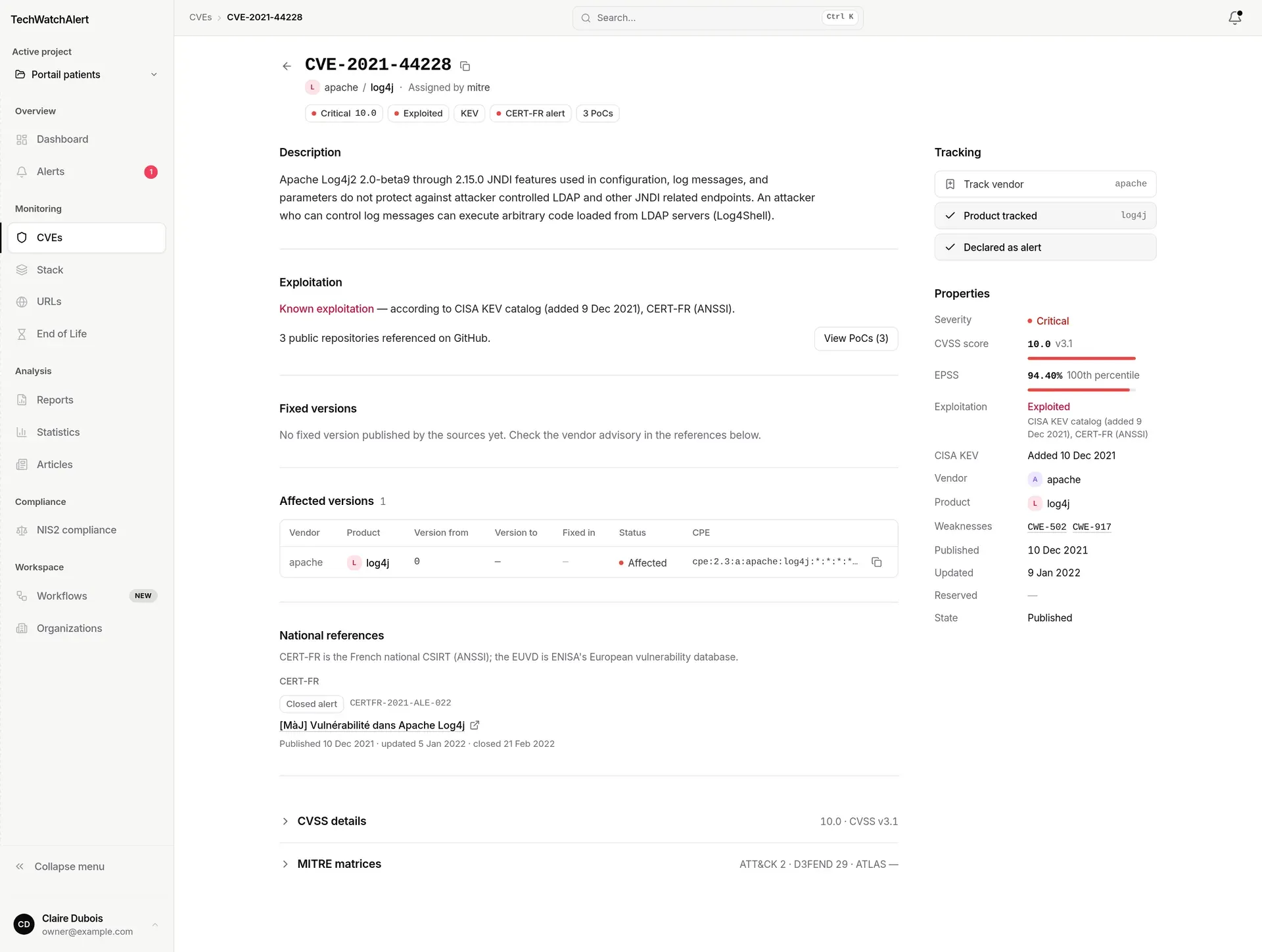
Section titled “A CVE’s record”A click on a row opens the CVE’s record (/cves/<identifier>). It has the same layout as the alert record, without anything that belongs to a case: no status, no tracking bar, no notes, comments or history.
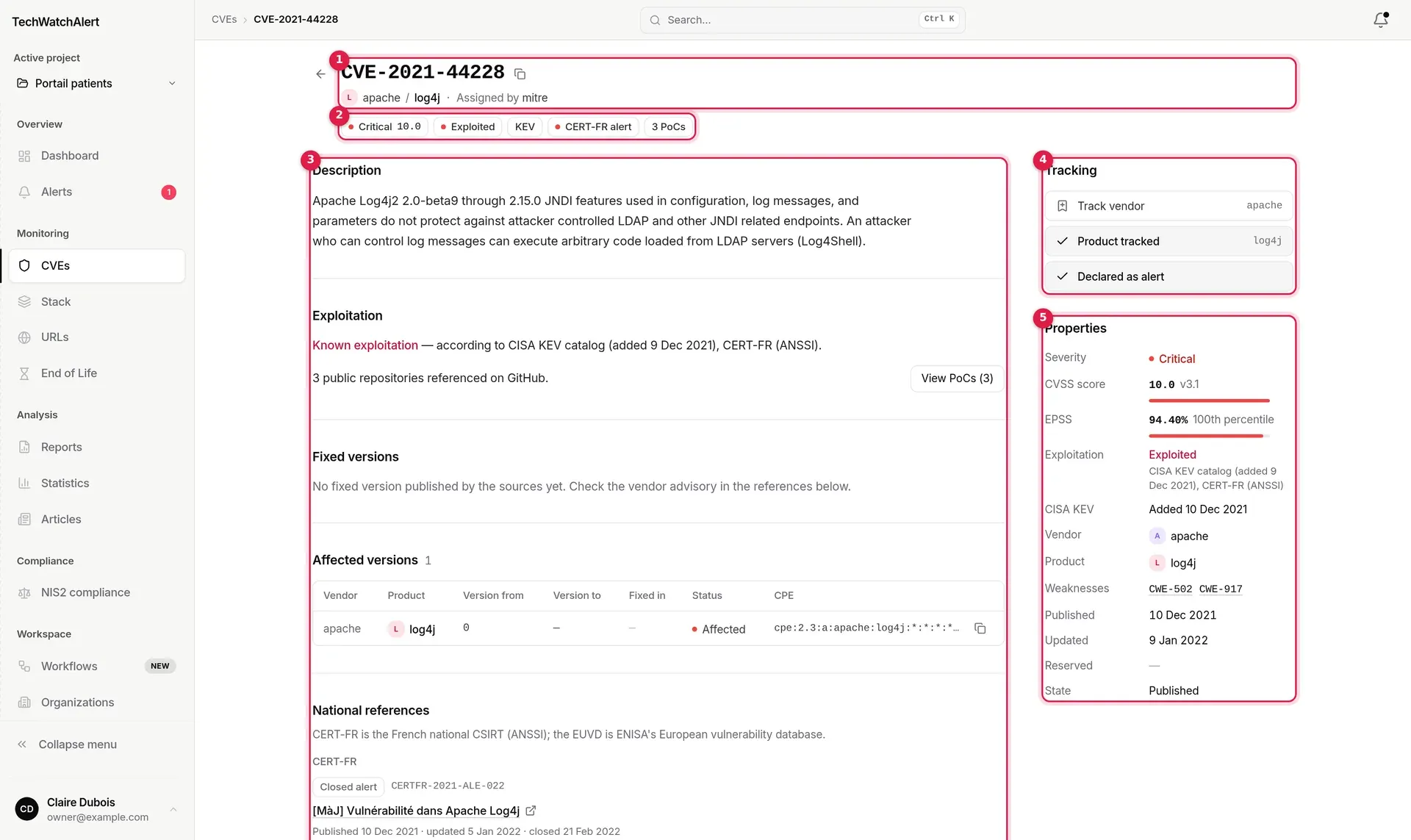
- Header: the identifier and its copy button, the vendor and product, the authority that assigned the CVE identifier (“Assigned by”).
- Signals: severity and CVSS score, Exploited, Ransomware, KEV, CERT (at least one national CERT published about the CVE; red for a CERT-FR alert; a click leads to the “CERT advisories” block), number of PoCs (or Weaponized). The detail of each signal shows on hover.
- Main column: Description, Exploitation, Fixed versions, Interim measures, Affected versions, CERT advisories, then the collapsible extras CVSS details, MITRE matrices and References.
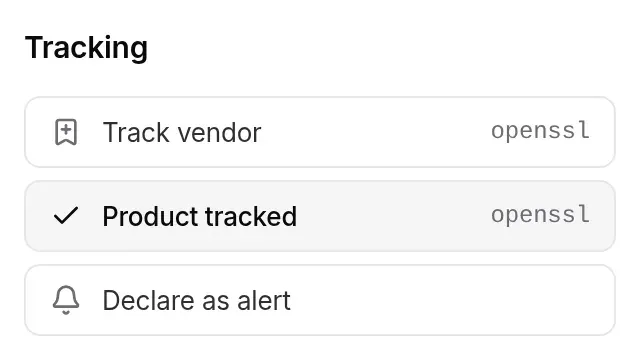
- Tracking: add the vendor or product to the active project’s stack, declare the CVE as an alert (below).
- Properties: severity, CVSS score, EPSS, exploitation, CISA KEV, vendor, product, weaknesses, dates, state.

Each section is described in Handling an alert › The main column and Properties. The extras expand with a click, and your choice is remembered in this browser, for the CVE record as for the alert record.
A “pre-published” CVE (known from a GitHub or OSV advisory before it enters the official database) says so in an orange box at the top of the main column; its details are filled in once it is published.
Following a CVE
Section titled “Following a CVE”The Tracking section acts on the active project’s stack, the one the whole team shares:
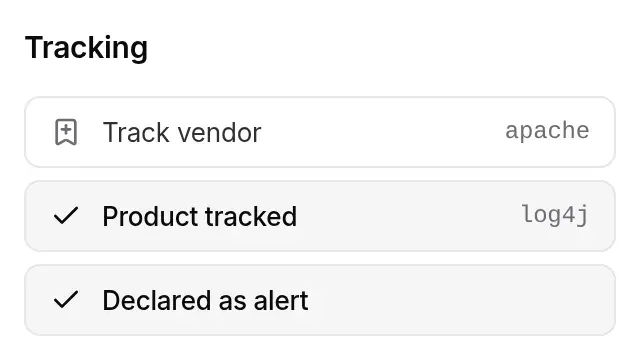
- Track vendor vendor: adds the CVE’s vendor to the project’s stack. The project will be alerted to CVEs in all its products, according to its policy. Once tracked, the button reads Vendor tracked, ticked; clicking it again removes it from the stack.
- Track product product: adds the product to the stack; Product tracked removes it.
- Declare as alert: immediately creates this CVE’s alert in the active project, with no threshold condition (the stack item created to attach it alerts on any severity). The alert and its case belong to the team: every member sees it in their list. Once done, the button reads Declared as alert and stays greyed out.
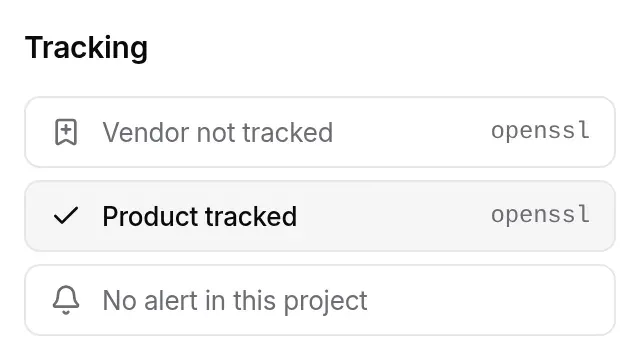
Without the right to add to the stack (a User, by default), the section can be read but has no buttons: “Vendor not tracked”, “Product not tracked”, “No alert in this project”, or the state already reached (“Product tracked”, “Declared as alert”). Likewise, a tracked item can only be removed from here with the right to remove from the stack.
On a phone
Section titled “On a phone”The list becomes a stack of cards. Under the title and its CVE count, the search takes the full width; below it, a toolbar stays stuck to the top of the screen as you scroll: Filters (a badge gives the number of filters applied), the sort button, which shows the chosen order, and the range on display (“1–20 of 44”). Applied filters follow as chips, on a row that scrolls sideways and ends with Clear all.
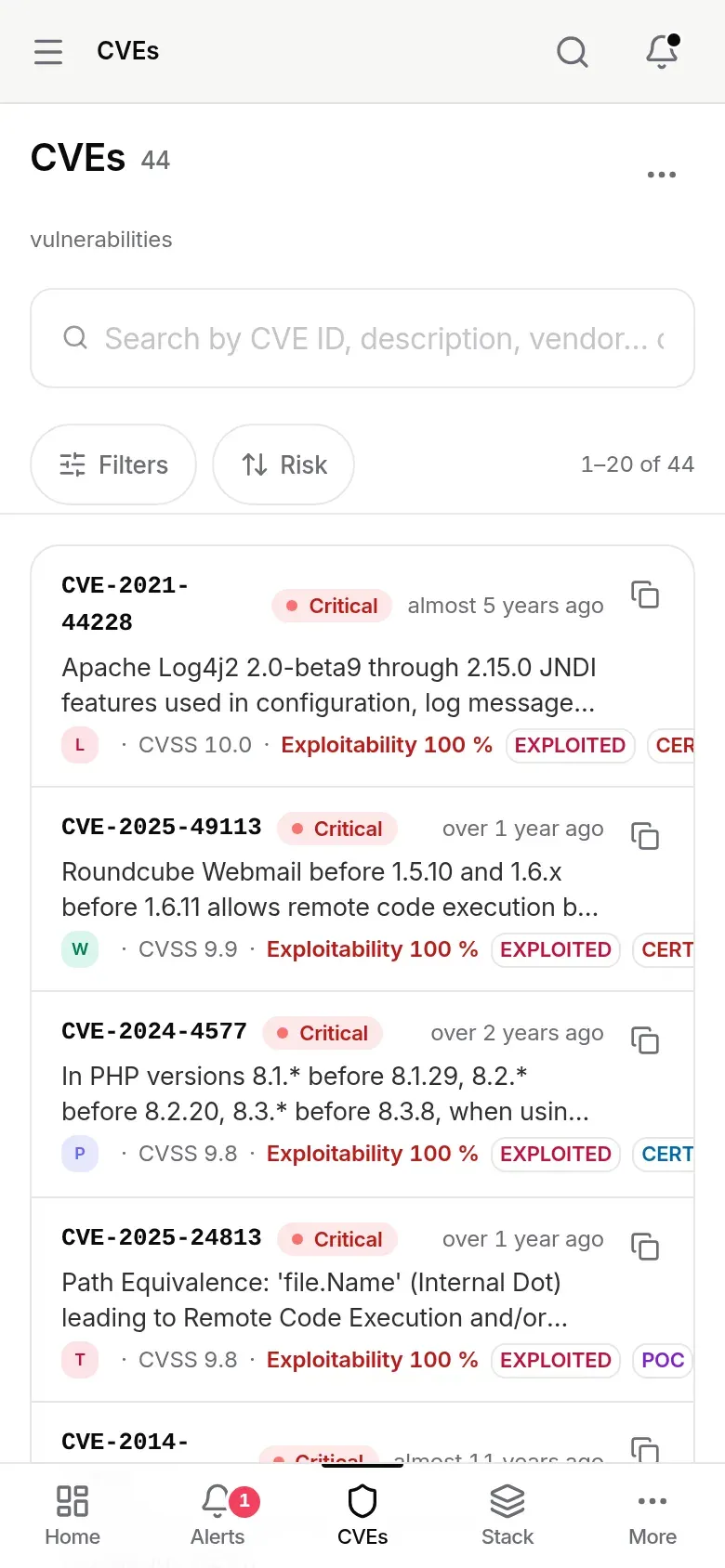
Filters opens a bottom sheet, closed by default: quick views, severity, the five exploitation signals, publication period, then Exploitation (exploit source, CERT advisories), Remediation (priority, fix), Product, Scores, Dates and Technical. Each choice applies at once; the footer button (“Show 44 results”) closes the sheet, and Clear all removes every filter. The sort button opens the Sort by sheet, and the header’s … the Actions sheet: Excel export and rows per page.
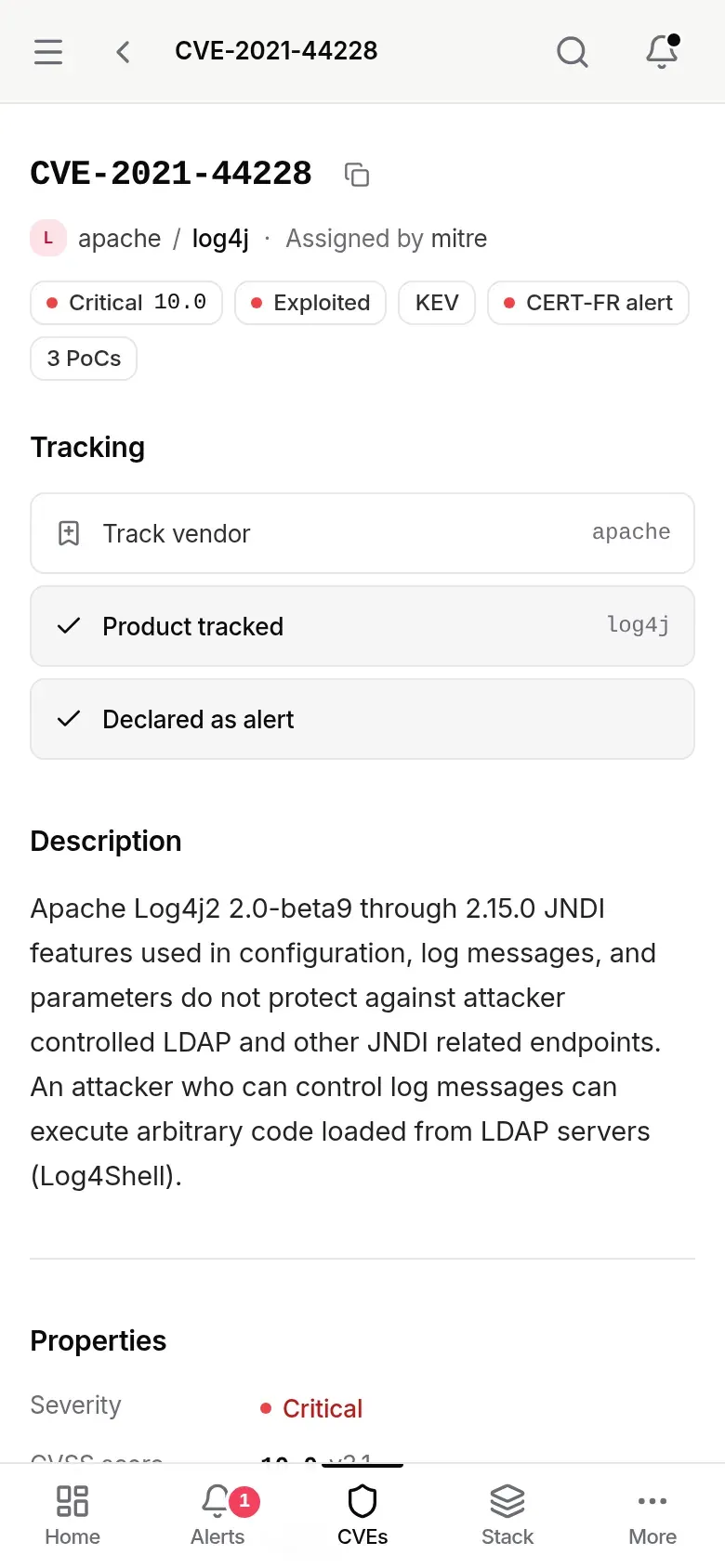
The record stacks up: the header and its signals, the Tracking section, the description, then the Properties and the rest of the main column.
Permissions and plan
Section titled “Permissions and plan”Searching the CVE database is included in every plan. Tracking a vendor or product, or declaring a CVE as an alert, adds an item to the project’s stack: you need the right to add to the stack (Analyst and above by default), and the item counts towards the plan’s quota. Untracking needs the right to remove from the stack.
Frequently asked questions
Section titled “Frequently asked questions”I can find the CVE in the database, but not in my alerts. That is expected if no item in the project’s stack matches it, or if it is below the project policy threshold. Track its product, or declare it as an alert to handle it anyway.
Why does the Risk order change when I switch project? Each project can have its own prioritisation policy; the Risk order follows the active project’s.